How to Check Real-Time Server Latency in the PUBG HUD

Enable PUBG’s network statistics HUD to monitor ping and packet loss in a match. See where to find it, what the numbers mean, and what they cannot diagnose.
If you want to change the Little Legend beside your player card before a TFT match, change your Tactician in the TFT cosmetic loadout. That changes the in-game companion and the Tactician shown on the loading screen; it does not change your Riot account profile icon or Riot ID.
Riot’s current terminology groups Little Legends, Chibis, and Unbound characters under “Tacticians.” Riot describes a Tactician as your in-game avatar in TFT. The exact lobby controls may look different during the PC client transition: as of October 7, 2026, Riot’s migration FAQ says the dedicated TFT PC client is planned for October 9 and that cosmetics will carry over into the new engine’s Loadout. Use the matching Loadout or Tactician control in the client you have installed; button placement can change between client versions.
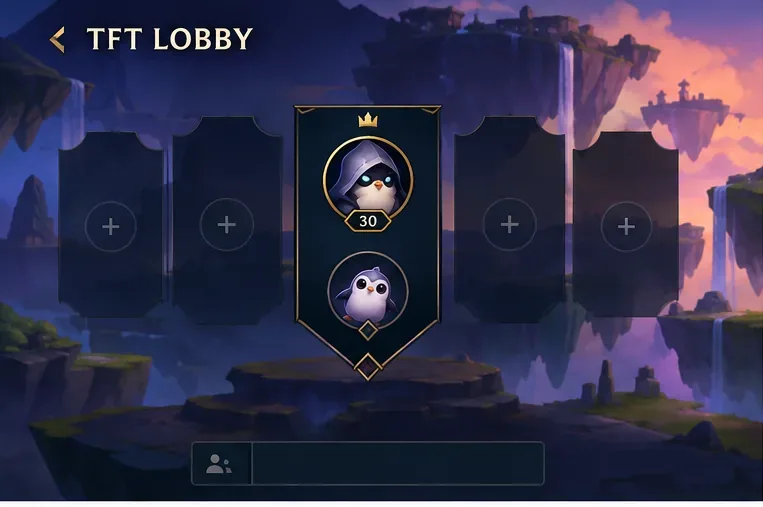
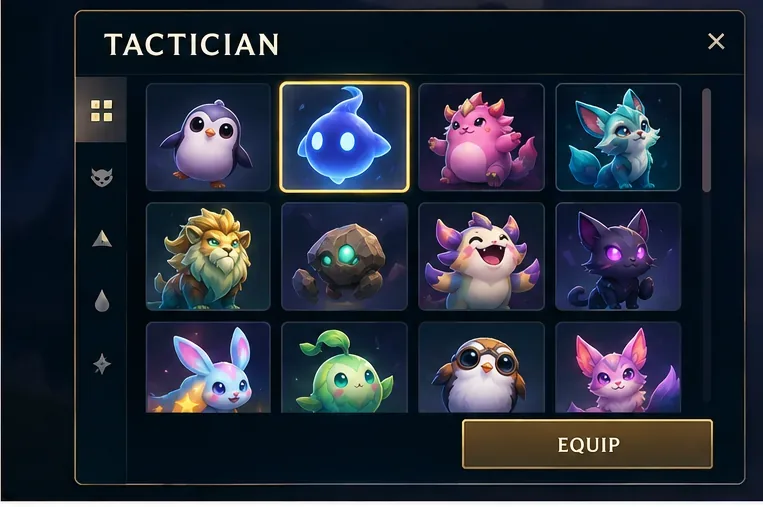
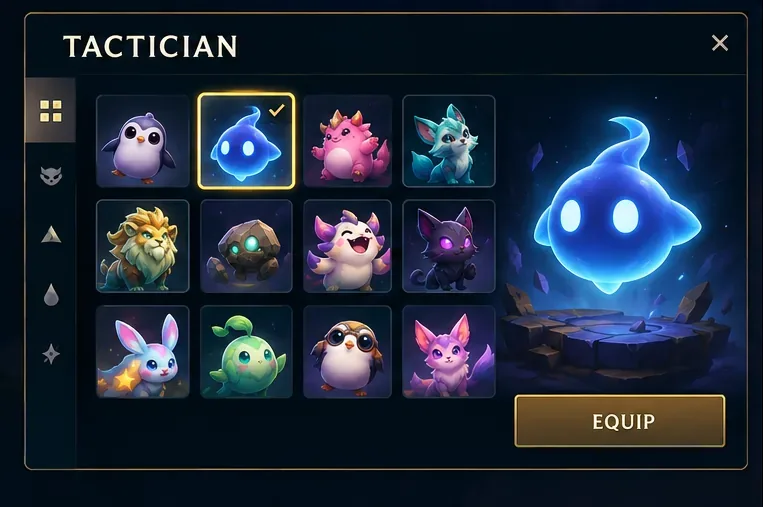
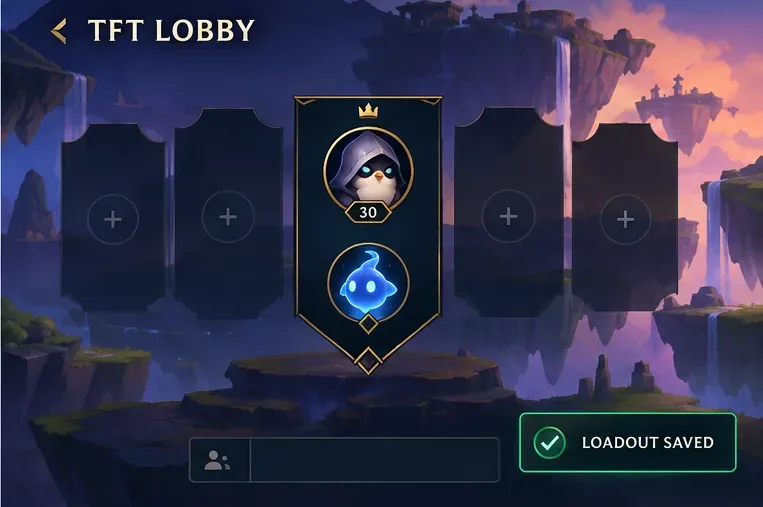
The four panels above are simplified visual guides, not screenshots of a live client. Treat their labels as examples; follow the controls shown in your installed version.
For a quick change, choose a Tactician you already own and equip it directly. That is the shortest route and does not require spending currency. If you have several favorites, Riot documented a favorite feature that can place up to eight items of each cosmetic type at the top of the Tacticians, Arenas, or Booms lists. Favoriting helps when your collection is long, but it does not itself equip a Tactician.
| Choice | Best for | Trade-off |
|---|---|---|
| Equip an owned Tactician | Changing your lobby companion quickly | You can only select items available to the account in that client. |
| Pick a different owned style or star level | Keeping the same character while changing its look | Not every Tactician has upgradeable variants; inspect the available options. |
| Browse the shop or reward track | Finding a Tactician you do not currently own | Availability and acquisition method vary. Do not assume a specific item is permanently for sale. |
“Little Legend” is often used casually for the small companion you take into a TFT match. Riot’s current support guide uses “Tactician” as the broader category: it includes Little Legends, Chibis, and Unbound Tacticians. This is the cosmetic you select in TFT’s game loadout. It can appear beside your player card and as your movable character in the Convergence.
Your Riot profile icon is a separate account cosmetic. Changing that icon from a profile or account menu does not necessarily change the Tactician equipped for TFT. Likewise, changing an Arena, Boom, or Portal changes a different part of the loadout. If only your profile picture changed, return to TFT’s Tactician selector.
Confirm three things: the TFT lobby is open, the Tactician slot shows your chosen companion, and the preview has updated. If you meant to change your Riot profile icon instead, use the profile controls; if you meant to change the in-match companion, use the TFT Loadout. Riot’s TFT Tacticians Guide explains the current Tactician category, while its Patch 14.8 notes describe the favorite feature. For the PC client transition and cosmetic migration, check Riot’s Unreal Migration FAQ.
Enable PUBG’s network statistics HUD to monitor ping and packet loss in a match. See where to find it, what the numbers mean, and what they cannot diagnose.
Learn how to import VALORANT crosshair codes, compare presets with manual settings and spectator copy, and fix common import issues.
Choose Dota 2 minimap size, hero icons, team colors, and background settings by readability, fewer misclicks, and clear results on your own display.
Fix Fortnite texture pop-in on PC with official steps for GPU drivers, file verification, DirectX 12, high-resolution textures, VRAM, SSDs, and stutter.
Learn what Heroes of the Storm minimap size and position options are verified, improve readability, and choose camera-click controls that suit you.
Set Super Smash Bros. Ultimate Quickplay to prefer hazards-off stages. Follow the Preferred Rules menu steps and learn why matchmaking may not always honor them.
Enable Server Latency and Packet Loss in Warzone to monitor connection quality, read the overlay, and use recurring spikes to guide troubleshooting.
Learn how to carry from mid lane in League of Legends by setting up waves, choosing safe roam windows, reading side lanes, and converting pressure into objectives.
Fix Minecraft Evoker spell problems with a safe vanilla test, version checks, log review, and a step-by-step way to isolate mod or datapack conflicts.
Fix PUBG stuck on Initializing on Steam with a focused checklist for PC service notices, launch options, game files, downloads, and connection issues.








