How to Check Real-Time Server Latency in the PUBG HUD

Enable PUBG’s network statistics HUD to monitor ping and packet loss in a match. See where to find it, what the numbers mean, and what they cannot diagnose.
If by “voice chat output language” you mean the language you hear from your teammates’ microphones, The in-game Voice language control is different from live microphone translation. The official materials checked for this article do not document a setting that converts teammates’ live speech into another language, so do not assume the hero Voice option will do that. The in-game Voice language control is for the game’s spoken content, such as hero voice lines and announcements. It does not dub, translate, or change another player’s microphone audio.
That distinction matters in a real match. Imagine Mia, a player in a mixed-language party, wants English hero lines and assumes the same switch will make teammates’ speech play in English. This is a hypothetical example, not a real test. She can change the game’s voice language if that option is available in her client, but her teammates will still sound in the languages they speak.
As of October 7, 2026, Level Infinite’s official Google Play listing describes “localized hero voiceovers.” The official support site directs players to the in-game Customer Service area for gameplay questions, but does not publish a version-by-version map of the language menus. Menu wording and available choices can therefore vary by client, region, and update.
Honor of Kings on Google Play · Honor of Kings Customer Service
In many versions of the global mobile client, the voice option is inside the game’s language settings. These steps are a practical route to look for, not a guarantee that every regional build shows identical labels.
The four menu illustrations below are simplified guides, not captured Honor of Kings screens. Use the labels in your installed game as the authority if they differ.
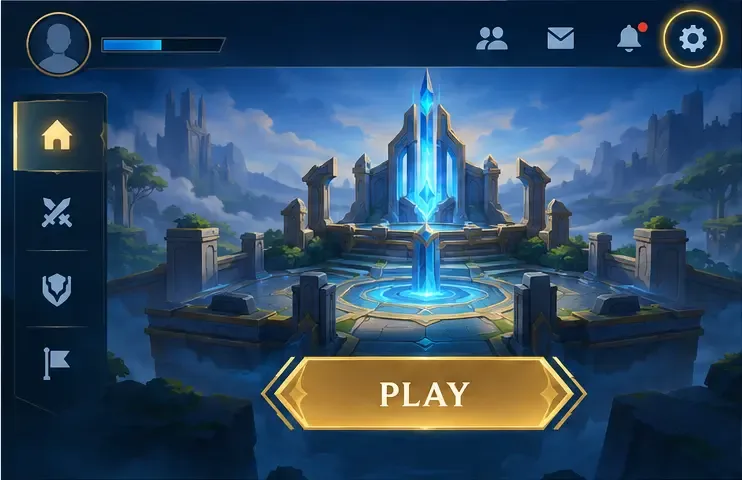
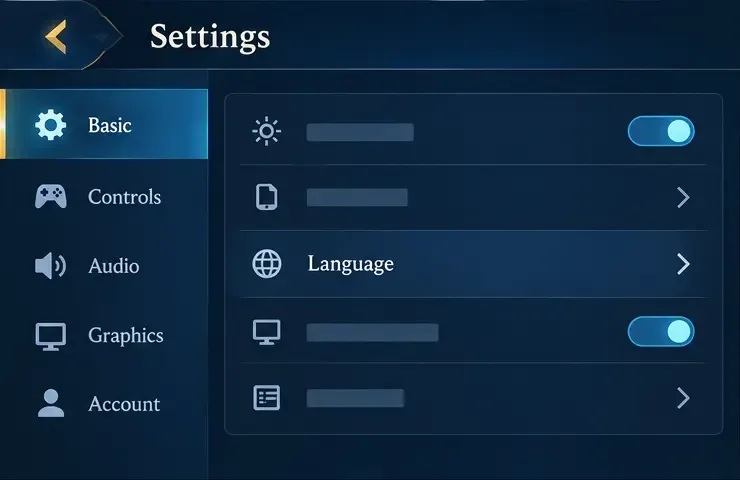
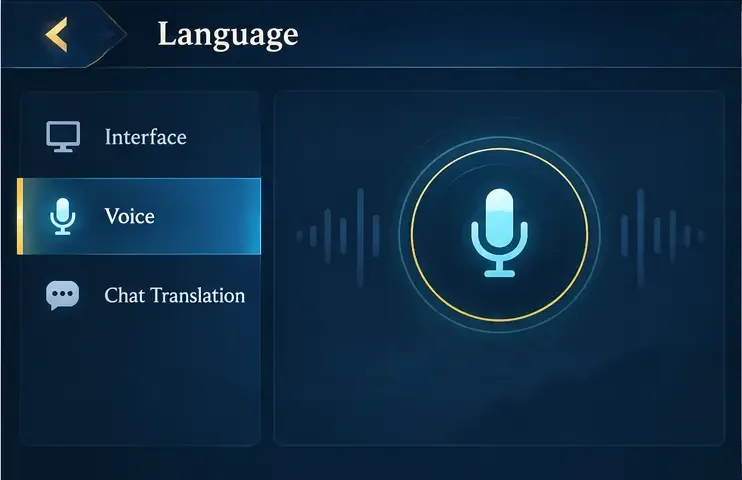
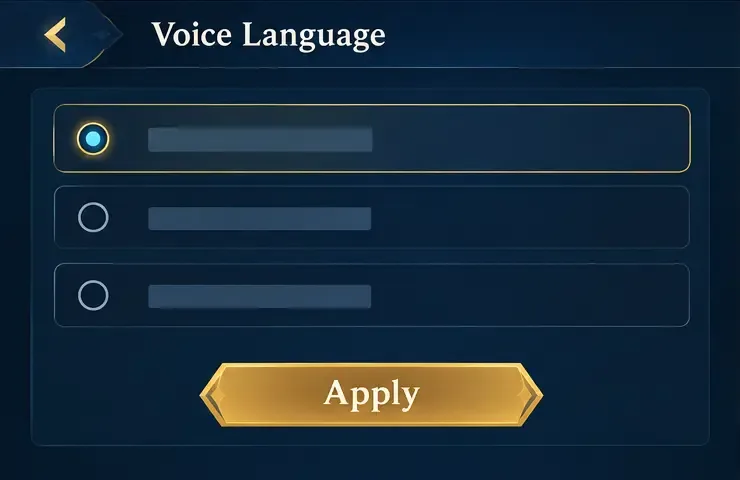
| What you want to change | Setting to check | What to expect |
|---|---|---|
| Hero voice lines or other spoken game audio | Voice under Language, if available | Changes the game’s supported voice content; exact coverage depends on the client and installed resources. |
| Menus, labels, and on-screen text | Interface or game language | Changes written interface content, which may be independent of voice language. |
| What a teammate says through a microphone | Voice-chat controls and device audio | Controls whether you hear the live voice and at what volume; selecting a hero voice language does not translate it. |
| Written team messages | Chat Translation, if available | May affect text chat only. Do not assume it translates live microphone speech. |
For Mia’s example, selecting English under Voice may change hero lines while leaving her interface language and teammate microphone audio alone. If she wants to coordinate with a teammate whose speech she does not understand, she can use pings, short typed messages, or any text-translation option shown in her own client.
Use a repeatable check: note the selected Voice option, apply it, and listen to a hero voice line or in-game announcement after any requested download or restart. Keep the written interface language the same during this check so you can tell which setting changed. Then join a low-pressure mode and listen separately to a teammate’s microphone. If only the hero or game voice differs, the setting is working as a voice-over choice; unchanged teammate speech is expected.
If the menu behaves differently from these steps or the choice will not apply, open the in-game Customer Service area and report your game version, region, device, and the labels you see. That gives support useful details without relying on instructions from a different regional build.
To change Honor of Kings’ spoken game content, look for Settings → Basic → Language → Voice, select an option shown in your client, and apply or download it if prompted. This changes supported hero or game voice-over audio. It does not change or translate what teammates say through live voice chat.
Enable PUBG’s network statistics HUD to monitor ping and packet loss in a match. See where to find it, what the numbers mean, and what they cannot diagnose.
Learn how to import VALORANT crosshair codes, compare presets with manual settings and spectator copy, and fix common import issues.
Choose Dota 2 minimap size, hero icons, team colors, and background settings by readability, fewer misclicks, and clear results on your own display.
Fix Fortnite texture pop-in on PC with official steps for GPU drivers, file verification, DirectX 12, high-resolution textures, VRAM, SSDs, and stutter.
Learn what Heroes of the Storm minimap size and position options are verified, improve readability, and choose camera-click controls that suit you.
Set Super Smash Bros. Ultimate Quickplay to prefer hazards-off stages. Follow the Preferred Rules menu steps and learn why matchmaking may not always honor them.
Enable Server Latency and Packet Loss in Warzone to monitor connection quality, read the overlay, and use recurring spikes to guide troubleshooting.
Learn how to carry from mid lane in League of Legends by setting up waves, choosing safe roam windows, reading side lanes, and converting pressure into objectives.
Fix Minecraft Evoker spell problems with a safe vanilla test, version checks, log review, and a step-by-step way to isolate mod or datapack conflicts.
Fix PUBG stuck on Initializing on Steam with a focused checklist for PC service notices, launch options, game files, downloads, and connection issues.








