How to Check Real-Time Server Latency in the PUBG HUD

Enable PUBG’s network statistics HUD to monitor ping and packet loss in a match. See where to find it, what the numbers mean, and what they cannot diagnose.
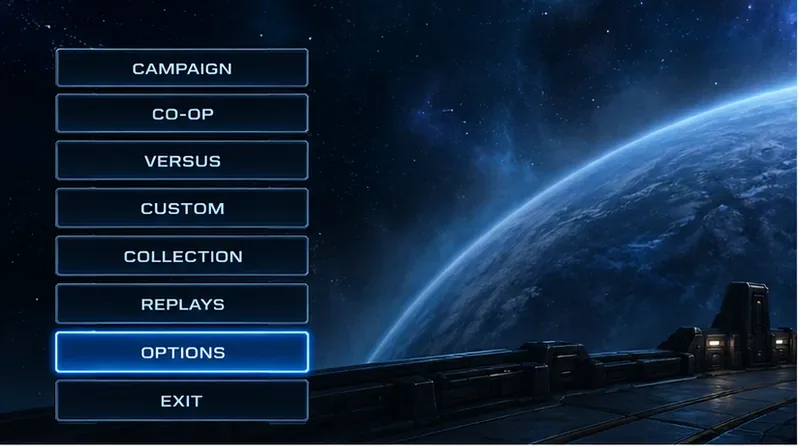
To switch the StarCraft II command card to Grid hotkeys, open Menu > Options > Hotkeys and choose Grid from the selected-profile menu. Choose Grid for Lefties if you want the mirrored left-handed preset. Confirm or accept the change if the client prompts you, then test a few actions in a safe game before using the new bindings in a match.
One distinction matters: Grid changes which keyboard keys activate the command-card buttons. It does not rearrange the command icons themselves. The standard Grid pattern assigns keys by their relative positions across the command card, commonly in rows such as QWERT, ASDFG, and ZXCVB. A customized profile can differ, so use the key labels shown in your own client as the final reference.
Choose Grid if you want commands in similar command-card positions to use similar keyboard positions across units and races. That can make unfamiliar units easier to operate because you can look at the card and press the key in the corresponding grid position. Keep Standard if you already know its specific letter bindings and prefer not to retrain muscle memory. Left-handed players may prefer Grid for Lefties, but the best choice depends on where your mouse and keyboard hands rest.
| Profile | How it behaves | Consider it when |
|---|---|---|
| Standard | Uses the familiar default-style key assignments. | You have established muscle memory and want minimal retraining. |
| Grid | Maps command-card positions to a consistent set of keyboard positions. | You want to learn commands by looking at their location on the card. |
| Grid for Lefties | Provides a grid-oriented alternative intended for left-handed play. | Your comfortable hand position differs from a typical right-handed setup. |
| Custom profile | Lets you adjust bindings to your preferences, if your client offers profile creation. | You want Grid as a starting point but need to avoid a key conflict. |
Grid is a hotkey profile, not a separate command-card skin. It may affect more than one ability key, so check worker commands, unit abilities, and any other shortcuts you rely on. Blizzard’s public guide explains that the highlighted letter shown with an action in the command panel is its keyboard hotkey, and points players to Menu > Options > Hotkeys. Read Blizzard’s StarCraft II hotkey guide.
From the game menu, choose Options, then open Hotkeys. Blizzard’s older official guide uses this menu path; a community discussion describes the profile selector inside the Hotkeys screen. Menu labels can differ slightly with localization or client updates. Look for the profile selector rather than changing an individual command if your goal is to switch the whole layout.
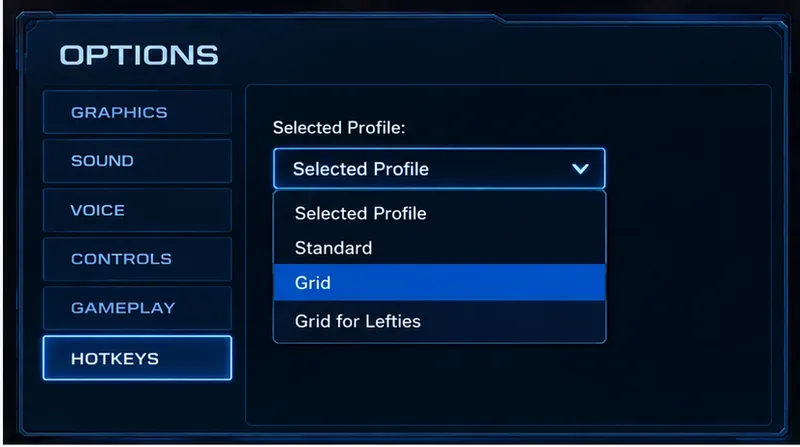
Open the Selected Profile dropdown and choose Grid. For a left-handed grid option, choose Grid for Lefties. If the profile list includes other layouts such as Standard or Classic, leave them alone unless you deliberately want a different binding scheme. A StarCraft II forum discussion describes these profile names and explains Grid as mapping keys to positions on the command chart; treat the forum post as a player report, since Blizzard’s public article does not provide a current screenshot-by-screenshot tour of this selector. See the StarCraft II profile discussion.
Accept or save the selection if your options window asks you to. Then return to the game and check the selected profile again if the buttons still show the old assignments. Avoid making several unrelated hotkey changes at once; it is easier to tell what changed when the profile switch is the only adjustment.
Select a unit or worker and look at the command card in the lower-right area of the game screen. In a common Grid arrangement, command positions correspond to rows of nearby keys, often shown as Q W E R T, A S D F G, and Z X C V B. For example, an action in the first row’s second position would commonly use the second key in that row. The action itself depends on the selected unit, so do not memorize one unit’s card as a universal list of commands.
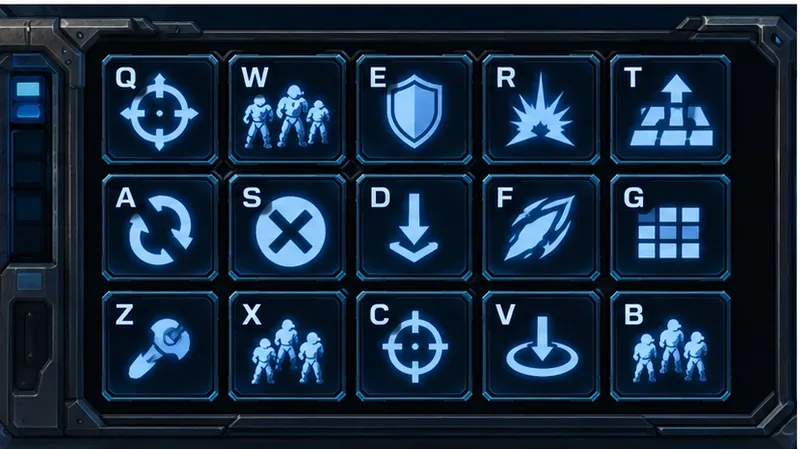
Hover over an action to read its displayed hotkey before pressing it. Blizzard’s guide notes that the command-panel description includes the hotkey letter. This is especially useful during the first few games, when familiar commands may now sit on different keys.
Use a campaign mission, versus-AI game, or another low-pressure mode to check a few important actions: select a worker, open the build commands, issue a basic command, and try one unit ability. Verify that the key shown on the command card matches the key you press. Test a second unit or race too if you switch among them often, because the grid principle is consistent while the available buttons change with the selected unit.
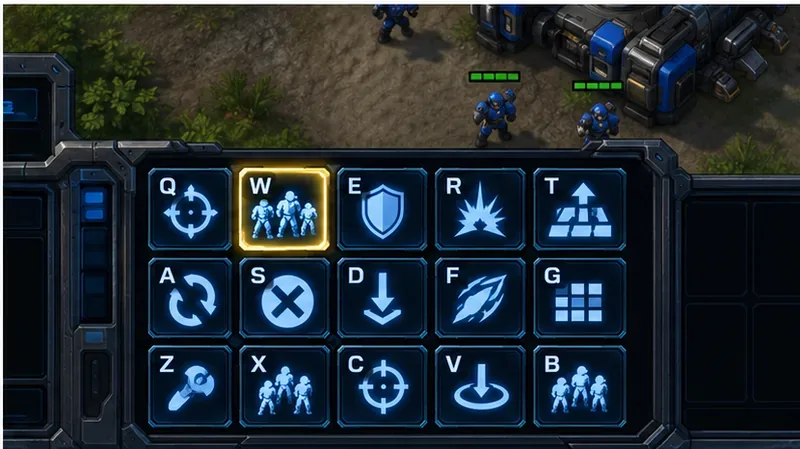
No. The Grid profile changes the keyboard mapping for command-card actions; it does not provide a general drag-and-drop editor for moving the actual icons. If an icon remains in the same visual slot after switching profiles, that is expected. The goal is to make its key correspond to its position, not to redraw the command panel.
Some players discuss custom command-card arrangements or alternate layouts on the community forums, but those suggestions are not the same as selecting the built-in Grid profile. Do not edit configuration files just to turn on Grid. Use the in-game profile selector for the standard change. If you want a personalized hotkey map afterward, create a separate custom profile when the client provides that option and change only the bindings you understand.
Grid is a good fit if you want a visual, position-based way to learn commands, especially when trying unfamiliar units. Standard is a good fit if your existing bindings are already automatic and you value continuity more than positional consistency. Grid for Lefties is worth testing when the default grid is uncomfortable for your hand placement. Try the profile in a few low-pressure sessions before deciding; there is no single layout that is best for every player.
For a safe change, switch the profile in Options > Hotkeys, confirm the key labels on the command card, and test several representative actions. Keep in mind that Grid changes hotkeys rather than the on-screen position of buttons. Blizzard’s public hotkey guide confirms the Options > Hotkeys route, while profile names and current interface details should be checked in the client you are using.
Enable PUBG’s network statistics HUD to monitor ping and packet loss in a match. See where to find it, what the numbers mean, and what they cannot diagnose.
Learn how to import VALORANT crosshair codes, compare presets with manual settings and spectator copy, and fix common import issues.
Choose Dota 2 minimap size, hero icons, team colors, and background settings by readability, fewer misclicks, and clear results on your own display.
Fix Fortnite texture pop-in on PC with official steps for GPU drivers, file verification, DirectX 12, high-resolution textures, VRAM, SSDs, and stutter.
Learn what Heroes of the Storm minimap size and position options are verified, improve readability, and choose camera-click controls that suit you.
Set Super Smash Bros. Ultimate Quickplay to prefer hazards-off stages. Follow the Preferred Rules menu steps and learn why matchmaking may not always honor them.
Enable Server Latency and Packet Loss in Warzone to monitor connection quality, read the overlay, and use recurring spikes to guide troubleshooting.
Learn how to carry from mid lane in League of Legends by setting up waves, choosing safe roam windows, reading side lanes, and converting pressure into objectives.
Fix Minecraft Evoker spell problems with a safe vanilla test, version checks, log review, and a step-by-step way to isolate mod or datapack conflicts.
Fix PUBG stuck on Initializing on Steam with a focused checklist for PC service notices, launch options, game files, downloads, and connection issues.








