How to Check Real-Time Server Latency in the PUBG HUD

Enable PUBG’s network statistics HUD to monitor ping and packet loss in a match. See where to find it, what the numbers mean, and what they cannot diagnose.
The most important recent server-region change to know is not a new button or a hidden launcher setting. Evil Mojo announced in late 2023 that the Southeast Asia region had been merged into Japan, and that the separate SEA option would be removed from the interface for clarity. I could not verify a newer official Paladins announcement that reverses or replaces that server-region decision as of October 7, 2026. For current players, that means older guides that tell you to pick “Southeast Asia” may no longer match what you see.
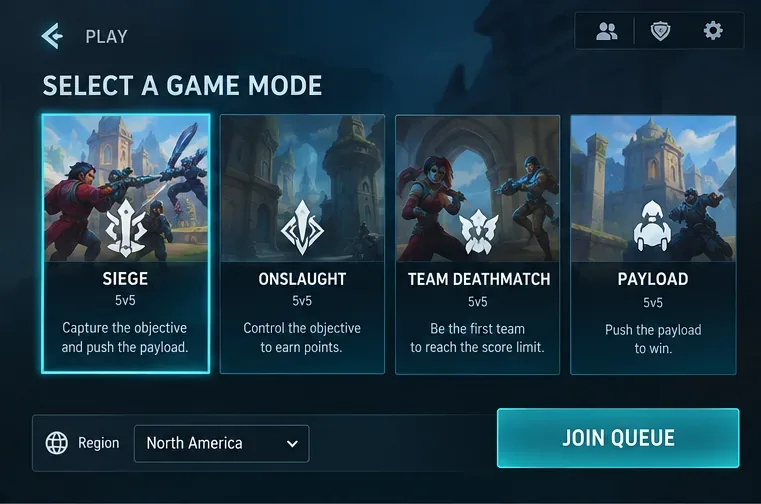
The practical method is still straightforward: open Play, find the Region control near the lower-left area of the matchmaking screen, open the list, choose the server region you want, and then join a queue. You do not need to edit Steam download regions, change your Hi-Rez account country, or use a VPN just to select another Paladins matchmaking region.
Evil Mojo’s official server update explained that Southeast Asia had been merged into Japan because the team was balancing player population and matchmaking time. The same announcement said the SEA option would be removed from the UI so the visible choices better reflected where Paladins servers were actually located. You can read the original developer post in the official Paladins Steam announcements.
This matters because region selection is not only about geography. A nearby server may offer lower latency, while a more populated region may produce shorter queue times. The tradeoff is that moving farther away can increase delay even if matchmaking becomes faster. If you are choosing between Japan, Europe, or North America, the best choice is the one that gives you an acceptable combination of queue time and in-match responsiveness.
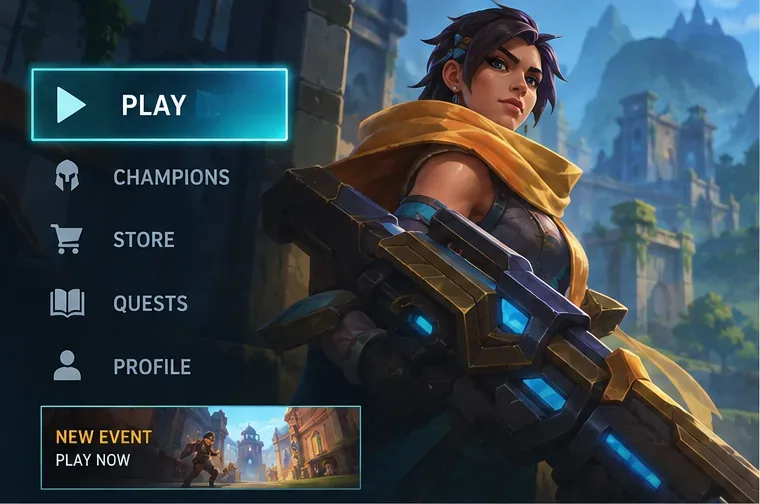
From the Paladins main menu, select Play. Region selection belongs to the matchmaking flow, not to Steam’s client settings or a separate account-management page.
On the game-mode selection screen, look near the lower-left portion of the interface for the current Region. The precise spacing and visual treatment can vary with client updates and platform layouts, but the important point is to change the region before pressing Join Queue.
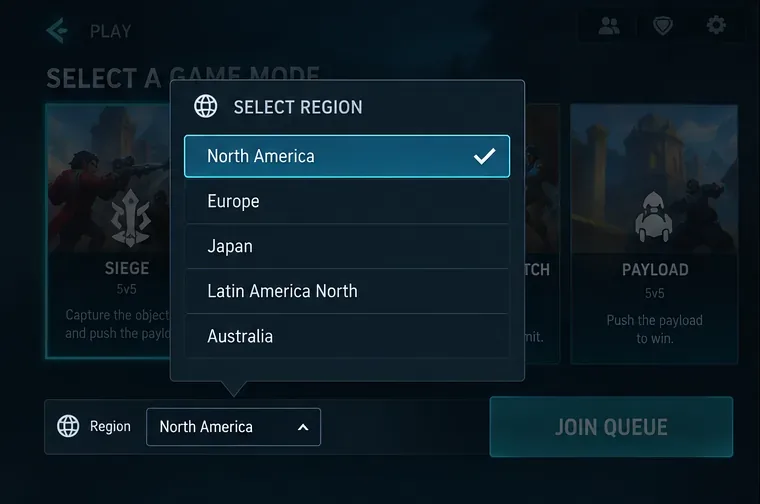
Select the current region to open the available server list, then choose the target region. Depending on the live service configuration, the list you see can differ from older screenshots or old forum posts. For example, Japan is relevant to players who previously looked for a Southeast Asia option because of the verified SEA-to-Japan consolidation.
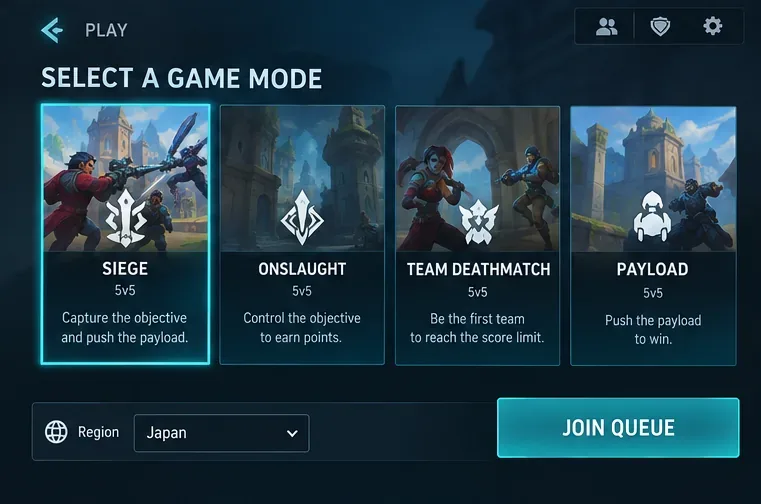
After selection, check that the new region name is visible in the matchmaking control. Then choose your mode and press Join Queue. You should not need to restart the game simply to make a normal matchmaking-region selection from this screen.
Start with the geographically closest active region because physical distance often affects round-trip latency. Then test the actual experience rather than assuming a region is automatically better. A good result is a match that feels responsive, does not show obvious delay in ability activation or hit feedback, and does not require an impractically long queue.
| Situation | What to try | What to watch |
|---|---|---|
| Your matches feel delayed | Try the closest available region | Input delay, hit registration feel, movement responsiveness |
| Your queue is extremely long | Try a more populated nearby region | Whether faster matching is worth the added latency |
| You play with friends abroad | Agree on one region before queuing | Which player receives the largest latency penalty |
| You used to select SEA | Check Japan first | The 2023 SEA-to-Japan consolidation |
No account migration is required for a normal matchmaking-region change. You are choosing where matchmaking should place your games, not creating a new Paladins identity. Your champions, cosmetics, progression, and account ownership are separate from this matchmaking choice.
The current Hi-Rez New & Returning Player Guide describes Paladins as an online team shooter available through Steam, Epic, PlayStation, and Xbox, and explains the current game modes and matchmaking context. The guide does not document the exact position of the region selector, so players should expect small UI differences across builds or platforms rather than treating one screenshot as permanent.
No. Region switching is useful, but it is not a universal network fix. Your latency depends on more than the label in the menu: physical distance, ISP routing, congestion, Wi-Fi quality, and the path between your network and the game server all matter. A region that looks closer on a map can occasionally perform worse if the route is poor.
Use a simple comparison. Play a few matches on your normal region, note whether the connection is consistently responsive, then test one realistic alternative. Do not compare one unusually bad match against one unusually good match and conclude the region itself was the only cause.
First, remember the verified server consolidation: an old guide may mention a region that is no longer displayed separately. The official 2023 Paladins server post is especially important for Southeast Asia because Evil Mojo explicitly said SEA had been merged into Japan and the SEA UI option would be removed.
If an expected option is missing for another reason, avoid forcing a fix through account-country changes or third-party tools. Server availability is controlled by the live game service and can change independently of your installation. Check the official Paladins section of the Hi-Rez Support Center and current Paladins announcements before assuming your client is broken.
If queues remain long, the problem may simply be population at that time of day or in that mode. Switching from a lightly populated region to a busier one can help queue time, but you may pay for it with higher latency. If the problem is disconnects rather than long queues, region selection alone may not address it.
If every region behaves badly, test the fundamentals: use a stable wired connection when practical, stop large background downloads, restart the network equipment if the connection itself is unstable, and check whether Hi-Rez is reporting a service problem. Region switching is best used as a matchmaking choice, not as a substitute for diagnosing a broader connectivity issue.
To change the Paladins server region, go to Play, open the Region selector on the matchmaking screen, choose the server area you want, verify the new label, and then queue. The key update for returning players is that Southeast Asia was officially merged into Japan, so old instructions that still tell you to choose SEA may be out of date.
Choose the region that gives you the best practical balance between responsiveness and queue time. If two regions both work, prefer the one with more consistent in-match performance rather than the one that merely finds a match a few seconds faster.
Enable PUBG’s network statistics HUD to monitor ping and packet loss in a match. See where to find it, what the numbers mean, and what they cannot diagnose.
Learn how to import VALORANT crosshair codes, compare presets with manual settings and spectator copy, and fix common import issues.
Choose Dota 2 minimap size, hero icons, team colors, and background settings by readability, fewer misclicks, and clear results on your own display.
Fix Fortnite texture pop-in on PC with official steps for GPU drivers, file verification, DirectX 12, high-resolution textures, VRAM, SSDs, and stutter.
Learn what Heroes of the Storm minimap size and position options are verified, improve readability, and choose camera-click controls that suit you.
Set Super Smash Bros. Ultimate Quickplay to prefer hazards-off stages. Follow the Preferred Rules menu steps and learn why matchmaking may not always honor them.
Enable Server Latency and Packet Loss in Warzone to monitor connection quality, read the overlay, and use recurring spikes to guide troubleshooting.
Learn how to carry from mid lane in League of Legends by setting up waves, choosing safe roam windows, reading side lanes, and converting pressure into objectives.
Fix Minecraft Evoker spell problems with a safe vanilla test, version checks, log review, and a step-by-step way to isolate mod or datapack conflicts.
Fix PUBG stuck on Initializing on Steam with a focused checklist for PC service notices, launch options, game files, downloads, and connection issues.








