How to Buy Money in GTA 5: Shark Cards and What to Know (2026)
To buy money in GTA 5 Online, purchase a Shark Card through the official storefront for the platform where you play. Start GTA Online, open its Store or platform-store tab, select a card, and finish checkout with PlayStation, Xbox, Steam, Epic, or Rockstar. The GTA$ is credited to your character’s Maze Bank account. Shark Cards are for GTA Online; they cannot add money to Story Mode.
The current standard cards range from GTA$250,000 to GTA$10,000,000. Rockstar no longer sells the Red Shark Card, and the standard amounts differ from older guides. Real-money prices depend on your country and storefront, so use the total shown before you confirm the purchase.
Current Shark Card amounts
Rockstar’s published value table lists five standard Shark Cards. GTA+ members may see Member-Only cards with an additional 15% GTA$, where available. The in-game store and checkout screen show the offer that applies to your account.
| Shark Card | Standard amount | GTA+ member amount |
|---|---|---|
| Tiger Shark | GTA$250,000 | GTA$287,500 |
| Bull Shark | GTA$600,000 | GTA$690,000 |
| Great White Shark | GTA$1,500,000 | GTA$1,725,000 |
| Whale Shark | GTA$4,250,000 | GTA$4,887,500 |
| Megalodon Shark | GTA$10,000,000 | GTA$11,500,000 |
The Red Shark Card is retired. A Red card purchased in the past can still be redeemed for its original GTA$100,000 value, but it is not part of the current lineup. You can compare the standard and GTA+ amounts in Rockstar’s Shark Card value FAQ.
How to buy money in GTA 5 Online
-
1. Launch GTA Online on the right account
Open Grand Theft Auto V or GTA Online and join an online session. Confirm that you are signed into the console, PC storefront, and Rockstar account connected to the character you want to fund. If you are moving a profile between platforms, note that purchased GTA$ does not move freely across every platform family; Rockstar’s migration rules allow purchased funds to transfer only between PlayStation generations or between Xbox generations. PC Shark Card purchases made after March 4, 2025 are deposited to both the Legacy and Enhanced PC versions.

Enter GTA Online with the character and platform account that should receive the Shark Card. -
2. Open the official Store for your platform
Use the route that matches your copy of the game. Menu names can vary slightly by version, but Rockstar lists these official paths:
- PlayStation 4 or PlayStation 5: Open the Pause menu, select the PlayStation Store tab, choose a Shark Card, and continue to checkout.
- Xbox One or Xbox Series X|S: Open the Pause menu, select the Microsoft Store tab, choose a card, and complete checkout.
- PC on Steam: Start a GTA Online session, open Pause > Store > Purchase Shark Cards, select a card, choose Buy Now, and complete the Steam checkout.
- PC on Epic Games: Open the in-game Store and select Purchase Shark Cards, or use the Rockstar Games Launcher Store.
- PC on the Rockstar Games Launcher: Open the Launcher, choose Store, scroll to Buy Shark Cash Cards for PC, select a card, and check out. GTA+ members may see the Member-Only cards instead.
- PC on the Xbox app: Open the Rockstar Overlay, select Store, choose Buy Now beside the card, then confirm payment.
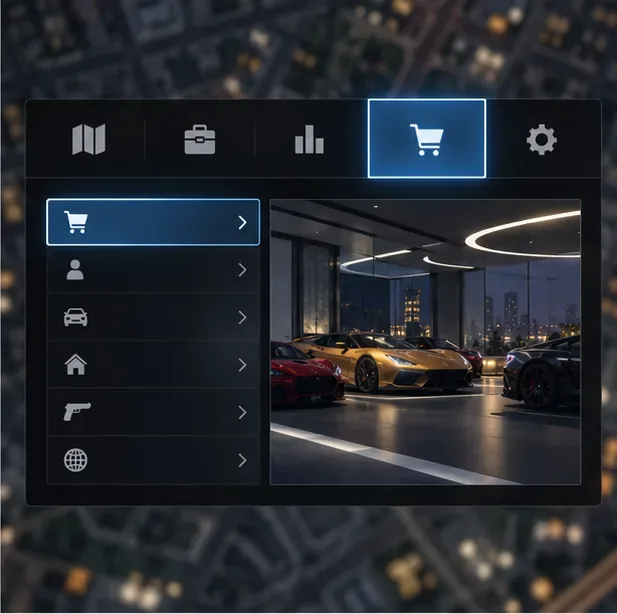
The Store route and label depend on the platform; follow the matching menu path above. For the exact current menu flow, see Rockstar’s official guides for PlayStation, Xbox, Steam, Epic Games, Rockstar Games Launcher, and the Xbox app on PC.
-
3. Choose a card and check the final price
Compare the GTA$ amount with what you actually plan to buy. The largest card is not automatically the best choice if you will not use the full balance. Check the final real-money price, currency, card amount, and any bonus shown in your own storefront before confirming. Regional prices and promotions vary; do not rely on a price quoted for another country or platform.
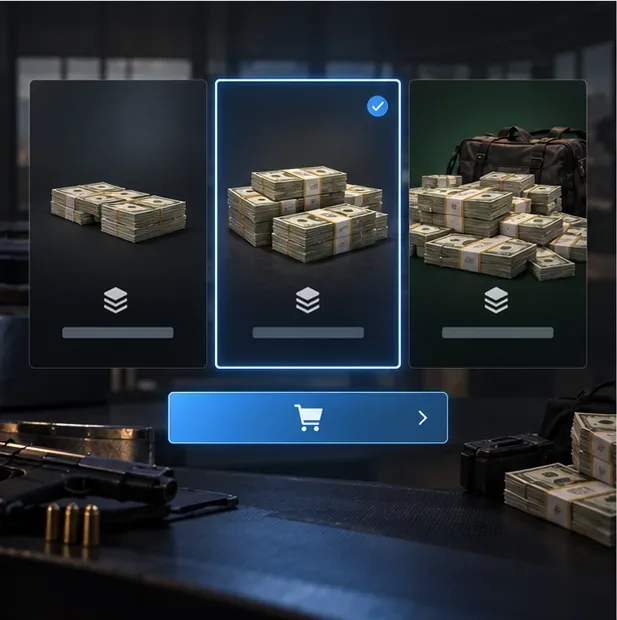
Compare the GTA$ amount and the final regional checkout price before you confirm. GTA+ membership can change the card options and GTA$ bonus shown for eligible accounts. A promotion advertised to another player may not apply to your account, so confirm that the offer appears in your own game or checkout. Buy only through the in-game store or the official storefront connected to your platform. Third-party GTA$ sellers are not an authorized substitute for Shark Cards and may put your account at risk.
-
4. Complete checkout and verify the Maze Bank deposit
Confirm the payment through your platform’s checkout. Rockstar says purchased cash is automatically deposited into the character’s Maze Bank account. Return to GTA Online and check the account balance before spending. Keep the purchase receipt in case you need to contact the platform or Rockstar Support.

After payment completes, the purchased GTA$ is credited to the character’s in-game bank balance.
What to do if the money does not appear
First, make sure the payment completed and that you are checking the character on the same platform account used to buy the card. Return to GTA Online or change sessions, then check the Maze Bank balance. Rockstar notes that Steam purchases may be delayed and asks players to wait at least 24 hours before contacting Support about missing Steam Shark Card cash. Other account-specific promotions can take longer than a standard credit; follow the timing in the offer terms if you bought a promoted card.
There is also a GTA$50,000,000 limit on the amount of Shark Card cash that can be credited at one time. If a purchase would put the Shark Card balance above that limit, the extra amount is credited after you spend enough GTA$. This can look like a missing purchase even when the transaction succeeded. See Rockstar’s missing Shark Card cash guidance and Steam delay guidance. If the funds still have not arrived after the applicable wait, contact Rockstar Support with the receipt and the platform account details.
Frequently asked questions
Can you buy money for GTA 5 Story Mode?
No. Shark Cards are GTA Online purchases and do not add cash to Story Mode. Story Mode has its own economy; online purchases and balances are separate.
Do Shark Card purchases carry over to another platform?
Not freely. During a profile migration, purchased GTA$ transfers only within the same console family, such as PS4 to PS5 or Xbox One to Xbox Series X|S. Rockstar says PC Shark Card purchases made after March 4, 2025 are deposited to both PC versions, Legacy and Enhanced. Check the platform migration and GTA$ transfer rules before switching.
Where can I check official Shark Card pricing?
Open the Store from your own GTA Online session or visit the Rockstar Shark Cash Cards page. The checkout screen is the best reference for your region, platform, and any offer attached to your account.









