How to Bind Camera Position Keys in Dota 2: Save and Revisit Map Locations
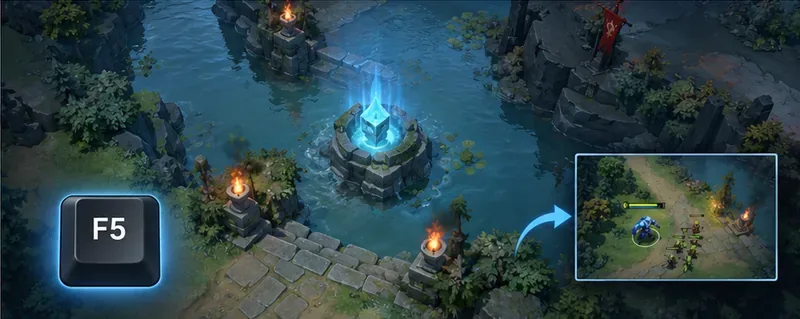
Save Dota 2 camera spots to keys, jump back to lanes or objectives, and troubleshoot missing or conflicting camera position binds.
You are watching your hero in lane, drag the camera toward a rune or fight, and then lose time trying to get back to the exact spot you were using. Dota 2 has a built-in way to save useful views to hotkeys. The confusing part is that setting a key for a saved camera position and saving a location to that key are two different actions.
Use the Saved Camera Positions controls in Advanced Hotkeys to assign a key to each slot. Then move the camera to a map location and press Ctrl + that assigned key to save it. Press the assigned key by itself to jump there. This guide covers the in-game method, common mix-ups, and a quick test to make sure the bind works.
A saved camera position is a fixed view of a place on the map. It is useful for revisiting a rune area, a lane, Roshan’s pit, or another spot you check often. The camera moves to the stored view when you tap its assigned key. This does not move your hero, issue an order, or keep tracking a moving unit.
It is different from camera movement controls such as edge panning or Camera Grip. Those move the view continuously; saved positions jump to a stored location. Valve’s Spring Cleaning notes describe Camera Grip as a camera-control option, which is separate from saving map locations to hotkeys.
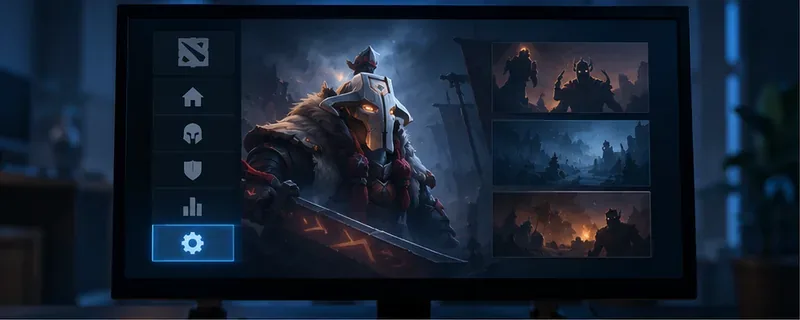
From the Dota 2 main menu, open Settings, choose Hotkeys, and open Advanced Hotkeys. Find the section labeled Saved Camera Positions. Depending on your settings window size, you may need to scroll within the panel.
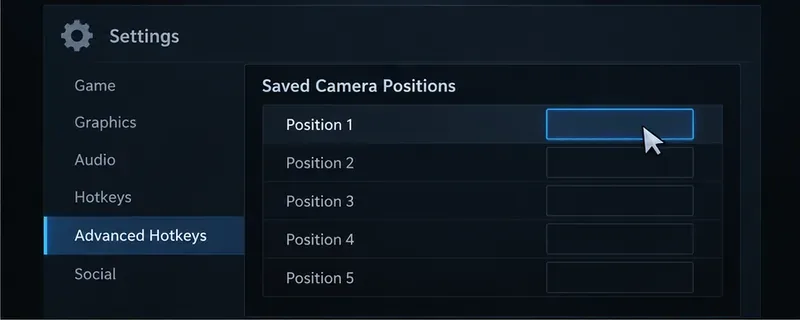
Click the key field beside a position slot, such as Position 1, then press the key you want to use. Repeat for any additional slots. Choose keys that are easy to reach but do not interfere with an action you rely on. If Dota shows a conflict or the key already performs another action, pick a different key or deliberately rebind the other action.
The key you assign is the recall key. Assigning it does not save the camera’s current location; the slot can still be empty until you store a position in a match.
Start a match or use a practice mode, then pan the camera until the desired area is framed. You can use edge pan, your camera movement keys, or Camera Grip. Aim for a view that will still be useful later: include the entrance to a river area or enough of a lane to see approaching creeps, rather than centering on a tiny patch of ground.
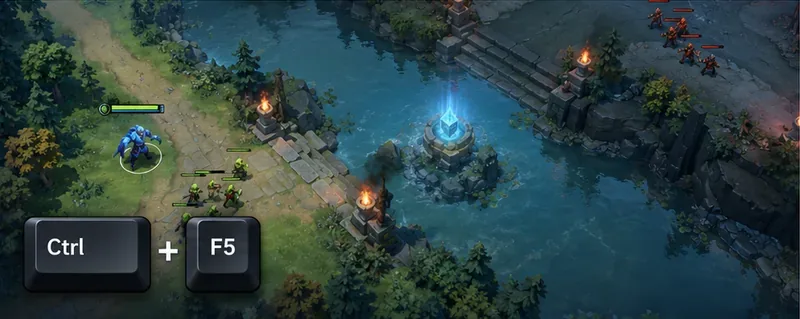
Hold Ctrl and press the key you assigned to the slot. For example, if Position 1 is assigned to F5, use Ctrl+F5 while the camera is on the location you want to store. The example key is only illustrative; use the key shown in your own settings.
After saving, move the camera elsewhere and tap the assigned key by itself. The view should jump back to the saved spot. Tapping that same position key again can return the camera to the view it occupied before the jump, which is handy for checking a location without losing your current view.
Start with one or two locations and add more only if you reach for them. A simple layout can be easier to remember than filling every slot:
These are examples, not recommended universal locations. Your hero, role, match, and side of the map affect which views save time. Keep the labels and keys consistent between games so you do not have to remember a new layout under pressure.
In a practice setting, assign a slot, save a clearly recognizable location, move the camera away, and press the recall key. Confirm that the view returns to the right area. Press the same key once more and check that you return to the previous view. Repeat after changing a key or settings preset.
If the jump works but the camera does not return, first confirm you pressed the same saved-position key again and that no other camera action interrupted the sequence. If nothing happens, verify the key shown in Advanced Hotkeys, save the location again with Ctrl plus that key, and test once more. Once that short check passes, the position is ready for normal play.
Save Dota 2 camera spots to keys, jump back to lanes or objectives, and troubleshoot missing or conflicting camera position binds.
Fix a TFT Mobile black screen after loading with official server checks, updates, cache troubleshooting, compatibility guidance, and safe reinstall steps.
Reduce Marvel Rivals DirectX 12 shader stutter with preload, driver, cache, and file checks. Learn when a cache reset helps and which older advice to avoid.
Enable PUBG’s network statistics HUD to monitor ping and packet loss in a match. See where to find it, what the numbers mean, and what they cannot diagnose.
Learn how to import VALORANT crosshair codes, compare presets with manual settings and spectator copy, and fix common import issues.
Choose Dota 2 minimap size, hero icons, team colors, and background settings by readability, fewer misclicks, and clear results on your own display.
Fix Fortnite texture pop-in on PC with official steps for GPU drivers, file verification, DirectX 12, high-resolution textures, VRAM, SSDs, and stutter.
Learn what Heroes of the Storm minimap size and position options are verified, improve readability, and choose camera-click controls that suit you.
Set Super Smash Bros. Ultimate Quickplay to prefer hazards-off stages. Follow the Preferred Rules menu steps and learn why matchmaking may not always honor them.
Enable Server Latency and Packet Loss in Warzone to monitor connection quality, read the overlay, and use recurring spikes to guide troubleshooting.