How to Check Real-Time Server Latency in the PUBG HUD

Enable PUBG’s network statistics HUD to monitor ping and packet loss in a match. See where to find it, what the numbers mean, and what they cannot diagnose.
If PUBG footsteps are hard to hear until you turn the volume up, but your own gunfire or nearby shots suddenly sound overwhelming, the goal is a more comfortable and readable mix—not simply a louder one. PUBG does not provide a universal slider that raises footsteps while lowering every gunshot. A reliable fix is to verify the output path, establish a safe baseline, then test one audio-processing option at a time and keep it only if you can still judge direction clearly.
The changes below are for PC. Console menus and headset software differ, and Windows labels can vary by audio driver. PUBG's published Update 35.1 patch notes say the sound of firearms a player is using was slightly reduced for that player, while other players continue to hear those sounds at their original volume. That is a specific adjustment to your own weapons; it is not a setting that lets you independently turn down enemy gunshots.
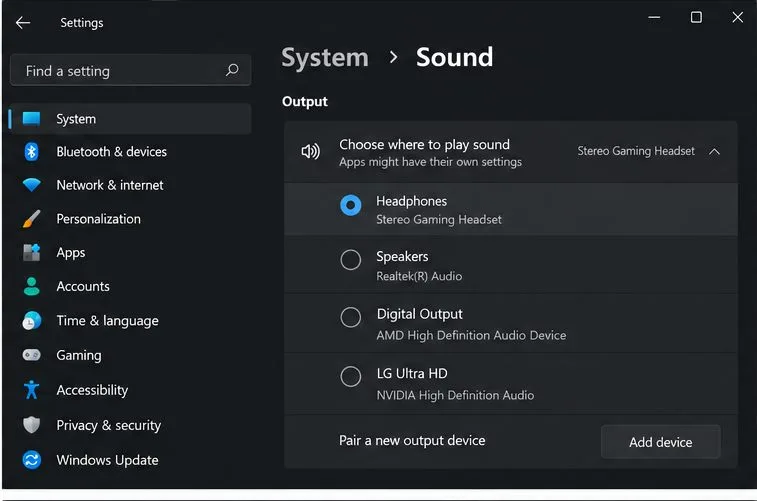
Before changing equalizers, make sure game audio is reaching the device you expect. On Windows 11, open Settings, choose System, then Sound, and check the selected device under Output. If you use a USB headset, wireless dongle, monitor audio, or a controller, Windows can route sound to a different endpoint than the one you are listening to. The Microsoft audio troubleshooting guide also recommends checking the selected output and the separate volume controls on Windows, apps, and accessories.
Set your headset and Windows volume to a level that remains comfortable during a gunfight. Do not raise the master level until footsteps are audible if that makes weapon reports painfully sharp. Start PUBG and confirm that its audio is not muted or unusually low. PUBG's audio page or labels can move between versions, so use the current menu rather than copying an old numeric preset. Change only the overall game level at first; it affects the whole mix and will not create a true footsteps-only boost.
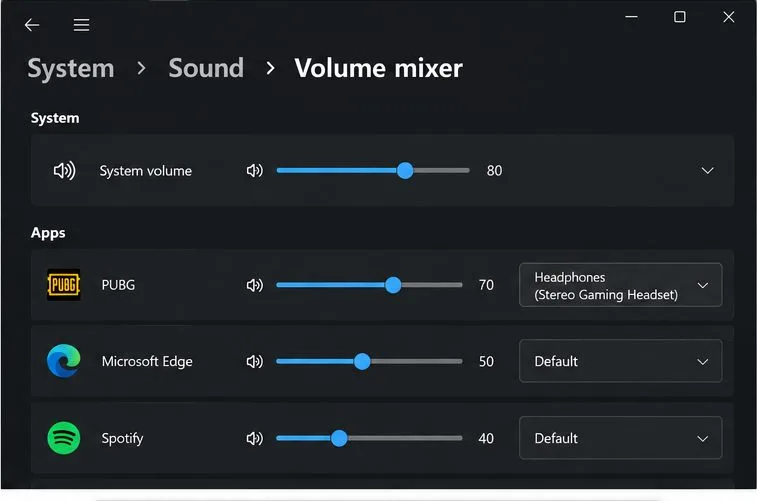
Windows can keep a separate level and output device for each application. Open Settings > System > Sound > Volume mixer while PUBG is running. Find PUBG under Apps, confirm its slider is not muted or far below the system level, and check that its output is the same headset selected above. The control can be reset when an app or device changes, so recheck it after reconnecting a headset or changing audio hardware. Microsoft documents these per-app controls in its guide to app audio and Volume mixer.
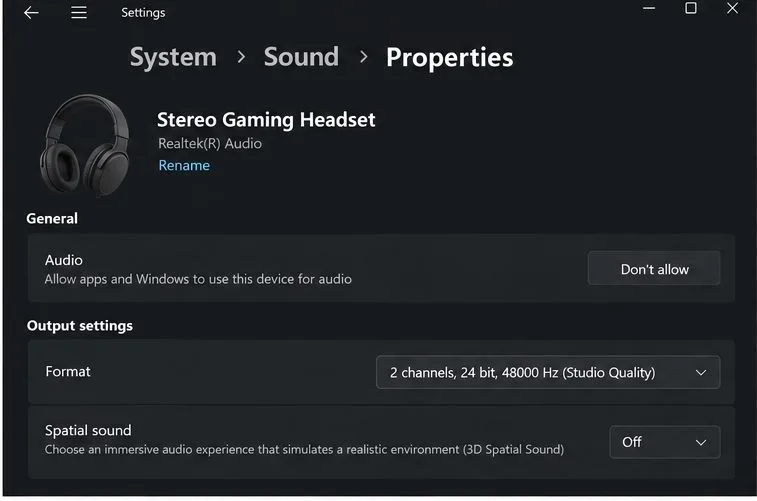
For a clean comparison, first test with the headset's basic stereo mode. If both Windows spatial sound and a headset manufacturer's virtual surround or 3D audio mode are active, the combination can change the tonal balance or make direction harder to judge. Turn off one spatial or virtual-surround layer for a baseline, then test it separately if you prefer it. Avoid changing several spatial settings at once, because you will not know which one improved or weakened the result.
Windows exposes spatial sound under the selected output device's properties. The exact panel depends on the Windows build and driver. Microsoft's spatial sound instructions show the device-properties path for Windows Sonic; the same device page lets supported systems inspect the available mode. If stereo gives you clearer front-versus-back cues, keep that as your setting. If spatial processing helps you, use only one layer and judge it in a repeatable test.
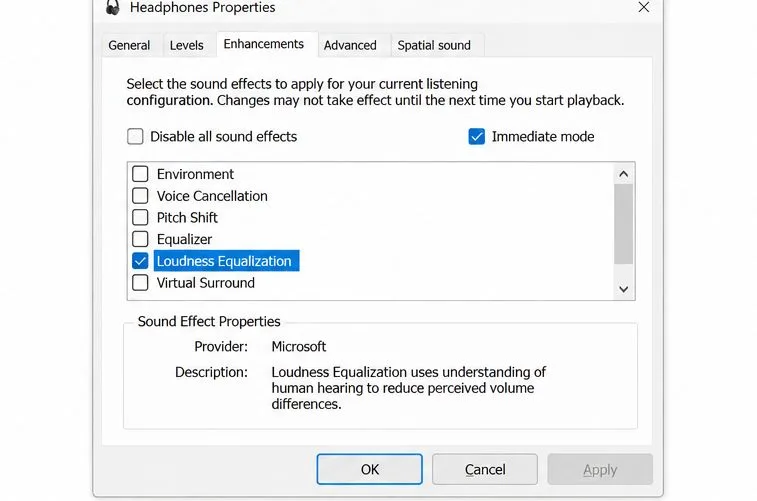
If the sharp difference between loud gunshots and quiet movement remains, an optional dynamic-range feature may help. Loudness Equalization attempts to reduce perceived level differences, so quieter sounds may become easier to notice while peaks are less dominant. Its effect depends on the headset, audio driver, Windows version, and the game's mix. It does not selectively recognize enemy footsteps, and it can also raise ambience or make gunfire direction less distinct.
On some PCs, the option appears in the playback device's Properties under Enhancements; other systems may expose a vendor-specific equivalent or no option at all. If it is present, test it at a lower, comfortable master level. Use the same short test both ways, then keep it only if the footsteps become easier to detect without losing shot direction or making the sound tiring. If the overall sound becomes quiet, distorted, or uneven, turn the effect off and test the plain output path. Microsoft notes that audio enhancements can reduce or distort output volume and recommends testing with enhancements off when troubleshooting quiet sound in its Windows quiet-sound guide.
Do not decide from one chaotic match. Use Training Mode or another low-pressure setting and keep the headset, game, Windows, and headset-software levels unchanged between comparisons. Listen for a short sequence that includes movement, your own weapon, and distant shots if you can reproduce them safely. Compare the baseline with only one adjustment changed. You are checking for usable information, not maximum loudness.
If footsteps improve but shots lose direction, turn off the last spatial or equalization change and compare again. If everything remains quiet, check the headset's physical volume, Windows Volume mixer, PUBG app routing, cable or dongle connection, and the manufacturer's driver or app. Microsoft also advises checking the output device and, when needed, testing a different format or disabling enhancements; avoid changing a format unless the basic checks fail.
System-level compression or equalization changes the mix reaching your headset; it cannot reliably separate enemy footsteps from gunshots in every situation. Map ambience, distance, walls, equipment, weapon type, and the headset itself all affect what you hear. There is no single volume percentage or equalizer curve that works for every setup, and PUBG updates may alter sound balance or move settings. Recheck the in-game menu after a major update and repeat the same listening test instead of assuming an old preset still fits.
Keep volume at a comfortable level. If an effect makes loud sounds painful, stop the test and lower the level rather than compensating by boosting other sounds. The useful result is a mix where movement is more noticeable, shots remain directional, and neither requires unsafe listening volume.
Enable PUBG’s network statistics HUD to monitor ping and packet loss in a match. See where to find it, what the numbers mean, and what they cannot diagnose.
Learn how to import VALORANT crosshair codes, compare presets with manual settings and spectator copy, and fix common import issues.
Choose Dota 2 minimap size, hero icons, team colors, and background settings by readability, fewer misclicks, and clear results on your own display.
Fix Fortnite texture pop-in on PC with official steps for GPU drivers, file verification, DirectX 12, high-resolution textures, VRAM, SSDs, and stutter.
Learn what Heroes of the Storm minimap size and position options are verified, improve readability, and choose camera-click controls that suit you.
Set Super Smash Bros. Ultimate Quickplay to prefer hazards-off stages. Follow the Preferred Rules menu steps and learn why matchmaking may not always honor them.
Enable Server Latency and Packet Loss in Warzone to monitor connection quality, read the overlay, and use recurring spikes to guide troubleshooting.
Learn how to carry from mid lane in League of Legends by setting up waves, choosing safe roam windows, reading side lanes, and converting pressure into objectives.
Fix Minecraft Evoker spell problems with a safe vanilla test, version checks, log review, and a step-by-step way to isolate mod or datapack conflicts.
Fix PUBG stuck on Initializing on Steam with a focused checklist for PC service notices, launch options, game files, downloads, and connection issues.








