Home
» 🎮 Esports
»
How to Add an Alternative Select All Army Hotkey in StarCraft II
How to Add an Alternative Select All Army Hotkey in StarCraft II
How to Add an Alternative Select All Army Hotkey in StarCraft II
If F2 is hard to reach or conflicts with your keyboard’s function row, you can bind another key to Select All Army Units in the StarCraft II Hotkeys menu. Choose the profile you actually use, add the new key in the command’s alternate binding field when available, save the profile, and test both keys in a Custom Game or Versus A.I. match.
Blizzard’s historical patch notes identify F2 as the Select All Army Units hotkey, while its controls guide points players to Menu > Options > Hotkeys for the full hotkey list. Your active profile remains the authority: a custom layout may show different keys or organize commands differently. Blizzard’s StarCraft II Patch 2.0.7 notes and Blizzard’s hotkey guide document those basics.
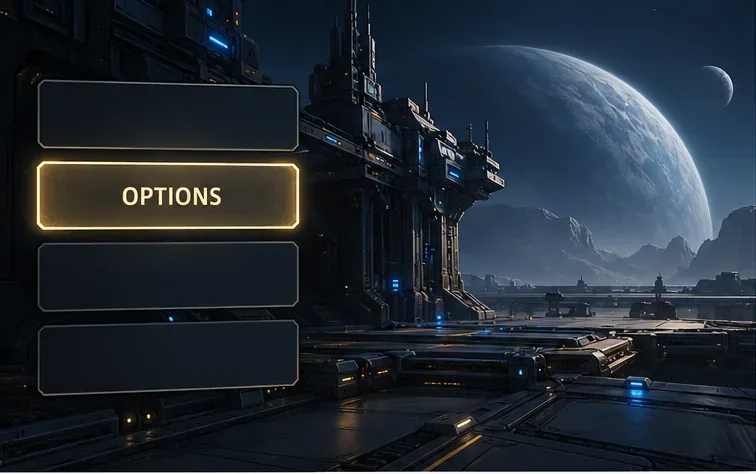
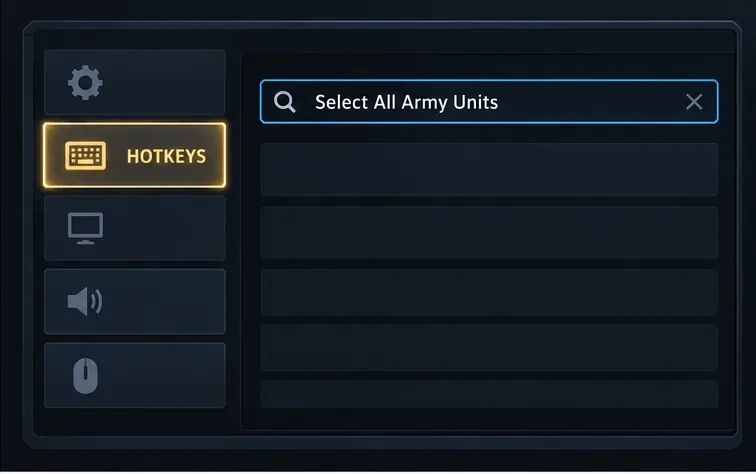
The menu panels are illustrative guides, not exact captures of the live client. Profile and language settings can change how the Hotkeys page is arranged, so follow the command labels in your active game.
Open Options from the game menu to reach the Hotkeys settings.
What an alternate Select All Army key changes
A second binding gives you another way to call the same command. It does not create a filtered army selection or automatically keep a scout, drop, spellcaster, or defensive unit behind. If a unit is eligible for Select All Army Units, either binding can include it. The new key changes how you trigger the command, not which units it selects.
That makes the hotkey useful for quickly gathering eligible units, including reinforcements away from the main camera view. It can also pull a detached unit out of position if you issue a move or attack order immediately afterward, so use control groups when you need separate squads to stay apart.
How to add the alternate hotkey
1. Open the Hotkeys menu and select your active profile
From the game menu, choose Options, then Hotkeys. Blizzard’s guide lists that route as Menu > Options > Hotkeys. If you use a custom or left-handed profile, check the selected profile before editing. Changing a profile you do not play with will not fix the binding you use in a match.
2. Find Select All Army Units
Use the Hotkeys page’s search box, if present, and look for Select All Army Units. Without search, browse the global or unit-management commands and follow the command label; category placement can vary by layout. Confirm the exact action name rather than assuming the default F2 key is still assigned.
Search by the command name so you edit the army-selection action, not a similarly named control.
3. Add a key in the alternate binding field
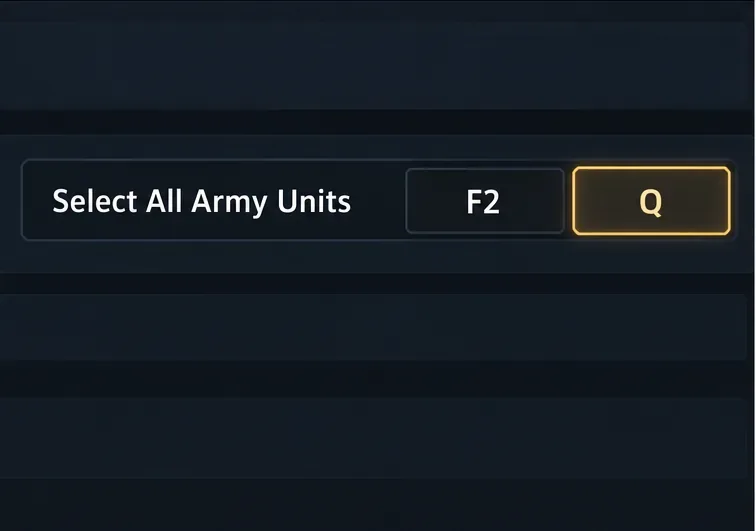
Select the command row, click its empty secondary or alternate key field, and press the key you want to use. Leave F2 in its existing field if you want both bindings. The exact field layout can differ by profile. If the row has only one editable slot, changing that slot replaces the current binding; it does not preserve F2 as a second key.
Choose a key you can reach comfortably without colliding with control groups, camera locations, production hotkeys, or common unit abilities. The Q key shown below is only an example, not a recommendation. If the game reports a conflict, read the warning and choose a different key or deliberately resolve the overlap before accepting the change.
Keep F2 in one field and use the other field for an unused key; Q here is only an example.
4. Save, then compare both keys in a test match
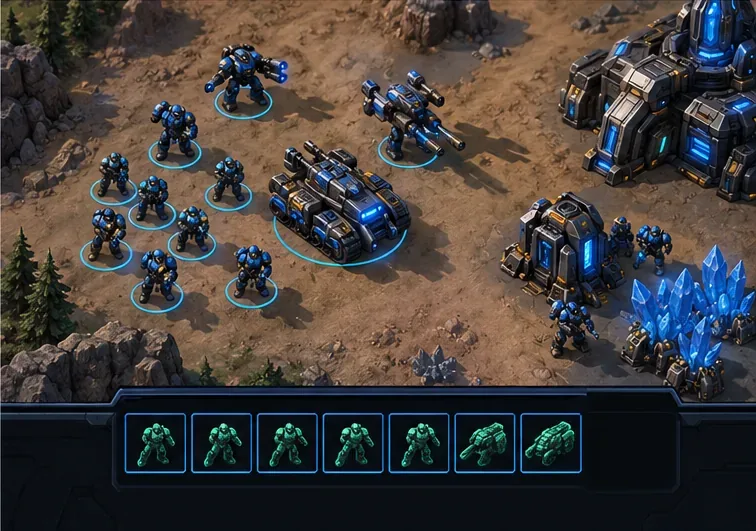
Accept or apply the change using the button shown by the Hotkeys menu. Start a Custom Game or Versus A.I. match, build or spawn a few army units, and place one away from the main group. Press the new key once and check the selection panel. Then press F2 under the same conditions. Both should select the same eligible army units.
If the alternate key does nothing, return to the Hotkeys menu and verify the active profile, the command row, and the key shown in the alternate field. Repeat the test after saving. A unit that remains outside the selection may not be eligible for this command in that mode; it does not by itself prove the new key failed.
In a low-risk match, confirm that the alternate key and F2 produce the same selection.
Which key should you choose?
There is no universally best replacement. Pick an unused key that fits your hand position and your existing layout. Check these points before saving:
Reach: Can you press it without lifting your hand from your normal controls?
Conflict risk: Is it already assigned to a command you need during combat?
Consistency: Will you use the same choice across the profiles or races you play?
Keyboard behavior: On a laptop, does the function row send F2 directly, or require an Fn key? An alternate game binding can avoid that hardware layer.
A nearby letter, Caps Lock, or a mouse button may work if the client recognizes it and it does not conflict with another important action. Test your choice in a match rather than relying on a key that looks free on a keyboard diagram.
Why the new key may not work
Wrong profile: Select the profile you use for the game mode or race before editing.
Only one key slot: Check whether you changed the original binding instead of adding a second one. Restore F2 if you want to keep it.
Conflict: Another command may already use the key. Choose a different one if the overlap would interrupt play.
Unsaved change: Use the menu’s accept or apply control before leaving the Hotkeys screen.
Keyboard layer or remapping software: Function-row modes, vendor utilities, and external remappers can change the signal the game receives. Try a plain key to isolate the issue.
Use Select All Army alongside control groups
The alternate key is a convenience for calling the same army-selection command quickly. Control groups remain the better tool for maintaining a separate scout, drop, flank, or spellcaster squad. Blizzard’s controls guide explains assigning, selecting, and adding units to groups, while its special-control guide describes how those groups help manage an army. Read the StarCraft II controls guide and Blizzard’s guide to special control.