Home
» 🎮 Esports
»
Heroes of the Storm Stuck on Hero Selection? Compare 8 Fixes
Heroes of the Storm Stuck on Hero Selection? Compare 8 Fixes
When Heroes of the Storm gets stuck loading hero selection, reinstalling immediately can cost a large download without addressing the cause. A missing hero roster with working menus calls for different checks than a completely frozen window or a match that stalls after everyone has selected a hero.
Start by identifying which screen stops responding, then choose the least disruptive test that fits. The options below cover Windows and the Battle.net desktop app, Blizzard’s game launcher. Change one thing at a time so you can tell which change helped.
Verification note: Sources were checked on October 8, 2026. No universal, current fix for this exact symptom was established by the reviewed official documentation. Blizzard’s published troubleshooting explains broader connection and performance problems; older player reports describe similar hero-selection failures. Menu layouts can vary with app updates, and the figures show the relevant controls rather than results from a tested affected computer.
Choose a fix based on what actually fails
Before changing files, note whether hero portraits appear, whether buttons respond, and whether you can open other game menus. Check Battle.net for service notices and review the official Heroes technical support forum for relevant announcements. A report from another player is useful context, but it does not establish an outage affecting your account.
Option
Best reason to try it
Main tradeoff
Restart the session
A one-time hang
Quick, but recurrence means more diagnosis is needed
Finish patching
Downloading or updating is still active
Requires waiting for the download
Scan and Repair
Possible damaged installation files
Uses disk activity and may download repairs
Compare connections
Menus respond but roster or online features remain unavailable
Requires Ethernet or access to another connection
Close background apps
Freezes coincide with recording, overlays, or heavy multitasking
Temporarily interrupts those tools
Refresh launcher data
Launcher behavior remains abnormal
Battle.net may need to locate installed games again
Check graphics drivers
Visual freezes, rendering errors, or broader performance problems
A driver change affects other applications too
Reinstall the game
Repair fails or installation problems persist
Largest download; cannot resolve a service-side problem
These are diagnostic choices, not eight tasks everyone must complete. If an earlier test produces a stable result, stop and verify it before moving to a more disruptive option.
1. Restart the stuck session
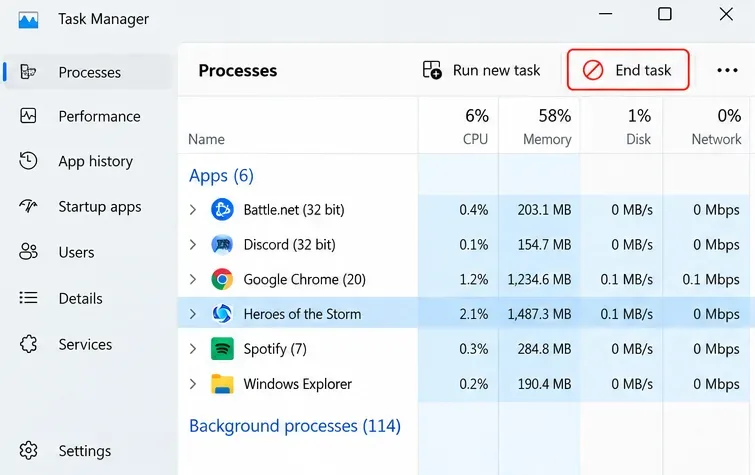
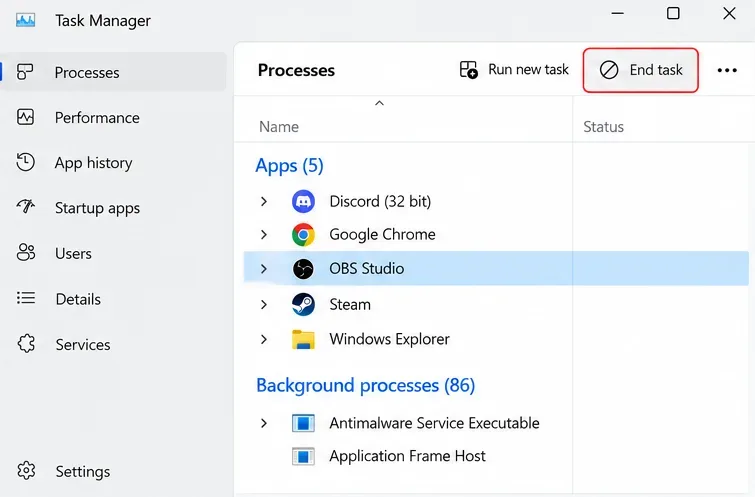
If you are still in the menu and no match has begun, close Heroes normally and reopen it. If the window is unresponsive, press Ctrl + Shift + Esc to open Task Manager, select the game process, and choose End task. Reopen Battle.net and launch again; restart Windows if the launcher or game remains stuck.
This is the sensible first choice for an isolated hang because it changes no installation files. If you have already entered a match, prioritize reconnecting rather than repeatedly quitting to troubleshoot. Do not use live matches as experiments.
Task Manager provides End task when the Heroes window cannot close normally.
2. Let the game finish downloading and updating
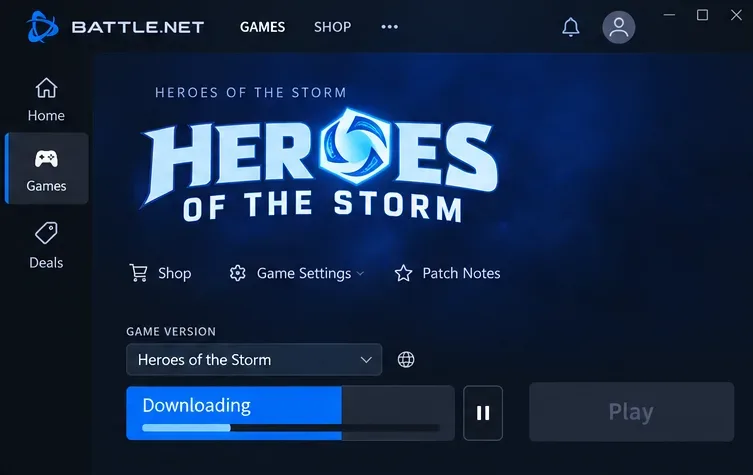
Return to the Heroes page in Battle.net and check whether downloading or patching is still in progress. Let it finish before testing again, even if the launcher allows an early start.
Blizzard’s performance troubleshooting guide explains that downloading during play can degrade performance. Waiting is particularly appropriate after a new installation or patch. It will not explain every empty roster, so move on if the game is fully updated and the symptom persists.
Check the launcher’s download progress before testing hero selection again.
3. Use Scan and Repair before reinstalling
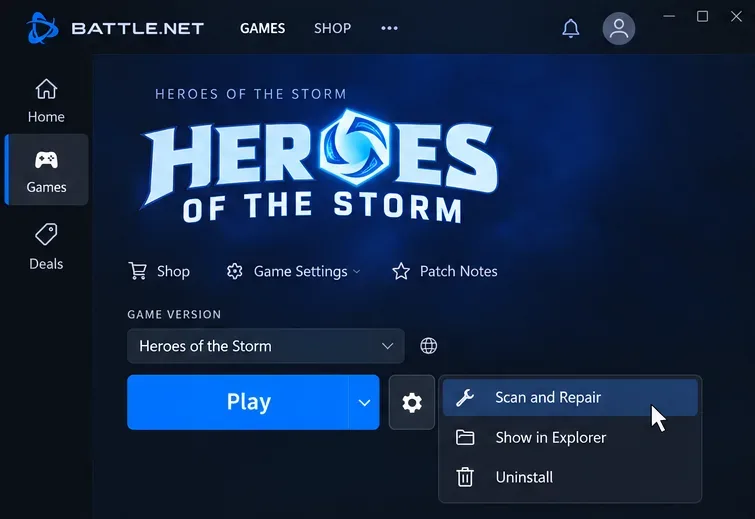
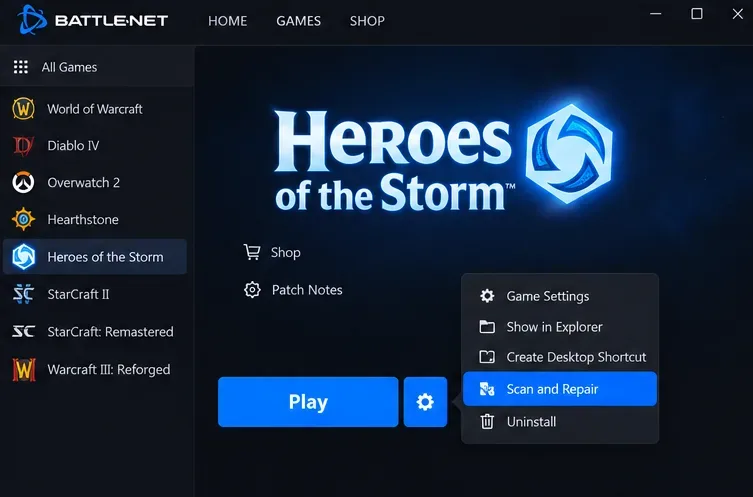
Scan and Repair checks the game installation and repairs files when needed. Close Heroes, select it in Battle.net, open the gear menu beside Play, select Scan and Repair, and choose Begin Scan. Wait for the operation to finish before launching.
Choose repair when a patch was interrupted or installation damage seems plausible. Its advantage over reinstalling is that it attempts to preserve the existing installation. A successful scan does not prove the connection or account session is healthy.
Open the gear menu beside Play to access Scan and Repair.
4. Compare a wired or alternate connection
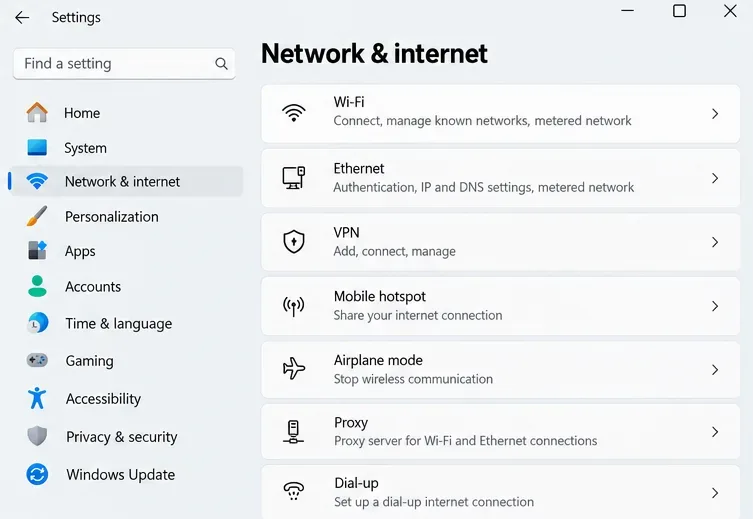
If the interface responds but heroes or online features fail to populate, compare the same game session setup on a different connection. First try Ethernet instead of Wi-Fi if practical. Alternatively, use another trusted connection for a short test, considering mobile data charges if applicable. Pause competing downloads. If you already use a VPN, a virtual private network, test without it and restore your normal setup afterward.
Blizzard’s connection and latency guide recommends Ethernet as a diagnostic comparison and explains why working websites do not prove that the route to its game servers is healthy.
If the alternate connection works consistently, investigate the original network before reinstalling. That result narrows the possibilities; it does not identify a specific router fault. If both fail, the result alone cannot distinguish a service issue from a local game problem.
Windows lists Wi-Fi, Ethernet, and VPN settings for comparing the connection you use.
What about waiting in a custom lobby?
In a February–March 2025 player discussion on Blizzard’s forum, some players reported that briefly waiting in a custom lobby helped restore hero selection; others described temporary improvement. This is a community report, not a Blizzard-confirmed remedy. If the menus allow it, an empty custom lobby is a low-impact optional test. Do not leave a match with other players to try it, and do not treat one successful attempt as a permanent fix.
5. Test with recording and other background apps closed
Save your work, then close optional recording software, browser tabs, and overlays. An overlay is an interface displayed over the game by another application. Exit these apps normally where possible; use Task Manager only for a process that refuses to close.
This comparison is useful when the entire window freezes or the problem appears only while streaming or multitasking. It is less targeted when only the online roster is missing. Blizzard’s performance guide recommends reducing background resource use. If the game works in this simpler setup, reopen your tools individually to identify a repeatable conflict instead of assuming every overlay is faulty.
The process list helps identify recording software and other optional apps to close for a comparison.
6. Refresh Battle.net data carefully
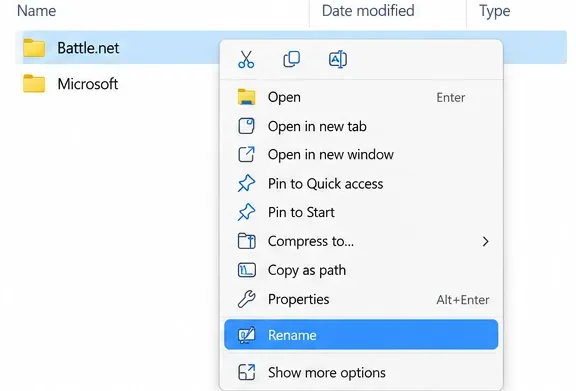
For persistent launcher abnormalities, Activision’s Battle.net troubleshooting instructions describe deleting the Battle.net folder under C:\ProgramData after closing Blizzard processes. This is launcher data, not the game’s installation folder.
A reversible adaptation is to close the game and launcher, confirm their processes and the Battle.net update Agent have stopped in Task Manager, then open C:\ProgramData in File Explorer and rename only the Battle.net folder to Battle.net.old. If that backup name exists, choose a different unused name. Relaunch Battle.net so it can rebuild its data. Renaming is the backup approach suggested here; the published procedure specifies deletion.
The launcher may forget installation locations. Use Locate this game if offered rather than immediately downloading another copy. Do not delete ProgramData itself, the Heroes installation, or Documents\Heroes of the Storm. If you cannot identify the correct folder or stop its processes, skip this option.
Rename the identified Battle.net folder to preserve a backup when refreshing launcher data.
7. Investigate graphics drivers for a visual freeze
A graphics driver is the software that lets Windows and the game communicate with the graphics hardware. Driver checks are more relevant to frozen rendering, black textures, or similar trouble in other games than to an otherwise responsive empty hero list.
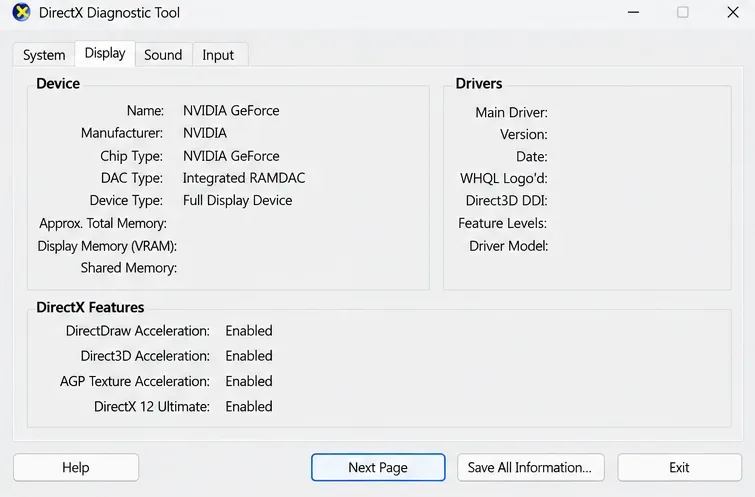
Press Windows + R, enter dxdiag, and inspect the Display tab to identify your adapter. Dxdiag is Windows’ DirectX Diagnostic Tool. Check for an appropriate supported driver through Windows Update or your computer or graphics manufacturer’s official support site. Avoid generic driver-download tools. Record your current version before changing it, particularly if the trouble began immediately after an update.
Blizzard’s performance guide recommends video-driver updates for rendering problems. No specific driver version is established here as a fix for hero-selection loading.
The Display tab groups graphics device and driver information to help identify your hardware.
8. Reinstall only when the evidence points to the installation
If patching and repair cannot complete, or the same local failure survives the earlier relevant tests, reinstalling is reasonable. Beforehand, preserve any local replays or settings you want to keep. Close the game, select Heroes in Battle.net, and use the gear menu’s Uninstall command. Then install it again through the launcher and allow the full download to finish.
This has the greatest time and bandwidth cost. It replaces game files, but it will not repair a server outage or an unstable network route. If the game works on another connection, spend your effort investigating that difference first. Avoid deleting unrelated Blizzard folders as an extra “cleanup” step.
Uninstall appears in the game’s gear menu; reserve it for persistent installation problems.
Verify the result before joining another public match
A loaded portrait alone is not enough. Confirm that the roster appears, hero selection responds, and the expected game controls become available. Use Try Mode or a private custom game if available to check that you can reach gameplay without involving other players. Then exit normally and relaunch to see whether the improvement survives a new session.
Keep a short record of the failing screen, any exact error message, and each test’s result. Note whether the problem changes with the connection, with background apps closed, or after repair. If it persists, provide that information in your own technical support thread and follow any current diagnostic requests. Review logs for personal information before posting them publicly.
The strongest recommendation depends on your result: continue network troubleshooting when a connection comparison changes the behavior; investigate local software when closing an app reliably helps; seek service or account guidance when installation changes leave an otherwise responsive client with the same unavailable online features.