How to Check Real-Time Server Latency in the PUBG HUD

Enable PUBG’s network statistics HUD to monitor ping and packet loss in a match. See where to find it, what the numbers mean, and what they cannot diagnose.
If gunshots drown out enemy footsteps in Free Fire, raising every volume control usually makes the mix harsher without making footsteps easier to hear. Start with a moderate game-effects level, keep music low, and adjust voice chat separately if your version offers those controls. There is no official universal percentage that makes footsteps louder than gunfire: the game’s mix, phone speakers, headphones, and room noise all matter.
A sound mix is the balance among different audio sources. A sound effect, or SFX, is a non-music game sound such as a weapon firing or a character moving. A separate channel is an independent slider for one category. Garena’s current support instructions confirm that Free Fire has a Settings → Audio area for voice-chat and microphone options, but the official material reviewed for this guide does not document separate gunshot and footstep sliders or a recommended percentage for either sound. Treat the numbers below as a starting profile, not a tested benchmark or a Garena preset.
In many builds, combat effects share the same game-audio mix. If that is how your Audio panel works, lowering SFX softens both shots and steps; it does not selectively rebalance them. The game’s device and version can change which controls appear, so use the controls actually shown in your app. Garena has adjusted weapon and environmental sound effects in past patch notes, which is another reason to recheck your balance after a major update.
| Control | Suggested starting point | What it changes |
|---|---|---|
| Phone or headphone output | About 40–60% of device maximum | Overall loudness reaching your ears |
| Game effects / SFX, if shown | About 60–70% of its slider range | Gunfire, footsteps, and other effects together when they share a channel |
| Music, if shown | 0–15% for competitive matches | Background music, so it is less likely to mask quieter cues |
| Voice chat, if shown | About 35–50%, then adjust for clear callouts | Teammate voices, separately from effects in builds with a separate control |
These percentages are practical starting points on the sliders, not measurements in decibels. The World Health Organization advises keeping personal-audio-device volume at no more than 60% of maximum as a general safe-listening measure. A phone’s “60%” is not a guaranteed sound-pressure level, and a game slider percentage is not the same as device output. Start comfortably low and avoid turning the phone to maximum just to overcome a noisy room.
Before changing anything, note your current phone volume and in-game settings. Use the same headphones and play area while you compare changes. Stereo headphones that fit comfortably can make left-versus-right cues easier to notice, but no headset can reveal sounds that the game does not send clearly. If your earbuds have a strong bass or “gaming” EQ preset, try their neutral preset first; heavy processing can change the balance between low, loud shots and quieter movement sounds.
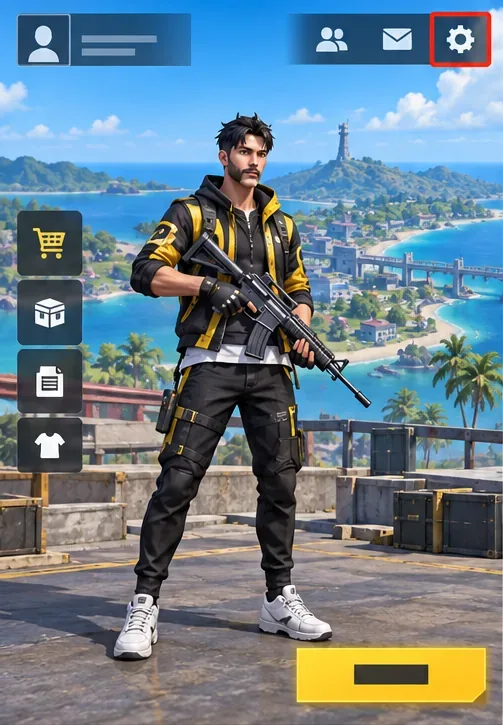
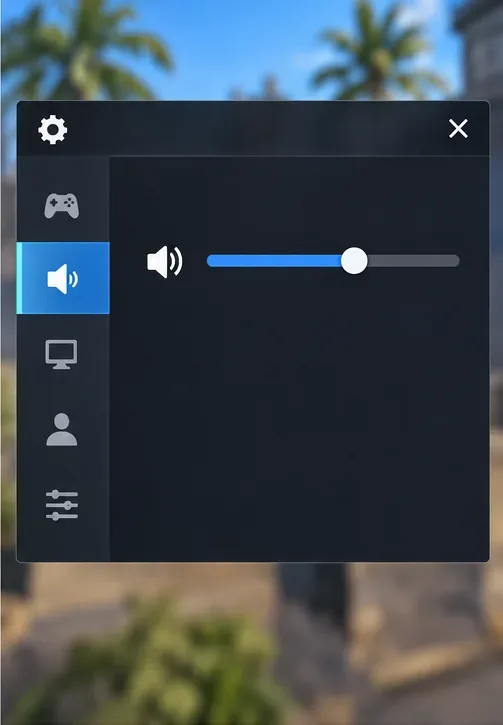
From the lobby, tap the Settings gear, then open Audio. Garena’s support page uses this path for mic and voice-chat settings. Menu labels can shift between Free Fire versions, regions, or device layouts, so look for the speaker or Audio section rather than relying on an exact screen position.
If there is a separate Music slider, reduce it to a very low level or mute it for ranked matches. Keep sound effects near the middle to start—roughly 60–70% if the slider is represented as a percentage. Do not assume that a high SFX level improves footsteps relative to gunshots. It raises the whole effects mix, including loud firing and explosions.
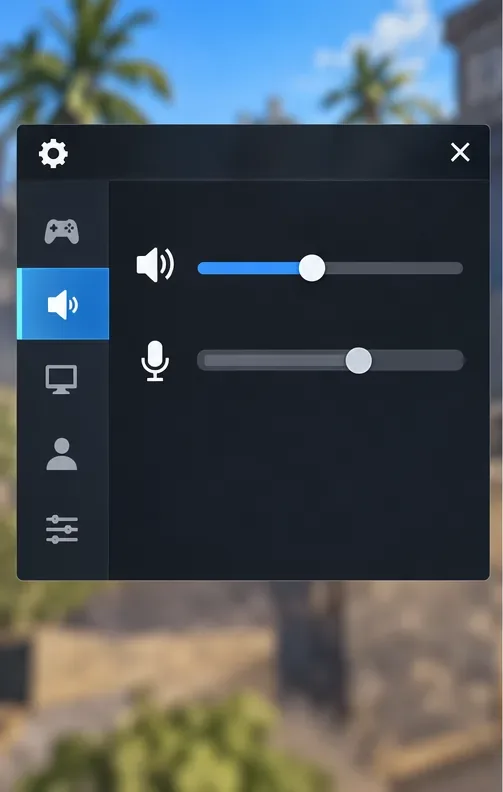
With a teammate in a low-pressure match, set voice chat so a normal callout is clear without forcing you to raise the phone’s master volume. Garena’s support instructions identify the Audio menu, Voice Chat, microphone, and voice channel as relevant mic controls. If the game has a separate Voice Chat slider, adjust it independently; if not, use the available device or chat controls. Ask teammates to speak at a normal level, and mute a noisy mic rather than increasing every other sound to compensate.
Play a short training, casual, or low-stakes match in a familiar area. Listen for movement while you are not firing, then compare it with the sound of your own weapon and a nearby fight. Change only one control at a time. If the game uses one shared effects channel, small reductions of about five slider points can make the overall mix more comfortable, but they cannot make footsteps louder than gunfire. After a change, repeat the same listening check before adjusting again.
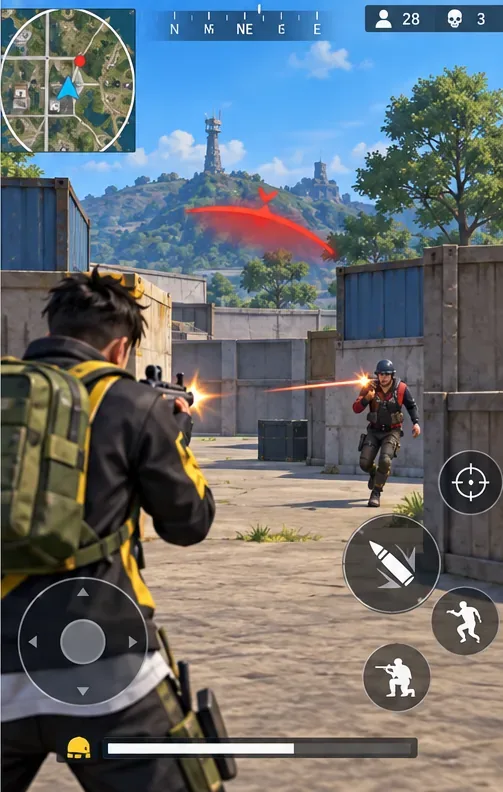
Audio is only one source of information. Garena documented an on-screen directional gunfire alert in its Rampage patch notes for players who could not judge an attacker’s direction by sound. Because that note is from an older update, check your current Settings menu for a gunfire-alert option instead of assuming its label or availability is unchanged. If present, enable it and treat it as a backup cue, not a replacement for listening. The minimap, damage direction indicator, teammate callouts, and movement on screen can also help confirm what you heard.
A useful setup lets you notice movement without making normal gunfire uncomfortable. In a short match, check whether you can recognize that a sound came from your left or right, hear a teammate’s ordinary callout, and keep playing without ringing, pressure, or discomfort in your ears. If you can only hear footsteps by pushing the device volume beyond a comfortable level, lower the volume and rely more on visual cues; do not keep increasing it. For persistent ringing or muffled hearing, stop listening and seek professional advice.
As of October 8, 2026, Garena’s current support guidance confirms Settings → Audio for voice-chat controls, while its published patch notes show that Free Fire’s sound effects can change over time. The safest practical baseline is therefore moderate device volume, low music, a midrange effects setting, and a short repeatable test—not a claim that one percentage is best for every phone or player. See Garena’s Audio and microphone support instructions, Garena’s sound-effects patch notes, Garena’s notes on the visual gunfire alert, and the WHO safe-listening guidance.
Enable PUBG’s network statistics HUD to monitor ping and packet loss in a match. See where to find it, what the numbers mean, and what they cannot diagnose.
Learn how to import VALORANT crosshair codes, compare presets with manual settings and spectator copy, and fix common import issues.
Choose Dota 2 minimap size, hero icons, team colors, and background settings by readability, fewer misclicks, and clear results on your own display.
Fix Fortnite texture pop-in on PC with official steps for GPU drivers, file verification, DirectX 12, high-resolution textures, VRAM, SSDs, and stutter.
Learn what Heroes of the Storm minimap size and position options are verified, improve readability, and choose camera-click controls that suit you.
Set Super Smash Bros. Ultimate Quickplay to prefer hazards-off stages. Follow the Preferred Rules menu steps and learn why matchmaking may not always honor them.
Enable Server Latency and Packet Loss in Warzone to monitor connection quality, read the overlay, and use recurring spikes to guide troubleshooting.
Learn how to carry from mid lane in League of Legends by setting up waves, choosing safe roam windows, reading side lanes, and converting pressure into objectives.
Fix Minecraft Evoker spell problems with a safe vanilla test, version checks, log review, and a step-by-step way to isolate mod or datapack conflicts.
Fix PUBG stuck on Initializing on Steam with a focused checklist for PC service notices, launch options, game files, downloads, and connection issues.








