How to Check Real-Time Server Latency in the PUBG HUD

Enable PUBG’s network statistics HUD to monitor ping and packet loss in a match. See where to find it, what the numbers mean, and what they cannot diagnose.
If you are new to Fortnite building edits, start with the setup that lets you make clean, repeatable edits without taking your aim off the fight. For most players learning the basics, Auto Confirm Edits (the current name for the old Confirm Edit on Release setting) is the easier place to begin. A double edit key setup can suit players who want a separate manual confirm input, but it adds another action and is not automatically faster. Test both with the same wall edit before deciding.
The difference is partly a setting and partly a keybind choice. They are not always mutually exclusive, and there is no official Epic preset called “double edit keys.” This guide explains the terms, shows what to prepare, and gives you a low-risk way to compare them.
Edit on release is the familiar community name for having an edit confirm when you release your selection input. Epic changed the setting name to Auto Confirm Edits in Fortnite v24.30, replacing “Confirm Edit on Release.” Epic’s release notes said the new setting could automatically confirm edits and reset edits when set to “Both.” The exact labels and available choices can change with the game, so use the wording shown in your current settings.
Double edit keys is player shorthand, not an official setting name. Players may use it to describe assigning edit actions across two easy-to-reach inputs, such as one input to enter edit mode and another to confirm. Some players use the phrase for two alternate edit binds. Since the term is not standardized, look at the actual action names in your controls rather than copying a “double edit” layout without checking what each key does.
A regular building edit means selecting parts of a player-built wall, floor, stair, or roof to change its shape. A confirm input applies the selected shape; reset returns the piece to its unedited state. If those actions are new to you, practice on one wall first.
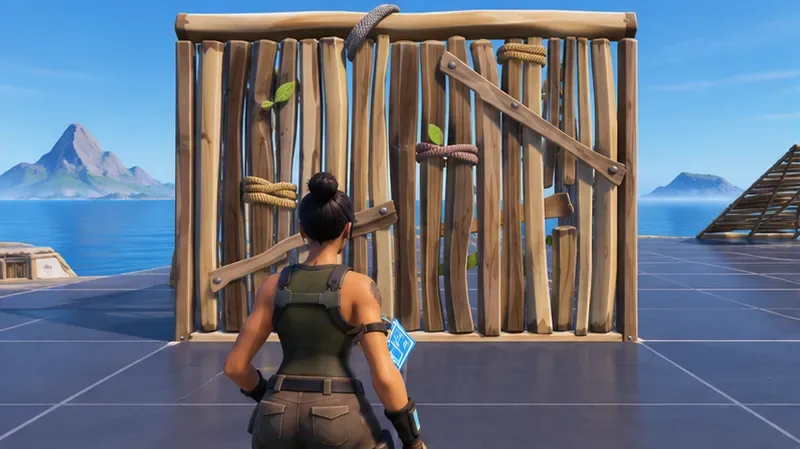
| Setup | What the edit feels like | Good fit when | Trade-off |
|---|---|---|---|
| Auto Confirm Edits | Select the edit shape, then release to confirm it. | You want fewer separate inputs while learning the edit sequence. | The release timing becomes part of the movement. A rushed or accidental release can confirm a shape before you intend it. |
| Separate edit and confirm inputs | Enter edit mode, select tiles, then press the confirm input you have assigned. | You prefer to control exactly when the selected shape is applied. | There is an extra action to coordinate, and the key may compete with nearby build or movement binds. |
For a new builder, the practical starting point is usually Auto Confirm Edits for ordinary edits, if the current menu offers that choice. It keeps the sequence easy to understand: enter edit mode, select, release, and move. If you already make deliberate edits comfortably and want a distinct confirm press, try a separate confirm input. Neither option guarantees faster edits or better fights; your accuracy and ability to continue building matter more than a flashy bind.
Epic also has a separate feature called Simple Edit. It changes how you select an edit shape, and Epic says it is unavailable in competitive game modes. Do not confuse it with Auto Confirm Edits: they affect different parts of the edit process.
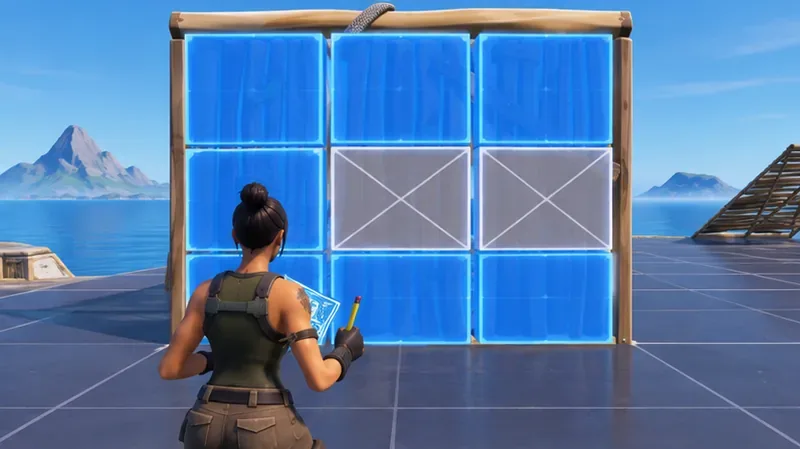
Use one simple opening, such as a door-shaped edit, and repeat the same movement each time. Start close enough to the wall that your crosshair stays on it. Enter edit mode, select the tiles, confirm according to your chosen setup, move through the opening, then reset the wall. Do not start with a complicated edit or a full build-fight sequence; first make sure you can perform the basic cycle without losing the target.
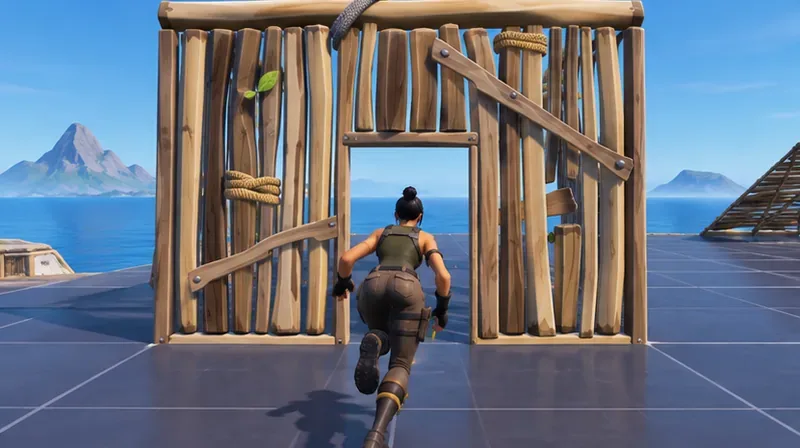
With Auto Confirm Edits, pay attention to whether your release confirms the intended shape and whether you can move on without an extra pause. With a separate confirm bind, notice whether the added press feels deliberate or makes you hesitate. Repeat each version for a few minutes. A useful comparison is not just the fastest clean edit: count how often you select the wrong tiles, confirm too early, forget the confirm press, or need to stop and recover.
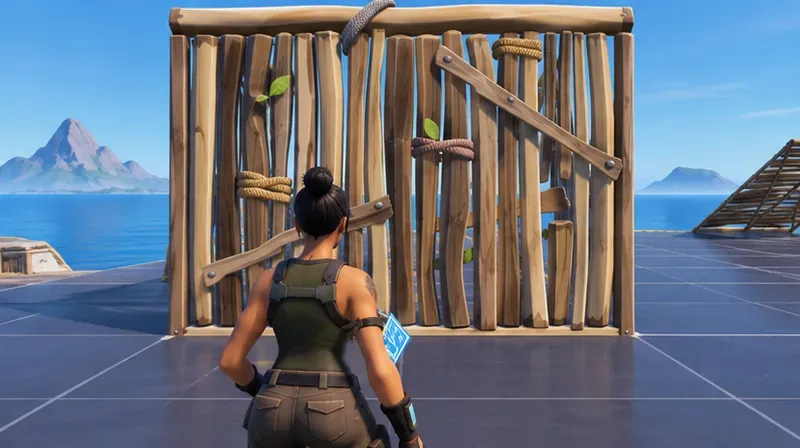
Keep the setup that lets you make the intended edit consistently, return to aiming or building without fumbling, and avoid accidental confirmations. If Auto Confirm Edits feels smooth but you often release before selecting the right tiles, slow down and practice the selection stage. If separate confirm keys feel controlled but you repeatedly miss the confirm press, try a more reachable bind or return to auto confirmation.
Change your setup if a key conflicts with movement, weapon swapping, or a build piece you use often; if your hand has to stretch awkwardly; or if your edits become less reliable in a real match than in the practice area. Do not change several binds immediately before a ranked session. Give the selected layout time in low-pressure play so the sequence becomes familiar.
The practice scenes above illustrate the sequence; they are not captures of Fortnite’s current settings menu. For exact labels, follow the settings in your installed game.
Enable PUBG’s network statistics HUD to monitor ping and packet loss in a match. See where to find it, what the numbers mean, and what they cannot diagnose.
Learn how to import VALORANT crosshair codes, compare presets with manual settings and spectator copy, and fix common import issues.
Choose Dota 2 minimap size, hero icons, team colors, and background settings by readability, fewer misclicks, and clear results on your own display.
Fix Fortnite texture pop-in on PC with official steps for GPU drivers, file verification, DirectX 12, high-resolution textures, VRAM, SSDs, and stutter.
Learn what Heroes of the Storm minimap size and position options are verified, improve readability, and choose camera-click controls that suit you.
Set Super Smash Bros. Ultimate Quickplay to prefer hazards-off stages. Follow the Preferred Rules menu steps and learn why matchmaking may not always honor them.
Enable Server Latency and Packet Loss in Warzone to monitor connection quality, read the overlay, and use recurring spikes to guide troubleshooting.
Learn how to carry from mid lane in League of Legends by setting up waves, choosing safe roam windows, reading side lanes, and converting pressure into objectives.
Fix Minecraft Evoker spell problems with a safe vanilla test, version checks, log review, and a step-by-step way to isolate mod or datapack conflicts.
Fix PUBG stuck on Initializing on Steam with a focused checklist for PC service notices, launch options, game files, downloads, and connection issues.








