How to Fix the VALORANT Black Screen: 6 PC Fixes
A VALORANT black screen can have different causes depending on whether Windows, other apps, or only the game is affected. If the desktop still works, first press Alt + Enter, then try Windows’ graphics reset shortcut, Win + Ctrl + Shift + B. If that does not restore the picture, work through the six fixes below: check the display output, update or roll back the graphics driver, test a fullscreen setting when relevant, repair game files, and isolate background conflicts before reinstalling.
This is a Windows PC guide. Try one change at a time and relaunch VALORANT after each one. Stop as soon as the game displays normally; a reinstall is not needed if an earlier step works.
Before you troubleshoot
Check whether the Windows desktop and another app display normally. Confirm the monitor is powered on and its HDMI or DisplayPort cable is seated. Close VALORANT and the Riot Client, then restart the PC once. If the entire display is blank outside the game, start with Microsoft’s Windows blank-screen troubleshooting guide; the problem may be with Windows, a cable, or the monitor rather than VALORANT.
The screen images below show common Windows controls. Their layout and labels can differ between Windows 10 and Windows 11.
Six ways to fix the VALORANT black screen
-
1. Switch out of fullscreen and reset the graphics driver
If the game window is black but Windows is responsive, press Alt + Enter once. Many PC games use this shortcut to switch between fullscreen and windowed mode; if VALORANT is stuck on a display mode, changing modes may bring the picture back. Wait a few seconds before pressing it again.
Next press Win + Ctrl + Shift + B. Microsoft documents this shortcut to reset the Windows graphics driver. The screen may flicker or beep while it refreshes. This can recover a display that stopped responding, but it does not repair damaged game files or a failing monitor. If the shortcut has no effect and other Windows windows are also invisible, use the broader Windows troubleshooting guide linked above.
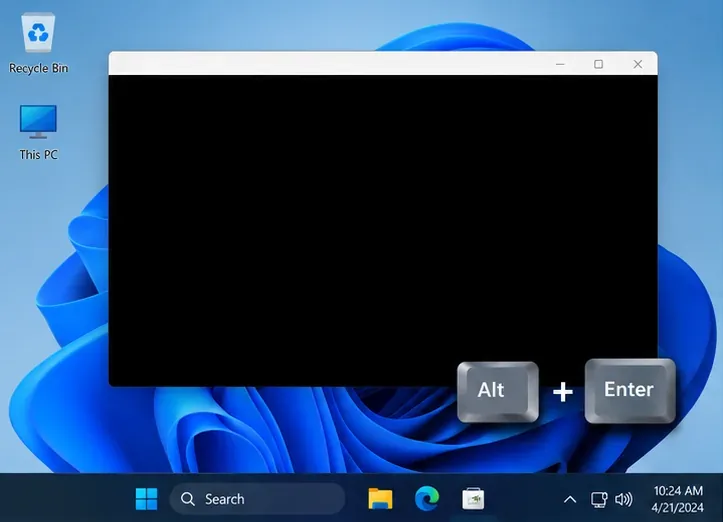
When a game window is black, Alt + Enter is a quick test for a fullscreen display-mode problem. -
2. Check which monitor Windows is using
A game can open on a different display from the one you are watching, especially after connecting a TV, docking a laptop, or changing monitors. Press Win + P to open Windows’ projection menu. For a single-screen test, choose PC screen only. If you normally use multiple displays, choose Extend and confirm VALORANT is opening on the intended monitor. You can also unplug a secondary display temporarily, then launch the game again.
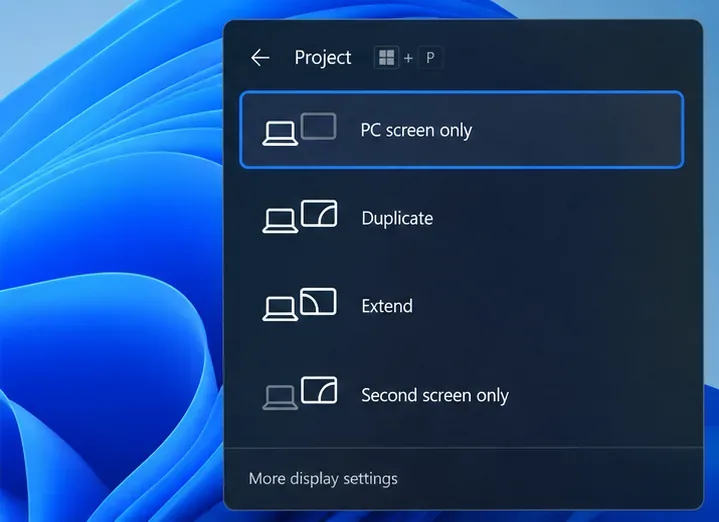
Windows + P opens the display-mode menu; choose the option that matches the monitor you want to use. Open Settings > System > Display, select the monitor you play on, and use its recommended resolution. Under Advanced display, select a refresh rate the monitor supports. Do not copy a sample value from another PC: available resolutions and refresh rates depend on the connected screen. Microsoft explains how to check or change a monitor’s refresh rate and manage multiple displays.
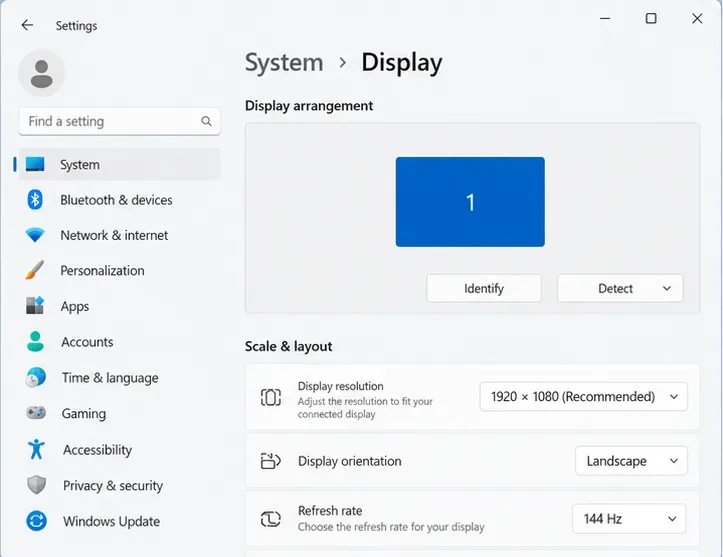
The resolution and refresh-rate fields are display-specific; select values supported by your monitor. -
3. Update the graphics driver—or roll it back after a bad update
Graphics drivers can cause rendering problems when they are outdated or corrupted. To identify your card, press Win + R, type
dxdiag, press Enter, and check the Display tab. Download a suitable driver through the official NVIDIA, AMD, or Intel tool, or your laptop maker’s support page. Riot’s graphics-driver guide links to the vendor options. Restart Windows after installing, then test the game.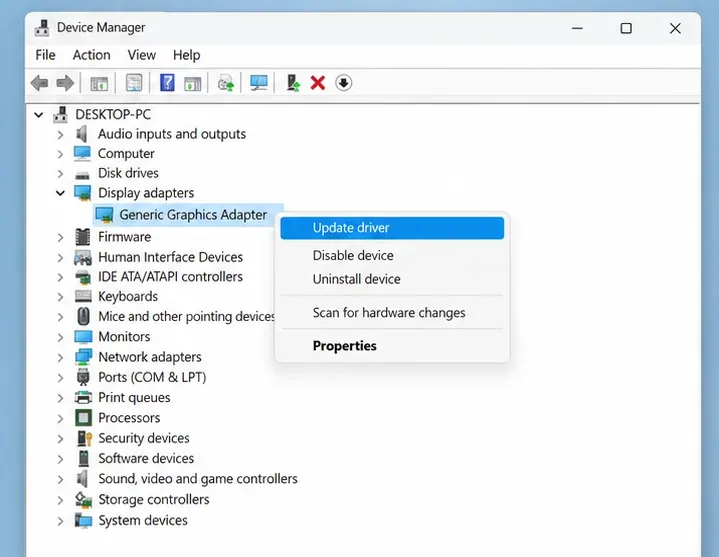
Device Manager can confirm that Windows recognizes a graphics adapter; use the manufacturer’s official source for its driver. If the black screen started right after a driver update, try rolling back instead of installing another version. In Device Manager, expand Display adapters, open your graphics card’s Properties, select the Driver tab, and choose Roll Back Driver if Windows enables it. Restart afterward. The button may be unavailable if Windows has no previous driver package to restore.
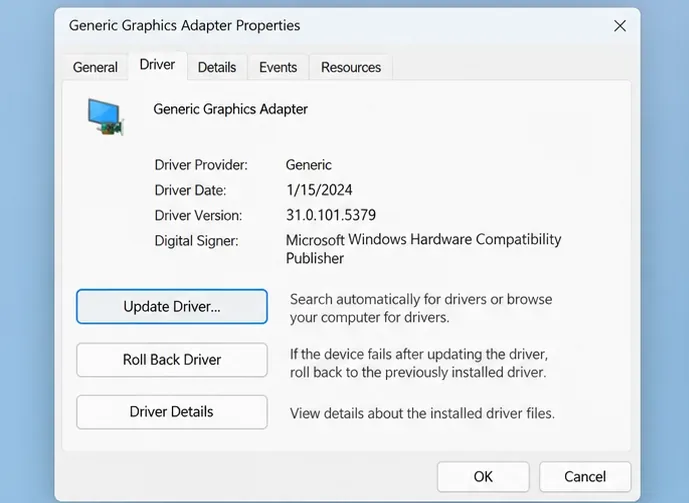
Roll Back Driver is available only when Windows has a previous driver package to restore. -
4. If the screen goes black after Alt+Tab, test fullscreen optimizations
Use this fix when the VALORANT black screen appears after Alt+Tab or switching between the game and desktop. Right-click the VALORANT shortcut, open Properties > Compatibility, check Disable fullscreen optimizations, and select Apply. Relaunch and test Alt+Tab. Riot lists this as a targeted workaround for flickering or black screens when switching apps; it is not a universal fix for every launch problem. If it makes no difference, clear the checkbox to restore the prior setting. See Riot’s Alt+Tab troubleshooting instructions.
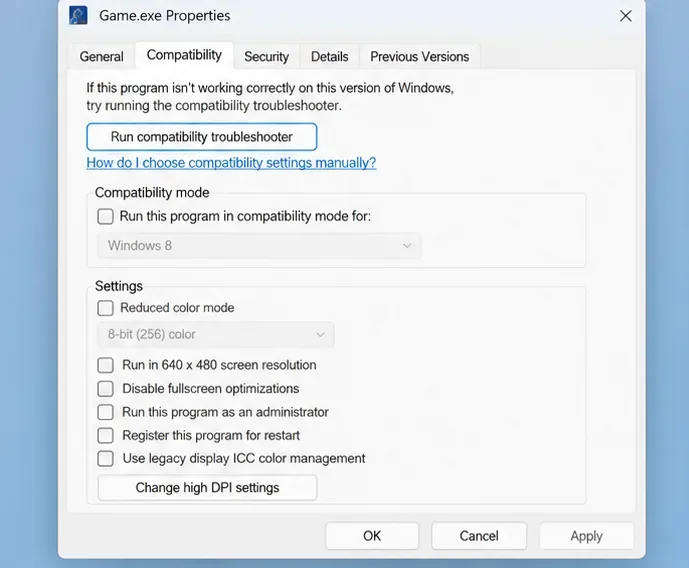
The compatibility checkbox is a targeted test for black screens or flicker tied to Alt+Tab. -
5. Run the Riot Client Full Repair Tool
Missing or corrupted game files can stop VALORANT from drawing the screen correctly. Sign in to the Riot Client, select your profile icon in the upper-right corner, open Settings, choose VALORANT, and select Repair. Follow the prompts and let the check finish before launching the game again. Riot introduced this automatic repair option for games that have trouble running from its client; the current steps are in the Riot Client Full Repair Tool guide.
If you cannot open the Riot Client settings or the repair tool reports an error, note the message and move to the next step rather than repeatedly retrying the same repair.
-
6. Isolate background conflicts, then reinstall only if needed
Riot’s clean-boot instructions keep Vanguard available. On a personal Windows PC, press Win + R, type
msconfig, and open the Services tab. Check Hide all Microsoft services, select Disable all, then findvgcin the list and check it again. Select Apply and OK, restart, and test VALORANT. Keepvgcenabled; it is the Vanguard service. If the black screen disappears, re-enable third-party services gradually to identify the conflict.Do not leave services disabled after the test. Follow Microsoft’s instructions to restore normal startup. Microsoft warns that System Configuration changes affect startup behavior and that network policies can restrict them. Skip this step on a work-managed PC or if you are unsure how to restore the original settings.
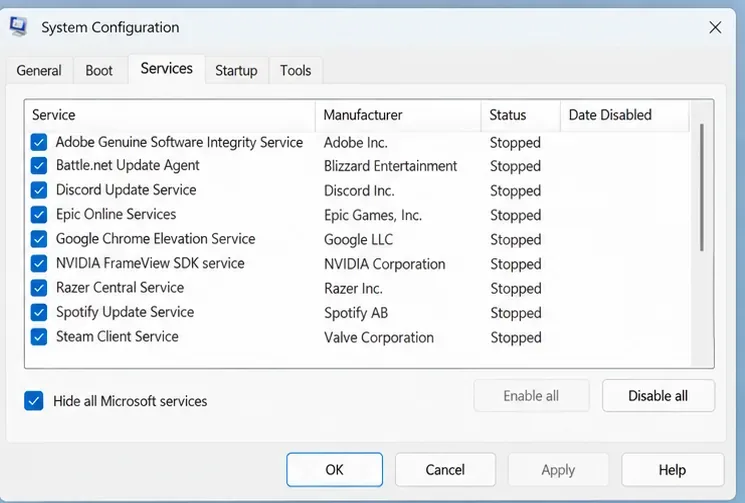
This illustration shows the Microsoft-service filter and Disable all control; Riot’s procedure then re-enables vgc before the restart. If the issue remains in a clean boot, uninstall VALORANT from Settings > Apps > Installed apps and reinstall it from Riot’s official site. Close the Riot Client before uninstalling; restart if Windows asks. Start with the standard uninstall. If that fails to solve a persistent game-file problem, follow Riot’s instructions for a clean uninstall and reinstall rather than deleting unrelated folders by hand.
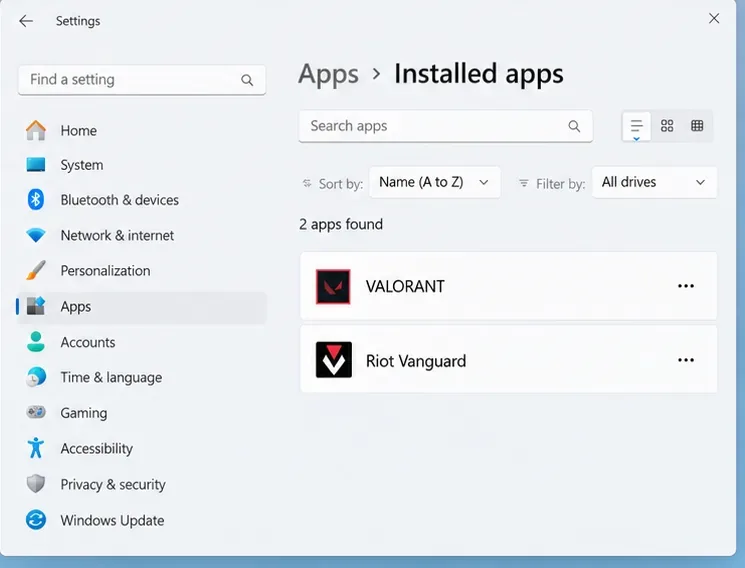
Windows lists VALORANT and Riot Vanguard separately; use Riot’s instructions before removing additional components.
Choose the next fix based on the symptom
| What you see | Start here |
|---|---|
| VALORANT is black, but Windows still works | Try Alt + Enter, then the graphics reset shortcut in Fix 1. |
| The game opens on the wrong monitor | Use Windows + P and check the selected display in Fix 2. |
| The problem began after a graphics-driver update | Try Roll Back Driver in Fix 3. |
| The screen goes black when switching apps | Test the fullscreen optimization setting in Fix 4. |
| Windows and other apps also go blank | Check the monitor, cable, and Windows troubleshooting guide before changing VALORANT settings. |
When to contact Riot Support
If all six fixes fail, submit a ticket through Riot’s VALORANT Support page. Include when the black screen occurs, whether audio continues, your graphics-card model and driver version, your Windows version, and the steps you have already tried. That information helps support distinguish a display issue from a launch, driver, or game-file problem.
Frequently asked questions
Why can I hear VALORANT while the screen is black?
Audio suggests the game may still be running even though its image is not reaching the display. Try the windowed-mode and graphics-reset shortcuts first. If this only happens after Alt+Tab, use the targeted compatibility test in Fix 4.
Should I reinstall VALORANT right away?
Usually, try the display and driver checks and the Riot Client repair first. Reinstallation takes longer and will not correct a monitor setting or a driver problem. Use it as the final step if repairing files and isolating background conflicts do not help.









