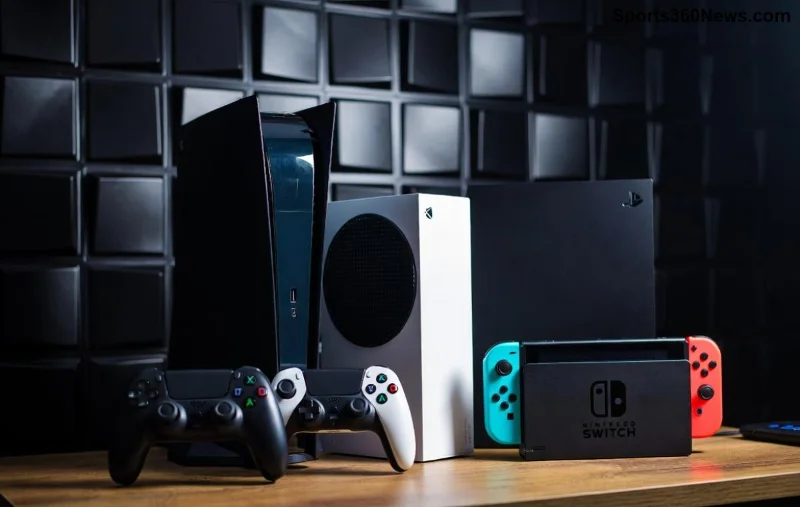
Imagine diving into your favorite game from anywhere, only to be hit by choppy video, delayed audio, or frustrating Remote Play audio and video lag. Whether you're using PS Remote Play, Steam Remote Play, or Xbox Cloud Gaming, lag can ruin the fun. But don't worry, gamer! This guide delivers how to solve Remote Play audio and video lag with battle-tested tips. You'll stream like a pro in minutes. Let's crush that lag! 🚀
Why Does Remote Play Lag Happen? Quick Diagnosis 👍
Before fixing, pinpoint the cause. Remote Play lag stems from network hiccups, hardware limits, or suboptimal settings. Common culprits:
- Weak internet: Speeds under 15Mbps upload/download cause stuttering.
- Wi-Fi interference: Crowded 2.4GHz bands lead to packet loss.
- High resolution/bitrate: Demands more bandwidth than your setup handles.
- Background apps/devices: Eating CPU, RAM, or bandwidth.
- Distance from router: Signal degradation spikes latency.
Pro tip: Run a speed test at Speedtest.net. Aim for <50ms ping, 15Mbps+ speeds. Ready to fix? Dive in! ⭐
Step-by-Step: How to Solve Remote Play Audio and Video Lag on Any Device
Follow these prioritized fixes. Start simple, escalate as needed. Most users see 80% improvement after the first three steps.
1️⃣ Optimize Your Network Connection (Fastest Wins)
Network is king for Remote Play streaming. Switch to wired for zero excuses.
| Method |
Pros |
Cons |
Latency Reduction |
| Ethernet (Wired) |
Stable, low ping |
Cable needed |
⭐⭐⭐⭐⭐ (Up to 70% drop) |
| 5GHz Wi-Fi |
Wireless freedom |
Range limited |
⭐⭐⭐⭐ |
| 2.4GHz Wi-Fi |
Long range |
Interference heavy |
⭐⭐ |
| Mobile Hotspot |
Portable |
Unreliable speeds |
⭐ |
- Plug your console/PC and client device into Ethernet. Instant lag killer! 🎮
- On router: Enable QoS (Quality of Service). Prioritize gaming traffic via app (e.g., ASUS, TP-Link).
- Switch to 5GHz Wi-Fi: Devices → Network → Advanced → 5GHz band.
- Restart router/modem. Clears congestion like magic. 😎
Bonus: Use a gaming VPN? Skip it—most add lag. Stick to direct connections.
2️⃣ Tweak Remote Play Settings for Smooth Performance
Lower settings = less strain. Customize per platform.
For PS Remote Play (PlayStation App):
- Settings → Video Quality → Standard (5Mbps) or Custom (reduce to 720p, 30fps).
- Disable "Enable HD" if lag persists.
- Audio: Set to 48kHz stereo—matches most headsets.
For Steam Remote Play:
- Steam → Settings → Remote Play → Advanced Host Options → Limit FPS to 60, bitrate 10Mbps.
- Client: Mirror display quality to "Beautiful" only on strong networks.
For Xbox Remote Play/Cloud:
- App settings → Streaming quality → 720p/60fps or lower.
- Enable "Energy Saver" on controllers to cut interference.
Test after each change. Video lag gone? Audio syncs perfectly now! 👏
![Optimized Remote Play settings menu on screen]()
3️⃣ Boost Hardware & Software for Lag-Free Play
Old gear amplifies issues. Quick upgrades:
- Update everything: Console firmware, app versions, drivers (NVIDIA/AMD via GeForce Experience).
- Close background apps: Task Manager (Ctrl+Shift+Esc) → End Discord overlays, browsers.
- Power settings: High Performance mode on PC (Windows Search → Power Plan).
- Use wired controllers/headsets—Bluetooth adds 20-50ms delay! 🔌
- Client device: Minimum i5/Ryzen 5, 8GB RAM. Phones? Flagships only.
Router upgrade? Mesh systems like Google Nest or Eero shine for multi-device homes.
4️⃣ Advanced Fixes: Port Forwarding & Server Tweaks ⚙️
If basics fail, go pro:
- Port Forwarding: Open PS: TCP 9295,9296,9297,9303; UDP 9297. Steam: UDP 27031,27036. Guides at official support:
PlayStation Support.
- Mobile data boost: Enable 5G, disable auto-updates.
- Test on another network—ISP throttling? Switch providers.
- Disable IPv6 if unstable (Router settings).
5️⃣ Troubleshooting Audio-Specific Lag 🎧
Audio desync? Isolate it:
- Lower sample rate: 44.1kHz in app settings.
- Exclusive mode: Windows Sound → App properties → Allow exclusive control.
- Headset firmware update (e.g., SteelSeries GG).
- Disable spatial audio enhancements.
Video-only lag? Drop resolution first.
Pro Tips to Prevent Future Remote Play Lag ⭐
- Monitor with tools like Wireshark or PingPlotter for spikes.
- Dedicated gaming router (Netgear Nighthawk) = game-changer.
- Stream during off-peak hours.
- Backup: Local multiplayer if remote fails. 😤
Ready to Game Without Limits? Your Turn! 🚀
You've got the blueprint to solve Remote Play audio and video lag. Start with network tweaks—most fix 90% of issues. Share your wins in comments! Which tip saved your session? Drop it below and help fellow gamers. Smooth plays await—grab your controller! 🎮✨
For official tweaks, check PS Remote Play Guide or Steam's docs. Game on!