Downloading TFT on Windows: Full Install Guide (2026)
Downloading TFT on Windows starts on Riot’s official Teamfight Tactics download page. As of October 16, 2026, Riot’s Windows download still installs the Riot Client and League of Legends, with TFT available from the TFT section of the League client. You do not need to play League, but the current PC install uses its client and files. This guide covers the up-to-date system requirements, official download steps, and fixes for common setup problems.
Client update for 2026: Riot has announced a dedicated TFT PC client, but it is not the current Windows download route yet. Riot’s FAQ says the TFT migration is planned for November 3, 2026, with the new PC client expected a few weeks afterward. Dates can change, so check Riot’s TFT migration FAQ if you are installing after that rollout.
Check the TFT system requirements
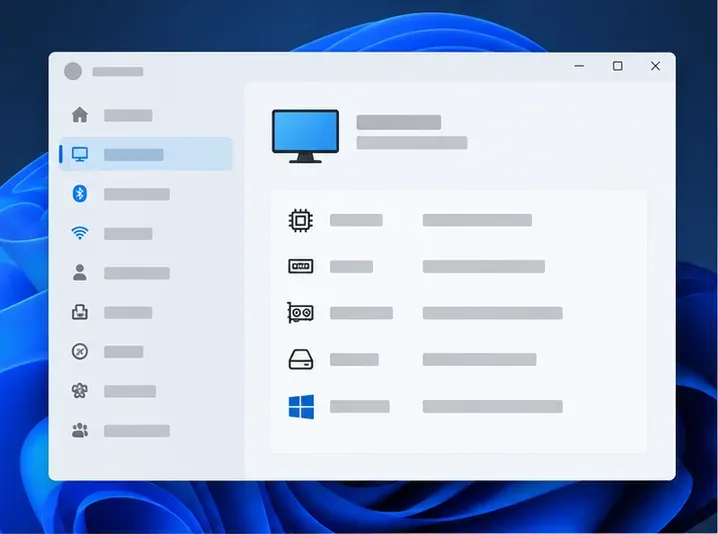
Riot’s current TFT PC specifications list the following Windows requirements. Leave at least 16 GB free so the install and patches have room; the actual download size can vary as game files change.
| Component | Minimum | Recommended |
|---|---|---|
| Windows | Windows 10, build 19041 or newer; or Windows 11 with TPM 2.0 enabled | Windows 11 with TPM 2.0 enabled |
| Architecture and memory | x64; 2 GB RAM | x64; 4 GB RAM |
| Processor | Intel Core i3-530 or AMD A6-3650 | Intel Core i5-8250 or AMD Ryzen 3 1200 |
| Graphics | GeForce 400 Series, AMD HD 6570, or Intel HD 4600; DirectX 11-level hardware; 1 GB VRAM | GeForce 560, AMD Radeon HD 6950, or Intel UHD 630; DirectX 11-level hardware; 2 GB VRAM |
| Storage | 16 GB free on an HDD | 16 GB free on an SSD |
Riot lists retail Windows editions as supported; Enterprise and Server editions are not listed as supported. Meeting only the minimum may limit visual quality or performance. If you are unsure about your Windows build, type winver in the Start menu. You can check free space in Windows Settings under System and Storage.
How to download and install TFT on Windows
Confirm your PC is compatible
Check your Windows version, x64 architecture, graphics hardware, and free storage against the table above. On Windows 11, make sure TPM 2.0 is enabled. An SSD is recommended by Riot, but the minimum requirements also list an HDD.
Sign in to a Riot account or create one
You need a Riot account to play. If you already use Riot games, sign in with that account so you reach the account that holds your TFT progress and purchases. If you are new, create an account through Riot’s official account page before or during setup. Use a password you do not reuse elsewhere, and make sure you can access the email on the account.
Get the Windows installer from Riot
Open the official TFT download page and choose Download for Windows. Save the installer from Riot’s site, such as in your Downloads folder. Avoid third-party download sites and repackaged installers; the official page is the safest way to get the current files.
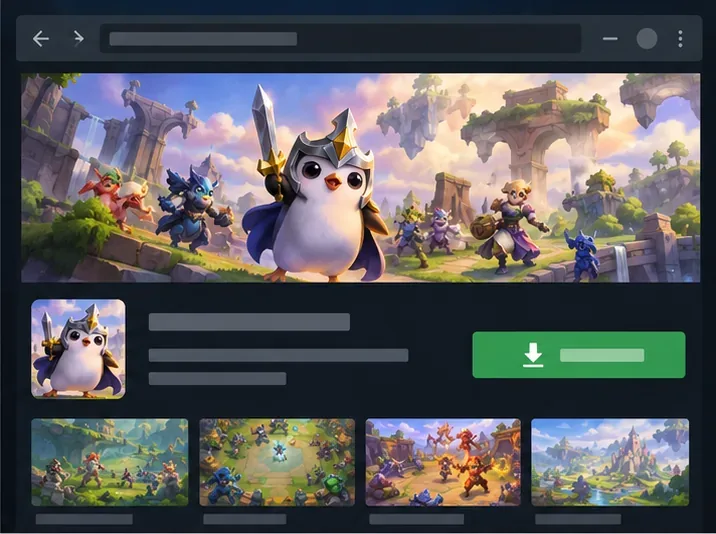
Use Riot’s official TFT download page; the screen shown here is a generic illustration of the download step. Run setup and let the game files install
Open the downloaded installer and follow the on-screen prompts. If Windows displays a permission prompt, continue only if you downloaded the file from Riot’s official page. The setup installs Riot Client and downloads the League of Legends PC client; Riot currently includes TFT with that PC download when your computer is compatible. Keep your internet connection active and allow any initial patch to finish before closing the client.
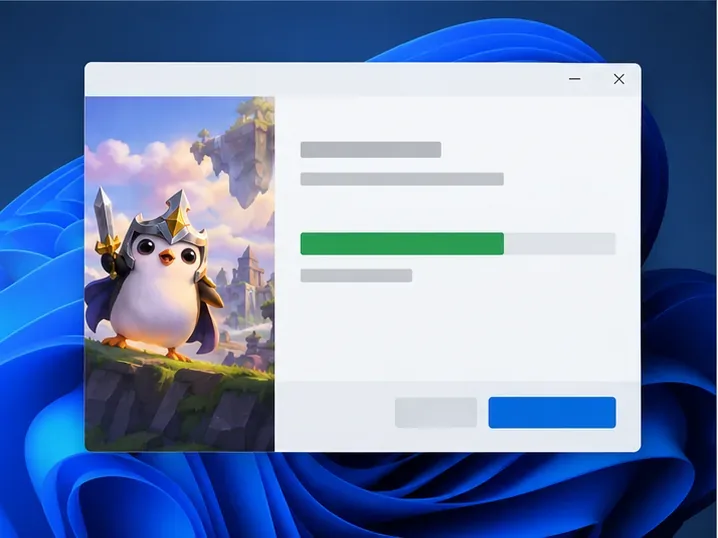
Keep the installer and Riot Client open while the game files download and update. Launch Teamfight Tactics
Open Riot Client, sign in, and select Teamfight Tactics. Until Riot completes the dedicated PC client rollout, this opens the TFT section in the League client. Wait for any remaining update, then select Play. A desktop shortcut can also open the game’s page in Riot Client first; Riot says PC launches now pass through Riot Client.
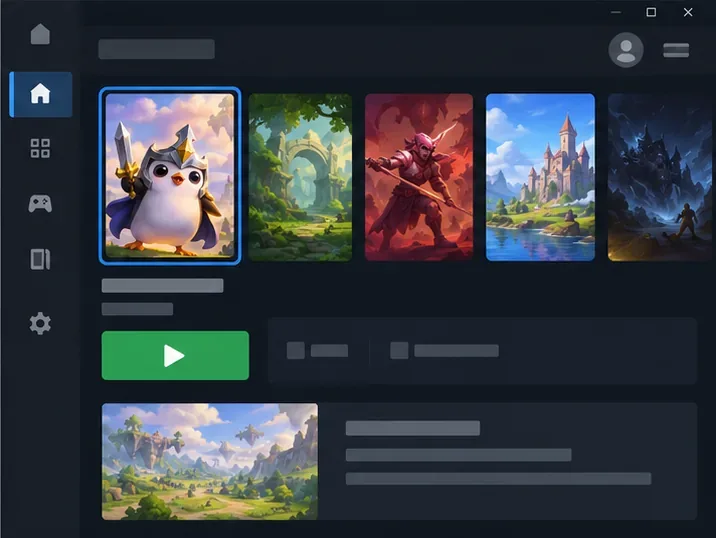
Choose Teamfight Tactics from Riot Client. Until the dedicated TFT PC client arrives, the current route opens the TFT section of the League client.
Fix common TFT download and install problems
The download is slow or appears stuck
Check that your connection is working, pause other large downloads, then restart Riot Client and resume the update. Riot’s general launch guidance also recommends updating Riot Client, restarting your PC, and trying again. Check Riot Service Status for a service issue before reinstalling.
The installer will not open or Windows blocks it
Confirm the file came from Riot’s official TFT page, then download a fresh copy if it looks incomplete. Check that the drive has enough free space and that Windows is up to date. Do not disable security software just to run an installer; if a specific error persists, search Riot Support for that message or submit a support ticket.
The Play button is disabled
Let any patch finish first. If the button remains unavailable, verify that your PC meets TFT’s current graphics and Windows requirements, restart Riot Client, and restart Windows. Riot’s official Riot Client FAQ lists these basic launch steps and links to more help.
Frequently asked questions
Is TFT free to download on Windows?
Yes. Teamfight Tactics is free to download and play. The game offers optional purchases, but you do not need to buy anything to install it or start playing.
Do I need League of Legends to play TFT on PC?
You do not need to play League of Legends. As of October 16, 2026, Riot’s PC download installs League and TFT together, and TFT launches from the League client through Riot Client. Riot has announced that this route will change when the standalone TFT PC client rolls out.
How much space should I leave for TFT?
Riot lists 16 GB of free disk space in its current PC requirements. Keep that much free before starting, and check the requirements page again if a future client or patch changes the storage needs.
Can I use the same account I use on mobile?
Sign in with the same Riot account you use for TFT on mobile to access the account associated with your game. Riot’s 2026 client transition FAQ says account details and purchases are not changing as part of the client update; check current TFT announcements for any progression details that change during the rollout.









