How to Check Real-Time Server Latency in the PUBG HUD

Enable PUBG’s network statistics HUD to monitor ping and packet loss in a match. See where to find it, what the numbers mean, and what they cannot diagnose.
No—you cannot change the country or region on an existing PlayStation Network account. Sony says the country/region is fixed once the account is created. A VPN, a different console location, or changing your billing address does not convert that account to another PlayStation Store region.
A separate account may be useful when you have a legitimate reason to register in another country, but it is not a way to move your current library, wallet balance, or account history. Sony instructs users to select the correct country/region when registering, and its U.S. Terms of Service require accurate account information and the country/region of residence. Rules and payment options can vary by market, so check the terms that apply where you live. This guide reflects official PlayStation support information checked October 16, 2026.
If you are unsure which storefront your account uses, sign in to Account Management, open Your Information, then choose Edit your Residential Address. Sony says the country/region appears at the bottom of that page. In the PlayStation App, open the Play screen, tap Settings, choose Account Information, and look under Residential Address.
This check shows the account's registered country; it does not provide a control for changing it. PlayStation Store content and services vary by country/region, so checking the account before buying a voucher, game, or add-on can prevent a purchase that will not work as expected.
The supported option is to keep using the existing account, or create a separate account with the correct information if your circumstances call for one. Sony's account setup guide says you can create an account online or on a PS5, and that the country/region cannot be changed later. Its U.S. terms say the selected country/region should be the country/region of residence and that account information must be accurate. Do not treat a VPN, invented address, or mismatched billing details as an official region-switching method.
Payment methods: PlayStation lists payment methods by the country/region selected when the account was created. A card may not link if its billing address is in a different country from the Store region. Check the accepted methods for the account's Store before adding funds; Sony's support page lists alternatives where available, but it does not promise that every foreign card or digital wallet will work.
Gift cards and voucher codes: Sony's voucher instructions say the code must be for the same region as the account. Voucher funds and content are applied to the account that redeems them and cannot be moved to another account. Buy a code only after checking its country/region marking and make sure you are signed into the intended account when redeeming it.
DLC and physical discs: A region mismatch can block an add-on even when the base game runs. For disc games, verify the license region printed on the case or ask the retailer, then match it to the add-on Store region. If you are purchasing a digital game, review the listing and publisher details for any product-specific restrictions rather than assuming that every regional version is interchangeable.
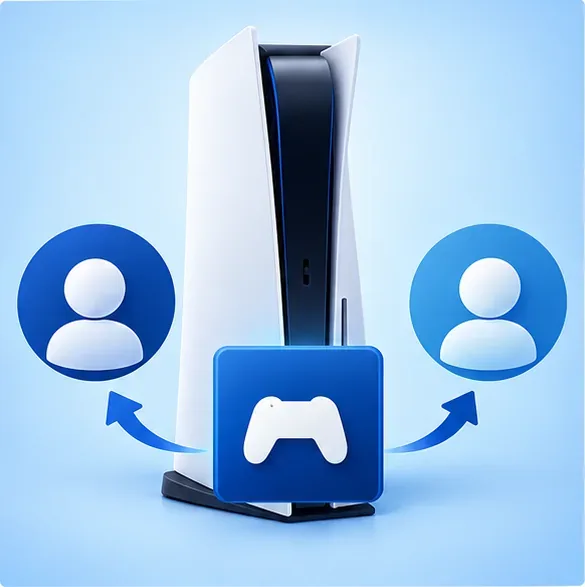
On PS5, enable Console Sharing and Offline Play on the console where you want other profiles to access eligible purchases. The path is Settings > Users and Accounts > Other > Console Sharing and Offline Play > Enable. Sony says anyone using that PS5 can play games and media purchased and downloaded by the account that enabled the feature, including offline, and may use some PlayStation Plus benefits. The feature can be enabled on one PS5 at a time; subscription games remain subject to an active subscription and catalog availability.
That setting is useful for sharing eligible games in one household. It does not make the second account's wallet, trophies, saved progress, or entitlements part of your original account. Keep both sign-in details secure, and do not share credentials with strangers or a code reseller.
Bottom line: You cannot change the region on an existing PSN account. A separate, accurately registered account is the only practical route to another country's Store when you meet that country's registration requirements—but purchases and funds stay attached to their accounts, and account sharing has clear limits.
Enable PUBG’s network statistics HUD to monitor ping and packet loss in a match. See where to find it, what the numbers mean, and what they cannot diagnose.
Learn how to import VALORANT crosshair codes, compare presets with manual settings and spectator copy, and fix common import issues.
Choose Dota 2 minimap size, hero icons, team colors, and background settings by readability, fewer misclicks, and clear results on your own display.
Fix Fortnite texture pop-in on PC with official steps for GPU drivers, file verification, DirectX 12, high-resolution textures, VRAM, SSDs, and stutter.
Learn what Heroes of the Storm minimap size and position options are verified, improve readability, and choose camera-click controls that suit you.
Set Super Smash Bros. Ultimate Quickplay to prefer hazards-off stages. Follow the Preferred Rules menu steps and learn why matchmaking may not always honor them.
Enable Server Latency and Packet Loss in Warzone to monitor connection quality, read the overlay, and use recurring spikes to guide troubleshooting.
Learn how to carry from mid lane in League of Legends by setting up waves, choosing safe roam windows, reading side lanes, and converting pressure into objectives.
Fix Minecraft Evoker spell problems with a safe vanilla test, version checks, log review, and a step-by-step way to isolate mod or datapack conflicts.
Fix PUBG stuck on Initializing on Steam with a focused checklist for PC service notices, launch options, game files, downloads, and connection issues.








