Home
» 🎮 Esports
»
Best Visual Sound Effects Settings for Competitive Fortnite
Best Visual Sound Effects Settings for Competitive Fortnite
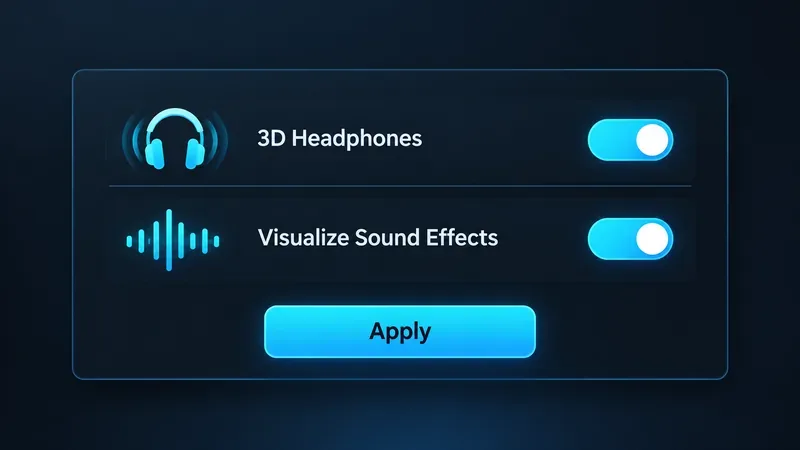
For competitive Fortnite, start with Visualize Sound Effects turned on. If you play with headphones, turn on 3D Headphones too, then select Apply. This gives you a directional visual cue for some in-game sounds while retaining Fortnite’s headphone spatial audio. Treat the visual ring as a quick alert, not a replacement for listening or a precise map of an opponent.
Epic’s current PC competitive settings guide recommends both options. The best setup still depends on how you play: the visual indicator can be useful if you miss quiet cues, play in a noisy room, or need an accessibility aid; players who already read audio direction easily may prefer relying more on sound. The practical test is whether you identify a nearby threat faster without letting the indicator distract you.
The two audio options Epic recommends for competitive PC play: 3D Headphones and Visualize Sound Effects, followed by Apply.
Recommended Fortnite sound settings at a glance
Setting
Starting point
When to adjust
Visualize Sound Effects
On
Turn it off only if you have tested it and find the radial cues more distracting than helpful.
3D Headphones
On when using headphones
Compare it with your usual audio chain; avoid stacking multiple virtual surround effects.
Sound Effects volume
Set high enough to hear gameplay clearly
Change it to suit your headset and hearing comfort. There is no universal percentage that fits every setup.
Music and other nonessential audio
Personal preference
Lower or mute them if they mask important cues, while keeping squad communication intelligible.
Only the first two recommendations above are specific toggles endorsed in Epic’s 2026 competitive PC settings guide. Volume levels vary with the device, headset, environment, and hearing. Do not copy a streamer’s slider numbers as if they were a universal competitive standard.
Why turn Visualize Sound Effects on?
The setting adds a radial visual indicator for some sounds. It can help you notice that activity is happening in a direction while you keep your eyes on an opponent, a build fight, or the next rotation. Epic describes the feature as visual cues and presents it as part of the game’s accessibility options. It is an in-game setting, not an external tool.
For example, imagine you are healing behind a wall and hear movement from the right but cannot immediately tell whether it is a teammate or an enemy. The indicator may prompt you to turn your camera toward that side sooner. You still need to listen, check the situation, and use the on-screen information available in the match to decide what to do.
Do not assume the ring gives an exact distance, height, player identity, or line of sight. Epic’s support description calls it a radial indicator for some sounds; it does not promise those extra details. A sound cue is a clue to investigate, not proof that an opponent is in a particular tile or building level.
Why pair it with 3D Headphones?
Epic’s 2026 guide also recommends 3D Headphones. It describes the option as binaural headphone audio that helps place sounds around you. Visual cues and headphone audio serve different roles: the indicator gives a fast visual prompt, while spatial audio can help you follow the sound as you turn, move, or take cover.
If you use headphones, test the built-in option before adding a separate surround-sound app or headset spatial mode. Epic specifically advises using Fortnite’s built-in technology instead of third-party software running in the background. Multiple spatial effects can make direction harder to judge. If audio seems smeared or reversed, return to one spatial processing path and compare again in a quiet Creative session.
How to enable and check the settings
Open Fortnite and go to the Lobby.
Open your profile or display-name menu, choose Settings, and select the Audio tab.
Turn on Visualize Sound Effects. If you play on headphones, turn on 3D Headphones as well.
Select Apply, as Epic’s support instructions specify.
Enter a low-pressure match or Creative island and check that you can see directional cues when supported sounds occur.
Epic’s support article gives this menu path and the Apply step. Labels or layout can vary as the game updates and across platforms, so follow the current Audio screen if your menu looks different. If you are using speakers, the 3D Headphones option may not suit your setup; test it with the hardware you actually use for ranked play.
When these settings may not help
The display feels crowded: If you keep looking at the radial cue instead of tracking the fight, test a few matches with it off and compare your awareness.
You use speakers or a noisy setup: Visual cues may still help you notice some sounds, but do not expect them to make every event clear.
You play on Nintendo Switch 2: Epic has posted a support notice that some players may not see visual cues such as footprints or chests even when the setting is on. If the indicators are missing, check the current Switch 2 support notice for status.
You are entering a tournament: Check the rules for that specific event. Epic’s Master Rules govern official competitions and are updated over time; they prohibit external programs or tools that access real-time game state to provide an advantage. The built-in Fortnite option is the subject of Epic’s own competitive settings guide, but event-specific rules remain authoritative.
The Master Rules do not list every in-game setting individually, so do not treat this article as a substitute for the rules of a particular cup. Review the current Fortnite Competitive Master Rules and the event’s specific rules before competing.
A quick competitive test
Use the same headset, volume, and platform you use in ranked. In a quiet practice session, turn the settings on and notice whether you can orient toward a sound without staring at the cue. Then play a few normal matches and ask three questions: Did I notice nearby activity sooner? Did I correctly use sound and sight together? Did the radial cue pull my attention away from aiming or building?
If the cues help you react while keeping your focus on the fight, leave Visualize Sound Effects on. If they create visual clutter, compare a short session with the feature off; avoid changing several audio settings at once. Keep 3D Headphones on only if direction remains natural with your headphones. Recheck after major game updates, since settings and platform behavior can change.
For most competitive players, the sensible starting setup is therefore simple: Visualize Sound Effects on, 3D Headphones on for headphone play, and a comfortable sound mix that lets effects and teammate callouts remain clear. There is no single magic slider value. The winning setup is the one that helps you notice and interpret cues consistently without masking other information.