Home
» 🎮 Esports
»
Best VALORANT Raw Input Buffer Settings: Always On, Plus Mouse Setup Tips
Best VALORANT Raw Input Buffer Settings: Always On, Plus Mouse Setup Tips
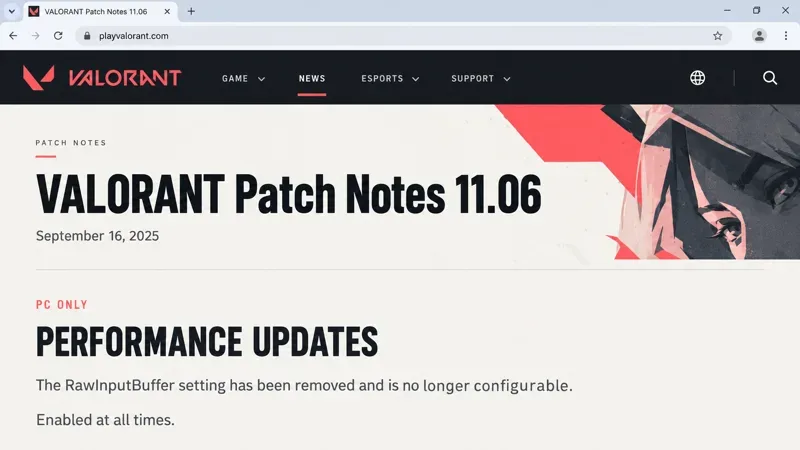
On current PC versions of VALORANT, Raw Input Buffer is automatically enabled; there is no On or Off setting to choose. Riot removed the configurable toggle in patch 11.06, released September 16, 2025. If you are looking for the best raw input buffer settings for a gaming mouse in Valorant, the practical decision now concerns your mouse’s polling rate and a consistent sensitivity setup.
For a simple starting point, use 1,000 Hz if your mouse supports it and retain your familiar DPI and in-game sensitivity. Consider higher polling rates only when your hardware supports them and your game stays smooth during mouse movement. This is a conservative starting recommendation, not a Riot-mandated preset or a benchmark result.
Reference checked October 8, 2026. This article concerns the PC mouse-input system. It does not provide console controller settings or claim measurements from a tested PC.
Raw Input Buffer: the current answer and the older advice
Riot’s patch 11.06 notes state that the control was removed and its behavior made permanently active for performance reasons. A missing toggle is therefore expected, rather than evidence that your mouse is unsupported. There is no need to reinstall the game merely to restore that setting.
Older discussions refer to a different version of the interface. In patch 3.07, dated October 5, 2021, Riot introduced the optional buffer and explained that VALORANT had already used raw input since launch. The buffer changed the APIs used to process it. Riot described a small performance benefit with standard devices, unchanged input latency for those devices, and a larger performance improvement with 8,000 Hz mice.
That history matters: the old Off setting did not mean the game stopped using raw input. An old recommendation to enable the buffer is now handled by the game automatically.
Patch-note reference illustration showing the PC performance update that removed the configurable Raw Input Buffer toggle.
Quick reference: which settings matter?
Control
Practical recommendation
Reason or limitation
Raw Input Buffer
Leave the current game’s automatic behavior alone
The user-facing toggle was removed
Mouse polling rate
Start at 1,000 Hz; evaluate higher supported rates individually
Reporting frequency and processing demand change
Mouse DPI
Keep your established value while comparing polling rates
Changing movement scale makes comparisons harder
In-game sensitivity
Keep it fixed during a polling-rate comparison
A faster-feeling aim is not evidence of lower latency
Windows pointer speed
Choose for desktop comfort
Raw mouse events are not scaled by this Control Panel setting
Performance monitoring
Watch frame consistency as well as average FPS
A high average can hide disruptive pauses
Polling rate: match the setting to the system
Polling rate, expressed in hertz, describes how frequently a mouse reports to the computer. It is separate from DPI, which controls the movement counts produced for physical travel. Raising the reporting frequency does not intentionally increase the distance your crosshair moves for the same mouse movement.
The nominal interval is calculated as 1,000 divided by the rate in hertz. These intervals are mathematical values, not measured click-to-display latency:
Polling rate
Nominal report interval
Suggested use
500 Hz
2 milliseconds
A fallback comparison if higher rates cause repeatable trouble
1,000 Hz
1 millisecond
A straightforward baseline for a supported gaming mouse
2,000 Hz
0.5 milliseconds
An intermediate option when available
4,000 Hz
0.25 milliseconds
An option to evaluate on a stable compatible setup
8,000 Hz
0.125 milliseconds
The most frequent reporting among these choices; assess actual smoothness
A shorter report interval is only one part of the input-to-display chain. It does not mean that total latency falls to that number, or that 8,000 Hz produces eight times better aim than 1,000 Hz.
For everyday play and limited troubleshooting time
A stable 1,000 Hz setup is a reasonable place to stop. If movement feels consistent and your game performs well, changing a working profile simply to match an advertised maximum is optional. A mouse that supports only 1,000 Hz does not become obsolete because Raw Input Buffer is permanently enabled.
For players evaluating high-polling hardware
Use the supported rates in your manufacturer’s software and check the requirements for your exact mouse and receiver. Availability can depend on the model and connection mode. Do not assume a menu item shown for another mouse applies to yours.
Razer’s HyperPolling technical guidance acknowledges that processing 8,000 reports per second can exceed available resources in CPU-bound situations and suggests lower rates such as 4,000 or 2,000 Hz when appropriate. This supports evaluating performance, rather than assuming the highest rate is always the best setting.
That manufacturer page also retains advice about enabling VALORANT’s former buffer toggle. For the game’s current control availability, Riot’s later patch note takes precedence.
Sensitivity consistency: separate aiming preference from input processing
Keep a written record of mouse DPI, normal in-game sensitivity, and any scoped or aiming multipliers you use. A different mouse profile can make aim feel unfamiliar even when the game’s input processing has not changed.
For comparing normal aiming settings within VALORANT, effective DPI is commonly calculated as mouse DPI multiplied by in-game sensitivity. For example, 800 DPI at 0.40 sensitivity and 1,600 DPI at 0.20 both produce 320 effective DPI. This is an illustrative arithmetic comparison, not a recommended sensitivity for every player. It also does not establish identical sensor behavior or latency.
When investigating stutter, retain your normal movement scale. Changing DPI, sensitivity, and polling rate together makes it difficult to tell whether a difference came from input frequency, aiming speed, or adaptation to new settings. There is no verified universal sensitivity value that follows from Raw Input Buffer being enabled.
Windows pointer settings are a separate concern
Microsoft’s raw mouse input documentation explains that raw mouse events are not affected by the pointer-speed setting in the Control Panel’s Mouse Properties. Combined with Riot’s account of using raw input since launch, this is a reason not to treat the desktop pointer-speed slider as a VALORANT sensitivity control.
This does not mean every driver feature or third-party input utility is bypassed. Manufacturer profiles and other software can still be relevant to troubleshooting. Avoid sweeping claims that a particular Windows slider or configuration-file edit will automatically repair every aiming problem.
Evaluation checklist: what would justify keeping a change?
The following checklist is a reference for judging an adjustment, rather than a promise of a specific performance gain:
Comparable conditions: the same DPI, sensitivity, graphics settings, and a similar game workload.
Movement included: observe performance during broad mouse sweeps, not only while standing still.
Repeated behavior: look for a difference that returns across comparisons, rather than one unusually smooth session.
Frame consistency: note pauses and spikes, not just the highest FPS number.
Match relevance: a quiet practice scene does not establish performance during a busy match.
A saved baseline: retain the working mouse profile so you can return to it.
Riot’s game and network instability reference distinguishes low client frame rate from network problems and describes built-in performance graphs for diagnosis. Use the available performance statistics in your current client; menu layouts can change.
As a hypothetical example, suppose movement repeatedly produces pauses at 8,000 Hz, while the same setup remains smooth at 1,000 Hz. The lower rate is the more useful choice for that setup until the cause is understood. This example is not a reported test result. Conversely, if higher rates remain stable and suit your preference, the automatic buffer behavior is compatible with evaluating them.
When the symptom needs a different investigation
Rubber-banding, packet loss, mouse disconnects, and low frame rate are different symptoms. Polling-rate adjustments do not repair a poor internet route. If a mouse disconnects outside VALORANT as well, investigate the device and connection with its manufacturer. If frame drops occur without mouse movement, broaden the performance investigation instead of blaming input frequency alone.
The useful recommendation is specific: Raw Input Buffer needs no manual setting in current VALORANT. Preserve a consistent aiming profile, use a stable polling rate, and keep higher reporting frequencies only when your hardware and real gameplay support them. No undocumented toggle restoration or promised millisecond gain is needed to make that decision.