Home
» 🎮 Esports
»
Best Target Selection Method Settings in Honor of Kings
Best Target Selection Method Settings in Honor of Kings
The best target selection method in Honor of Kings depends on what you need your next attack to do. Choose Nearest Unit when predictable spacing and kiting matter most, Lowest Absolute HP when you want basic attacks to favor the smallest remaining health pool, and Lowest HP Percentage when you want to follow relative damage. Keep manual hero targeting available for fights where a particular enemy matters more than the automatic choice.
For a flexible baseline, use the most deliberate attack controls your current client offers, choose one priority that fits your hero, and practice switching targets manually. The exact menu wording and available controls can vary by client version or region, so use the options shown in your installed game as the final reference.
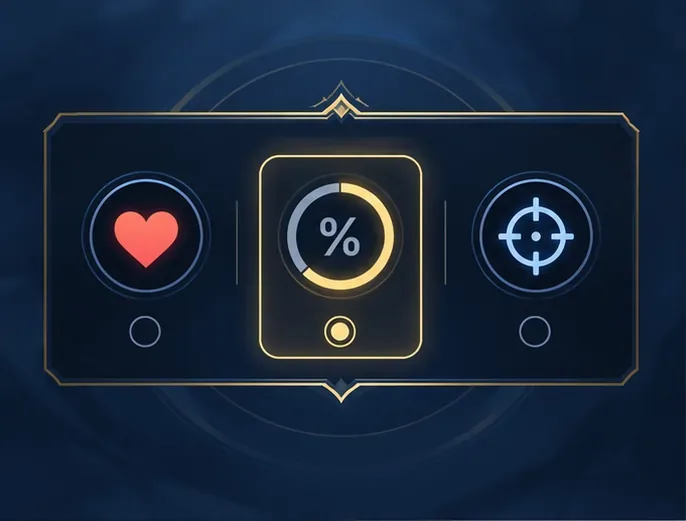
Conceptual control card showing three ways a target priority can be framed. It is not a capture of the current Honor of Kings menu.
Quick guide to Honor of Kings target selection settings
Your priority
Starting method
Best fit
Main tradeoff
Attack the closest valid opponent
Nearest Unit
Kiting, short trades, and predictable movement
May leave a more valuable backline target untouched
Finish the smallest remaining health pool
Lowest Absolute HP
Assassins, burst heroes, and cleanup attacks
May switch to a minion or frontliner if that target is eligible and has less HP
Follow the most depleted health bar
Lowest HP Percentage
Sustained damage and pressure on a heavily wounded enemy
Can favor a durable hero at a low percentage over a squishy hero with less raw HP
Hit one specific enemy hero
Manual hero lock or avatar selection, if available
Crowded fights, dives, and targeted follow-up skills
Requires an extra input and attention to the on-screen controls
These are practical interpretations of the option names, not a guarantee that every current client uses identical labels or applies one priority to every kind of attack. A command can only choose among targets that the command and the hero’s range make eligible.
How the three target priority methods differ
Lowest Absolute HP: favor the smallest raw health total
Lowest Absolute HP compares remaining health as a number. For example, if one enemy has 1,600 HP left and another has 2,100 HP left, an absolute-health rule favors the first enemy, regardless of their maximum health. This can be useful when an assassin or burst hero is looking to finish a nearby opponent with a basic attack.
It does not mean “pick the squishiest hero” or “pick the most important target.” A low-health minion, tank, or other eligible unit may draw an attack away from an enemy carry. When the target matters more than the health total, use a manual hero target or aim deliberately instead of trusting the automatic rule.
Lowest HP Percentage: compare health relative to the maximum
Lowest HP Percentage compares how much health remains as a share of each target’s own maximum. Consider Enemy A at 1,600 of 5,000 HP (32%) and Enemy B at 2,100 of 10,000 HP (21%). An absolute-health rule favors A because 1,600 is the smaller number; a percentage rule favors B because 21% is lower than 32%.
This option can make attacks follow the most depleted health bar, even when that target has more raw HP left. It is a reasonable choice for sustained pressure, but it can keep your attacks on a wounded tank while a higher-value backliner remains in range. Watch the target that the control actually selects before carrying the setup into ranked matches.
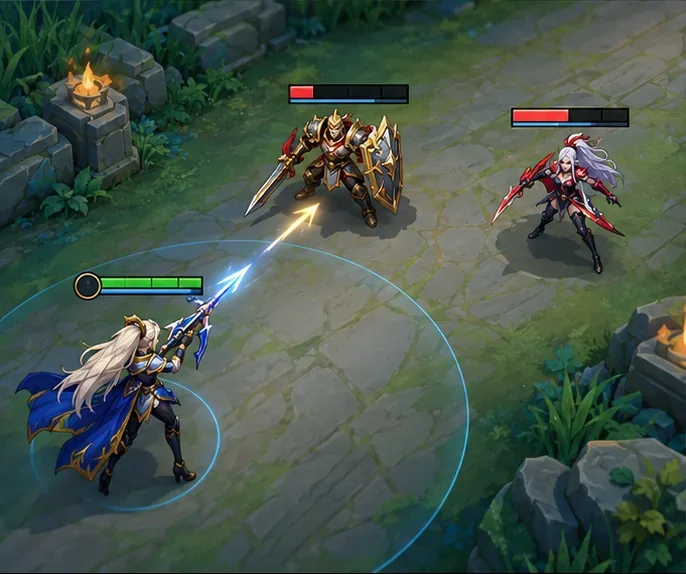
Two opponents with different remaining health bars illustrate why raw HP and HP percentage can point to different targets.
Nearest Unit: make automatic attacks easier to predict
Nearest Unit favors the closest eligible target. It is often the easiest priority to anticipate when you are kiting, trading at close range, or trying to avoid an attack command pulling your hero toward a distant low-health opponent.
Nearest does not automatically mean safest. If a tank is standing between you and an enemy damage dealer, the tank may remain the nearest target. Use manual hero selection when the front line is blocking the opponent you actually need to hit.
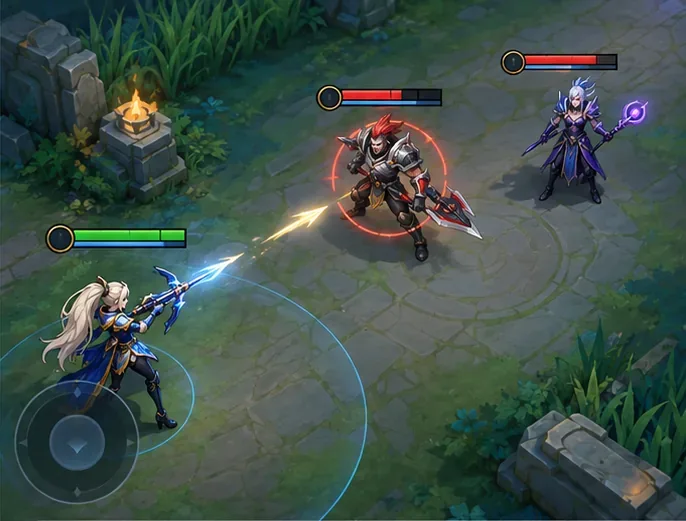
A selected ring marks the closer opponent in this conceptual example of nearest-target priority.
Recommended target selection settings by role
Role or play style
Try first
Keep ready
Assassin or burst jungler
Lowest Absolute HP for cleanup; Nearest Unit if chasing makes attacks unpredictable
Manual hero lock to reach a specific carry
Kiting marksman
Nearest Unit for a predictable close target
Manual target selection to switch past a frontline hero
Cleanup-focused marksman
Lowest Absolute HP or Lowest HP Percentage, based on which target you intend to finish
Separate minion or structure commands if your client provides them
Mage who aims skill shots
A comfortable basic-attack fallback; test both nearest and health priority
Manual aim for important skill casts
Fighter or tank
Nearest Unit for close trades and reliable contact
Manual selection before a gap close or crowd-control combo
Roamer or support
Nearest Unit for routine attacks
Manual selection to direct targeted control toward a threat
These are starting points, not hero-specific prescriptions. A basic attack that also dashes, an empowered strike, or a skill that locks onto a target can behave differently from a standard attack. Recheck the result for heroes whose attacks include movement or unusual targeting.
Use attack controls and target priority together
Think of target selection as three separate decisions: the attack control says what kind of command you are issuing, the priority rule ranks eligible targets, and manual selection lets you override that ranking. If your current version offers Free Attack Mode (Advanced) or separate hero, unit, and structure attack controls, they can help you make a more deliberate choice. Confirm the labels and function of each button in your own Controls menu.
This distinction matters near minions and towers. A broad attack command may select a different eligible target than a command meant for a hero or structure. Target priority cannot correct a command that is asking for the wrong target category, and a global priority setting should not be treated as a substitute for last-hit or objective controls.
A four-part practice check before ranked play
Choose one priority. In Controls, note the options currently shown in your client. Set Nearest Unit for spacing or one of the health rules for cleanup, then leave other controls unchanged for the first comparison.
Check distance. In a practice environment or an unranked match, place two eligible opponents at different distances. Issue a basic attack and see whether the result matches your selected priority.
Check health. Compare targets with different raw HP and different health percentages. This makes it easier to see whether the option is following absolute health or relative health, rather than guessing from one fight.
Check manual override. If your client offers enemy-avatar lock or another direct hero-selection control, use it when several heroes are grouped. Confirm that your attack or targeted follow-up goes to the selected hero before relying on it in a high-stakes fight.
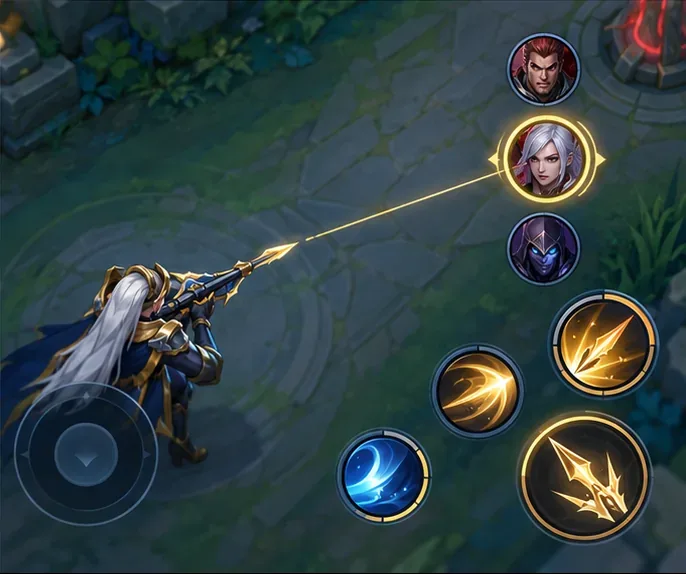
The highlighted portrait represents a deliberate manual target choice in a crowded fight.
After the check, ask whether the game chose the target you expected before you corrected it. If you are repeatedly canceling attacks, changing aim, or chasing the wrong opponent, try another priority or use the manual control more often. The useful setting is the one that makes routine actions predictable for your hero.
Common target selection mistakes
Assuming low HP means low percentage. Absolute health and percentage health can rank two enemies differently.
Assuming the priority understands team-fight value. Automatic selection does not know which enemy is the carry, who has a key ultimate, or who your team is focusing.
Expecting basic-attack priority to control every skill. Directional and manually aimed skills may require their own aim input; check the skill behavior in the current client.
Copying a single setup for every hero. Dashes, enhanced attacks, and attack range can change how the same priority feels.
Skipping the post-update check. Menu names and combat behavior may change, so review Controls after a major update.
Best all-purpose starting setup
For most players, start with Nearest Unit on heroes that rely on spacing and kiting, or Lowest Absolute HP on heroes that often finish damaged opponents. Try Lowest HP Percentage if you specifically want to follow the most depleted health bar. Keep manual hero selection available for the target that matters most, and use separate attack controls if your client provides them.
Honor of Kings’ official test-server information says test-server settings can differ from live servers and that test content is not necessarily final. The public page does not provide a complete, permanent glossary of live-client targeting labels. Treat the options visible in your installed game as authoritative, and verify your setup after updates.