How to Check Real-Time Server Latency in the PUBG HUD

Enable PUBG’s network statistics HUD to monitor ping and packet loss in a match. See where to find it, what the numbers mean, and what they cannot diagnose.
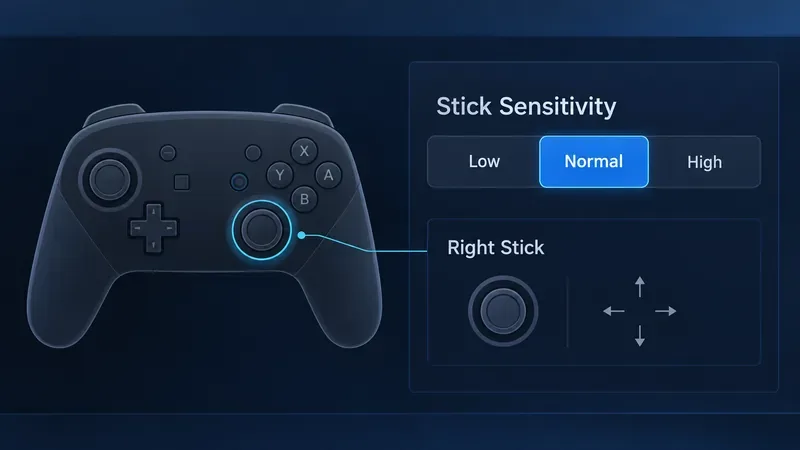
For most players, start with Normal. Move to Low if your left-stick inputs keep producing smash attacks when you wanted tilts. Try High if you often intend a smash attack with the left stick and A, but get a tilt instead. These settings shift the balance between the two outcomes; they do not make one value best for every controller layout or character.
Nintendo describes a smash attack as the result of quickly flicking the Control Stick and pressing A. The Stick Sensitivity option changes how forgiving that left-stick attack input feels around the smash-versus-tilt distinction. Nintendo does not publish the exact timing values for Low, Normal, and High, so treat the guidance below as a way to tune by results, not as a frame-perfect formula. Nintendo’s beginner guide to Super Smash Bros. Ultimate controls
| Setting | Best starting use | What to watch for |
|---|---|---|
| Low | You use the left stick plus A for tilts and keep getting unintended smashes. | Tilts may be easier to get from left-stick inputs, while left-stick smash attacks can take more deliberate timing. |
| Normal | You want a neutral baseline or are not sure which input causes the mistake. | Use it for a short test before changing other controls. |
| High | You use left-stick plus A for smash attacks and often get tilts instead. | Left-stick smash inputs may become easier, but accidental smashes can also become more common. |
The quick recommendation is Low for tilt reliability, High for easier left-stick smash inputs, and Normal as the first setting to evaluate. Change one step at a time. If you switch sensitivity and your results get worse, return to the previous value; the setting is a preference aid, not a substitute for choosing the input method that suits you.
In a standard control layout, the left Control Stick handles movement and directional attacks. A directional attack made with A can register as a tilt or a smash depending on the input. A rapid stick flick followed by or combined with A is the familiar smash input; a tilt uses a directional attack without the same quick flick. Sensitivity is relevant when you rely on that left-stick-and-A distinction.
The setting is not a general analog-stick speed control. It does not change a fighter’s movement speed, the physical travel of the stick, or how quickly the right stick itself moves. The game presents Low, Normal, and High as sensitivity choices, but Nintendo’s public material does not give a numeric threshold for each one. Avoid guides that promise a universal timing window unless they identify a reproducible, current test and controller setup.
Your right stick can also be assigned an attack type in the Controls menu. If you set it to Tilt Attack, you gain a direct way to perform directional tilts without depending on a carefully controlled left-stick flick. This can reduce accidental smash inputs while leaving the left stick available for movement and smash attacks. If your right stick is set to Smash Attack, it gives you another straightforward smash input. Either mapping changes how much the sensitivity setting matters to your routine.
Try Low if you perform that move with the left stick and A. Then repeat the same directional tilt several times in Training Mode or a quiet practice match. Look at the move that appears each time, not just whether the stick motion felt smooth. If the unwanted smash becomes less frequent without making your intended tilts unreliable, keep Low.
If the error continues, consider changing the right stick to Tilt Attack and use it for the tilts you need most often. This separates the tilt command from the left-stick flick-and-A input. It can be especially useful for quick up tilts or down tilts, where a small movement or a fast attack input may otherwise be misread. The tradeoff is that you may need to learn a different right-stick habit, and the right stick’s directional attack may not suit every player’s hand position or preferred controller.
Try High when you deliberately use the left stick plus A for smash attacks and the game frequently gives you a tilt. Retest the same move from a neutral position and from movement, because a test done only while standing still may miss the situations where your input becomes rushed. Keep High only if the intended smash appears more consistently and stray smashes do not become a bigger problem elsewhere.
You can also use the right stick for Smash Attack if that input feels more dependable. This avoids relying on the left-stick-and-A timing distinction for that move. If your right stick is already mapped to Tilt Attack, you can keep that arrangement and try High for left-stick smashes; the best split depends on whether your character and play style call for frequent tilts or smashes.
This is a practical comparison, not a laboratory measurement. A handful of attempts can reveal a clear pattern, but they cannot guarantee performance in a fast match. If your input errors happen only during movement, test from movement too. If the mistake occurs with the right stick, check its assigned attack type before changing sensitivity.
Keep the setting that improves the specific result you care about: more intended tilts without accidental smashes, or more intended smashes without losing useful tilt control. Also pay attention to whether the change feels repeatable across directions. A setting that helps your up smash but causes frequent side smashes may not be a net improvement for your play.
Change your right-stick mapping before making large sensitivity adjustments if you routinely need both attack types. For example, Tilt Attack on the right stick can make tilts deliberate, while left-stick-plus-A or another chosen input handles smashes. If you prefer the default Smash Attack mapping, Low may help keep left-stick tilt inputs distinct, while High may make left-stick smashes easier to trigger.
Finally, verify the controller itself if results vary even when you repeat the same input. Stick drift, inconsistent hardware, a different controller layout, or a changed button mapping can make a sensitivity setting seem responsible for errors it cannot fix. The best setting is the one that produces the intended attack reliably with your setup; it is not a hidden accuracy boost, and it cannot remove the need to learn the input.
Enable PUBG’s network statistics HUD to monitor ping and packet loss in a match. See where to find it, what the numbers mean, and what they cannot diagnose.
Learn how to import VALORANT crosshair codes, compare presets with manual settings and spectator copy, and fix common import issues.
Choose Dota 2 minimap size, hero icons, team colors, and background settings by readability, fewer misclicks, and clear results on your own display.
Fix Fortnite texture pop-in on PC with official steps for GPU drivers, file verification, DirectX 12, high-resolution textures, VRAM, SSDs, and stutter.
Learn what Heroes of the Storm minimap size and position options are verified, improve readability, and choose camera-click controls that suit you.
Set Super Smash Bros. Ultimate Quickplay to prefer hazards-off stages. Follow the Preferred Rules menu steps and learn why matchmaking may not always honor them.
Enable Server Latency and Packet Loss in Warzone to monitor connection quality, read the overlay, and use recurring spikes to guide troubleshooting.
Learn how to carry from mid lane in League of Legends by setting up waves, choosing safe roam windows, reading side lanes, and converting pressure into objectives.
Fix Minecraft Evoker spell problems with a safe vanilla test, version checks, log review, and a step-by-step way to isolate mod or datapack conflicts.
Fix PUBG stuck on Initializing on Steam with a focused checklist for PC service notices, launch options, game files, downloads, and connection issues.








