How to Check Real-Time Server Latency in the PUBG HUD

Enable PUBG’s network statistics HUD to monitor ping and packet loss in a match. See where to find it, what the numbers mean, and what they cannot diagnose.
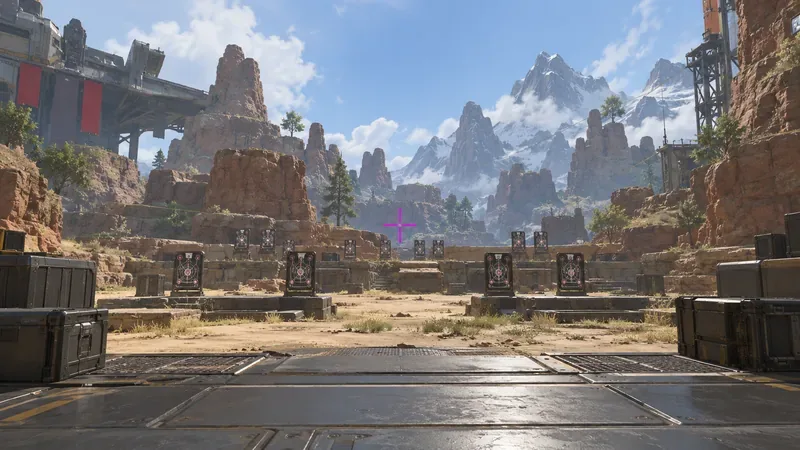
A reticle that disappears against a bright sky, pale wall, or colorful ability effect can make it harder to keep your aim point in view. In Apex Legends, you can choose a custom reticle color and enter an RGB value in the game’s customization screen. There is no single color that stays visible on every map, optic, display, and visual effect, but a saturated magenta is a useful first code to test.
Best all-around starting code: RGB 255, 0, 255 — hex #FF00FF. It is vivid and visually distinct from many tan, gray, green, and blue areas. Treat it as a starting point, not a proven universal winner: preview it against the game’s sample scenes and your usual weapons before taking it into a ranked match.
| Use case | RGB code | Hex equivalent | Trade-off to check |
|---|---|---|---|
| First all-around test | 255, 0, 255 | #FF00FF | Strong color separation on many neutral and earth-toned scenes; may compete with purple effects or cosmetics. |
| Cool-toned alternative | 0, 220, 255 | #00DCFF | Can stand out over warm ground; may blend into blue sky, water, or cool visual effects. |
| Dark interior test | 255, 215, 0 | #FFD700 | Often easy to spot on dark walls; may blend into sand, orange lighting, or bright surfaces. |
| Bright lime option | 160, 255, 0 | #A0FF00 | Visible on dark blue and purple areas; can disappear into green foliage or yellow-green effects. |
| Warm contrast option | 255, 90, 0 | #FF5A00 | May separate from cool blue scenery; can blend into red-orange terrain and some enemy indicators. |
These are practical color candidates, not measured performance results or guaranteed “best” settings. The table gives you a short list to compare rather than a claim that one RGB triplet improves accuracy. Visibility depends on the exact scene behind the reticle, the sight you are using, display settings, and how your eyes distinguish color.
Magenta is a high-saturation mix of red and blue. As a starting point, it is less likely than a muted gray or dark green to vanish against common earth, concrete, foliage, and sky colors. The full-intensity code 255, 0, 255 is also easy to recognize and remember. If you want to enter the same color somewhere that accepts hexadecimal notation, its equivalent is #FF00FF. In Apex’s reticle editor, use the RGB fields or color controls shown in the game; a hex string is a separate notation and may not be accepted by those fields.
That reasoning does not make magenta universally superior. A purple ability effect, a bright sign, or a color-treated display can reduce its separation. Players who find saturated pink uncomfortable may prefer a slightly less intense shade such as 220, 40, 220, provided the game accepts it without adjusting the color. If the preview shifts the value or the reticle looks dim, choose a brighter safe color rather than trying to force an extremely dark code.
EA introduced the Custom Reticle Color System through the Gameplay settings. Its official description says the editor includes recommended colors, color and brightness controls, manual RGB entry, and four hand-picked preview environments. EA later documented a limit of 0–255 for the custom values and explained that some dark colors are not selectable because the reticle’s rendering can make them invisible. When a manually entered value falls into an unsafe range, the game may move it toward a safer color.
This matters when a code does not look exactly like its table entry. A reticle that changes after you enter the numbers may be the game’s safety adjustment, not a typing mistake. Use values within the documented channel range, then judge the result that the game actually displays. Avoid relying on out-of-range launch commands, configuration edits, or third-party overlays to force a color: those approaches are outside the in-game customization workflow and can become unreliable after updates.
As of October 8, 2026, EA’s latest patch notes reviewed for this guide are dated September 14, 2026. Those notes focus on seasonal balance, maps, audio, and fixes and do not announce a change to reticle color entry. Because live-game menus can still change, use the labels visible in your installed version if they differ from the path below.
255, 0, 255.The precise menu layout can vary with platform, localization, or future updates. The important distinction is to use the in-game Gameplay → Reticle → Customize controls, not a community-made menu overlay. EA’s original feature notes describe this path and the four preview environments.
Test magenta first, then compare it with orange or lime. A pale or white reticle may look clean in a dark room but lose contrast against bright sky, snow-like effects, or washed-out surfaces. If the custom color appears too bright or blooms on your monitor, lower the in-game brightness control a little while checking that the thin center remains visible at normal viewing distance.
Try a bright yellow such as 255, 215, 0 or vivid cyan such as 0, 220, 255. Do not assume a darker color will show up better in shadow: EA notes that its rendering can make dark reticle colors disappear, and the editor may adjust them. Check both a dark wall and the lighter doorway or window beside it, since fights often move between those backgrounds quickly.
Use magenta or cyan as a comparison rather than choosing a conventional red or green by habit. However, color perception differs from person to person. If a color is difficult for you to distinguish, try another hue, adjust the game’s available accessibility settings, and compare the reticle in motion. A code that is high-contrast for one player may be less comfortable or less clear for another.
Prefer the color that stays recognizable across the broadest range of your own play rather than the one that looks perfect in a single preview. Some scenes contain red, purple, or blue effects that can mask the corresponding reticle color. Spend a short session in the Firing Range and bring up several common sights. If the center mark disappears only with one weapon or one background, note that condition instead of changing a setting after every match.
Use a repeatable comparison rather than changing multiple settings at once:
This is a personal visibility check, not a controlled test of aim or accuracy. Keep the same sensitivity and weapon while comparing colors. If you change the reticle color, brightness, monitor mode, and sight at the same time, you will not know which change affected visibility.
# where the game expects three numbers.Start with 255, 0, 255 (#FF00FF) if you want one strong high-contrast Apex Legends reticle color code to test. Compare it with cyan 0, 220, 255 and yellow 255, 215, 0 if magenta blends into effects or feels too intense. Keep the value inside the game’s supported RGB range, use its preview scenes, and confirm the color in the Firing Range with your usual sights. The best reticle is the one you can consistently see on your own display across the backgrounds you actually encounter.
Enable PUBG’s network statistics HUD to monitor ping and packet loss in a match. See where to find it, what the numbers mean, and what they cannot diagnose.
Learn how to import VALORANT crosshair codes, compare presets with manual settings and spectator copy, and fix common import issues.
Choose Dota 2 minimap size, hero icons, team colors, and background settings by readability, fewer misclicks, and clear results on your own display.
Fix Fortnite texture pop-in on PC with official steps for GPU drivers, file verification, DirectX 12, high-resolution textures, VRAM, SSDs, and stutter.
Learn what Heroes of the Storm minimap size and position options are verified, improve readability, and choose camera-click controls that suit you.
Set Super Smash Bros. Ultimate Quickplay to prefer hazards-off stages. Follow the Preferred Rules menu steps and learn why matchmaking may not always honor them.
Enable Server Latency and Packet Loss in Warzone to monitor connection quality, read the overlay, and use recurring spikes to guide troubleshooting.
Learn how to carry from mid lane in League of Legends by setting up waves, choosing safe roam windows, reading side lanes, and converting pressure into objectives.
Fix Minecraft Evoker spell problems with a safe vanilla test, version checks, log review, and a step-by-step way to isolate mod or datapack conflicts.
Fix PUBG stuck on Initializing on Steam with a focused checklist for PC service notices, launch options, game files, downloads, and connection issues.








