How to Check Real-Time Server Latency in the PUBG HUD

Enable PUBG’s network statistics HUD to monitor ping and packet loss in a match. See where to find it, what the numbers mean, and what they cannot diagnose.
An ultrawide monitor can make League of Legends look sharp and spacious, but there is no single resolution that is best for every panel and PC. The strongest starting point is your monitor’s native resolution, provided League offers it and your system keeps a stable frame rate. If performance dips, test a lower resolution with a similar ultrawide aspect ratio before switching to 16:9 or stretching the image.
Riot’s current system requirements page, updated September 22, 2026, lists 1920×1080 as the recommended Windows resolution and 1680×1050 for macOS. Riot does not publish an ultrawide-specific recommended mode there. Those published figures are broad system recommendations; they do not establish that an ultrawide panel must run at 1080p or that every 21:9 mode is officially endorsed. Use your panel’s reported native mode as the practical baseline, then compare clarity and performance in a custom game.
| Choice | What you gain | What you trade away | Best fit |
|---|---|---|---|
| Native ultrawide resolution | Sharp text and edges, with the image matched to the panel’s pixel grid | More pixels for the GPU to render; performance depends on your hardware and graphics settings | Start here if League lists the mode and your frame rate stays stable |
| Lower ultrawide resolution | Can reduce rendering load while keeping a wide shape if the aspect ratio is close | May look softer because the monitor scales the image to its native pixels | Useful when native resolution causes frame-rate drops |
| 16:9 resolution on an ultrawide panel | A familiar image shape and a useful compatibility check | Can show side bars or stretch the picture, depending on scaling settings | Choose only if you prefer the centered 16:9 picture or need to troubleshoot |
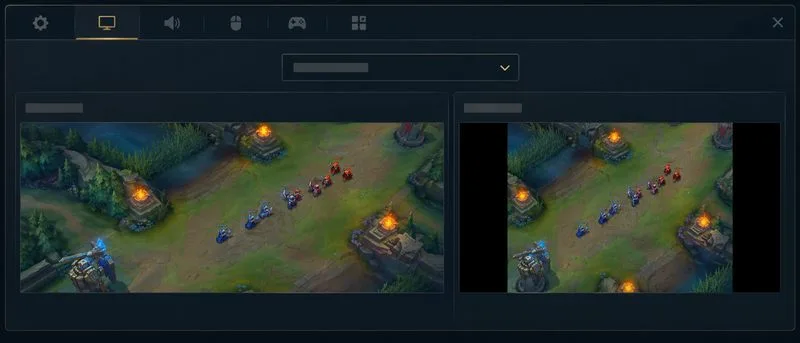
Native resolution means the pixel dimensions the monitor is designed to display, such as 2560×1080 on some 21:9 panels or 3440×1440 on higher-resolution ultrawide models. Confirm the exact value in Windows or macOS display settings or in the monitor’s manual. If the resolution appears in League’s Video menu, select it and check that the game is using the intended display mode.
The main advantage is clarity: one rendered pixel maps cleanly to the corresponding panel pixel, so small text, health bars, and map details are less likely to look resampled. This is usually the right option if you prioritize a crisp image and your PC maintains the frame rate you want during a full team fight, not just while standing still.
The trade-off is rendering load. For example, 3440×1440 contains about 4.95 million pixels, while 2560×1080 contains about 2.76 million. That is roughly 79% more pixels per frame at the higher mode. Pixel count alone does not predict League’s frame rate—CPU limits, effects, drivers, and other settings matter—but it explains why a higher native mode can be harder to run. Riot’s low-frame-rate guide advises lowering graphics settings when performance is poor and testing changes in a custom game. The current guide also suggests matching the desktop resolution as a baseline.
If native resolution looks excellent but frame rate becomes inconsistent in fights, try the next lower mode that keeps a similar wide aspect ratio and is available in the game or operating system. For example, someone with a 3440×1440 panel might test 2560×1080 if offered. This is a practical experiment, not a Riot-certified ultrawide preset.
Look at two signals together: whether the frame rate remains steady during action, and whether names, minion health bars, and interface text are still easy to read. A lower resolution can lighten the render workload but will often look softer after scaling because the lower pixel grid does not map one-to-one onto the panel. If the picture is visibly blurry, move back to native resolution and reduce demanding graphics options first. Riot’s support instructions place resolution and other video options in the in-game Video menu and recommend testing adjustments in a custom game.
Resolution and refresh rate are separate settings. Lowering resolution does not by itself raise the monitor’s refresh rate; choose a refresh rate supported by both the display and the system, then assess frame-rate consistency separately. Do not mistake a number in the resolution list for an FPS setting.
A 16:9 mode has a different shape from a typical ultrawide panel. If the image is kept at its original proportions, it will use less than the panel’s full width and may leave black bars on the sides. If it is stretched to fill the entire screen, circles and character proportions can look wider. NVIDIA calls these distinct scaling behaviors aspect-ratio scaling and full-screen scaling; AMD similarly distinguishes preserving aspect ratio from filling the whole panel. The names and available options depend on your graphics hardware and driver.
For a fair comparison, preserve the image’s aspect ratio rather than stretching it. If your goal is simply to use all of the panel without blur, return to native ultrawide resolution instead. Riot’s general recommended Windows resolution is 1920×1080, but that specification should not be confused with an ultrawide recommendation: applying 16:9 to a wide monitor may create bars or distortion depending on scaling.
There is a limit to what resolution can solve. A wider panel gives the game more horizontal pixels, but Riot’s public support material does not specify an ultrawide camera-visibility advantage or recommend a resolution for competitive edge. Do not choose a stretched or unusual mode based on a promise of seeing more of the map. Compare what is actually visible in your client with the camera zoom held constant.
For most ultrawide players, the practical recommendation is native resolution when it runs smoothly, with a lower wide mode as the performance fallback. Keep 16:9 as an intentional preference or diagnostic option, not an automatic upgrade. Riot’s support pages do not list an ultrawide-specific best setting, so judge the result by the display’s actual native mode, stable gameplay, undistorted proportions, and readable interface.
Enable PUBG’s network statistics HUD to monitor ping and packet loss in a match. See where to find it, what the numbers mean, and what they cannot diagnose.
Learn how to import VALORANT crosshair codes, compare presets with manual settings and spectator copy, and fix common import issues.
Choose Dota 2 minimap size, hero icons, team colors, and background settings by readability, fewer misclicks, and clear results on your own display.
Fix Fortnite texture pop-in on PC with official steps for GPU drivers, file verification, DirectX 12, high-resolution textures, VRAM, SSDs, and stutter.
Learn what Heroes of the Storm minimap size and position options are verified, improve readability, and choose camera-click controls that suit you.
Set Super Smash Bros. Ultimate Quickplay to prefer hazards-off stages. Follow the Preferred Rules menu steps and learn why matchmaking may not always honor them.
Enable Server Latency and Packet Loss in Warzone to monitor connection quality, read the overlay, and use recurring spikes to guide troubleshooting.
Learn how to carry from mid lane in League of Legends by setting up waves, choosing safe roam windows, reading side lanes, and converting pressure into objectives.
Fix Minecraft Evoker spell problems with a safe vanilla test, version checks, log review, and a step-by-step way to isolate mod or datapack conflicts.
Fix PUBG stuck on Initializing on Steam with a focused checklist for PC service notices, launch options, game files, downloads, and connection issues.








