Home
» 🎮 Esports
»
Best TFT Resolution Settings for Laptop Battery Life
Best TFT Resolution Settings for Laptop Battery Life
For most laptops, the best resolution settings for playing Teamfight Tactics on battery start with the built-in screen’s Windows Recommended resolution. If the TFT PC client offers a separate game-resolution option, use a setting that matches that baseline first. Lowering the game resolution can reduce graphics work when the GPU is the bottleneck, but it does not guarantee longer battery life and can make the board, shop, and item details look soft. If TFT already runs smoothly, adjust brightness and refresh rate before trading away clarity.
Recommended TFT resolution settings for a laptop
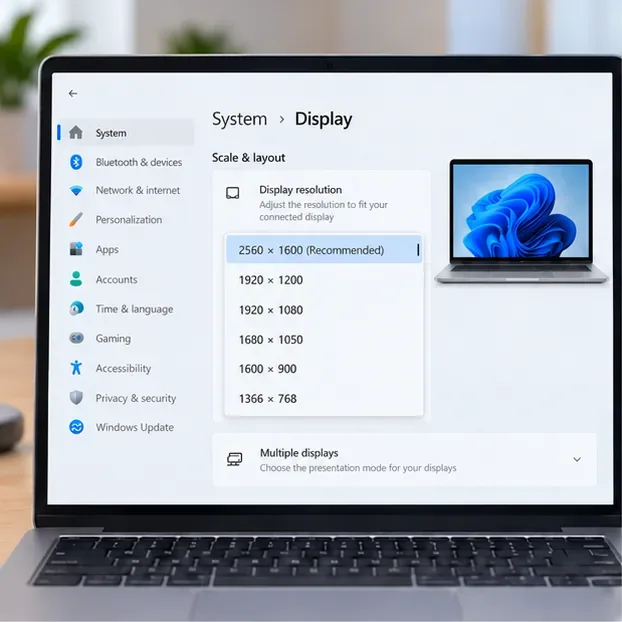
Use the resolution marked Recommended for the laptop’s built-in display. That is the clearest starting point for the panel and keeps Windows text and the game interface sharp. There is no single best number for every laptop: one screen may recommend 1920 × 1080, while another may recommend 2560 × 1600 or a different size. The example below shows one possible Windows configuration, not a universal TFT setting.
An illustrative Windows Display settings panel. The Recommended resolution and available choices vary by laptop.
If you want larger desktop text or controls, keep the recommended resolution and adjust Windows Scale instead. Resolution sets the output pixel dimensions; scaling changes the size of text and apps. Microsoft says lower-than-native display modes can make text less sharp or cause the image to appear small, centered, bordered, or stretched. Its Windows resolution and layout guide explains where to find both controls.
Why lowering resolution may not save much battery
A lower in-game render resolution means fewer pixels for the graphics processor to draw. That can help if the laptop is GPU-limited, hot, or dropping frames. If the game is not putting much load on the GPU, the reduction may have little effect on total power use. The laptop still has to power its display, CPU, memory, wireless connection, and other active components, so the result depends on the whole system and the game session.
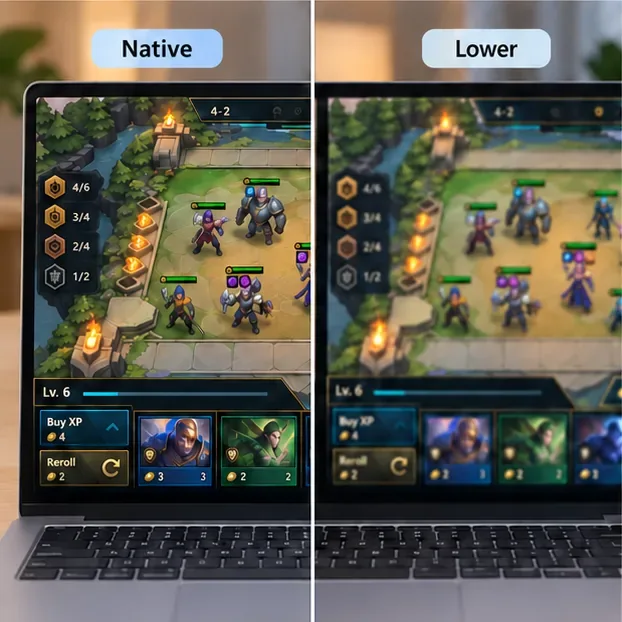
The built-in panel’s physical pixels do not disappear when you choose a smaller game image. Depending on the game’s display mode and graphics driver, the image may be scaled to the screen or the active full-screen mode may change. Either way, a non-matching image can blur fine text and thin interface edges. In TFT, check that you can still read the shop, item icons, and small labels without leaning toward the screen.
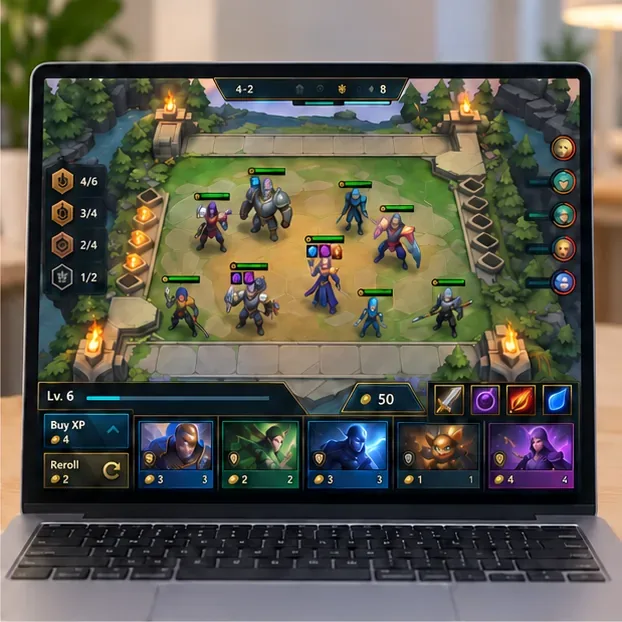
A clear board and readable shop are useful checks when comparing laptop resolution settings; this is an illustrative game screen.
Test TFT resolution settings in four steps
1. Confirm the laptop display’s recommended resolution
In Windows, open Settings > System > Display. Select the built-in laptop screen if an external display is connected, then choose the resolution marked Recommended. Leave Windows at this setting while you establish a baseline.
2. Start TFT at the clearest available game setting
Open the current TFT PC client and inspect its video or display controls. Menu names and available options can change. If a separate game-resolution choice is offered, begin with the desktop-matching or native option. If it is not offered, keep the Windows display resolution at Recommended rather than forcing a lower system-wide mode. Play long enough to check both interface clarity and responsiveness.
Lower-resolution scaling can soften text and item edges. The exact result depends on the panel, display mode, and graphics driver.
3. Try one lower in-game option only when there is a performance reason
If you notice frame drops, sustained heat, or unusually high graphics load, test one lower option that the client actually lists. Change only that setting, then compare the board and interface. Riot’s PC frame-rate troubleshooting guidance is useful for diagnosing performance problems across Riot PC games, including League of Legends and TFT support; it is not a battery-life benchmark and does not promise a runtime gain from a specific resolution.
4. Keep the change only if the trade-off is worthwhile
Compare similar play periods at the same brightness and power mode. Note whether the interface remains comfortable to read, whether the game feels smoother, and whether Windows’ battery estimate changes. That estimate is a rough signal, not a controlled measurement. If the picture looks soft, the game becomes less responsive, or the battery estimate barely moves, restore the Recommended baseline. After testing a full-screen option, check that Windows has returned to the display mode you want.
Windows settings to try before sacrificing clarity
Microsoft specifically recommends adjusting display and power settings to help extend battery life. These controls often make a more practical first test than lowering the resolution of one game:
Setting
What to try
Trade-off
Brightness
Lower the built-in screen brightness to the lowest comfortable level.
A dimmer screen can be harder to see in a bright room.
Refresh rate
Open Settings > System > Display > Advanced display and select a lower supported rate.
Motion may look less fluid. The available rates depend on the panel and can be limited by the selected resolution.
Power mode
Under Settings > System > Power & battery, compare Balanced with Best power efficiency while on battery.
A more efficient mode may limit performance on some laptops; switch back if TFT stutters.
Background activity
Close apps and overlays you do not need during the match.
Keep anything you rely on for voice chat or accessibility.
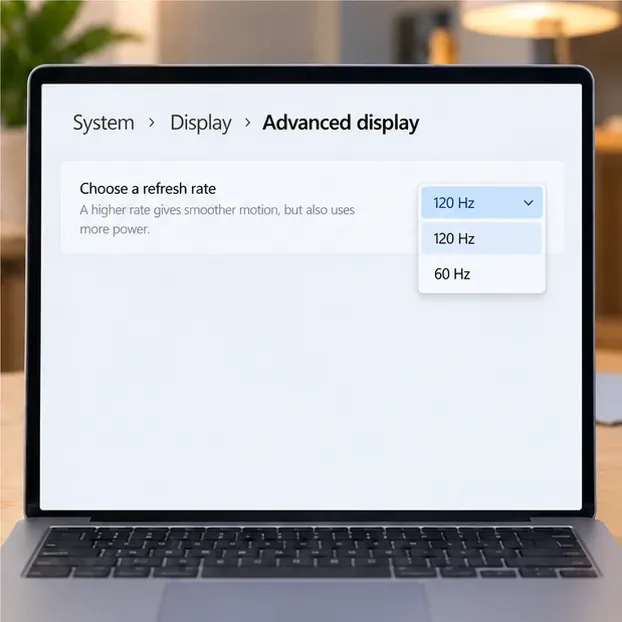
Refresh-rate choices vary by laptop. A lower supported rate may reduce display power use, with a smoother-motion trade-off.
Microsoft notes that higher refresh rates use more power and that lowering the rate can save battery power. The setting is under Advanced display, but not every screen offers the same choices. See Microsoft’s refresh-rate instructions, Windows battery-saving tips, and Windows power-mode guidance. A lower refresh rate or power mode can affect how the game feels, so keep the setting that balances usable battery time with smooth play.
Quick answers
Should I set TFT to 1280 × 720?
Not as a universal default. First use Windows’ Recommended resolution and the clearest matching game option available. Try a lower setting only if you are addressing frame drops or heat, and keep it only if the interface stays readable and performance improves.
Does a lower resolution always extend laptop battery life?
No. It may reduce GPU work in a GPU-limited situation, but savings depend on the laptop and workload. There is no verified universal TFT resolution or percentage that guarantees longer play time.
What is the best starting setup?
Keep Windows at its Recommended resolution, use the matching TFT setting if the current client offers one, lower brightness to a comfortable level, and test a lower supported refresh rate if desired. Treat lower game resolution as a targeted performance adjustment, not a guaranteed battery saver.