Home
» 🎮 Esports
»
Best Render Scale and Anti-Aliasing Settings for PUBG PC
Best Render Scale and Anti-Aliasing Settings for PUBG PC
Best Render Scale and Anti-Aliasing Settings for PUBG PC
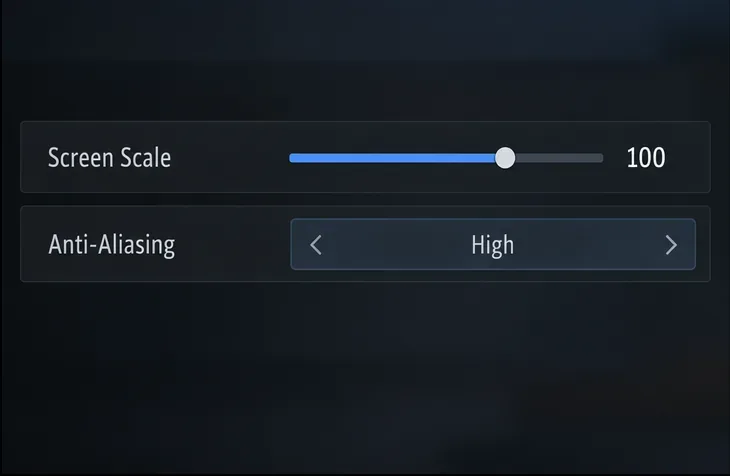
Start with Screen Scale at 100, Anti-Aliasing at High, and Resolution Upscaling disabled. This gives you a clear baseline at your chosen display resolution before you compare image smoothing or reconstruction. If you need more GPU performance, test a supported DLSS or FSR mode, or lower Screen Scale slightly—one change at a time. These are practical starting values, not a universal competitive preset: your GPU, CPU limit, monitor resolution, frame-rate target, and tolerance for softness all matter.
PUBG uses the menu label Screen Scale for the control players often call render scale. PUBG’s latest PC patch notes as of October 17, 2026 are for Update 43.2, dated October 13. The resolution-upscaling options were added in Update 43.1: NVIDIA DLSS and AMD FSR, with availability that can vary by system. The 43.1 notes also say those controls appear only when Anti-Aliasing is Medium, High, or Ultra.
Illustrative settings panel for the starting baseline; menu appearance can differ in the live client.
Recommended PUBG PC render scale and anti-aliasing settings
Setting
Starting point
When to change it
Display resolution
Your monitor’s native resolution
Keep it fixed while comparing the other settings. Check that the game is not outputting an unintended resolution.
Screen Scale (render scale)
100
Lower it in small steps only if GPU performance is the problem and you can accept a softer image. Test higher values only if your menu offers them and the GPU has headroom.
Anti-Aliasing
High
Try Ultra if edge shimmer remains distracting and performance is steady; try Medium if you need to recover performance or prefer a less processed look.
Resolution Upscaling
Disable for the baseline
Compare DLSS or FSR on supported hardware after the baseline is set. Choose a quality mode manually or use the automatic option if available.
Use the values shown in your installed client. A guide or screenshot from an older build may show a different menu layout, and PUBG notes that the upscaling choices depend on the graphics card and system setup.
Why begin with Screen Scale at 100?
Screen Scale is PUBG’s in-game sharpness control. PUBG Support warns that setting it too low can make objects look blurry. At 100, you have a useful reference point for judging the game at the selected display resolution; reducing the value can improve GPU headroom but may soften fences, wires, distant silhouettes, and other fine details.
Before changing Screen Scale to fix blur, confirm that PUBG’s display resolution matches your monitor’s native resolution. Then compare the same scene with upscaling disabled. If 100 is clear but performance is limited, reduce the scale a little and check whether the extra frames are worth the loss of detail. If your menu permits values above 100, treat them as a visual-quality test: they can increase GPU work, so keep them only if you can see a useful improvement and frame delivery remains stable.
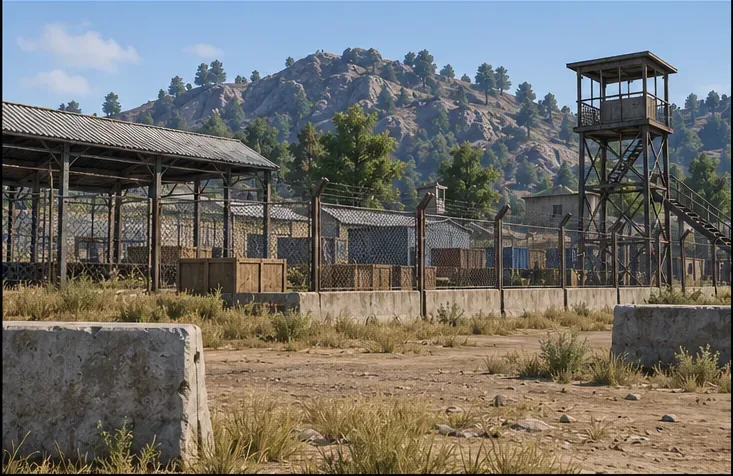
Compare the same fence mesh, roof edges, and foliage boundary after each change.
Do not use a higher Screen Scale value to compensate for a mismatched output resolution or an unexpectedly soft upscaler mode. Fix one source of softness at a time so you can tell which change helped.
Which Anti-Aliasing level should you choose?
Anti-Aliasing smooths jagged edges around characters and objects. PUBG Support says the option can affect frame rate, so the best PUBG anti-aliasing settings depend on your system. High is a sensible first comparison because it provides smoothing without assuming that Ultra is worth its cost on every PC.
Medium: Use it as a performance comparison or if High looks too soft. It also meets PUBG’s stated minimum Anti-Aliasing level for the DLSS/FSR controls to appear.
High: Keep it if it reduces obvious stair-stepping while preserving the clarity and frame consistency you want.
Ultra: Test it when thin edges still shimmer and your performance remains steady. Keep it only if the visual gain is noticeable during movement, not just in a still menu.
A higher label does not guarantee that distant targets will be easier to identify. Smoothing can calm edge shimmer, but the resulting image may feel softer depending on your resolution and display. Compare railings, rooftops, wires, and foliage boundaries from the same viewpoint, then choose the lowest level that gives you acceptable edge stability.
How DLSS and FSR change the comparison
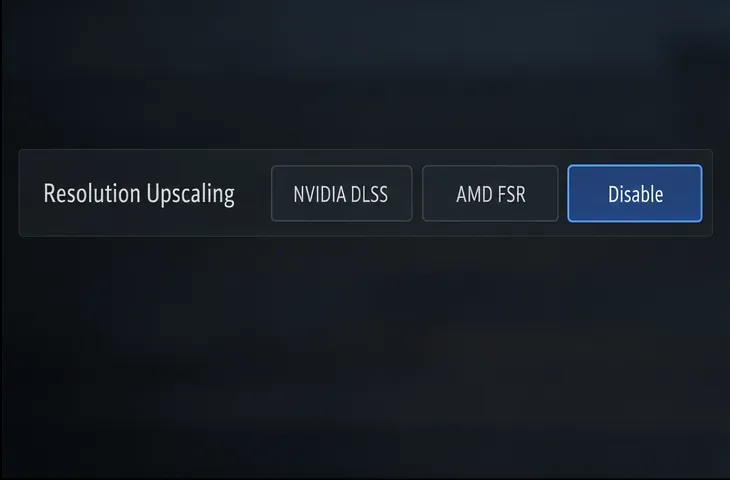
Update 43.1 added NVIDIA DLSS 4.5 and AMD FSR 4.1 to PUBG on PC. The controls are listed under Settings > Graphics > Advanced in PUBG’s patch notes. On supported systems, you can choose NVIDIA DLSS, AMD FSR, or Disable. PUBG says you can set upscaling quality manually or let the game select it for your current screen resolution; the available options vary by hardware and setup.
Keep Screen Scale at 100 while comparing an upscaler against the disabled baseline. Try the quality choices available on your PC and inspect both static edges and movement. If the image becomes too soft, choose a higher-quality mode if offered or turn upscaling off. Avoid lowering Screen Scale and enabling an upscaler at the same time: stacking changes makes it difficult to tell which setting caused blur or improved performance.
The upscaling controls shown in an illustrative menu; PUBG says availability varies by system.
A repeatable four-step test
Set the baseline: Select your monitor’s native display resolution, set Screen Scale to 100 and Anti-Aliasing to High, then disable Resolution Upscaling.
Pick a fixed view: Use Training Mode or another repeatable scene. Center the camera on the same fence, wire, roofline, and foliage boundary each time.
Compare Anti-Aliasing: Change only Anti-Aliasing, comparing Medium, High, and Ultra. Look for edge shimmer, softness, and consistent frame delivery while panning the camera.
Compare upscaling separately: Restore your preferred Anti-Aliasing level, then test DLSS or FSR against Disable. Keep the mode that improves performance without making important outlines hard to read.
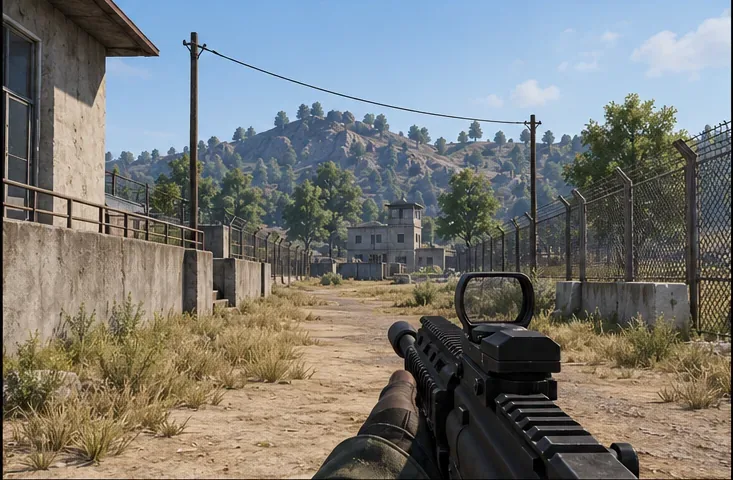
Use fixed fine details, then repeat the comparison while moving to judge edge stability.
Keep the map, resolution, camera position, and other graphics settings unchanged during the comparison. A quiet practice scene helps control the test, but a live match can be more demanding; verify your choice during actual play as well. A single screenshot cannot show how steady the game feels while turning or moving.
What should you change first if the image looks wrong?
The picture looks blurry: Confirm native display resolution, return Screen Scale to 100, and disable DLSS/FSR temporarily to isolate the cause. Anti-Aliasing is not a fix for a resolution mismatch.
Edges look jagged: Move Anti-Aliasing to High, then compare Ultra if performance allows. Judge the same thin structures from a fixed viewpoint.
Frame delivery is the concern: Compare Medium Anti-Aliasing and a supported DLSS/FSR mode before making a large Screen Scale reduction. PUBG confirms that Anti-Aliasing can affect frame rate, but the result depends on your PC.
The practical answer is to start at Screen Scale 100 and High Anti-Aliasing, then tune for your own hardware. Keep the settings that make outlines readable and maintain steady performance in motion. Recheck after game updates, since PUBG can revise graphics features and hardware compatibility.