How to Check Real-Time Server Latency in the PUBG HUD

Enable PUBG’s network statistics HUD to monitor ping and packet loss in a match. See where to find it, what the numbers mean, and what they cannot diagnose.
For an ultra-low-spec PC, the best Paladins graphics setup is the lowest-cost profile that keeps fights readable and frame delivery steady. Start by lowering the display resolution only if needed, set heavy visual options low or off when the game offers them, and use a frame cap your PC can sustain. Then judge the result in motion—not by the lobby or a single peak FPS number.
There is no universal preset that guarantees smooth play. A computer can meet the game’s listed minimum and still struggle because of its processor, shared graphics memory, heat, background apps, or current drivers. Treat each change as a test and keep the version that improves actual matches without making aiming or target recognition uncomfortable.
A useful setup does three things: reduces repeated stutters, makes mouse or controller input feel consistent, and leaves enemies and ability effects clear enough to follow. A steady lower frame rate is often easier to play with than a much higher number that repeatedly falls during fights. Your practical target depends on your display, hardware, and tolerance for motion blur or tearing.
Steam’s Paladins page currently lists a Core 2 Duo 2.4 GHz or Athlon X2 2.7 GHz processor, 4 GB of memory, and a GeForce 8800 GT as minimum PC requirements. The same page lists a later Windows requirement for the Steam client itself. These are published baseline specifications, not a performance guarantee for every current Windows and driver configuration. Check the Paladins Steam listing for the current storefront details.
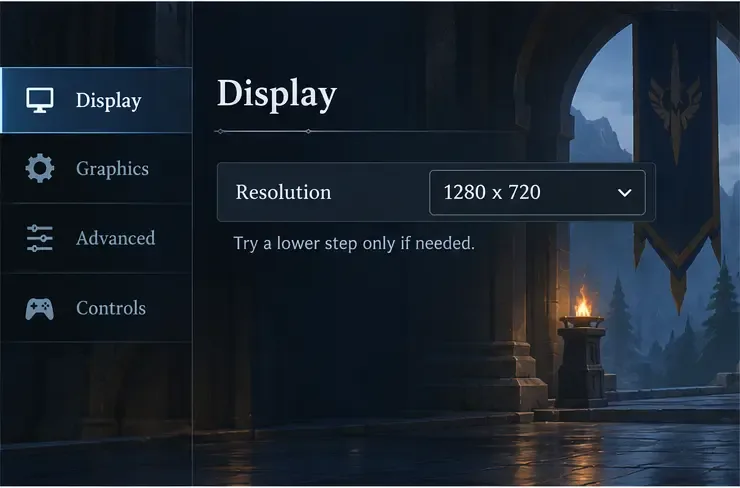
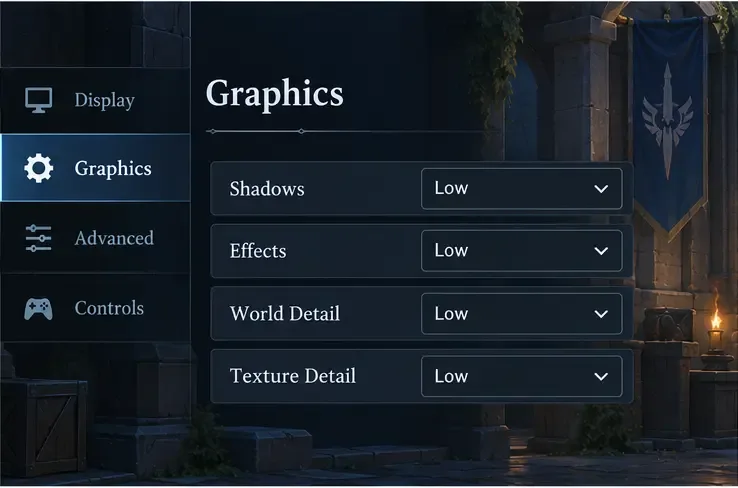
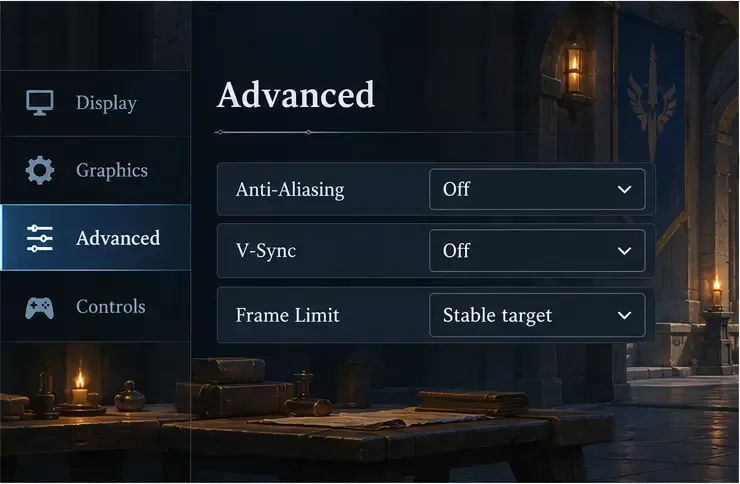
Hi-Rez’s public PC framerate guide is written for SMITE, not Paladins, so it should not be treated as a Paladins menu reference. The exact Paladins graphics labels can vary by build and platform. The illustrations below are generic settings diagrams, not screenshots of the live game; use the options actually present in your client.
| Setting to check | Start here | What to watch |
|---|---|---|
| Display resolution | Keep the display’s native resolution first. If frame delivery is poor, test one step lower, such as 1280 × 720 if offered. | Lower resolution can improve performance but makes text, edges, and distant targets softer. |
| Overall quality | Choose the lowest preset as a baseline, then review individual controls if available. | Presets are convenient starting points, not proof that every option is optimal. |
| Shadows, effects, and world detail | Set to Low or Off where available. | Compare team fights with multiple abilities on screen, not an empty practice area alone. |
| Texture detail | Start Low if the graphics chip has very limited memory or textures take a long time to load. | If performance stays steady but the picture looks excessively blurry, try raising textures one step. |
| Anti-aliasing | Turn Off for the first performance test if the option exists. | Edges may look jagged; turn it back on at a lower level if the FPS difference is small and clarity matters more. |
| V-Sync | Test Off first if you need responsiveness and the game allows it. | Turning it off can reveal screen tearing. If tearing distracts you, compare On and keep the smoother-looking result. |
| Frame limit | If available, cap to a rate the PC can hold through busy fights. | A sustainable cap can feel steadier than an uncapped rate that swings widely. |
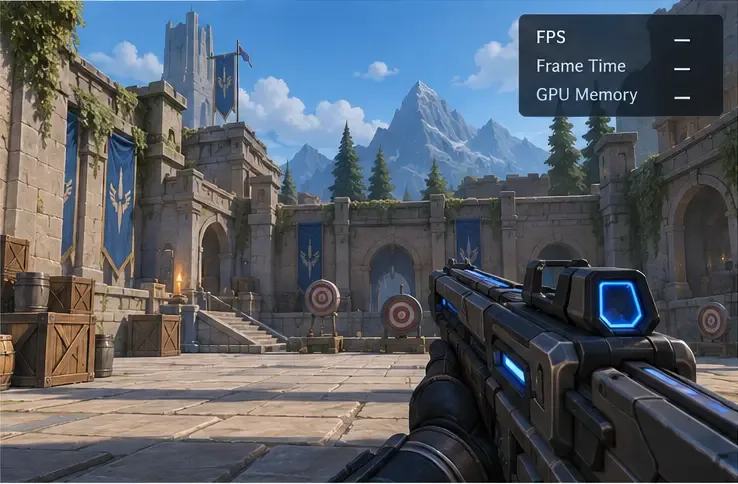
Open a practice or low-pressure mode and note what happens in a typical fight: does the game feel slow at all times, dip only when many effects appear, or hitch briefly while loading? If you use Steam, its current in-game Performance Monitor can show FPS and additional system information such as memory usage, depending on the selected detail level. Enable it through Steam’s in-game settings and use it to compare the same scene before and after a change. The Steam Performance Monitor guide explains the displayed metrics.
Change one setting group at a time and play the same mode for long enough to see the busy moments. If you change resolution, effects, V-Sync, and the frame limit all at once, you will not know which choice helped or caused a new problem.
Begin at your monitor’s native resolution. If the frame rate remains low even with reduced effects, try a lower resolution offered in the game—1280 × 720 is a common test point on a 1080p display. This reduces the amount of image detail the PC must draw, but it also softens the picture. If small targets become harder to see, return to the previous resolution and keep working with detail settings instead.
Compare windowed, borderless, or fullscreen modes only if those choices are available. There is no single mode that is fastest on every PC. Keep the one that delivers steady play and lets you switch windows without problems.
Lower shadows, effects, and world or environmental detail first, if the game exposes those controls. These settings affect extra scene work and visual clutter. They can make team fights easier to read as well as lighter on the graphics processor. Texture quality is a separate tradeoff: lowering it may help when video memory is tight, but it may also make surfaces and characters look muddy. If the rest of the game is stable, raise texture quality one level and compare.
Anti-aliasing smooths stair-step edges but can add graphics work, so Off is a reasonable first test on a weak GPU. V-Sync can reduce visible tearing but may affect responsiveness or frame pacing on some systems. Test both states rather than treating either switch as an automatic FPS boost. If the PC can deliver a stable 45 FPS but fluctuates heavily above that, a frame cap near a sustainable value may feel more consistent; if your build does not offer a cap, do not install an unknown tweak tool just to force one.
If the game has acceptable FPS but still pauses in short bursts, watch frame timing and memory rather than lowering every visual option again. Steam’s monitor can help show whether memory use is pressing against the available GPU memory. Close resource-heavy apps, check that the correct GPU is selected, and let the PC cool if performance worsens after several minutes. Very low settings cannot fix a failing fan, overheating, a damaged driver installation, or a slow storage problem.
If the issue is delayed actions, rubber-banding, or players jumping across the map while your frame rate remains steady, the cause may be network latency rather than graphics. Lower resolution does not repair a weak Wi-Fi signal or server route. Test a wired connection if possible and compare other online games before continuing to change video settings.
Avoid copying old “ultra-low” configuration files from forums as your first solution. Paladins is an older game, and community configuration advice may target a different version or hardware setup. Prefer reversible in-game options; if you decide to edit a local settings file later, make a backup and change one documented value at a time.
If the answer to the first two is yes and the third is also yes, keep the profile. If the image became too soft, restore native resolution or raise texture detail by one step. If performance did not change, return the last option and investigate memory pressure, heat, drivers, or network conditions rather than pushing every slider lower.
Enable PUBG’s network statistics HUD to monitor ping and packet loss in a match. See where to find it, what the numbers mean, and what they cannot diagnose.
Learn how to import VALORANT crosshair codes, compare presets with manual settings and spectator copy, and fix common import issues.
Choose Dota 2 minimap size, hero icons, team colors, and background settings by readability, fewer misclicks, and clear results on your own display.
Fix Fortnite texture pop-in on PC with official steps for GPU drivers, file verification, DirectX 12, high-resolution textures, VRAM, SSDs, and stutter.
Learn what Heroes of the Storm minimap size and position options are verified, improve readability, and choose camera-click controls that suit you.
Set Super Smash Bros. Ultimate Quickplay to prefer hazards-off stages. Follow the Preferred Rules menu steps and learn why matchmaking may not always honor them.
Enable Server Latency and Packet Loss in Warzone to monitor connection quality, read the overlay, and use recurring spikes to guide troubleshooting.
Learn how to carry from mid lane in League of Legends by setting up waves, choosing safe roam windows, reading side lanes, and converting pressure into objectives.
Fix Minecraft Evoker spell problems with a safe vanilla test, version checks, log review, and a step-by-step way to isolate mod or datapack conflicts.
Fix PUBG stuck on Initializing on Steam with a focused checklist for PC service notices, launch options, game files, downloads, and connection issues.








