Home
» 🎮 Esports
»
Best Paladins Audio Settings to Hear Enemy Flank Footsteps
Best Paladins Audio Settings to Hear Enemy Flank Footsteps
Best Paladins Audio Settings to Hear Enemy Flank Footsteps
The most useful Paladins audio settings for noticing an enemy Flank start with a correctly selected headset, a simple stereo or headphone output, less competing music, and sound effects that remain clear at a comfortable volume. Keep the EQ neutral at first, then compare spatial audio only if your headset or platform offers it. There is no verified Hi-Rez footstep preset or universal slider percentage to copy; the goal is to hear a cue, place its direction, and still understand abilities and teammates.
Hi-Rez’s New & Returning Player Guide, dated June 24, 2024, describes Flanks as mobile Champions who specialize in burst damage and sneaking behind the opposing team. It does not prescribe an audio mix. The settings below are a practical starting point, and menu names or controls can differ across PC and console versions.
A practical starting mix
Control
Starting point
What to listen for
Output device
Select the headset or speaker system you are actually using.
Game sound stays on that device, with left and right channels in the expected places.
Output mode
Start with stereo or a headphone mode if the current menu offers one for your setup.
Side-to-side movement sounds distinct without an echo or hollow center.
Sound effects
Keep effects audible; do not raise master volume just to make every cue louder.
Movement, weapons, abilities, and objective sounds remain recognizable in a normal fight.
Music
Lower it enough to leave room for quieter game cues.
Footsteps are easier to notice between louder effects, while the match still sounds balanced.
Voice and announcer
Set them to a comfortable, intelligible level.
Callouts remain useful without covering movement cues.
EQ and enhancements
Begin neutral, with bass boost, treble boost, and extra processing off.
Footsteps sound natural rather than sharp, boomy, or tiring.
Use the controls that are present in your current build. If a category is combined with another or unavailable, do not assume a hidden setting exists; make the best adjustment in the game, headset, or system controls you can actually see.
Set up and check the mix in four steps
1. Select the right output and verify left and right
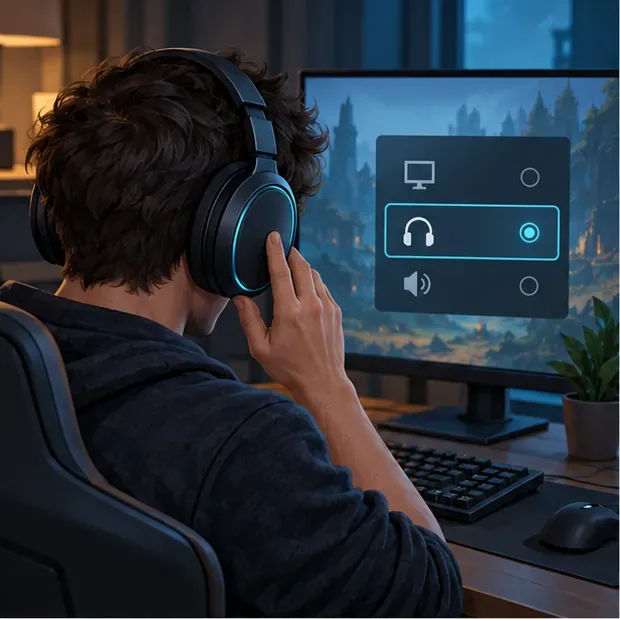
Choose the headset in your computer or console sound settings and confirm Paladins is using the same output. If sound comes from a monitor, controller, or a second device by mistake, changing the in-game mix will not fix direction. Check that the headset is worn correctly, the cable or wireless connection is stable, and the left and right balance has not been shifted. A short stereo test in another app can help separate a device-routing problem from a game setting.
Choose the actual headset or speaker output so left and right cues reach the device you are wearing.
2. Reduce masking before raising volume
Lower music first, in small increments. If your menu separates sound effects, keep them prominent enough to hear movement and Champion abilities. Keep voice chat and important announcer cues audible rather than muting everything except effects; those sounds carry team and objective information. Avoid a large master-volume increase: louder is not automatically clearer, and sharp weapon or ability sounds can become uncomfortable before quiet footsteps stand out.
Treat this as a mix-priority illustration, not a screenshot or a set of Paladins slider values.
3. Compare stereo with one spatial-audio option
Use the simple headphone or stereo baseline for one comparison. Then, if you use virtual surround or spatial audio through the game, console, operating system, or headset software, test one processing option at a time. Avoid layering several surround effects together while judging direction. Keep the version that makes left, right, front, and rear cues easiest for you to distinguish; some players prefer the unprocessed stereo mix. A surround label by itself does not prove that the sound is more accurate.
Compare one spatial-audio path at a time; stacked effects can make direction harder to judge on some setups.
4. Test in play and change one control at a time
Use a low-pressure match or a practice space available in your version of the game. If possible, ask a teammate to cross from one side to the other along the same route while you keep your aim still for a moment. Listen for when the cue begins and which side it comes from. Repeat after changing just one setting. Compare a quiet moment with a normal fight, then keep the mix only if direction and separation improve without making voice or ability audio hard to hear.
A directional cue may suggest where to check, but it does not identify the Champion or guarantee a warning.
Should you change the EQ?
Start with a neutral EQ. Paladins does not publish a dependable “footstep frequency” recipe, and an equalizer affects the whole mix rather than isolating enemy movement. If your headset sounds unusually bass-heavy and effects blur together, try a mild bass reduction. Avoid a dramatic treble boost: it can make weapons and abilities harsh, cause listening fatigue, and still leave direction unclear. Make one small adjustment, listen again, and restore neutral if the overall mix becomes less natural.
Also be cautious with loudness normalization, bass enhancement, or dynamic-range compression. They change the balance between quiet and loud sounds, and the result depends on your platform and headset. Leave them off during the first comparison; test one only if you have a specific problem and can compare it comfortably.
Why footsteps cannot warn you about every Flank
Even a well-balanced headset cannot make every approach audible. Team fights layer weapons, abilities, voice lines, music, and map ambience over quieter movement. The official guide’s description of Flanks emphasizes mobility and routes behind the enemy team, so an opponent may arrive from an unexpected angle or use an ability that changes the approach. A sound can be a useful reason to check a lane; it is not a guaranteed alarm or a reliable way to identify a Champion.
Paladins’ October 24, 2016 Open Beta 36 notes documented an audio-occlusion improvement intended to clarify nearby sounds and reduce sounds from the other side of walls. Those notes are historical and do not establish the exact behavior of today’s build or recommend present-day settings. They are a reminder to account for walls and nearby combat when interpreting what you hear.
If direction still sounds wrong
Check the output device and left-right balance first, then temporarily turn off headset or system enhancements and compare again. If direction improves, re-enable only the feature that helps. If footsteps are simply hard to hear, reduce competing music and check the effects mix before increasing overall volume. If sounds cut out, disappear, or play through the wrong device, treat that as a playback issue: restart the game, reconnect the headset, and inspect the platform’s audio output settings. A preset cannot repair a routing or playback fault.
For most players, the best Paladins audio settings are a stable headphone output, a modest reduction in music, clear but comfortable effects, neutral EQ, and one carefully tested spatial-audio path. Use footsteps as one clue alongside team callouts, the kill feed, the objective, and likely flank routes.