How to Check Real-Time Server Latency in the PUBG HUD

Enable PUBG’s network statistics HUD to monitor ping and packet loss in a match. See where to find it, what the numbers mean, and what they cannot diagnose.
For a TFT item cheat sheet, the best overlay setup is compact, static, and easy to verify against the current set. Riot’s policy changed on October 6, 2026: it began blocking game-memory access by default for unknown third-party applications. Riot says known and currently approved tools have a transition period until April 2027, but it does not promise that any specific app will keep working. Choose an overlay whose developer explains its Riot-policy status and update plan before relying on it in a ranked session. See Riot’s announcement about third-party app memory access.
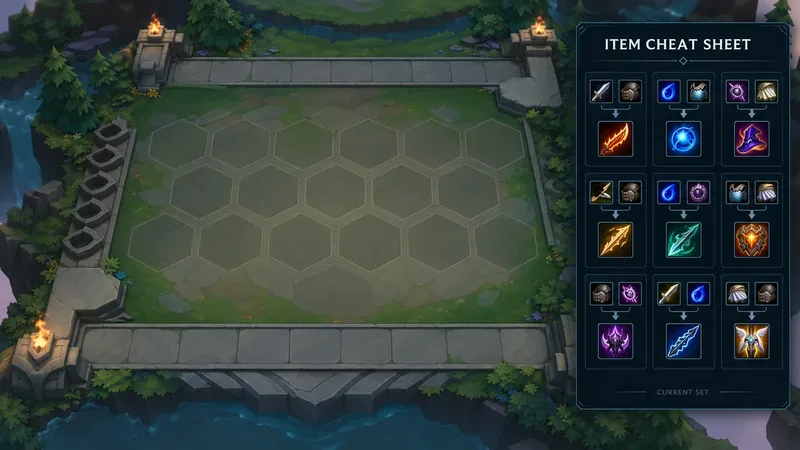
Start with the item reference alone. If your overlay has separate panels for team compositions, augment rankings, opponent scouting, or live recommendations, hide those while you are learning recipes. A focused sheet should answer one quick question—what can these components build?—without covering the board, shop, or item bench.
Not every overlay offers these exact controls. Treat them as selection criteria and practical targets, not as names of guaranteed menu options in a particular app.
Riot’s TFT developer policy says a static recommendation made before a game can remain available throughout the game. It draws a line at recommendations that change in real time based on a player’s actions and directly prescribe what to do. The policy also says overlays may not track opponents’ champions or plays during gameplay or predict their next plays. Read the current TFT developer policy before using a third-party app.
A basic item recipe chart is static reference information, so it appears closer to a reference sheet than to a system making live decisions for you. That is an interpretation of the policy, not Riot’s approval of every overlay or every feature in an overlay. An app can bundle a simple recipe chart with other functions that have different policy implications. If the app tells you what to build based on your current board, inventory, or opponent state, or tracks opponents’ actions during a round, turn those functions off and check the current policy rather than assuming the whole app is acceptable.
Riot also says it cannot provide a complete safe-to-use list of third-party applications. Its third-party application guidance recommends avoiding tools that compromise game integrity or make decisions for the player. Do not bypass client protections, anti-cheat behavior, or an app’s access restrictions to restore an overlay feature.
Riot’s September 29 support notice says that, starting October 6, 2026, it would proactively prevent game-memory access by default for unknown third-party apps across its games, including TFT. For known and currently approved tools, Riot described an extended transition period through April 2027 so developers could move affected features to official APIs, request data, or remove features. Riot says the change itself does not automatically ban players; it blocks unauthorized tools from interacting with the game client. Riot also cautions that it cannot promise any specific application will remain functional.
For a player, the practical setting is not a hidden compatibility toggle. Check the overlay maker’s release notes or status page, install updates through the developer’s normal channel, and test whether the static item panel opens and displays correctly before entering a competitive game. If the item panel stops updating or launching, do not follow instructions to disable security protections. Use the game’s own item information or a separate browser or phone reference until the developer explains a compliant fix.
Item recipes can change with sets and patches, so a familiar icon arrangement is not enough to prove that a chart is current. Look for an explicit active-set or patch label, check the tool’s latest update notes, and compare a few recipes with the current client before queueing. Riot’s developer portal explains that TFT static assets are included in Data Dragon and that each patch has a download containing the active set assets. Its Data Dragon notes are useful for understanding why a tool should refresh its item data with the game patch.
If the tool has no patch label, open the current item information in-game or check an official Riot reference before trusting an unfamiliar combination. Do not rely on a saved screenshot from a previous set; recipe icons and item effects can change, and third-party cheat sheets may lag behind a live update.
Use a narrow edge panel, moderate transparency if available, and a one-key or on-screen toggle that is easy to reach. If the overlay can collapse to an icon, keep it collapsed between item decisions. The goal is to glance at a recipe and return to the board without shifting focus for several seconds.
Consider leaving the overlay off the game window and opening the item chart on the second screen. That keeps the play area clear and avoids depending on an in-game overlay’s compatibility. Set the chart to a current patch and keep it large enough to read without constantly resizing or searching through unrelated pages.
Prioritize readable icons and recipe labels over fitting a complete dashboard. Close optional panels, use the largest game area that remains comfortable, and avoid placing a translucent overlay over the board or item bench. If the sheet cannot be read clearly at a useful size, a second-screen or phone reference may be less distracting.
The most useful TFT item cheat sheet is the one that helps you confirm recipes without making the game choose for you. Keep it current, visually quiet, and easy to dismiss. Because Riot’s third-party app rules and compatibility can change, review the developer’s notices and Riot’s official policy again after major updates.
Enable PUBG’s network statistics HUD to monitor ping and packet loss in a match. See where to find it, what the numbers mean, and what they cannot diagnose.
Learn how to import VALORANT crosshair codes, compare presets with manual settings and spectator copy, and fix common import issues.
Choose Dota 2 minimap size, hero icons, team colors, and background settings by readability, fewer misclicks, and clear results on your own display.
Fix Fortnite texture pop-in on PC with official steps for GPU drivers, file verification, DirectX 12, high-resolution textures, VRAM, SSDs, and stutter.
Learn what Heroes of the Storm minimap size and position options are verified, improve readability, and choose camera-click controls that suit you.
Set Super Smash Bros. Ultimate Quickplay to prefer hazards-off stages. Follow the Preferred Rules menu steps and learn why matchmaking may not always honor them.
Enable Server Latency and Packet Loss in Warzone to monitor connection quality, read the overlay, and use recurring spikes to guide troubleshooting.
Learn how to carry from mid lane in League of Legends by setting up waves, choosing safe roam windows, reading side lanes, and converting pressure into objectives.
Fix Minecraft Evoker spell problems with a safe vanilla test, version checks, log review, and a step-by-step way to isolate mod or datapack conflicts.
Fix PUBG stuck on Initializing on Steam with a focused checklist for PC service notices, launch options, game files, downloads, and connection issues.








