Home
» 🎮 Esports
»
Best Mobile Legends Tablet Controls: A Layout That Keeps Every Button in Reach
Best Mobile Legends Tablet Controls: A Layout That Keeps Every Button in Reach
Best Mobile Legends Tablet Controls: A Layout That Keeps Every Button in Reach
The best Mobile Legends tablet controls are a comfortable starting layout, not a universal set of screen percentages: keep the virtual joystick under your relaxed left thumb, bring the skill and attack cluster within a natural right-thumb arc, and leave enough space between buttons to avoid mis-taps. If your client offers medium and large Custom UI button layouts, try medium first; move to large only if you still miss controls. Adjust positions in small steps where the editor allows them, and keep the center of the battlefield clear.
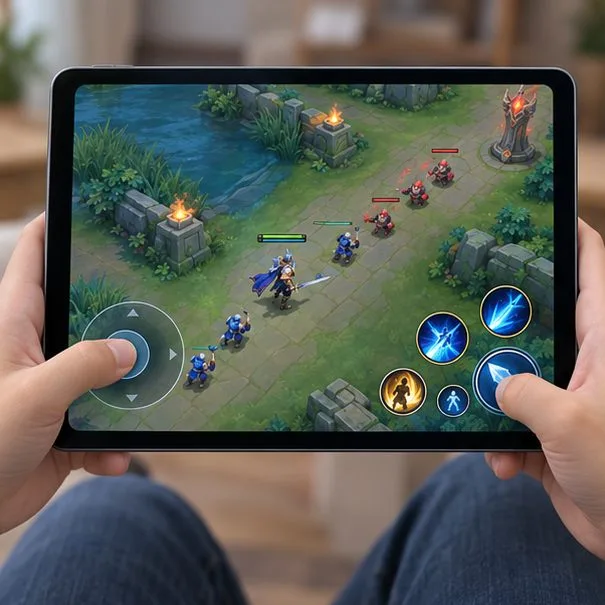
Conceptual view of a two-thumb tablet layout: movement on the left, combat controls on the right, and the center of the battlefield left open.
This guide covers on-screen touch controls. “Controller” in a search may also mean a Bluetooth gamepad, but the official sources below describe the touch HUD and do not verify gamepad support or remapping.
What Mobile Legends currently says about tablet controls
MOONTON’s Patch 2.2.16 notes, dated September 16, 2026, say the Custom UI gained custom layouts for medium and large buttons. They do not name a tablet-specific preset, publish exact button dimensions, or prescribe a best position for each device. Treat those sizes as starting options, not as a guaranteed tablet setup.
The official Google Play listing for Mobile Legends: Bang Bang describes the standard touch arrangement as a virtual joystick on the left and skill buttons on the right. A tablet’s wider screen can make those controls feel farther apart than they do on a phone. The practical goal is to reduce uncomfortable reaches while keeping the action visible.
Choose a starting layout for your grip
Your situation
Try first
What to watch for
Two thumbs, tablet held at the sides
Medium buttons; nudge the left and right control zones inward if the editor permits
Both thumbs should reach without shifting your grip
Large tablet or short thumb reach
Large buttons, then adjust position in small increments
Confirm that neighboring controls remain distinct
You often press the wrong skill
Keep the size that is easiest to hit and increase separation if possible
Check whether the extra space prevents mistaken taps
Tablet rests on a stand
Keep the left/right arrangement and test from your relaxed wrist angle
Your reach changes when you are not gripping the edges
These are ergonomic suggestions, not official MOONTON presets. Hand size, tablet width, case thickness, and posture all change where a control feels reachable. Avoid copying a phone player’s exact layout or percentages: the screen proportions and grip are different.
How to set up a comfortable tablet touch layout
1. Pick one button-size baseline
Start with the medium layout if it is available and your taps are generally accurate. Choose large if your thumb regularly misses a control or you need a clearer target. Do not enlarge every button automatically: bigger targets may crowd one another and cover more of the battlefield. If your client does not show these size options, keep its current baseline and work only with the controls the editor actually exposes.
2. Place the joystick under your natural left-thumb rest
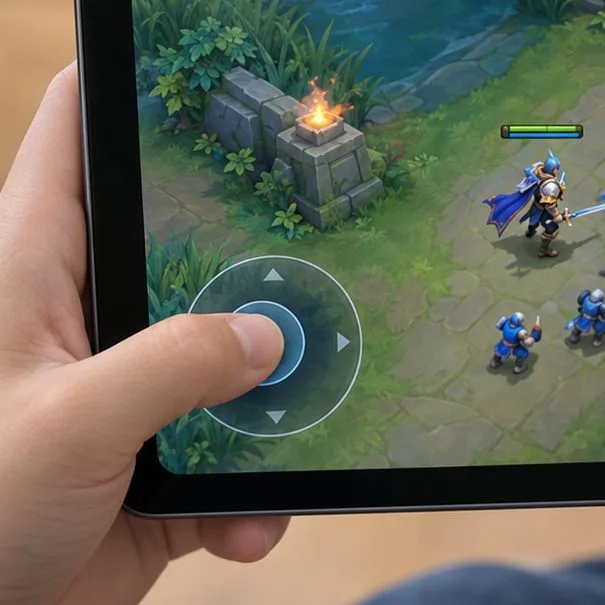
Hold the tablet the way you normally play, then notice where your left thumb lands without stretching. Put the joystick near that spot if it can be moved. Leave a little room from the device edge so your thumb stays on the active area, but do not drag it so far toward the center that your hands meet or it blocks important action.
Place the joystick where the left thumb naturally rests, with enough margin from the tablet edge.
3. Bring the right-side combat cluster within reach
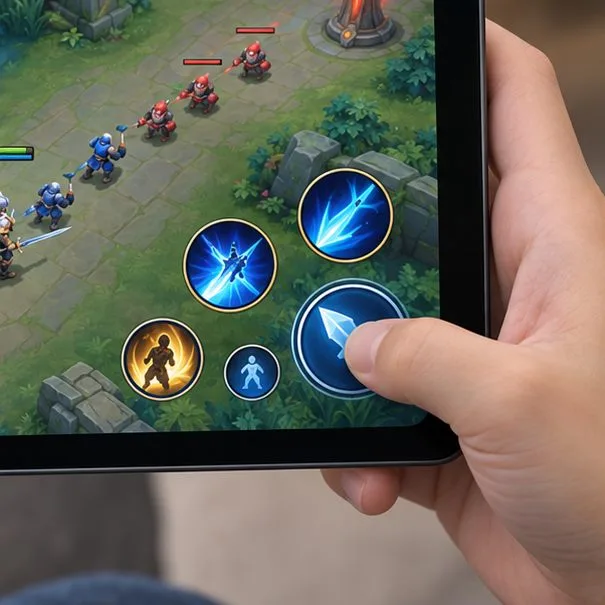
Keep the skill and basic-attack controls in the arrangement you already recognize. If the editor allows repositioning, move the group inward only until your right thumb can reach the important buttons comfortably. Preserve a consistent path between skills you use in quick combinations. If you play a hero who taps basic attack frequently, make that control easy to find without placing it on top of a skill.
A compact right-side cluster keeps frequently used buttons within reach while leaving visible space between them.
4. Keep buttons distinct and protect the center of the screen
Reach is only useful when you can hit the intended control. Leave visible gaps between neighboring skills when possible, especially if you tend to press the wrong one during a combo. Keep the middle of the display as open as you can so you can follow heroes, minions, and ability effects. Keep map and utility controls near their familiar edge or corner unless the current editor gives you a clear reason to move them.
There is no single “pro” layout that improves every role. A mage who aims skill shots, a marksman who taps basic attack, and a jungler who uses Retribution have different input rhythms. Build around the actions you repeat most, while keeping other important controls reachable.
Test the layout before using it in a serious match
Use the lowest-pressure mode or training option available in your client. Mode availability can depend on account progression; Patch 2.2.16 notes adjusted the unlock condition for VS A.I. and Custom modes. Do not assume every account will see the same practice options.
Move in several directions, stop, and turn without lifting or shifting your left hand.
Tap each skill and basic attack deliberately, then repeat the skill sequence you use most.
Try the same movement and taps while the screen is busy, so you can see whether your fingers obscure the action.
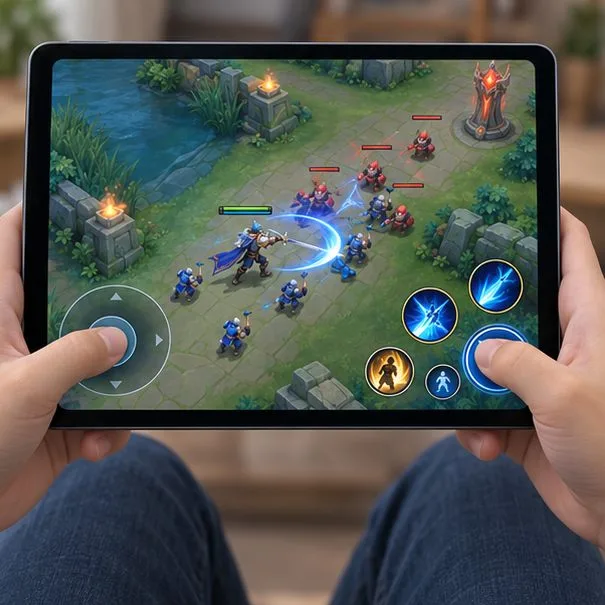
Test movement and combat together to make sure the controls are reachable without hiding the action.
Keep the layout if your thumbs stay near their natural resting positions and the joystick feels unrestricted.
Change it if you miss controls near an edge, hit adjacent skills by mistake, or hide too much of the battlefield.
Change one thing at a time: adjust size or position, repeat the same sequence, and keep the edit only if it fixes a specific problem.
Before experimenting, note your current positions or take a screenshot of the HUD so you can restore a familiar setup. If the client offers multiple Custom UI layouts, check that a saved layout actually applies before relying on it in a match; do not assume layouts are automatically assigned to particular heroes.
Tablet control mistakes to avoid
Making every button huge: larger controls can crowd skills and hide the play area.
Leaving controls at the far edges: a phone arrangement may demand a long stretch on a wide tablet.
Changing several settings at once: you will not know which adjustment helped or caused a problem.
Testing only when nothing is happening: check the layout during movement and a busy fight-like sequence.
Confusing touch customization with gamepad mapping: this article covers the on-screen touch HUD only.
Bottom line
For a reliable first try, keep movement on the left, place the joystick under your relaxed thumb, and bring a compact, clearly spaced combat cluster within right-thumb reach. Start with medium buttons when available; use large only if you need easier targets. MOONTON’s September 2026 notes confirm medium and large Custom UI layouts, but they do not specify a tablet preset or ideal dimensions. Your best Mobile Legends tablet controls are the ones that pass the same movement-and-skill check consistently on your device.