How to Check Real-Time Server Latency in the PUBG HUD

Enable PUBG’s network statistics HUD to monitor ping and packet loss in a match. See where to find it, what the numbers mean, and what they cannot diagnose.
For smooth 120 FPS in Mobile Legends: Bang Bang, start with the lowest graphics-quality preset, select the game's supported 120 FPS refresh-rate option, and reduce optional visual features before adding detail back. Keep the phone's display in a mode that permits 120 Hz and evaluate performance during a full match, especially crowded team fights. This is a starting configuration for capable, supported devices—not a guarantee that every 120 Hz phone can run MLBB at 120 FPS.
The most useful result is consistent motion and responsive controls after the phone has warmed up. A brief 120 FPS reading in a quiet lane is less meaningful than stable performance when several heroes use abilities together. If the higher frame-rate mode repeatedly stutters, a lower supported mode may be the better competitive choice.
Prioritize frame rate separately from graphics quality. Start with Smooth if that preset appears in your version, or the lowest available quality preset. Choose the supported 120 FPS option in the refresh-rate control rather than selecting Ultra graphics just because the names sound similar. Menu labels and available combinations can change with updates and device support.
| Setting or condition | Starting recommendation | What to evaluate |
|---|---|---|
| Graphics quality | Lowest available preset; Smooth where offered | Clear ability indicators and fewer dips in busy fights |
| Game refresh rate | 120 FPS option, only if supported and selectable | Actual gameplay performance rather than the selected label alone |
| HD, shadows, or extra visual detail | Off or reduced where your menu exposes these controls | Whether disabling them helps your specific device |
| Device display mode | A mode permitting 120 Hz | Whether the application actually uses the higher rate |
| Power-saving mode | Check for a performance or refresh-rate restriction | A cap that remains despite low game graphics |
| Recording and background activity | Pause unnecessary recording, downloads, and demanding apps for comparison | Whether the interruptions disappear |
These are practical recommendations, not measured FPS gains. There is no verified universal benefit for turning off a particular effect on every phone. Keep important visual information readable; the lowest-looking configuration is not automatically the best if it makes ability boundaries or characters harder for you to recognize.
It does not. Hertz describes how often the display can refresh; frames per second describes how many new frames the game produces. A 120 Hz display can still show a game rendering at 60 FPS. Conversely, selecting a high frame-rate target does not establish that the phone sustains that target.
Samsung's refresh-rate documentation describes Adaptive as adjusting up to 120 Hz and Standard as 60 Hz on supported models. It also notes that availability differs by device and application. This verifies the display behavior, not MLBB support on every Galaxy phone.
Useful action: Confirm the screen's supported refresh rate, then check the game's own refresh-rate options. On supported Galaxy devices, the relevant display control is Motion smoothness. Other manufacturers use different menus, and some provide application-specific limits. Consult your device's documentation instead of assuming an identical path.
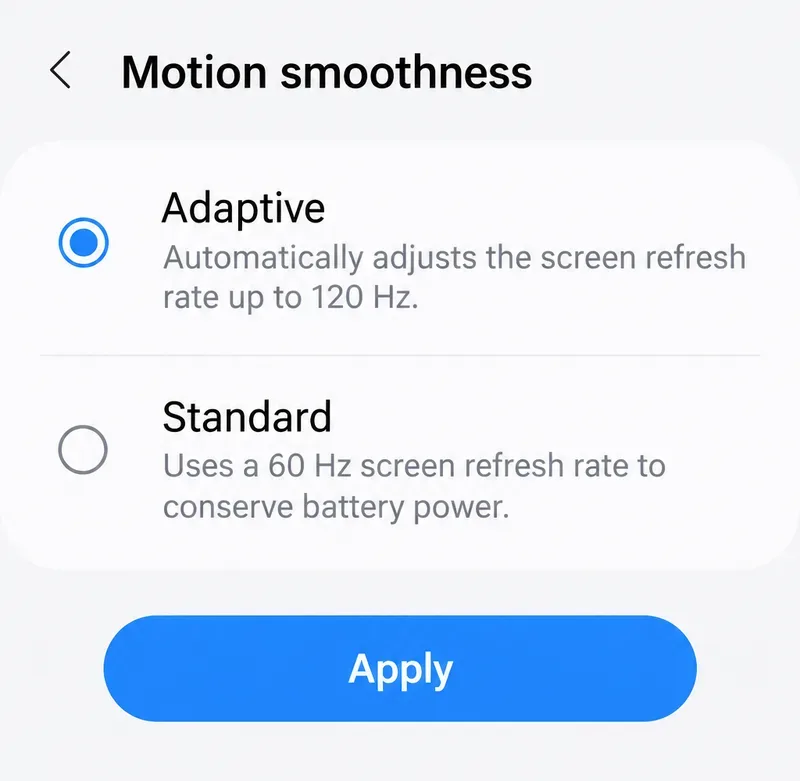
Graphics quality and refresh rate serve different purposes. Higher detail can increase rendering work; a higher refresh-rate target asks the game to produce frames more frequently. Raising visual quality is not a way to unlock processing capacity.
There is a verified example of the confusing terminology: BlueStacks' manufacturer support guide, updated March 6, 2026, identifies Refresh Rate: Ultra as its in-game selection for 120 FPS. See its MLBB settings and 120 FPS support documentation. That is emulator-specific guidance, not proof that the same option is enabled on your physical phone.
Useful action: Read the setting's category, not just the word Ultra. Use the high refresh-rate option available to your device while keeping graphics quality low for the initial comparison. If performance remains consistent through full matches, raise one visual-quality setting at a time and keep only changes that preserve that consistency.
Lower graphics can reduce rendering work, but that does not establish eligibility for a missing frame-rate mode. A phone's display specification, chipset, and available MLBB options are separate pieces of information. An unavailable option cannot be assumed to appear merely because shadows are disabled.
As of the October 8, 2026, source check for this article, a complete, current developer-published list of physical phones supporting 120 FPS was not verified. Accordingly, this article does not promise support for a model based on its price or hardware specifications alone.
Useful action: Update the game through its official store and install relevant device software updates. Recheck the menu and any explanation attached to a disabled option. If it remains unavailable, contact in-game support with your exact model, operating-system version, game version, and a screenshot of the setting. Use the highest supported stable mode while support is being clarified.
Averages can hide interruptions. Frame pacing means how evenly frames arrive. At exactly 120 FPS, the nominal interval is about 8.33 milliseconds per frame, calculated as 1,000 divided by 120. Occasional long gaps can still feel like stutters even when much of a match runs quickly.
Android's Frame Pacing documentation explains the importance of correct pacing for smooth game rendering. This is a general rendering principle; it does not establish which pacing technology MLBB currently uses.
Useful action: Evaluate camera movement, aiming, and busy fights across a full session. If your device provides a trustworthy game FPS counter, use it alongside what you observe. A display-refresh overlay is not necessarily a rendered-game FPS counter. Without suitable measurement, describe the result as smoother or less consistent rather than claiming a locked 120 FPS.
Cooling conditions matter. A device may perform well initially and reduce performance later as it becomes hotter. Apple's temperature-management guidance explicitly lists lower frame rates among possible effects of excessive internal temperature. This supports considering heat as a cause, but it does not mean every FPS drop is thermal throttling.
Power settings can also impose a separate limit. Apple confirms that Low Power Mode limits ProMotion display refresh to 60 frames per second in its iPhone Power Modes guide. Turning it off removes that restriction; it does not independently enable MLBB's 120 FPS mode.
Useful action: Compare performance in similar room conditions, away from direct sunlight, with similar brightness and battery state. If playing while charging makes the phone noticeably warmer, compare an unplugged session. Let an overheated device cool and follow its manufacturer's guidance. If repeated late-match dips remain, reduce visual load or choose a lower supported frame-rate mode.
Rendering stutter and network delay can look related while requiring different changes. Choppy camera movement with otherwise timely game events suggests a rendering issue. Delayed actions or characters snapping to new positions while local animation remains fluid suggests investigating the connection. These are diagnostic clues, not conclusive tests.
Useful action: Compare the game's latency indication with any reliable FPS measurement. If network delay is the problem, investigate connection stability and background transfers. Reducing graphics may help rendering performance, but it does not guarantee lower server latency. Avoid judging a graphics change from one match that also had a very different connection quality.
Keep the 120 FPS setting when motion remains consistent through demanding fights, the device stays comfortable to use, and the battery cost suits your session. If low graphics already delivers that result, there is no need to add visual detail simply because the phone can briefly handle it.
Choose a lower supported mode when recurring stutters survive the basic adjustments or when performance deteriorates as the session continues. A steady lower frame rate can be more usable than a higher target with frequent interruptions. After major game or system updates, reassess using the same conditions. The best Mobile Legends graphics settings are the ones that sustain readable, responsive play on your actual device—not an identical preset copied across every phone.
Enable PUBG’s network statistics HUD to monitor ping and packet loss in a match. See where to find it, what the numbers mean, and what they cannot diagnose.
Learn how to import VALORANT crosshair codes, compare presets with manual settings and spectator copy, and fix common import issues.
Choose Dota 2 minimap size, hero icons, team colors, and background settings by readability, fewer misclicks, and clear results on your own display.
Fix Fortnite texture pop-in on PC with official steps for GPU drivers, file verification, DirectX 12, high-resolution textures, VRAM, SSDs, and stutter.
Learn what Heroes of the Storm minimap size and position options are verified, improve readability, and choose camera-click controls that suit you.
Set Super Smash Bros. Ultimate Quickplay to prefer hazards-off stages. Follow the Preferred Rules menu steps and learn why matchmaking may not always honor them.
Enable Server Latency and Packet Loss in Warzone to monitor connection quality, read the overlay, and use recurring spikes to guide troubleshooting.
Learn how to carry from mid lane in League of Legends by setting up waves, choosing safe roam windows, reading side lanes, and converting pressure into objectives.
Fix Minecraft Evoker spell problems with a safe vanilla test, version checks, log review, and a step-by-step way to isolate mod or datapack conflicts.
Fix PUBG stuck on Initializing on Steam with a focused checklist for PC service notices, launch options, game files, downloads, and connection issues.








