Home
» 🎮 Esports
»
Best Minimum Frame Rate Settings for Halo Infinite on PC
Best Minimum Frame Rate Settings for Halo Infinite on PC
For most PC players trying to prevent noticeable FPS drops in Halo Infinite, start with Minimum Frame Rate at 60 FPS and Resolution Scale at 100%. If your computer can hold a higher target in demanding matches without making the image look soft, test 90 or 120 FPS instead. The best minimum is a target your system can approach consistently; choosing the highest number available does not guarantee a steadier frame rate.
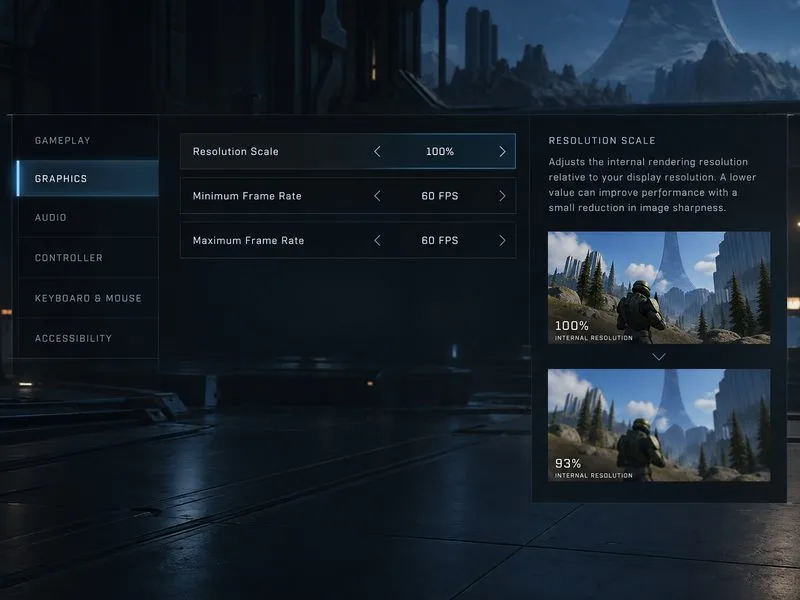
Halo Infinite uses the Minimum Frame Rate setting to trade internal image resolution for performance. When the game struggles, it can lower its rendering resolution to try to stay near the selected target. This can reduce stuttering or dips in demanding moments, but it may make edges and fine details look blurrier. The setting is therefore a balance between frame-rate consistency and sharpness, not a switch that adds GPU power.
A conceptual settings view showing a 60 FPS minimum alongside a 100% resolution scale; dynamic resolution can soften the image during demanding scenes.
Which Minimum Frame Rate should you choose?
Use the table as a starting point, then adjust it for the frame rate your PC actually maintains. These are practical starting points, not guaranteed performance results for every processor, graphics card, map, or display.
Your typical performance
Starting minimum target
What to watch
Near 60 FPS, with occasional dips
60 FPS
Check whether motion feels steadier and image softness remains acceptable.
Usually above 60 FPS, but not reliably near 120
Try 60 first; test a custom target only if available and sustainable
A target that is too ambitious can cause frequent resolution changes.
Powerful PC that can approach 120 FPS in demanding play
Test 120 FPS
Lower the target if the picture becomes noticeably fuzzy or performance remains uneven.
Prioritizing image clarity over dynamic scaling
Turn Minimum Frame Rate off, if offered
FPS may fall more visibly in heavy scenes; use a lower fixed resolution scale if needed.
Halo Support’s current competitive-settings guide lists 120 FPS as its PC Minimum Frame Rate recommendation, with Resolution Scale at 100% and Maximum Frame Rate set to Unlimited. The same guide cautions that at a 120 FPS minimum, the game prioritizes the frame-rate target over resolution, and the picture can look blurry or fuzzy in demanding gameplay. It advises lowering the minimum if that happens. Treat 120 FPS as a competitive baseline for capable hardware, not a universal best setting. See Halo Support’s recommended competitive settings.
What does Resolution Scale do?
Resolution Scale controls the game’s internal 3D rendering resolution as a percentage of the selected window resolution. Halo Support says values below 100% can improve performance, while values above 100% supersample the image for extra detail at additional performance cost. That makes 100% a useful first setting for diagnosis: it gives you a clear baseline before deciding whether to accept a permanently lower rendering resolution. The official Halo Infinite game settings guide explains both Resolution Scale and Minimum Frame Rate.
These controls serve related but different purposes. Resolution Scale sets the baseline internal resolution; Minimum Frame Rate gives the game a target that can trigger dynamic resolution changes when performance is poor. If the frame rate is unstable at 100%, first try a realistic minimum target. If the game still struggles or the dynamic changes are too obvious, reduce Resolution Scale a small amount and compare the result. Lowering the scale can help a GPU-limited PC, but it will not fix every cause of performance drops.
A practical example
Imagine a PC that usually runs Halo Infinite around 60 FPS but dips during busy fights. This is an example, not a performance test. Start with Resolution Scale at 100%, Minimum Frame Rate at 60 FPS, and Maximum Frame Rate at 60 FPS if the goal is a consistent 60-FPS experience. Play a few demanding matches and check both the on-screen FPS and image clarity. If the target feels steadier and the image remains clear enough, keep it. If detail becomes distracting or the frame rate still falls, test a lower minimum target or reduce the resolution scale slightly.
For a PC that already sustains well above 60 FPS, match the minimum target to performance it can deliver during the hardest scenes, not just in an empty area or menu. If you want to test 120 FPS, make that change by itself and observe a full match. A 120 FPS target may be helpful on a system built for high-refresh play, but can produce more visible resolution changes when the hardware cannot keep up. Halo Support’s guide also notes that lowering the maximum frame rate can result in more consistent frame rates and smoother experiences, so a sensible cap can be worth testing alongside the minimum target.
How to tune the settings without guessing
Open Halo Infinite’s Settings and select the Video tab. The PC options include Resolution Scale, Minimum Frame Rate, and Maximum Frame Rate.
Set Resolution Scale to 100% and choose a realistic minimum target such as 60 FPS.
Enable the in-game FPS Counter if you want a visible reading while playing. Halo Support’s competitive guide lists the FPS Counter as enabled.
Play several demanding situations, such as close fights, effects-heavy engagements, or busy campaign areas. Compare frame-rate behavior and image clarity rather than relying on a menu reading.
Change one setting at a time. If the image becomes too soft, lower Minimum Frame Rate. If performance remains poor at a reasonable target, reduce Resolution Scale slightly or lower graphics options that affect performance.
Do not treat a single short test as proof that the problem is solved. Repeat the comparison in similar scenes, and consider whether the FPS counter shows a repeatable improvement without persistent blur. A frame counter can help you spot a trend, but it does not describe every aspect of smoothness, such as uneven frame pacing.
When Minimum Frame Rate is not enough
Dynamic resolution addresses rendering load, so it may not solve drops caused by another bottleneck or a system issue. Confirm that Halo Infinite is using the intended display adapter, close unnecessary background workloads, and check that the PC meets the game’s published hardware requirements. Halo Support recommends using current graphics drivers; consult its PC hardware specifications and drivers page for official guidance. Driver versions and game performance can change, so get drivers from the GPU maker’s official support site.
If the FPS counter stays low even after reducing the target and visual load, the cause may not be the Minimum Frame Rate value itself. Avoid editing game configuration files to force hidden values: Halo Support warns that modifying game files can cause performance issues or crashes. On Xbox, look for the console’s Target Frame Rate or Graphics Quality options instead; the PC Minimum Frame Rate and Resolution Scale advice here applies to PC graphics settings.
Choose a sustainable target
Start at 60 FPS minimum and 100% Resolution Scale if your Halo Infinite PC commonly runs around 60 FPS. Test 120 FPS only when your hardware can get close to it in demanding play and you accept the possibility of softer visuals. Lower the target when dynamic resolution is too noticeable, and use the FPS counter across repeatable scenes to judge whether the change helps. The right setting is the highest minimum target that remains visually acceptable and realistic for your PC, not simply the highest number in the menu.