How to Check Real-Time Server Latency in the PUBG HUD

Enable PUBG’s network statistics HUD to monitor ping and packet loss in a match. See where to find it, what the numbers mean, and what they cannot diagnose.
A larger minimap can help you notice rotations, missing opponents, and fights outside your camera—but only if it stays readable without covering the action. For most players, the best HUD layout is a minimap that is easy to read at a glance, placed near an upper corner, with enough opacity to keep icons distinct and enough transparency to avoid blocking too much of the arena.
This guide focuses on SMITE 2, whose current HUD editor lets players change the position, scale, and opacity of HUD elements. Hi-Rez introduced the editor through the Escape Menu and made it available on all platforms. If you mean the original SMITE, its menus and editor can differ, so do not assume these directions match that game. Read Hi-Rez’s SMITE 2 HUD Editor update notes.
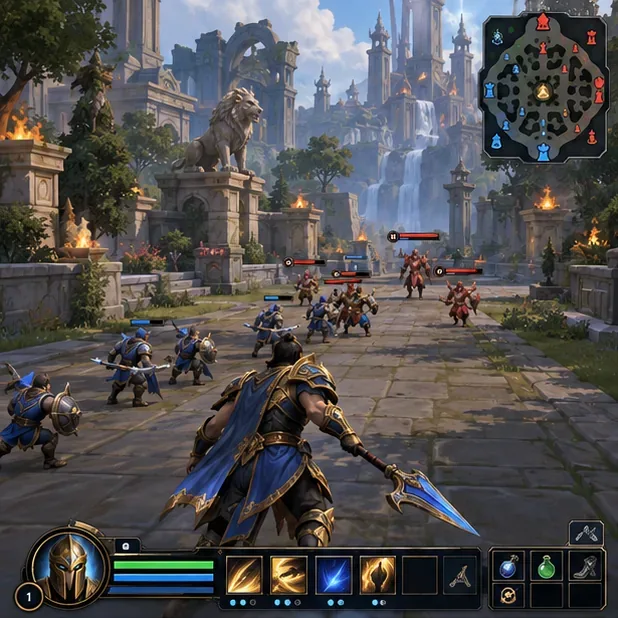
Start with a moderately enlarged minimap in an upper corner, then adjust its position and transparency until the map symbols are easy to distinguish during a fight. The best size is personal: it depends on your display resolution, viewing distance, eyesight, and how much room your other HUD elements occupy. There is no official universal scale value that suits every screen.
Keep the map near the edge of your natural field of view. Moving it beside the crosshair or into the center may make it larger, but it can obscure aiming and visual effects. If the default corner is comfortable, leave it there and increase scale only until ally, enemy, and objective markers are clear at your normal sitting distance.
| What you notice | Adjustment to try | Check for |
|---|---|---|
| Markers are hard to distinguish | Increase minimap scale a little | Can you separate nearby icons without leaning toward the screen? |
| The map blocks action behind it | Lower its opacity slightly or reduce its scale | Do map symbols remain clear over bright and dark scenes? |
| You keep losing sight of the map | Move it closer to an upper screen edge you naturally glance toward | Can you check it without dragging your focus from combat for long? |
| Other HUD elements crowd the map | Reposition those elements only if the editor allows it | Are health, abilities, and map all readable at once? |
In a match, open the Escape Menu and select HUD Editor. The editor is where you can change the position, scale, and opacity of supported elements. Hi-Rez says the feature is available on all platforms, though the exact navigation depends on whether you use a keyboard and mouse or a controller. The labels and menu arrangement can change with updates.
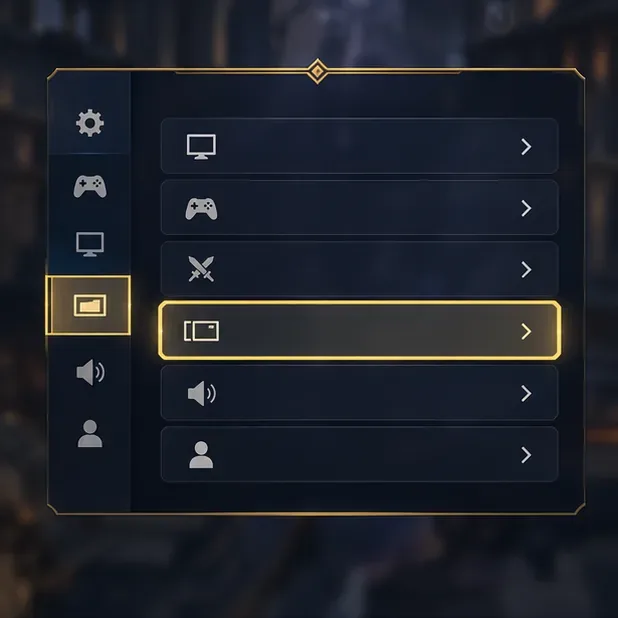
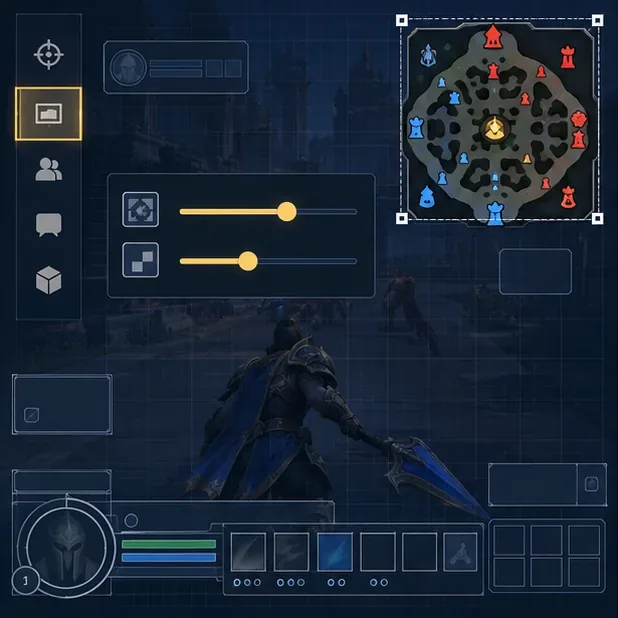
If enemy and ally markers are difficult to tell apart, review SMITE 2’s HUD color options. Hi-Rez’s Open Beta 2 notes describe a HUD Color preset under UI → HUD Colors → Preset 1 that swaps health-bar and minimap colors to help colorblind players. That option may improve contrast for some players, but color perception and display settings vary. Treat it as an accessibility option to test, not a required competitive setting. See the official update note describing HUD Color Preset 1.
After changing colors, check the minimap against several backgrounds and confirm that enemy and friendly symbols remain distinguishable. If a color filter or display profile makes the preset less clear for you, switch back and use the contrast that you can reliably read.
Test it in a mode or practice session where you can pay attention to the interface. Keep your camera on a lane or nearby skirmish and build the habit of brief map checks during safe moments: after clearing a wave, while moving between areas, or before following a teammate. The map supports awareness; it does not reveal every opponent or replace game sense, communication, and checking the environment directly.
During the test, ask three practical questions:
If the symbols are still too small, increase the scale one step and test again. If the map distracts you or covers important action, reduce it or move it toward the edge. Change one setting at a time so you can identify what actually improves readability.
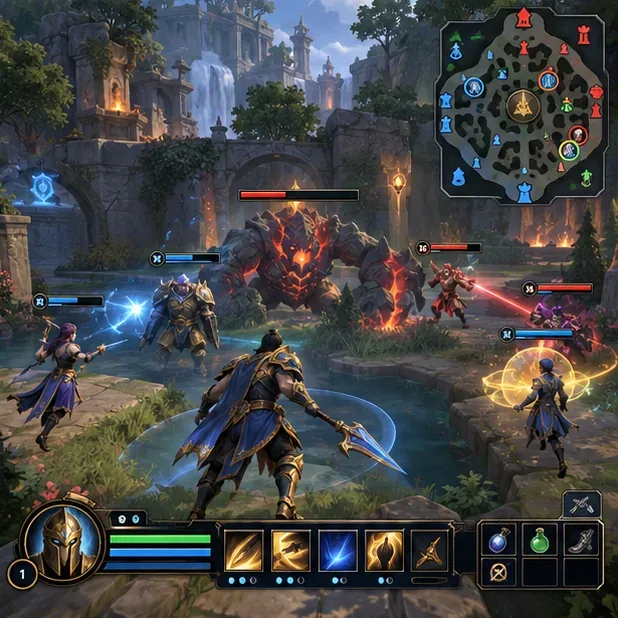
First confirm that you are editing SMITE 2 rather than the original SMITE, then check the current in-game menu and the patch notes for your platform. The editor was introduced in SMITE 2’s Open Beta 5 and subsequent updates may change menu presentation. Hi-Rez’s January 2026 Open Beta 27 notes mention further HUD performance optimizations, but do not publish a universal minimap scale or opacity recommendation. Check the official Open Beta 27 notes.
If a layout change makes the interface harder to use, reopen the editor and move the minimap back toward its previous position or size. The goal is a quick, reliable glance—not the largest possible map. Keep the layout that lets you read map information while maintaining a clear view of your immediate fight.
Enable PUBG’s network statistics HUD to monitor ping and packet loss in a match. See where to find it, what the numbers mean, and what they cannot diagnose.
Learn how to import VALORANT crosshair codes, compare presets with manual settings and spectator copy, and fix common import issues.
Choose Dota 2 minimap size, hero icons, team colors, and background settings by readability, fewer misclicks, and clear results on your own display.
Fix Fortnite texture pop-in on PC with official steps for GPU drivers, file verification, DirectX 12, high-resolution textures, VRAM, SSDs, and stutter.
Learn what Heroes of the Storm minimap size and position options are verified, improve readability, and choose camera-click controls that suit you.
Set Super Smash Bros. Ultimate Quickplay to prefer hazards-off stages. Follow the Preferred Rules menu steps and learn why matchmaking may not always honor them.
Enable Server Latency and Packet Loss in Warzone to monitor connection quality, read the overlay, and use recurring spikes to guide troubleshooting.
Learn how to carry from mid lane in League of Legends by setting up waves, choosing safe roam windows, reading side lanes, and converting pressure into objectives.
Fix Minecraft Evoker spell problems with a safe vanilla test, version checks, log review, and a step-by-step way to isolate mod or datapack conflicts.
Fix PUBG stuck on Initializing on Steam with a focused checklist for PC service notices, launch options, game files, downloads, and connection issues.








