How to Check Real-Time Server Latency in the PUBG HUD

Enable PUBG’s network statistics HUD to monitor ping and packet loss in a match. See where to find it, what the numbers mean, and what they cannot diagnose.
When Hearthstone’s card movements or board effects stutter, lowering the resolution can seem like the obvious fix. It can help when the PC is struggling to render the game, but it also makes text and card details softer on a higher-resolution display. And if the delay comes from a network issue, a game-side animation queue, or a recent client problem, changing pixels may make no difference.
A useful starting point is your monitor’s native resolution, usually the option Windows marks “Recommended.” If Hearthstone is visibly choppy at that setting and the PC is under graphics load, test one lower resolution with the same aspect ratio. For a 1440p or 4K display, 1920 × 1080 is a practical first comparison. Keep 1080p as the baseline on a 1080p monitor; going lower often costs more clarity than it gains in a card game. The right setting depends on what kind of lag you see and which component is limiting performance.
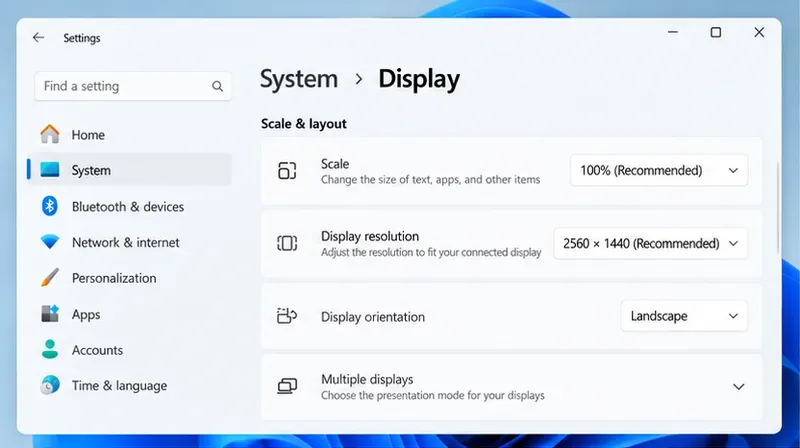
Resolution changes affect how many pixels the graphics system must draw. A lower output resolution can reduce GPU work in some situations, but it does not directly make a slow network faster or skip Hearthstone’s queued animations.
| What you notice | More likely explanation | Does lowering resolution make sense? |
|---|---|---|
| The board, cards, or menus visibly hitch while the PC is busy | Rendering load, graphics driver, thermals, or another app using system resources | Yes, test one lower resolution and compare the same scene. |
| Actions arrive late, but the picture remains smooth | Connection, server response, or game-side delay | Usually no. Check connection status and whether the delay affects other online features. |
| One mode or a particular animation is slow while other screens look normal | A mode-specific workload, client issue, or animation behavior | Try a comparison, but do not assume resolution is the cause. |
| Text and cards look blurry after changing display settings | Non-native scaling or a mismatched aspect ratio | Return to the recommended resolution or choose a same-ratio option. |
Keep the test simple: use the same monitor, game mode, and approximate scene before and after a change. If the game image itself looks smooth but actions are delayed, focus on connection and game status instead of reducing image quality.
Native resolution is the pixel grid your monitor is designed to display. It keeps text, card art, and small interface details crisp without asking the display to stretch a lower-resolution image. For most players, this is the best everyday choice when Hearthstone already runs smoothly.
It may not be the lightest option for an older integrated GPU driving a 1440p or 4K monitor. If you see recurring frame hitches at native resolution while the computer is under load, compare a lower setting before changing several unrelated options. Blizzard’s support guidance says its games run best on default settings and may not support every aspect ratio. Microsoft likewise recommends the option marked “Recommended” and notes that lower-than-native resolutions can appear less sharp, centered, bordered, or stretched. See Blizzard’s screen-resolution and aspect-ratio guidance and Microsoft’s Windows resolution instructions.
For a 16:9 display running at 2560 × 1440 or 3840 × 2160, 1920 × 1080 preserves the same aspect ratio while reducing the number of pixels the graphics system must render. This makes it a more useful first comparison than jumping straight to a very low resolution. It can look softer than native because the monitor has to scale the image, but text and card details should remain more usable than at much lower settings.
If your monitor is already 1920 × 1080, selecting 1920 × 1080 is native rather than a performance compromise. In that case, keep it as the baseline. Lowering to 1600 × 900 or 1280 × 720 may reduce rendering work on some PCs, but the benefit is system-dependent and may be hard to notice in Hearthstone. Try those only if a clear, repeatable hitch remains and the game or display actually offers the option.
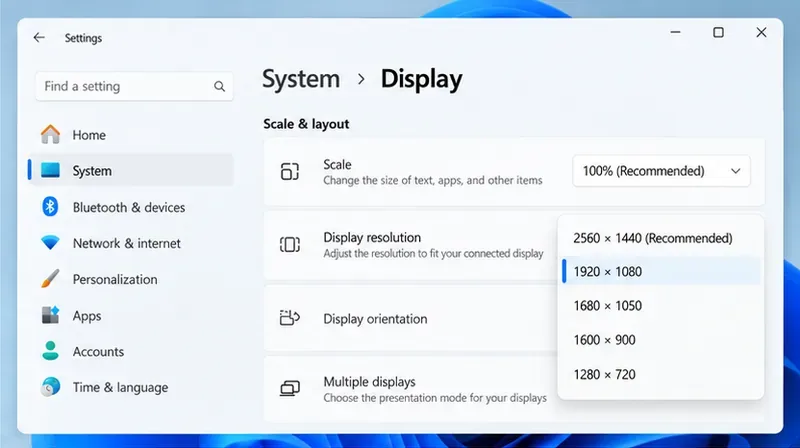
720p can be worth a short test on a low-powered laptop or older integrated graphics if the game is clearly GPU-limited. It is a poor default for most desktop monitors: interface text can become noticeably soft, and scaling artifacts are easier to see. On a 1080p display, 720p uses fewer pixels but does not guarantee smoother animations. If the game is waiting on the CPU, connection, or its own animation sequence, the lower resolution may only make the board harder to read.
Also avoid choosing a resolution solely because it appears in a dropdown. A 16:10 option such as 1680 × 1050 does not match a 16:9 display. Depending on the game, driver, and monitor, the result may show bars, be stretched, or be scaled in a way that looks wrong. Prefer a resolution with the same aspect ratio as your screen unless you have a specific reason to use another format.
| Setup or priority | Starting choice | Tradeoff |
|---|---|---|
| 1080p monitor; clarity matters | 1920 × 1080 (native) | Sharpest interface; lowering it is unlikely to be the first useful change. |
| 1440p monitor; game visibly stutters under load | Start at 2560 × 1440, then compare 1920 × 1080 | 1080p may ease rendering load but can look softer. |
| 4K monitor; older or integrated graphics | Compare native 4K with 1920 × 1080 at the same aspect ratio | More potential pixel-load reduction, with a larger clarity loss. |
| Small laptop; readable cards are the priority | Keep the recommended resolution; adjust Windows display scaling for text size if needed | Display scaling changes interface size, not the game’s render workload. |
| Low-end PC; stutter persists after a 1080p test | Try 1600 × 900 or 1280 × 720 briefly, if available | Use only if the improvement is obvious; expect softer text and card art. |
On a laptop with both integrated and dedicated graphics, confirm that Hearthstone is using the intended GPU before concluding that resolution is the only factor. Also close unnecessary GPU-heavy apps and check for overheating or power-saving limits. These checks can matter more than dropping a card game to a blurry resolution.
Note the display’s recommended resolution, the game’s current display mode, and whether the stutter appears in menus, a regular match, or Battlegrounds. Do not change Windows scaling, refresh rate, and graphics-driver settings at the same time; otherwise, you will not know which change mattered.
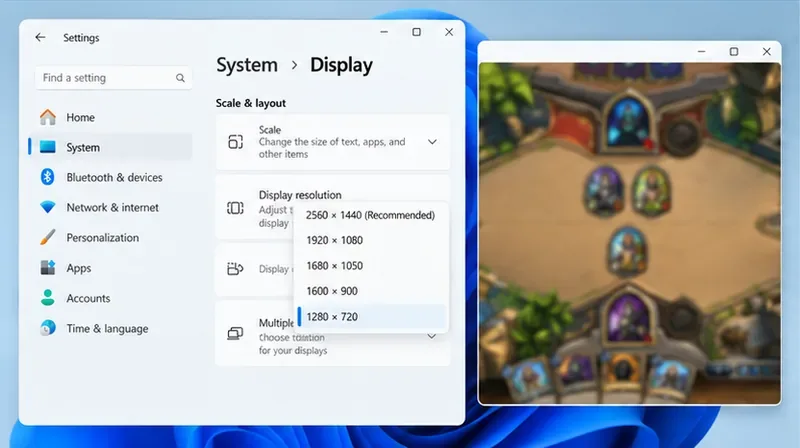
If Hearthstone’s current display options include a resolution control, use that first so you are changing the game output rather than the whole desktop. On a 1440p or 4K 16:9 screen, compare 1920 × 1080 with native resolution. If the game uses a borderless window and its own resolution control does not change the output, Windows Display settings may be relevant for a temporary test. Restore the recommended desktop resolution when finished. Microsoft’s guidance explains where to find the display-resolution list in Windows.
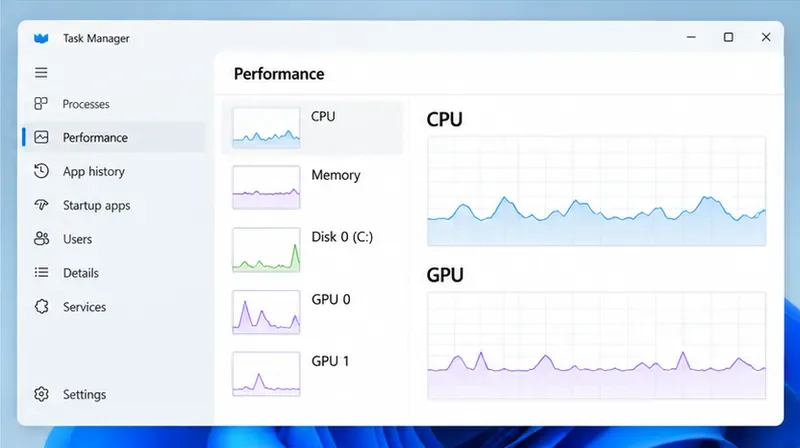
Replay a repeatable situation, such as opening the collection or watching the same type of board animation, at both settings. Note whether the visible stutter changes and whether cards remain comfortable to read. Task Manager’s Performance view can show CPU and GPU activity while the game runs, but a graph alone does not prove which component is the bottleneck. Avoid treating one brief spike as a diagnosis.
If 1080p makes animations noticeably steadier and the softer image is acceptable, keep it for play. If there is no visible improvement, restore native resolution. Then follow Blizzard’s current desktop troubleshooting steps, check graphics drivers and operating-system updates, and review the current system requirements. Hearthstone’s August 3, 2026 Patch 36.2 notes state that the game was upgraded to a newer Unity version and that minimum system requirements changed. Check the current requirements for your operating system rather than relying on old hardware lists: Hearthstone System Requirements. Blizzard’s broader Hearthstone desktop and laptop troubleshooting and driver and operating-system update guidance are useful next checks.
A lower resolution is most useful as a diagnostic option when rendering load is plausibly involved. It cannot repair a server-side issue, a damaged game installation, a driver fault, thermal throttling, or every client-side animation bug. If only Battlegrounds or one specific effect is delayed while other parts of the client remain smooth, record when it happens and check Blizzard’s service updates or support channel before sacrificing image clarity.
Use native resolution when the game is smooth or crisp text is your priority. On a high-resolution screen with repeatable visual stutter, test 1920 × 1080 first. Use 720p only as a short last-resort comparison on weaker hardware, and keep it only if the improvement is easy to see. This approach gives you a clear tradeoff: retain sharpness when performance is already fine, and accept some softness only when a controlled test shows a real improvement.
Enable PUBG’s network statistics HUD to monitor ping and packet loss in a match. See where to find it, what the numbers mean, and what they cannot diagnose.
Learn how to import VALORANT crosshair codes, compare presets with manual settings and spectator copy, and fix common import issues.
Choose Dota 2 minimap size, hero icons, team colors, and background settings by readability, fewer misclicks, and clear results on your own display.
Fix Fortnite texture pop-in on PC with official steps for GPU drivers, file verification, DirectX 12, high-resolution textures, VRAM, SSDs, and stutter.
Learn what Heroes of the Storm minimap size and position options are verified, improve readability, and choose camera-click controls that suit you.
Set Super Smash Bros. Ultimate Quickplay to prefer hazards-off stages. Follow the Preferred Rules menu steps and learn why matchmaking may not always honor them.
Enable Server Latency and Packet Loss in Warzone to monitor connection quality, read the overlay, and use recurring spikes to guide troubleshooting.
Learn how to carry from mid lane in League of Legends by setting up waves, choosing safe roam windows, reading side lanes, and converting pressure into objectives.
Fix Minecraft Evoker spell problems with a safe vanilla test, version checks, log review, and a step-by-step way to isolate mod or datapack conflicts.
Fix PUBG stuck on Initializing on Steam with a focused checklist for PC service notices, launch options, game files, downloads, and connection issues.








