How to Check Real-Time Server Latency in the PUBG HUD

Enable PUBG’s network statistics HUD to monitor ping and packet loss in a match. See where to find it, what the numbers mean, and what they cannot diagnose.
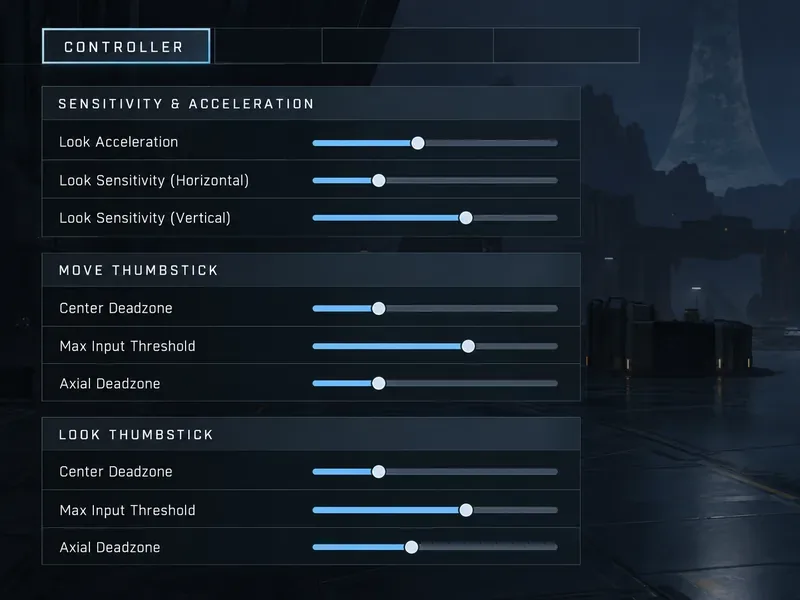
For a balanced starting point in Halo Infinite, set Look Acceleration to 3 on the game’s familiar 1–5 slider, then set each stick’s Center Deadzone and Axial Deadzone as low as your controller can hold without drifting. If the reticle or Spartan moves when you release the sticks, raise only the affected Center Deadzone one point at a time until the idle movement stops. This gives you a practical baseline without assuming every controller or player needs the same values.
Look Acceleration and deadzones solve different problems. Acceleration changes how quickly camera movement builds toward its maximum speed when you push the look stick fully. Deadzones decide how much stick movement must occur before the game registers input. Lower deadzones feel more immediate, but expose stick noise; higher deadzones can mask drift, but require more movement before aiming or walking begins.
The recommendations below are starting points, not an official Halo Championship Series preset. Halo Support says sensitivity preferences are subjective and recommends using settings that feel comfortable. Its official guide explains what each slider does, which makes it possible to tune by observable behavior instead of copying someone else’s setup.
| Goal | Look Acceleration | Deadzone approach | Tradeoff to watch |
|---|---|---|---|
| Balanced aim and turning | 3 | Start Center and Axial at 0 on a stable controller; raise only if idle drift appears | Even baseline, but the best deadzone still depends on stick condition |
| Slower, steadier tracking | 2 or 3 | Keep the Look deadzone at the lowest drift-free value | Small corrections can feel calmer; rapid 180-degree turns may take longer |
| Faster turns and quick reversals | 4 | Keep the Look deadzone low if the reticle remains still at rest | Maximum turn speed builds sooner, but tracking a nearby target can feel less controlled |
| Controller with noticeable drift | Keep your preferred value, often 3 | Increase the affected stick’s Center Deadzone one point at a time; adjust Axial only if drift follows an axis | Idle movement should reduce, but a larger deadzone can make initial aim or movement feel less responsive |
If your current version displays a different Look Acceleration range, use the middle option as the balanced starting point and test one step below or above it. The exact number is less important than the behavior: does the camera turn quickly enough at full stick while still letting you keep the reticle on a moving target?
Halo Support defines Look Acceleration as the acceleration speed applied when the look thumbstick is fully engaged. A higher value reaches maximum look speed faster. This setting does not raise your horizontal or vertical Look Sensitivity by itself; sensitivity controls how much camera movement results from stick movement, while acceleration controls how quickly that movement ramps toward its top speed.
Choose a lower value, such as 2, if you tend to overshoot nearby targets, make frequent small corrections, or prefer a more gradual turn when you push the stick. Lower acceleration can make full-stick turns feel less abrupt. It does not guarantee better accuracy, and it can make turning around to face an enemy feel slower.
Choose the middle value, such as 3, if you want a neutral baseline for tracking and turning. Play a short set of matches or drills before changing other aim settings. If the reticle stops short during full-stick turns, test 4; if it repeatedly passes the target, test 2.
Choose a higher value, such as 4, if you regularly need faster full-stick turns or quick camera reversals. A higher acceleration value reaches maximum speed sooner, as the official description states. The tradeoff is that aggressive inputs may be harder to control when you are trying to make a small correction. Don’t raise both acceleration and sensitivity at the same time; otherwise, you will not know which change affected the feel.
Halo Infinite provides separate Move Thumbstick and Look Thumbstick settings. Each has a Center Deadzone, Max Input Threshold, and Axial Deadzone. Tune the Move and Look sticks independently: a controller can have drift on one stick but not the other, and a movement deadzone that feels comfortable may not suit aiming.
Center Deadzone is the amount a stick must move away from center before minimum input registers. A low value makes initial movement register sooner. A higher value can reduce controller drift, which is unwanted input while you are not touching the stick. For a new or stable controller, begin at 0 if the game allows it. Leave the game still and hands off the controller; if your Spartan walks or the reticle drifts, raise the affected stick’s Center Deadzone by one point, then repeat the check.
Stop increasing the value once idle movement disappears. Raising both sticks far above what is needed can create a noticeable delay before movement or aim begins. A deadzone can hide slight stick noise, but it cannot repair worn hardware. If drift persists at a large value, consider testing the controller in the console or operating-system accessories utility and checking the manufacturer’s warranty or repair options.
Axial Deadzone concerns input near the horizontal and vertical axes. Lower values feel more responsive; higher values can reduce drift along an axis. Keep it low if your reticle stays still and diagonal aiming feels predictable. Raise it only when you observe a specific problem, such as the camera slowly creeping sideways while the stick is untouched. If a change makes diagonal tracking feel less natural, return to the previous value.
Max Input Threshold determines how far the stick must move before maximum input is registered. Halo Support notes that lower values reach maximum input sooner, while higher values require more stick movement. This can change how quickly a full turn begins at the outer edge of the stick, but it does not solve unwanted movement at rest. Keep this value at its current setting while you tune acceleration and deadzones; change it later only if the stick reaches maximum turn too late or too early for your preference.
For comparison, use the same weapon and similar target movement in Academy drills or a custom match. Judge three things: whether the reticle stays still at rest, whether small adjustments remain controllable, and whether a full-stick turn reaches the target quickly enough. This is a practical comparison, not a benchmark of competitive rank or reaction time.
Halo’s official Guide to Halo Infinite Game Settings describes the controller sliders and their effects. The Recommended Competitive Settings for Halo Infinite page explicitly cautions that sensitivity settings and controller layouts are subjective. Neither guide establishes one universally best acceleration or deadzone number, so treat the values here as a controlled starting point and keep the settings that produce stable, repeatable aim on your own controller.
Enable PUBG’s network statistics HUD to monitor ping and packet loss in a match. See where to find it, what the numbers mean, and what they cannot diagnose.
Learn how to import VALORANT crosshair codes, compare presets with manual settings and spectator copy, and fix common import issues.
Choose Dota 2 minimap size, hero icons, team colors, and background settings by readability, fewer misclicks, and clear results on your own display.
Fix Fortnite texture pop-in on PC with official steps for GPU drivers, file verification, DirectX 12, high-resolution textures, VRAM, SSDs, and stutter.
Learn what Heroes of the Storm minimap size and position options are verified, improve readability, and choose camera-click controls that suit you.
Set Super Smash Bros. Ultimate Quickplay to prefer hazards-off stages. Follow the Preferred Rules menu steps and learn why matchmaking may not always honor them.
Enable Server Latency and Packet Loss in Warzone to monitor connection quality, read the overlay, and use recurring spikes to guide troubleshooting.
Learn how to carry from mid lane in League of Legends by setting up waves, choosing safe roam windows, reading side lanes, and converting pressure into objectives.
Fix Minecraft Evoker spell problems with a safe vanilla test, version checks, log review, and a step-by-step way to isolate mod or datapack conflicts.
Fix PUBG stuck on Initializing on Steam with a focused checklist for PC service notices, launch options, game files, downloads, and connection issues.








