Home
» 🎮 Esports
»
Best Graphics Settings for Stable Frame Rate in Honor of Kings
Best Graphics Settings for Stable Frame Rate in Honor of Kings
Best Graphics Settings for a Stable Frame Rate in Honor of Kings
For a stable frame rate in Honor of Kings, start with the middle image-quality option and a 60 FPS cap if the game offers it on your phone. Play through a crowded team fight. If motion stays even and the phone remains comfortable, keep that setup; if the game stutters or the phone heats up, lower one setting and test again. A higher FPS option is useful only when your device can sustain it.
There is no single preset that fits every phone. Honor of Kings can show different graphics and frame-rate choices depending on the device and game version, so use the options in your own menu as the limit. The recommendations below give you a repeatable baseline without assuming every phone has 90 or 120 FPS.
Best starting settings for stable FPS
Open the game's settings and find its graphics, image-quality, or frame-rate controls. Menu labels can differ by version and language. Start with a moderate image-quality level and choose the highest conservative frame-rate cap your phone can hold consistently—not just the highest number it can select.
Starting setup
Best for
What to watch
Middle image quality, 60 FPS if available
A dependable baseline for ranked matches and most recent phones
Check for uneven motion or heat during a full team fight
Low or middle image quality, one lower FPS tier
Older phones, long sessions, or a device that warms quickly
Keep hero outlines, health bars, and skill effects easy to read
Middle image quality, 90 or 120 FPS if offered
Phones that support the option and remain smooth at the higher cap
Higher rates can use more power; recheck after several fights
Maximum graphics and maximum FPS
A short visual comparison on a cool, capable device
This demanding combination is a poor default if performance drops later
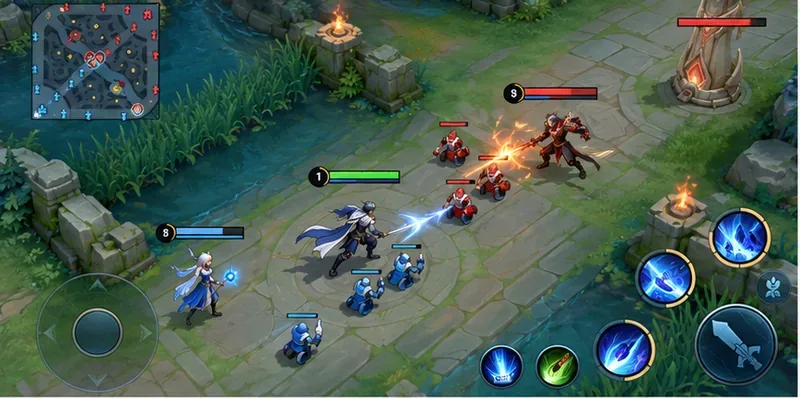
Illustrative MOBA scene—not a captured Honor of Kings screen. Clear silhouettes and moderate effects show the goal for a balanced baseline.
Why graphics quality and frame rate need separate checks
Image quality controls how detailed the scene looks; effects and resolution can make a busy match more demanding. Frame rate controls how often the game draws a new image. A higher rate can make movement look smoother, but a phone that cannot maintain it may show uneven motion instead. Android's developer guidance describes unstable frame rates when games cannot keep up with a high target, and notes that frame-rate choices depend on device capability. Read Android's FPS throttling guidance.
A 120 Hz display does not guarantee that Honor of Kings will render at 120 FPS. The phone's display refresh rate, the game's supported cap, and the device's ability to sustain that cap all matter. If the game does not show a higher option, do not assume a phone setting or third-party tool can make that game version support it.
Honor of Kings has published device-focused adjustments to image-quality and frame-rate options to address lag and overheating on selected devices. That is why the settings shown on your own device matter more than a preset copied from a different phone. See the Honor of Kings settings update notice.
Choose a setup for your phone and play style
For ranked matches and consistent fights
Favor an FPS tier that stays steady over the highest available number. A balanced graphics level with 60 FPS is a practical first test when offered. If it holds through multi-hero fights and objective battles, leave the image quality there. Raise the FPS cap only after the baseline is stable, and move up one tier at a time.
For an older or budget phone
Use low or middle image quality and a moderate frame-rate target. If the menu offers several effect controls, reduce the most visually busy option first rather than lowering everything at once. Keep important combat cues legible: lowering detail is not useful if enemy heroes and ability effects blend together. Close apps that are actively using memory or processing in the background, and avoid playing in direct sun or while charging if the phone is already getting warm.
For a high-refresh phone
First confirm that a higher frame-rate option actually appears in the game. Test 90 FPS before trying 120 FPS, if both are available. Keep the higher setting only if movement stays even during a demanding fight and the phone remains comfortable after an extended session. A stable 60 FPS can feel better than a higher cap that drops unpredictably.
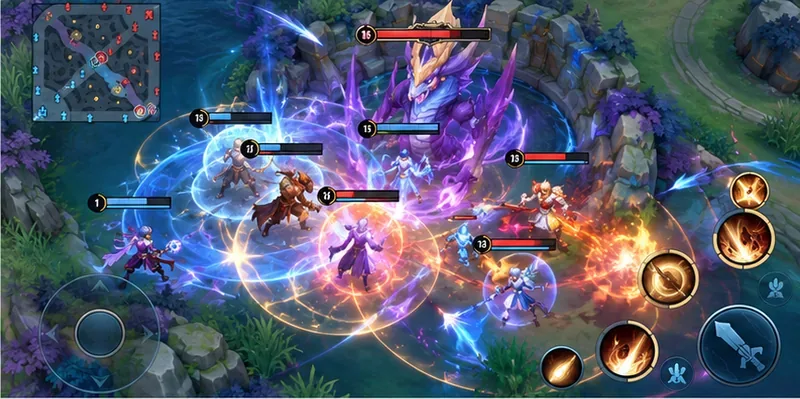
An illustrative objective fight with overlapping effects shows why maximum visual detail can make a crowded battle harder to read.
Test your Honor of Kings graphics settings in four steps
Set a baseline. Choose middle image quality and 60 FPS where available. If 60 FPS is not listed, select a moderate option shown in your game.
Check a demanding scene. Play through several crowded fights or a full match. A quiet training area may not reveal the frame drops that appear when many heroes and effects are on screen.
Change one setting. If performance falters, lower the frame-rate tier or image quality—not both at once. Retest under similar conditions so you can tell which change helped.
Keep the stable combination. If the phone stays comfortable and combat remains smooth, save that setup. Recheck after a game update because device-specific options can change.
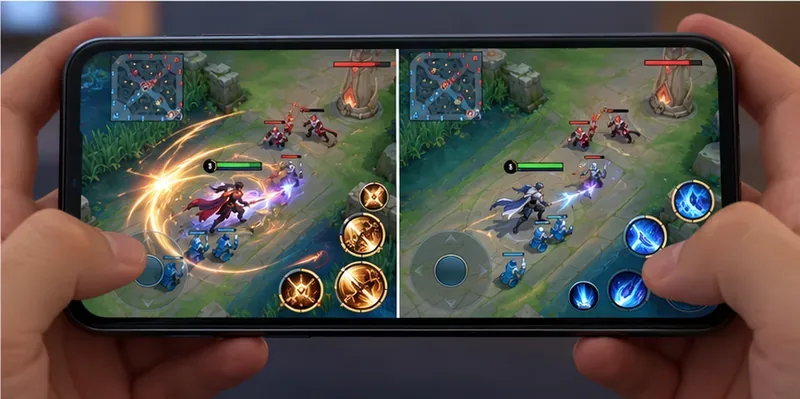
The same illustrative lane is shown with heavier and lighter effects to demonstrate a one-change-at-a-time comparison.
Manage heat and tell frame drops from network lag
If a game starts smoothly but becomes choppy as the phone warms, the device may be reducing performance to control temperature. HONOR's support guidance says overheating protection can limit game frame rates and recommends lowering image quality or frame rate and letting a hot phone cool. It also advises avoiding gameplay while charging. These points apply to device behavior described by HONOR; menus and thermal controls vary by manufacturer. See HONOR's gameplay freezing and overheating guidance.
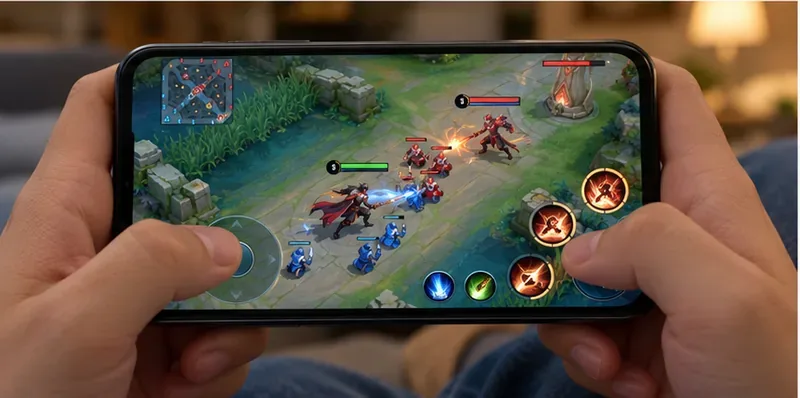
A phone in use during a match; if it becomes unusually hot, pause and let it cool before testing higher settings again.
Not every kind of lag comes from graphics. If the picture moves smoothly but heroes jump across the map, actions arrive late, or the connection indicator worsens, check Wi-Fi or mobile data. HONOR's gameplay troubleshooting guidance also separates weak-network delays from device freezing. A lower graphics preset cannot repair unstable latency.
If your phone or game offers an FPS counter, use it to compare settings. Otherwise, judge consistency by the same visual cues each time—smooth movement, responsive controls, and no late-match slowdown—without guessing an exact FPS. Close resource-heavy background apps, allow the phone to cool, and test on a stable connection before deciding that the game needs lower graphics.
Quick answers
Should I always use 120 FPS?
No. Use 120 FPS only when Honor of Kings offers it for your device and it remains stable through crowded fights. The number on a phone's display specification is not proof that the game can sustain the same frame rate.
Will lowering graphics fix every kind of lag?
No. Lower image quality or FPS when you see rendering stutter or heat-related slowdowns. For delayed actions, disconnections, or characters snapping between positions, troubleshoot the network first.
The best Honor of Kings graphics settings are the ones your phone can sustain while keeping heroes and combat cues clear. Begin with a moderate preset, test in a demanding fight, and raise or lower one option at a time until the frame rate stays consistent.