Home
» 🎮 Esports
»
Best Graphics and Display Settings for Low-RAM Devices in Free Fire
Best Graphics and Display Settings for Low-RAM Devices in Free Fire
Best Graphics and Display Settings for Low-RAM Devices in Free Fire
For a low-RAM phone, start with Graphics: Smooth (or the lowest preset your client offers) and High FPS: Normal or Standard. Leave any experimental frame-rate boost off until the game is stable. Change Auto Scale only if you are following Garena’s specific client-crash workaround, which sets it to Off. This baseline can reduce the work the game asks of a phone, but it cannot add physical RAM or guarantee a particular frame rate.
Free Fire’s menu names and available choices can vary by client, device, region, language, and update. Treat the labels below as the recommended starting point, then use the closest equivalent shown in your game.
Recommended Free Fire settings for low-RAM phones
Setting
Start here
Adjust it when
Graphics
Smooth or the lowest available preset
Keep it low if fights bring stutters, freezes, or crashes.
High FPS / frame rate
Normal or Standard
Try a higher choice only after the baseline stays stable.
Experimental Frame Rate Boost
Off while troubleshooting
Test it later only if it appears and your phone handles normal play consistently.
Auto Scale
Leave the current value for routine tuning
Use Off when following Garena’s client-crash instructions for the matching issue.
Background activity and heat
Close apps you do not need; let a hot phone cool
Repeat the same short test after the device settles.
Garena’s support instructions for a particular client-crash issue recommend Smooth graphics, Normal High FPS, and Auto Scale Off. That is a targeted recovery combination, not a rule that every player should change Auto Scale. For broader lag, Garena advises lowering graphics, closing background apps, updating Android, and restarting the phone. See Garena’s client-crash instructions and game-lag troubleshooting steps.
1. Set graphics to Smooth or the lowest option
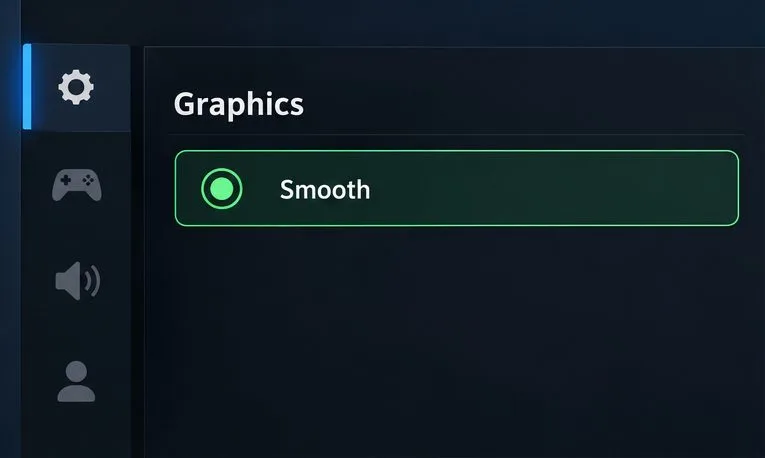
From the lobby, open Settings and look for the Graphics or Display section. Choose Smooth if it is available. If your version uses different names, select its lowest visual-quality option. Graphics quality controls how much visual detail and effects the phone has to draw; reducing it can make gameplay more manageable on weaker hardware, though it will not fix every cause of lag.
Settings illustration: choose Smooth if your client offers it; actual menus can look different.
Keep this low setting for the first test instead of choosing a higher preset because it appears in the menu. A setting that launches successfully may still become unstable after the phone warms up or during a busy fight. The goal is consistent play, not maximum visual detail.
2. Start with Normal or Standard frame rate
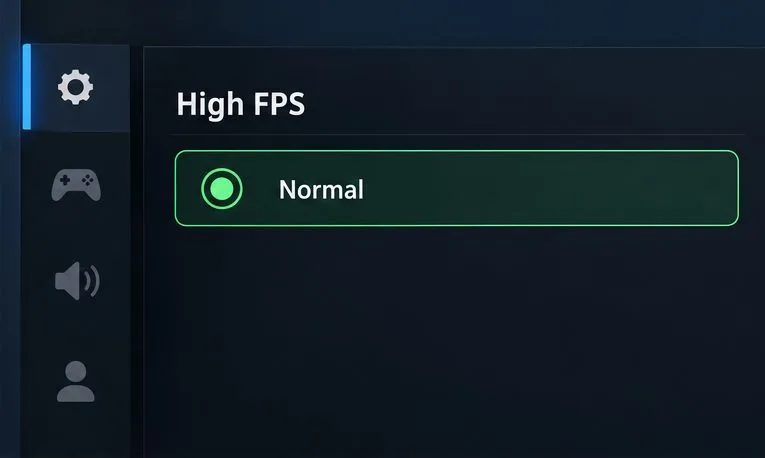
A higher frame-rate mode asks the phone to produce more frames each second. It can make motion feel more responsive when the device can sustain it, but on a low-memory or older phone it can also add workload and heat. Begin with Normal or Standard. Garena’s crash workaround specifically pairs Smooth graphics with Normal High FPS.
Normal is the safer starting point when testing stability on a low-RAM phone.
After the game is stable, you can test one higher frame-rate option if your client provides one. Play under similar conditions and keep the change only if movement remains smooth without rapid heating, repeated frame drops, or the app closing. If the result gets worse, switch back. Do not change graphics and frame rate at the same time; otherwise, it is harder to tell which setting caused the difference.
3. Keep experimental frame-rate boosts optional
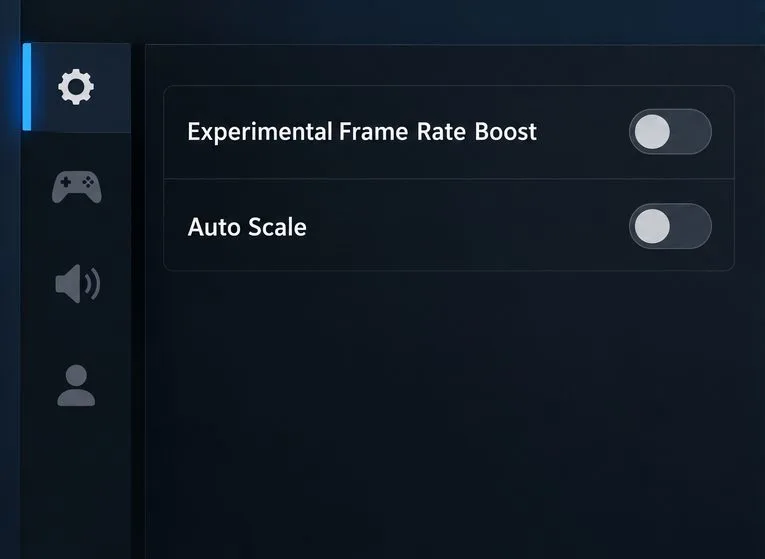
Garena’s OB52 patch notes introduced an Experimental Frame Rate Boost option within High FPS Mode. It is an optional feature, and its availability can vary across builds and devices. Since its stated purpose is to add frame rate, a cautious starting point for a low-RAM phone is to leave it off, establish a stable baseline, and only then compare results if the control appears in your client. That recommendation is a practical inference from the feature’s purpose, not a guarantee about how every device will behave.
The toggles are shown as examples; use Auto Scale Off only for Garena’s relevant crash workaround.
Do not install modified configuration files or third-party “zero lag” tools to unlock hidden graphics options. Use the settings available inside the official game and install updates from its official store listing. Garena’s OB52 patch notes describe the experimental boost.
4. Reduce background load and avoid testing while hot
Before launching Free Fire, close apps you are not using, especially ones actively recording, streaming, downloading, or syncing. If the game has been running for a long time or keeps closing, restart the phone and try again. Garena’s lag guidance also recommends closing background apps and restarting when basic adjustments do not help. Avoid “RAM cleaner” apps: Garena cautions that many apps promising to fix lag provide little or no help.
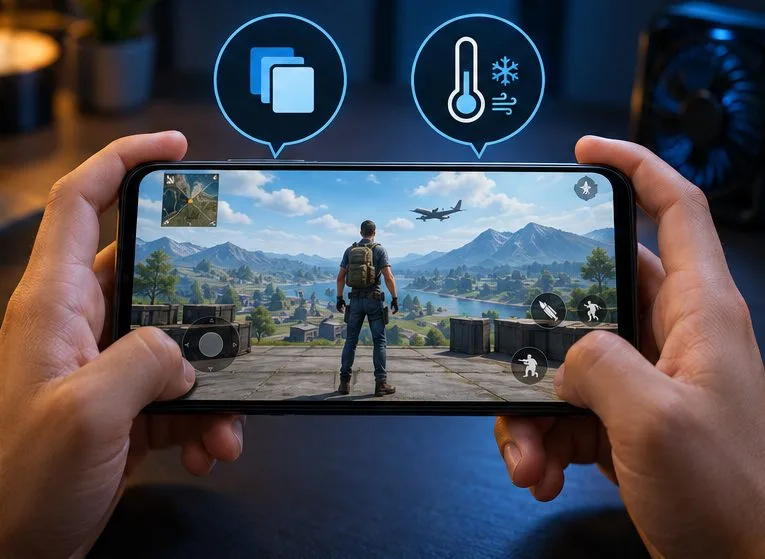
Close unused apps and let a hot phone cool before comparing settings again.
If the phone feels hot, pause and let it cool before another match. Avoid direct sunlight and take off a thick case only if doing so is safe for the device. If performance improves after cooling, heat may be part of the problem; lowering graphics cannot remove every thermal limit. Do not repeatedly force-stop system services or erase game data as a first step.
Does Auto Scale need to be off?
No—not as a universal low-RAM setting. Garena lists Auto Scale Off with Smooth graphics and Normal High FPS in its instructions for a specific client-crash problem after an update. If that matches your symptom, use the full combination in the support article. If the game is stable and you are only trying to reduce ordinary stutter, leave an unfamiliar Auto Scale control unchanged unless your version’s own guidance says otherwise.
Is Free Fire MAX a better choice for a low-end phone?
Free Fire MAX emphasizes higher-detail visuals, and Garena has previously acknowledged that its HD graphics could place a heavier burden on some mobile devices. The same patch notes also describe optimizations, so they do not prove that every MAX build performs worse on every phone. If you play MAX and the game remains unstable at low settings, compare with the standard Free Fire client only if it is officially available to you. Secure and link your account before changing apps; do not assume guest progress will transfer automatically. Read Garena’s Free Fire MAX performance notes for its explanation of that release’s changes.
Quick test checklist
Set Graphics to Smooth or the lowest option available.
Set High FPS to Normal or Standard.
Leave Experimental Frame Rate Boost off for the baseline test.
Change Auto Scale only when applying Garena’s relevant crash workaround.
Close unused apps, restart if needed, and let a hot phone cool.
Play a short match, note stutter, heat, or crashes, and change one setting at a time.
When to contact Garena support
If Free Fire still stutters or closes at the lowest graphics and standard frame rate, update the app from its official store, restart the phone, and check the current requirements for your version. Free storage and RAM are different resources, so having storage space left does not mean the game has more working memory available. If the problem began after an update or continues after basic troubleshooting, send support your phone model, operating-system version, game version, the settings you tested, and the steps that reproduce the issue. Garena’s bug-report guide lists the device and reproduction details to include.
The best Free Fire graphics settings for low-RAM devices are the lowest stable graphics preset and a frame-rate mode the phone can maintain. Start conservative, test under comparable conditions, and keep only changes that improve consistency on your own device.