Home
» 🎮 Esports
»
Best Frame-Rate Setting for Brawl Stars on a Tablet
Best Frame-Rate Setting for Brawl Stars on a Tablet
For a compatible 120 Hz tablet, start with the device’s Adaptive or High refresh-rate option, then keep it only if Brawl Stars stays smooth without uncomfortable heat or fast battery drain. Do not assume a 120 Hz screen automatically means the game is rendering at 120 frames per second (FPS). The display’s refresh rate is the number of times the screen can update each second; game FPS is how many new frames the app actually produces. They are related, but they are not the same setting.
Supercell’s March 2021 Brawl Stars notes say higher-refresh Android devices are supported automatically when the manufacturer enables that option for the game. The note lists 90, 120, 144, and 240 Hz, but it does not promise that every tablet, operating-system version, or current game build will use every rate. Supercell’s public documentation does not establish one universal in-game graphics or FPS toggle for all tablets. Treat the tablet’s system setting as the first place to check, and use only an in-game option if your current version actually shows one.
Example scenario (hypothetical): Maya has an Android tablet whose display supports 120 Hz. Her Brawl Stars match looks smooth in some moments but less consistent later in a session. She should check the tablet’s refresh and game-specific settings, compare Adaptive with the normal 60 Hz mode under similar conditions, and choose the mode that stays consistently responsive without excessive heat. This example is illustrative, not a reported test or a promise about any particular tablet.
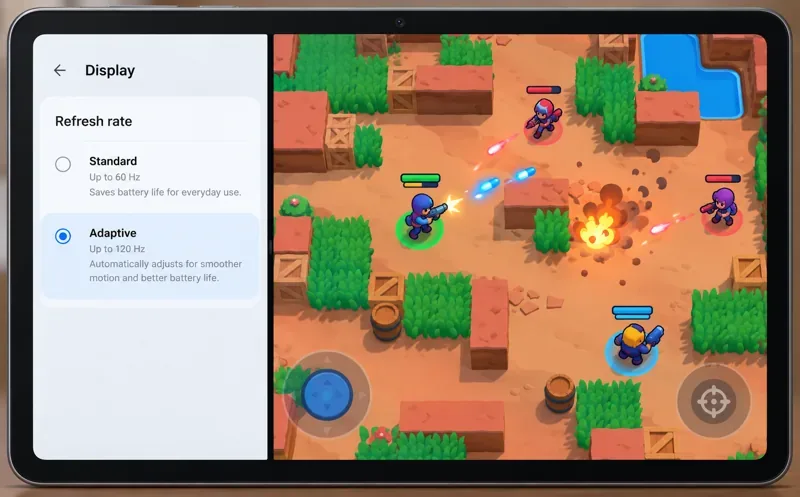
A generic Android-style example shows a refresh-rate choice beside gameplay; the actual menu labels and available modes vary by tablet, and this is not an in-game Brawl Stars setting.
Quick recommendation by tablet type
Tablet situation
Starting choice
When to change it
Android tablet with a 90 or 120 Hz screen
Adaptive or High, if the system offers it for Brawl Stars
Use Standard or 60 Hz if the game stutters, the tablet heats up, or battery use becomes a concern.
Android tablet whose game option is missing or capped at 60 Hz
Leave the default system behavior in place
Check the manufacturer’s display or game dashboard for a per-game refresh preference. If none exists, the game may not be enabled for a higher rate on that model.
iPad with ProMotion
Leave the display behavior automatic
iPadOS manages ProMotion dynamically. There is no universal user-facing switch that forces Brawl Stars to render at a chosen FPS.
Tablet with a 60 Hz display
Standard or the default mode
A higher refresh setting cannot make a 60 Hz panel display 90 or 120 distinct refreshes per second.
Where to find the refresh-rate control
On Android, open the tablet’s system Settings and look under Display, Motion smoothness, or a similarly named refresh-rate section. Manufacturers use different labels and may place a separate per-app setting in a Game Booster or game dashboard. If a per-app list is available, choose Brawl Stars and select the highest supported or Adaptive option. If the system exposes only a general display mode, test the general High or Adaptive mode and check whether Brawl Stars benefits.
Do not change several performance options at once. For Maya’s example, she can first enable the display’s Adaptive/High mode, then close and reopen the game. If her tablet has an app-specific profile, she can check that profile separately. This makes it easier to identify whether the manufacturer’s game setting, the global display mode, or neither affects the game.
On an iPad Pro with ProMotion, Apple describes refresh as dynamic: the display and system can shift among supported rates, and the app cannot force the display to show content at one specific refresh rate. Leave that behavior managed by iPadOS. On other iPads, the screen’s hardware refresh ceiling may be 60 Hz, so there may be no high-refresh option to enable.
Choose smooth and stable over the biggest number
A higher refresh rate can make motion appear smoother, but it also asks more from the device. Google’s Android game-development guidance notes that systems may reduce refresh because of battery or temperature, and that high refresh can use more power and create more heat. A stable lower rate can feel better than a higher rate that repeatedly drops frames. The practical goal is consistent motion during a full match, not the largest number shown in a display menu.
For Maya’s hypothetical 120 Hz tablet, Adaptive is a sensible first choice because it lets the system manage the screen rather than holding the highest mode constantly. If she sees that the game remains smooth and the tablet stays comfortable to hold, she can keep it. If the device gets hot, the frame pacing becomes uneven, or battery drain is unacceptable, Standard/60 Hz is a reasonable fallback. This is a trade-off, not a universal best setting.
How to judge whether the setting helped
Compare the same kind of gameplay before and after changing one setting. Use a training or casual match, keep the game’s graphics and other device settings unchanged, and observe movement during both quiet moments and busy fights. Repeat the comparison after the tablet has been playing for several minutes; performance can differ once the device warms up.
Look for steady motion: character movement and scrolling should feel consistently smooth, not only during the first few seconds.
Watch for frame drops: brief pauses or uneven animation during effects suggest that the tablet may not sustain its target.
Check heat and comfort: if the tablet becomes uncomfortably hot or the battery drains much faster, lower the refresh mode or return it to Adaptive.
Interpret counters carefully: a status display showing “120 Hz” may report the panel mode, not Brawl Stars’ actual rendered FPS. Use a game-performance counter only if your tablet provides one that measures app FPS.
If Maya’s tablet still appears to run at 60 FPS with a 120 Hz display selected, she should not assume something is broken. The manufacturer may not have enabled Brawl Stars for high refresh on that model, the operating system may be applying a power or temperature limit, or the current game build may be using a lower frame rate. The official patch note describes support as conditional on manufacturer enablement, so a higher screen specification alone is not proof of higher in-game FPS.
Common mistakes to avoid
Confusing refresh rate with FPS: a 120 Hz panel can refresh up to 120 times per second, while the app may render fewer frames.
Looking for a universal graphics slider: current official public notes do not document one tablet-wide Brawl Stars graphics/FPS menu. Menu options can vary by platform and build.
Forcing unsupported settings: avoid modified game clients, root-only frame unlockers, or unofficial tools that claim to bypass device compatibility. They can create instability or account risk.
Testing with battery saver enabled without accounting for it: power-saving modes may restrict refresh or game performance. If you compare modes, keep the tablet’s power setting the same for each test.
Practical checklist
Confirm the tablet’s actual display refresh capability in its manufacturer specifications.
On Android, check Display and any per-game refresh controls; try Adaptive or High only if offered.
On ProMotion iPad, let iPadOS manage refresh dynamically.
Compare similar Brawl Stars gameplay with one setting changed at a time.
Keep the setting only if motion stays consistent and heat and battery use remain acceptable.