How to Check Real-Time Server Latency in the PUBG HUD

Enable PUBG’s network statistics HUD to monitor ping and packet loss in a match. See where to find it, what the numbers mean, and what they cannot diagnose.
Quick recommendation: start around 100–110 FOV if your current Paladins PC slider supports that range, and try a bright cyan or magenta reticle if those colors are available in your client. Treat those as starting points, not official competitive settings. Hi-Rez does not publish a universal “best” FOV or reticle color, and a useful setting depends on your monitor, eyesight, Champion, and comfort.
FOV means field of view: how much of the game world the camera shows at once. A reticle is the small aiming mark in the center of the screen. Widening FOV can show more of the area around you, while making distant targets look smaller on screen. Color is a visibility choice: a reticle that disappears into a bright wall or a burst of ability effects is harder to use. The goal is a clear, comfortable view—not a magic number that guarantees better aim.
Paladins has a long settings history, but its public documentation is not a current, comprehensive menu reference. An official 2017 patch note records a “Reticle Change Over Target” option in Gameplay Options, which shows that reticle behavior has been adjustable; it does not establish today’s exact menu layout or list the current color palette. Hi-Rez’s player guide recommends the in-game Shooting Range for getting familiar with gameplay. Use the live client as the final authority if a menu label, slider range, or option differs from an older note.
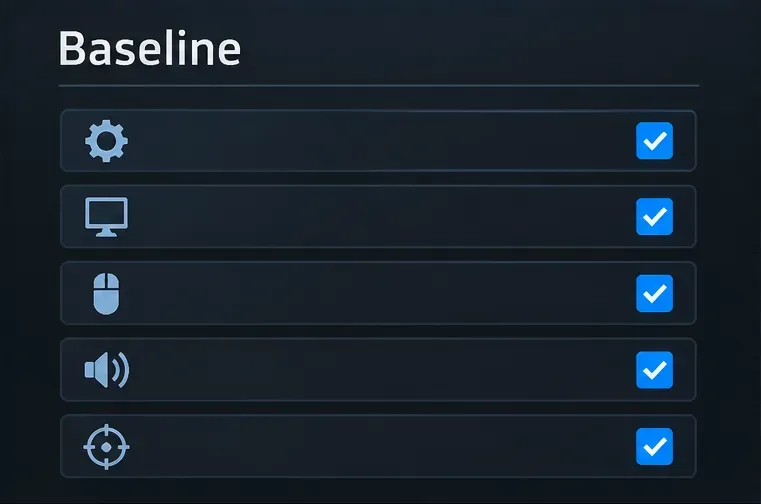
Before you adjust anything, note your current values or take a private reference screenshot. Keep your display resolution, aspect ratio, sensitivity, and reticle shape unchanged while you compare FOV. If you change several settings together, you will not know which one improved or disrupted your view. Make the first comparison in a low-pressure mode or the Shooting Range, not in the middle of a ranked match.
Official references: Paladins Open Beta 57 patch notes on Steam and the Hi-Rez new and returning player guide. The patch note is historical, so it should not be read as confirmation of the current menu wording. The official Paladins Steam page is the game’s store listing, not a settings manual.
For a first-person PC setup, a practical starting point is roughly 100–110 when the slider’s scale permits it. If your client uses a different scale or caps the slider lower, use the middle-to-upper part of the available range as a test rather than trying to force a number from another game. Paladins does not provide an official recommended value in the cited player documentation, and values are not always comparable across games because games can measure or present FOV differently.
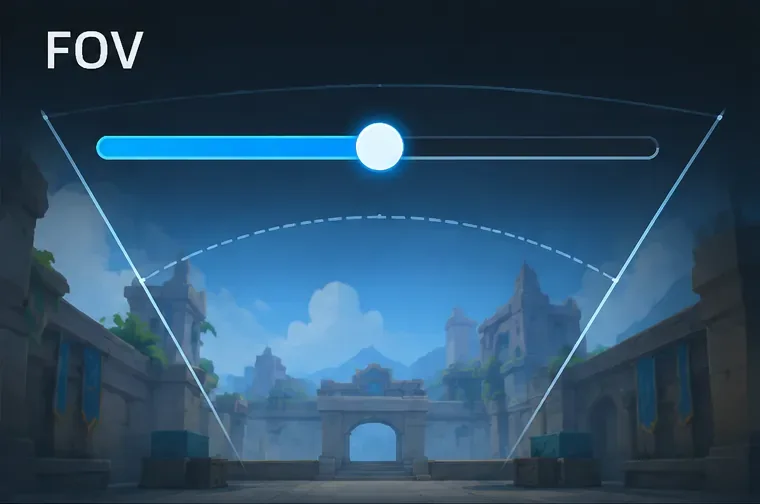
Start near 100 if you are new to wide views, play on a smaller display, or find that fast camera movement feels uncomfortable. Try 105 as a neutral experiment when the control allows it. Move toward 110 only if you can still read targets clearly and track them during turns. A very wide view can help you notice movement near the edges, but opponents farther away may occupy fewer pixels and feel harder to follow. A narrower view can make the central scene feel larger, while showing less peripheral space. These are viewing trade-offs, not a proven performance ranking.
Do not judge from a single quick glance. Play a few minutes with each candidate value and check whether you can maintain awareness during movement, not just while standing still. If the slider has no numeric readout, compare positions consistently and write down a short description such as “middle” or “one notch above.”
There is no universally best reticle color because maps, lighting, effects, and color vision differ. Start with cyan or magenta if they are available: both often contrast with warm stone, fire, and earth tones, while yellow or white may stand out better in darker scenes. This is a practical contrast-based suggestion, not a measured Paladins result. Test the actual color against several backgrounds. If it vanishes during a fight, try another color; if the game offers a reticle outline or center dot, adjust only one feature at a time.
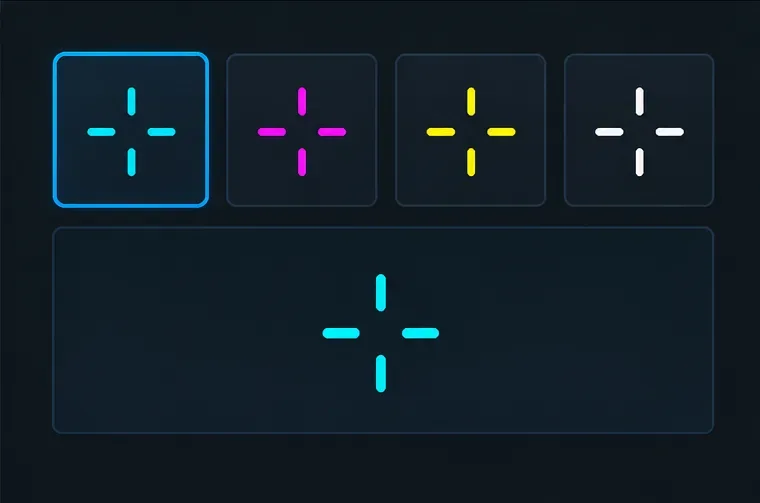
Check the reticle while aiming at a pale wall, a dark doorway, green foliage, and a busy ability effect. A color that looks vivid in the settings menu can blend into the live scene. The reticle should be visible without pulling your attention away from the target. If you have difficulty distinguishing red and green, avoid relying on that pair as your only contrast cue. Choose whichever available hue remains distinct to you, and consider other accessibility or color-vision options if the current client provides them.
Use a simple four-part check in the Shooting Range or another practice mode:
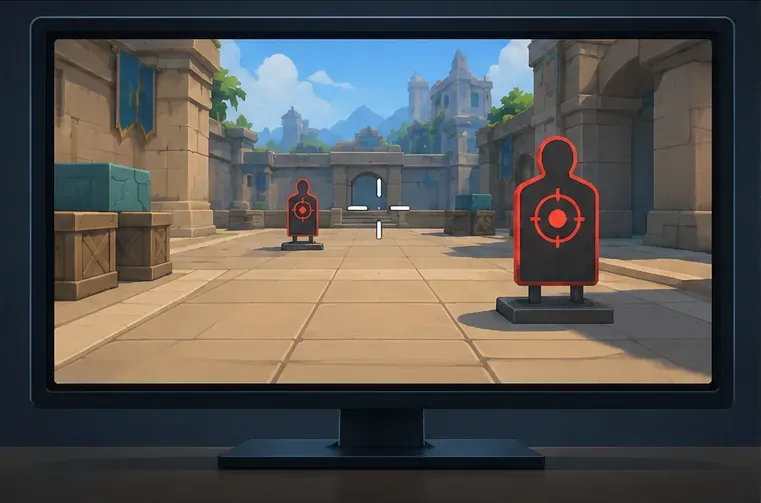
Record the FOV and color that worked, then play a casual match before deciding to keep them. If you switch Champions often, test a hitscan weapon and a projectile weapon: a small central mark can suit precise tracking, while a slightly more visible shape may be easier to reacquire during projectile shots. That is a personal usability choice; a reticle does not change weapon accuracy or projectile speed.
Bottom line: test roughly 100–110 FOV if that range exists in your current PC client, then settle on the widest view that still keeps targets clear and feels comfortable. Try cyan or magenta first, but keep whichever available reticle color stays visible in both quiet and visually busy scenes. These are sensible starting points; the best final setup is the one you can read and track consistently.
Enable PUBG’s network statistics HUD to monitor ping and packet loss in a match. See where to find it, what the numbers mean, and what they cannot diagnose.
Learn how to import VALORANT crosshair codes, compare presets with manual settings and spectator copy, and fix common import issues.
Choose Dota 2 minimap size, hero icons, team colors, and background settings by readability, fewer misclicks, and clear results on your own display.
Fix Fortnite texture pop-in on PC with official steps for GPU drivers, file verification, DirectX 12, high-resolution textures, VRAM, SSDs, and stutter.
Learn what Heroes of the Storm minimap size and position options are verified, improve readability, and choose camera-click controls that suit you.
Set Super Smash Bros. Ultimate Quickplay to prefer hazards-off stages. Follow the Preferred Rules menu steps and learn why matchmaking may not always honor them.
Enable Server Latency and Packet Loss in Warzone to monitor connection quality, read the overlay, and use recurring spikes to guide troubleshooting.
Learn how to carry from mid lane in League of Legends by setting up waves, choosing safe roam windows, reading side lanes, and converting pressure into objectives.
Fix Minecraft Evoker spell problems with a safe vanilla test, version checks, log review, and a step-by-step way to isolate mod or datapack conflicts.
Fix PUBG stuck on Initializing on Steam with a focused checklist for PC service notices, launch options, game files, downloads, and connection issues.








