How to Check Real-Time Server Latency in the PUBG HUD

Enable PUBG’s network statistics HUD to monitor ping and packet loss in a match. See where to find it, what the numbers mean, and what they cannot diagnose.
For most players, bright yellow is the best enemy outline color to test first. It often separates an opponent from dark blue interiors and the game’s usual visual clutter. It is not best on every map: yellow can fade into sunlit stone, sand, or gold effects. If that happens, try magenta; use cyan only if it stays distinct from your friendly outline and reticle.
The right choice is the color you notice quickly without confusing it with teammates, ability effects, or your crosshair. Overwatch 2 lets players customize friendly and enemy UI colors separately. Blizzard’s notes describe these colors as affecting hero outlines and other UI elements, so evaluate the whole screen rather than a single outline in a menu.
Start with yellow as a baseline, then compare it with magenta. Yellow is easy to pick out against many shadowed or cool-toned scenes, while magenta may be clearer against green foliage or warm environments. A scene’s lighting, effects, hero skins, display settings, and your own color vision can change the result. Treat these as practical starting points, not a universal ranking or a promise of better aim.
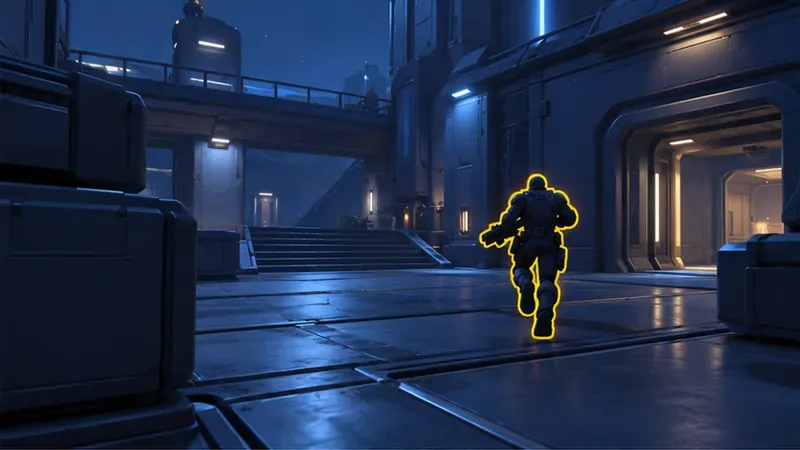
Yellow has a clear drawback: bright beige or gold scenery can reduce the difference between the outline and its surroundings. If an opponent seems to disappear in a sunlit area, the problem may be the local contrast rather than your ability to track targets. Switching to magenta is a sensible next comparison.
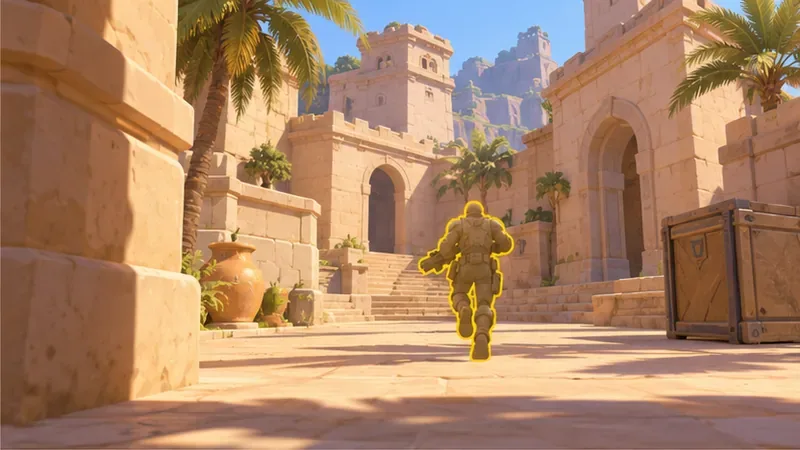
Try magenta if yellow blends into pale stone, fire-lit areas, or gold-colored effects, or if a stronger pink-purple edge is easier for you to notice. It can also separate the opponent from green-heavy scenery. Its limitation is that bright pink, purple, or red effects can compete with it, and a color that looks vivid on one monitor may look less distinct on another.
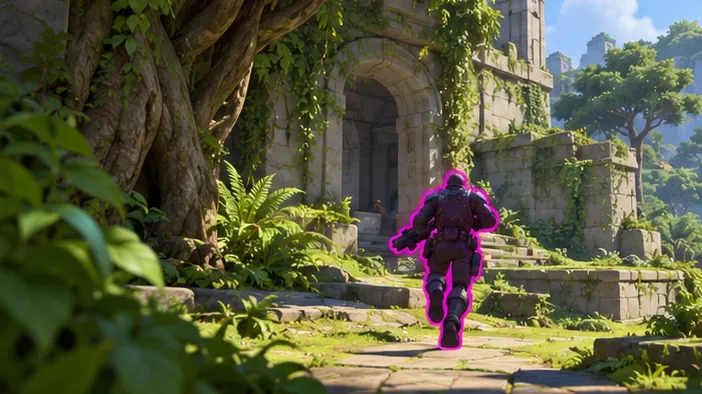
Cyan can be useful against warm stone, orange lighting, or other backgrounds where yellow and magenta do not read clearly. But it may be too close to a blue friendly outline, a blue reticle, or icy effects. If you test cyan, change or review the friendly UI color too. Team identification must remain immediate when several players overlap.
Red is familiar and may remain easy to read in some environments, but it can compete with red damage effects and is not automatically comfortable for players with red-green color-vision differences. Green may disappear into foliage or green ability effects. White can be hard to track against bright skies and pale maps. None of these colors is inherently wrong; the key is whether the enemy remains distinguishable under the conditions you actually play in.
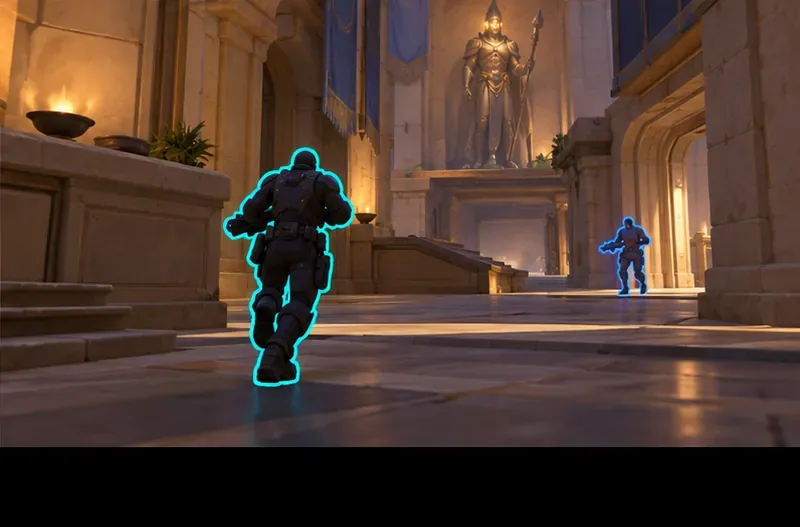
Use a brief, repeatable check instead of deciding from the settings preview alone:
These scenes are conceptual illustrations, not screenshots or test results. In the game, use your own display and normal brightness settings; do not judge only from a compressed video or someone else’s monitor. If color perception is a factor, test several hues directly and trust the one that is clearest to you. A color label such as “yellow” cannot describe every shade or how a particular display renders it.
No. Blizzard’s official notes describe customizable team colors across interface elements such as hero outlines, nameplates, health bars, and the HUD. A color that improves enemy visibility may also change other on-screen cues. Check the whole interface after choosing a hue, including the kill feed or other indicators you rely on. Blizzard later documented a preview for custom UI colors, but the exact controls and menu wording can change between updates and platforms. Look for the current color-blind or UI-color options in your game client.
One common mistake is copying a streamer’s exact color without checking their display, map rotation, reticle, and friendly color. Another is picking the brightest swatch in the menu and never testing it against sunlight, ability effects, or overlapping players. A more useful choice is the one that remains distinct across several real situations.
| Situation | First color to test | What to watch for |
|---|---|---|
| You want a general starting point | Yellow | Bright stone, sand, and gold effects |
| Yellow blends into warm scenery | Magenta | Pink or purple effects and foliage-heavy scenes |
| You often play on warm, orange-lit maps | Cyan | Blue allies, reticle, and icy effects |
| You have a color-vision preference or need | Whichever hue you distinguish best | Check enemy and friendly cues together; there is no one-size-fits-all setting |
Bottom line: begin with yellow, compare magenta if warm backgrounds wash it out, and consider cyan only when it does not resemble your friendly color. Keep the option that makes enemies easiest for you to identify across more than one map and a real fight.
Enable PUBG’s network statistics HUD to monitor ping and packet loss in a match. See where to find it, what the numbers mean, and what they cannot diagnose.
Learn how to import VALORANT crosshair codes, compare presets with manual settings and spectator copy, and fix common import issues.
Choose Dota 2 minimap size, hero icons, team colors, and background settings by readability, fewer misclicks, and clear results on your own display.
Fix Fortnite texture pop-in on PC with official steps for GPU drivers, file verification, DirectX 12, high-resolution textures, VRAM, SSDs, and stutter.
Learn what Heroes of the Storm minimap size and position options are verified, improve readability, and choose camera-click controls that suit you.
Set Super Smash Bros. Ultimate Quickplay to prefer hazards-off stages. Follow the Preferred Rules menu steps and learn why matchmaking may not always honor them.
Enable Server Latency and Packet Loss in Warzone to monitor connection quality, read the overlay, and use recurring spikes to guide troubleshooting.
Learn how to carry from mid lane in League of Legends by setting up waves, choosing safe roam windows, reading side lanes, and converting pressure into objectives.
Fix Minecraft Evoker spell problems with a safe vanilla test, version checks, log review, and a step-by-step way to isolate mod or datapack conflicts.
Fix PUBG stuck on Initializing on Steam with a focused checklist for PC service notices, launch options, game files, downloads, and connection issues.








