Home
» 🎮 Esports
»
Best Display Mode Settings to Reduce Input Lag in Tekken 8
Best Display Mode Settings to Reduce Input Lag in Tekken 8
Best Display Mode Settings to Reduce Input Lag in Tekken 8
For a practical low-latency starting point in Tekken 8 on PC, select Fullscreen, turn V-Sync Off, and keep the game’s rendering load low enough for steady frame delivery. Then compare Fullscreen with Borderless on your own system. Fullscreen is a clean baseline, but it is not a guaranteed input-lag fix: on modern Windows and DirectX 12, Borderless can perform similarly.
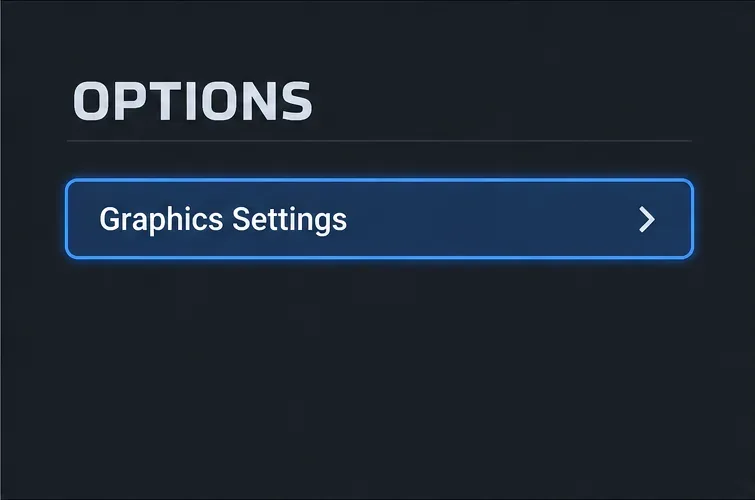
Illustrative menu view: open Options and select Graphics Settings to reach the display controls.
Recommended Tekken 8 display settings
Setting
Starting point
What to expect
Display Mode
Fullscreen
Use it as a consistent baseline, then test Borderless under the same conditions.
V-Sync
Off
Bandai Namco says this slightly improves response time; minor screen tearing may appear.
Resolution
Native, if performance stays steady
If the GPU struggles, lower rendering quality or resolution until frame delivery is consistent.
Graphics quality
Use a preset your PC can sustain
Stable rendering matters more than a higher preset that causes dips or uneven frames.
Overlays
Disable unnecessary overlays during testing
Fewer background variables make a Fullscreen-versus-Borderless comparison easier to judge.
Why Fullscreen is a baseline, not a universal winner
Older PC advice often treats exclusive Fullscreen as automatically faster than Borderless. That rule is too broad for a current game. Bandai Namco lists DirectX 12 for Tekken 8’s PC version. Microsoft’s Direct3D 12 swap-chain documentation says Direct3D 12 does not support classic full-screen exclusive mode; Windows uses Fullscreen Optimizations to provide a similar full-screen experience.
Microsoft also says Fullscreen Optimizations deliver performance equal to traditional exclusive Fullscreen for almost all users, while preserving benefits such as faster Alt-Tab and multi-monitor support. That does not prove every PC will behave identically, but it does mean the Fullscreen label in a game menu is not a promise of lower latency. If Borderless feels just as responsive and fits your desktop setup better, it is a reasonable choice.
Start with Fullscreen because it gives you a simple reference point. Keep it if it feels more consistent on your computer. If you use a second monitor, stream, record, or switch windows often, compare Borderless before deciding. Microsoft notes that overlays can add some presentation overhead in certain fullscreen-optimization paths, so turn off overlays you do not need while you test; you can re-enable them afterward.
V-Sync Off has the clearest official latency guidance
Bandai Namco’s Tekken 8 v2.00 patch notes explain that V-Sync prevents screen tearing, while turning it Off slightly improves the time between a key input and the character’s action. The trade-off is possible minor tearing. If responsiveness is your priority, V-Sync Off is the most defensible first setting to test; turn it back On only if tearing is distracting enough to outweigh the small response-time benefit.
There is one setting interaction to know. Bandai Namco’s v2.00.02 notes say that when Tournament Settings is On, its V-Sync value takes priority and the V-Sync option in Graphics Settings is grayed out. To change the graphics V-Sync option, turn Tournament Settings Off. If you need a tournament preset, check its rules before changing that profile.
Set up and test the display modes one at a time
1. Open Graphics Settings
From the game’s Options menu, open Graphics Settings. Leave your controller, character, stage, resolution, and graphics preset unchanged during the comparison so you can tell whether the display mode itself makes a difference.
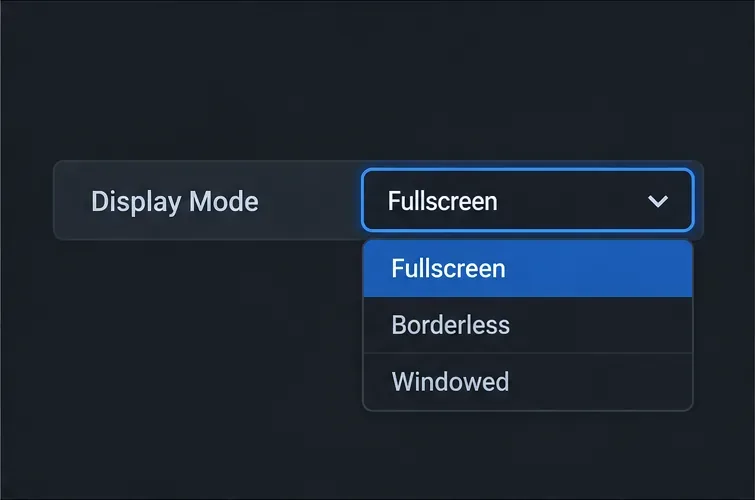
2. Select Fullscreen for the baseline
Set Display Mode to Fullscreen. Keep your display’s native resolution if the game remains steady; do not force a higher output resolution if your GPU cannot maintain consistent rendering. The official Tekken 8 PC specifications list 1920×1080 with Low rendering quality for the minimum HD configuration and 1920×1080 with Middle quality for the recommended HD configuration. Those published settings are useful reference points, not a guarantee of the same performance on every PC.
Illustrative Display Mode menu: use Fullscreen as the first configuration to compare.
3. Turn V-Sync Off
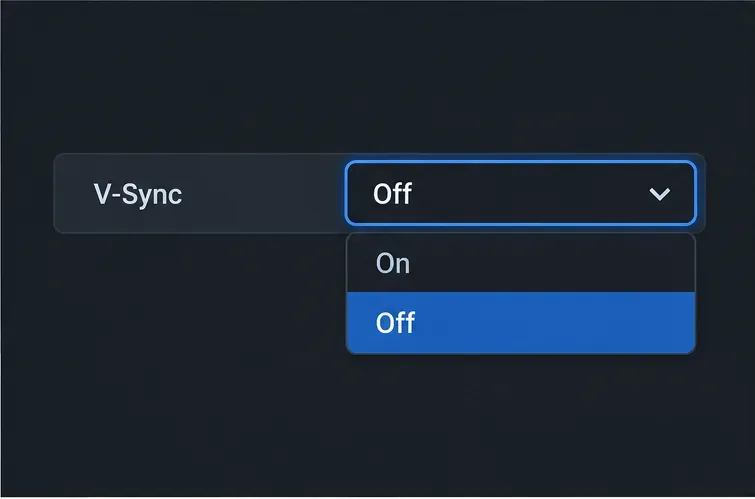
In Graphics Settings, set V-Sync to Off. If the option is unavailable, check Tournament Settings as described above. Play a few minutes in Practice mode and notice both control response and tearing before changing another setting.
Illustrative V-Sync setting with Off selected, the first choice to test for responsiveness.
4. Compare Borderless without changing anything else
Switch only Display Mode to Borderless and repeat the same Practice drill. Use the same move, controller connection, stage, resolution, and graphics settings. If the two modes feel the same, choose the one that makes your normal PC workflow easier. If Fullscreen feels steadier, keep it. This is a controlled personal comparison, not a claim that one mode wins on every system.
The matching cards represent two modes to test under the same conditions; they do not show benchmark results.
If the game still feels inconsistent
A display-mode change cannot fix a GPU that is overloaded. Reduce rendering quality or resolution until frame delivery is steady, then repeat the test. Bandai Namco’s v1.05 PC patch notes say the Steam version can automatically lower Graphics Settings for later matches when processing load exceeds a threshold during online battles. If image quality unexpectedly changes after online play, recheck those settings before blaming Fullscreen or Borderless.
Close unnecessary capture tools and overlays while troubleshooting, but do not change several settings at once. If neither display mode improves responsiveness, check frame-time stability, background GPU load, and monitor processing next. The graphics menu affects local presentation; it does not repair a network connection.
Separate local input lag from online delay
Use Practice mode first, where network conditions are not part of the test. If controls feel consistent there but an online match feels delayed or uneven, a display-mode switch may not address the cause. Network delay affects when remote game state reaches you; display settings affect how your local PC presents frames. Testing offline first keeps those problems separate.
Current guidance
As of October 17, 2026, the latest official patch notes listed for Tekken 8 are v3.02.02, published September 10, 2026. They cover character behavior and a controller-dialog issue, with no announced change to the display-mode or V-Sync guidance in this article. The practical starting point remains Fullscreen + V-Sync Off, followed by a same-settings Borderless comparison and a check that your PC can render consistently.
In short, use Fullscreen as a baseline rather than a promise, leave V-Sync Off when minimizing local input lag is the priority, and keep whichever mode feels most consistent on your hardware.