How to Check Real-Time Server Latency in the PUBG HUD

Enable PUBG’s network statistics HUD to monitor ping and packet loss in a match. See where to find it, what the numbers mean, and what they cannot diagnose.
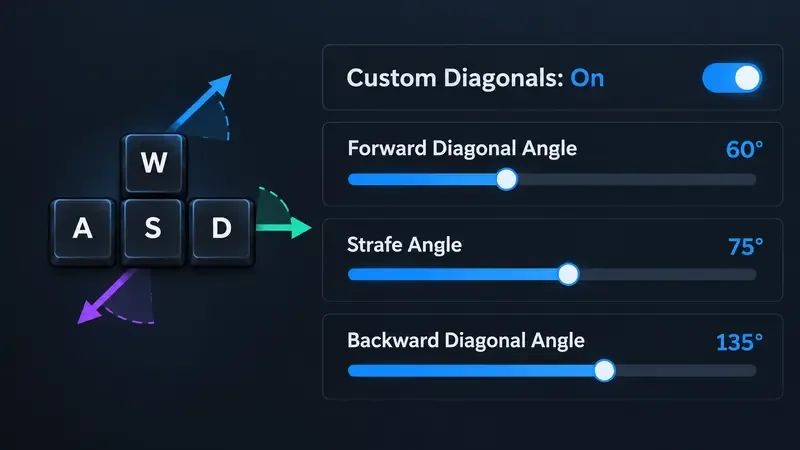
Quick pick: try 60° forward, 75° strafe, and 135° backward as a balanced starting point for Fortnite keyboard movement. It is a practical baseline, not an Epic Games or pro-player prescription. If you want a more natural, less sideways feel for building, test 55°–60° forward and 65°–75° strafe. If you play Zero Build and rely on lateral dodging, test 65°–70° forward and 80°–90° strafe. Keep the backward angle near 125°–135° until you have a reason to change it.
These numbers adjust the direction you move when combining WASD keys. They do not unlock a faster sprint or guarantee better aim. The best custom diagonal angles are the ones that preserve the movement you expect while letting you strafe or move diagonally without turning your camera away from a fight.
| Play style | Forward diagonal | Strafe | Backward diagonal | Why try it |
|---|---|---|---|---|
| Balanced starting point | 60° | 75° | 135° | Mixes forward movement with useful side movement without pushing each angle to an extreme. |
| Builds and box fights | 55°–60° | 65°–75° | 125°–135° | Keeps forward movement prominent while leaving room for diagonal peeks and repositioning. |
| Zero Build and open fights | 65°–70° | 80°–90° | 125°–135° | Favors broader side movement for dodging while aiming or crossing exposed space. |
| Closest to a familiar diagonal | 45° | 90° | 135° | A conservative reference if stronger diagonals feel awkward after years of default movement. |
The ranges are starting points, not measured performance guarantees. Epic’s own announcement for the feature says players can adjust diagonal movement to their preferred angles; it does not publish a single best preset. Treat the table as a shortlist to test in your chosen mode, then keep the combination that feels consistent on both left and right inputs.
This controls the direction associated with moving forward and sideways together, such as W+A or W+D. A lower value keeps the direction closer to straight ahead; a higher value pushes it farther toward the side. Choose a lower setting if you want forward momentum to feel familiar while building. Try a larger value if you want a wider diagonal while moving and aiming at the same time.
Strafe angle affects how far sideways your movement goes when combining inputs. Values nearer to 90° are a useful way to explore more side-oriented movement, while a smaller value may feel less extreme. If strafing makes you overshoot cover or disrupts your build timing, reduce this angle before changing every slider.
This controls diagonal movement while pressing backward with a side key, such as S+A or S+D. Around 135° is a straightforward starting reference for moving back and to either side. Lower values can make the direction feel less directly backward; changing it can affect how retreating and defensive movement feels. Keep it stable during the first tests so you can tell what the forward and strafe adjustments do.
Important limitation: Epic’s public notes describe the forward and backward settings but do not give an official definition or recommended value for every slider. Mode, movement state, and muscle memory can also change how an angle feels. Make a small adjustment and compare it in the mode you actually play.
Some older advice says never set Forward Diagonal Angle above 70°. That warning had a real basis, but it should not be treated as a permanent rule. Epic’s v42.10 Battle Royale update notes state that the team fixed a bug that prevented sprinting when Forward Diagonal Angle was set higher than 70. That confirms the problem was a movement bug; it does not establish 70° as the ideal value for every player. Action: update Fortnite before testing higher values, and if sprinting still fails, first reset the angle to 70° or below as a temporary diagnostic check, then consult current Epic support or release notes.
Another misconception is that custom diagonals automatically make keyboard movement faster. The setting is described as an angle adjustment. Do not assume it increases top running speed; judge it by the direction and control you get when you combine movement keys.
For most players who want a single recommendation, begin at 60° / 75° / 135°. Then move toward 55°–60° forward for a tighter building feel or 65°–70° forward with 80°–90° strafe for broader lateral movement. Keep the backward value near 135° unless your own movement tests show that it needs adjustment.
Enable PUBG’s network statistics HUD to monitor ping and packet loss in a match. See where to find it, what the numbers mean, and what they cannot diagnose.
Learn how to import VALORANT crosshair codes, compare presets with manual settings and spectator copy, and fix common import issues.
Choose Dota 2 minimap size, hero icons, team colors, and background settings by readability, fewer misclicks, and clear results on your own display.
Fix Fortnite texture pop-in on PC with official steps for GPU drivers, file verification, DirectX 12, high-resolution textures, VRAM, SSDs, and stutter.
Learn what Heroes of the Storm minimap size and position options are verified, improve readability, and choose camera-click controls that suit you.
Set Super Smash Bros. Ultimate Quickplay to prefer hazards-off stages. Follow the Preferred Rules menu steps and learn why matchmaking may not always honor them.
Enable Server Latency and Packet Loss in Warzone to monitor connection quality, read the overlay, and use recurring spikes to guide troubleshooting.
Learn how to carry from mid lane in League of Legends by setting up waves, choosing safe roam windows, reading side lanes, and converting pressure into objectives.
Fix Minecraft Evoker spell problems with a safe vanilla test, version checks, log review, and a step-by-step way to isolate mod or datapack conflicts.
Fix PUBG stuck on Initializing on Steam with a focused checklist for PC service notices, launch options, game files, downloads, and connection issues.








