How to Check Real-Time Server Latency in the PUBG HUD

Enable PUBG’s network statistics HUD to monitor ping and packet loss in a match. See where to find it, what the numbers mean, and what they cannot diagnose.
Valve made a grenade-related gameplay fix on August 3, 2026: an issue that could let grenades pass through map geometry was corrected. That matters for practice because an old lineup that depended on unusual clipping may no longer behave exactly as it did before. If you are revisiting saved smoke, flash, HE, or Molotov lineups, validate the landing point again on the current build before treating the lineup as match-ready. Valve lists current game updates on the official Counter-Strike 2 updates page.
For everyday utility training, you do not need a huge command dump. A good offline setup should do four things well: remove downtime, let you repeat throws quickly, show enough trajectory information to diagnose mistakes, and make it easy to move around the map. The commands below are organized around those outcomes.
| Purpose | Command | Why it helps |
|---|---|---|
| Enable practice-only commands | sv_cheats 1 | Required for commands such as noclip and grenade rethrow on a local practice server. |
| Unlimited utility | sv_infinite_ammo 1 | Lets you repeat throws without constantly rebuying the same grenade. |
| Carry more utility | ammo_grenade_limit_total 5 | Raises the total grenade carrying limit for a broader practice loadout. |
| Trajectory preview | sv_grenade_trajectory_prac_pipreview 1 | Enables the CS2 practice picture-in-picture grenade trajectory preview. |
| Keep the trail visible | sv_grenade_trajectory_prac_trailtime 8 | Leaves the practice trajectory trail on screen long enough to inspect bounces. |
| Repeat the last throw | sv_rethrow_last_grenade | Replays the previous grenade throw so you can inspect the result from another position. |
| Fly around the map | noclip | Moves you quickly between the lineup point and the grenade landing area. |
| Remove round-start delay | mp_freezetime 0 | Prevents freeze time from interrupting repeated drills. |
| Long defuse rounds | mp_roundtime_defuse 60 | Gives you a long practice window on bomb-defusal maps. |
| Buy from anywhere | mp_buy_anywhere 1 | Makes it easier to change utility without returning to spawn. |
| Long buy window | mp_buytime 9999 | Keeps the buy menu usable during extended practice. |
The current CS2 command reference is maintained on the Valve Developer Community CS2 console command list. Because console variables can change across patches, use that reference or the in-game find command if a line suddenly returns “unknown command.”
Start a local Practice match on the map you want to learn, enable the developer console in CS2 settings if necessary, and enter the server setup commands before practicing a lineup. The goal is not to simulate a competitive match yet. It is to remove waiting and make every repetition take only a few seconds.
sv_cheats 1
bot_kick
mp_freezetime 0
mp_roundtime_defuse 60
mp_buytime 9999
mp_buy_anywhere 1
mp_maxmoney 60000
mp_startmoney 60000
ammo_grenade_limit_total 5
sv_infinite_ammo 1
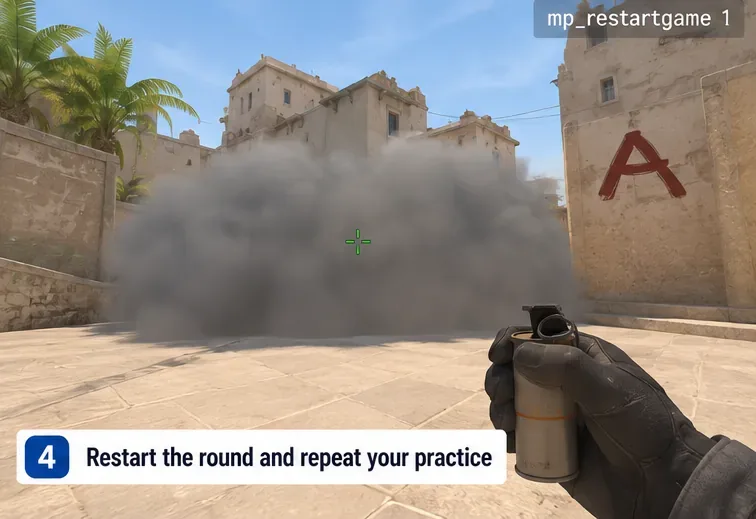
mp_restartgame 1
If you are practicing a hostage map instead of a defuse map, the round-time variable can differ by game mode. Valve documents how CS2 modes are selected and loaded on its Game Modes reference page, which now includes CS2 information.
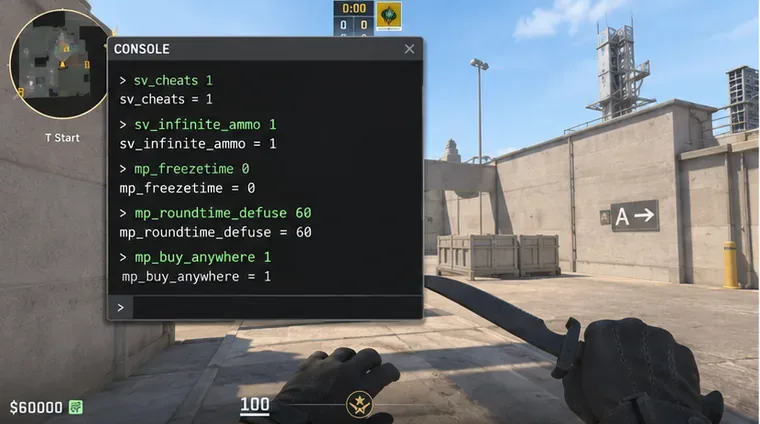
For current CS2 practice, the most useful trajectory commands are the practice preview variables rather than the old CS:GO-era advice that still circulates online.
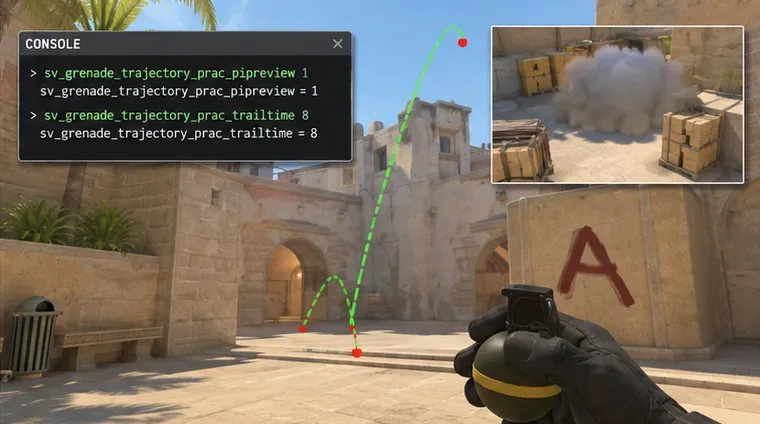
sv_grenade_trajectory_prac_pipreview 1
sv_grenade_trajectory_prac_trailtime 8
The picture-in-picture preview is useful when the important question is not only where a grenade lands, but also what happens after a bounce or when a smoke blooms out of direct sight. The trail time gives you a few seconds to inspect the route instead of forcing you to memorize it during the throw.
A good result is easy to judge: your throw should reach the intended area repeatedly from the same lineup, and the visible path should be consistent. If the landing point changes even though your crosshair placement looks identical, check whether your movement, jump timing, throw strength, or starting position changed. The trajectory helper can show the outcome, but it cannot tell you which part of your execution was wrong.
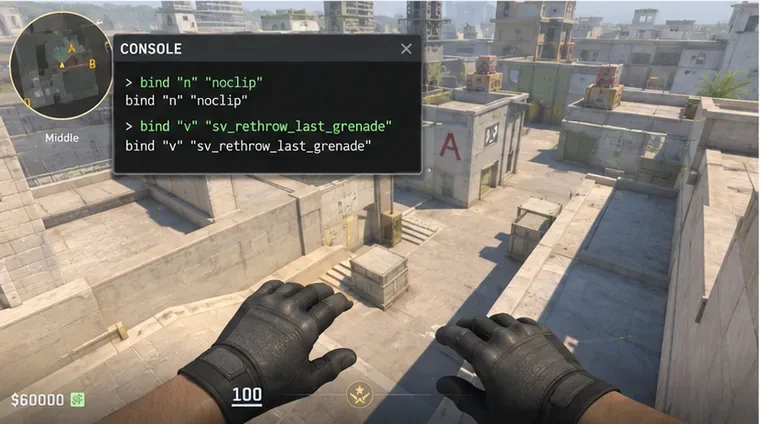
Two key binds make offline grenade practice much more efficient because they cut out unnecessary running and repeated setup.
bind "n" "noclip"
bind "v" "sv_rethrow_last_grenade"
Use any spare keys that do not conflict with your normal controls. Press the noclip bind to fly to the landing area after a throw. From there, use the rethrow bind to reproduce the previous grenade while watching from the destination. This is especially useful for flashes, where you may want to judge whether a defender is actually exposed to the burst, or for smokes where you want to inspect gaps from the receiving side.
Do not confuse rethrow with a substitute for execution practice. It reproduces the last grenade; it does not prove that you can perform the lineup consistently under normal movement and timing. Once you understand the path, return to the lineup and perform several fresh throws manually.
If you use these commands often, saving them as a dedicated configuration file is cleaner than pasting a long block every session. Keep it separate from your normal autoexec so practice-only settings do not become part of your everyday configuration.
A minimal file named practice_nades.cfg can contain:
sv_cheats 1
bot_kick
mp_freezetime 0
mp_roundtime_defuse 60
mp_buytime 9999
mp_buy_anywhere 1
mp_maxmoney 60000
mp_startmoney 60000
ammo_grenade_limit_total 5
sv_infinite_ammo 1
sv_grenade_trajectory_prac_pipreview 1
sv_grenade_trajectory_prac_trailtime 8
bind "n" "noclip"
bind "v" "sv_rethrow_last_grenade"
mp_restartgame 1
After the local map loads, run:
exec practice_nadesIf you edit the file while CS2 is open, execute it again to apply the new values. If a command stops working after a patch, type find grenade, find trajectory, or find rethrow in the developer console. That is safer than blindly copying an older CS:GO command list.
If you do not want to use the buy menu, local practice also supports giving yourself utility directly:
give weapon_smokegrenade
give weapon_flashbang
give weapon_hegrenade
give weapon_molotov
give weapon_incgrenade
Molotov and incendiary availability depends on side and item rules, so use the grenade that matches the lineup you are actually learning.
bot_kick gives you a clean map. If you need a stationary reference for a flash, HE, or Molotov test, you can add a bot and use bot-control commands in your private session. For pure lineup memorization, however, fewer moving elements usually make it easier to see whether the grenade path itself is repeatable.
Use the full command set while you are learning new lineups or debugging inconsistent throws. Once a lineup is stable, reduce the helpers. For example, turn off the trajectory preview and practice from memory so the drill starts to resemble a real round.
If every throw lands correctly with the preview enabled but fails when you play normally, the problem is probably not a missing command. It is more likely that the lineup depends on a movement cue, jump timing, exact position, or visual reference that you have not yet made repeatable. Practice commands are best used as diagnostic tools, then gradually removed.
The final goal is not to build the most elaborate offline server. It is to reach a point where you can load a map, reproduce a lineup several times in a row, explain why it works, and then perform it without any practice overlay. A compact config with infinite utility, trajectory inspection, noclip, and rethrow is usually enough to get there.
Enable PUBG’s network statistics HUD to monitor ping and packet loss in a match. See where to find it, what the numbers mean, and what they cannot diagnose.
Learn how to import VALORANT crosshair codes, compare presets with manual settings and spectator copy, and fix common import issues.
Choose Dota 2 minimap size, hero icons, team colors, and background settings by readability, fewer misclicks, and clear results on your own display.
Fix Fortnite texture pop-in on PC with official steps for GPU drivers, file verification, DirectX 12, high-resolution textures, VRAM, SSDs, and stutter.
Learn what Heroes of the Storm minimap size and position options are verified, improve readability, and choose camera-click controls that suit you.
Set Super Smash Bros. Ultimate Quickplay to prefer hazards-off stages. Follow the Preferred Rules menu steps and learn why matchmaking may not always honor them.
Enable Server Latency and Packet Loss in Warzone to monitor connection quality, read the overlay, and use recurring spikes to guide troubleshooting.
Learn how to carry from mid lane in League of Legends by setting up waves, choosing safe roam windows, reading side lanes, and converting pressure into objectives.
Fix Minecraft Evoker spell problems with a safe vanilla test, version checks, log review, and a step-by-step way to isolate mod or datapack conflicts.
Fix PUBG stuck on Initializing on Steam with a focused checklist for PC service notices, launch options, game files, downloads, and connection issues.








