How to Check Real-Time Server Latency in the PUBG HUD

Enable PUBG’s network statistics HUD to monitor ping and packet loss in a match. See where to find it, what the numbers mean, and what they cannot diagnose.
If your controller starts feeling more distracting than helpful during a tight EA Sports FC match, vibration and trigger resistance are usually the first settings to revisit. A heavy rumble can make small inputs feel less clean, while adaptive trigger resistance can add effort to repeated sprinting. The best setup depends on whether you prioritize competitive consistency, physical comfort, or immersion.
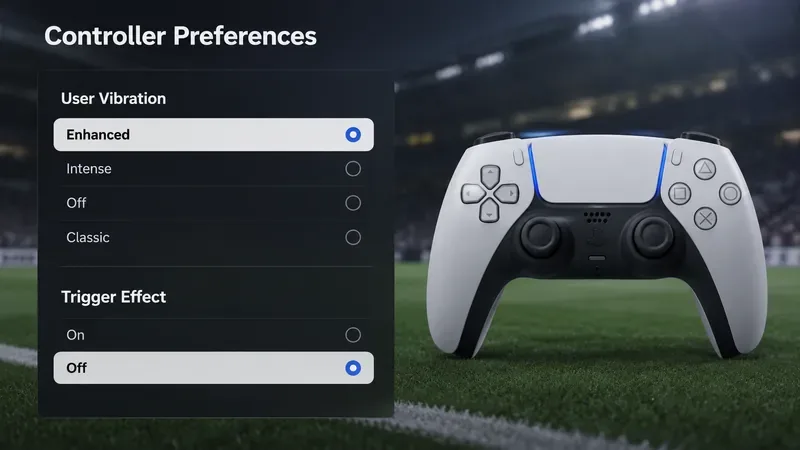
For EA SPORTS FC 27, EA's official accessibility documentation lists User Vibration Feedback as Enhanced, Intense, Off, or Classic, with Enhanced as the default. It also lists Trigger Effect on PC and PlayStation 5 as On or Off, with Off as the default. EA says Trigger Effect adds resistance to trigger inputs when enabled. You can verify those current options in the official EA SPORTS FC 27 accessibility resources.
| Goal | User Vibration | Trigger Effect | Why |
|---|---|---|---|
| Competitive online play | Enhanced or Off | Off | Reduces unnecessary physical feedback and keeps trigger presses consistent. |
| Balanced everyday play | Enhanced | Off | Keeps useful localized vibration without adding trigger resistance. |
| Maximum immersion | Enhanced or Intense | On | Emphasizes physical feedback, provided you find the added resistance comfortable. |
| Fatigue or hand sensitivity | Off | Off | Minimizes repeated vibration and resistance during longer sessions. |
For most players who want a clean competitive setup, start with User Vibration: Enhanced and Trigger Effect: Off. If vibration still breaks your concentration, switch User Vibration to Off. If you mainly play Career Mode or offline matches and enjoy physical feedback, try Trigger Effect On after you establish a comfortable baseline.
Controller vibration gives immediate physical feedback when something happens in the game. In FC 27, EA distinguishes the vibration modes rather than treating rumble as a simple strength slider: Enhanced targets specific areas of the controller, while Classic and Intense vibrate the whole controller. Off disables vibration completely.
That distinction matters in practice. Enhanced is the safest starting point because it preserves feedback without choosing the broad whole-controller behavior described for Classic and Intense. For players who rely on rhythm and repeatable thumb-and-trigger movements, whole-controller vibration may feel busier during tackles, collisions, shots, or other high-action sequences.
There is no official EA claim that disabling vibration improves reaction time, shooting accuracy, or online responsiveness. Treat those benefits as personal comfort and consistency choices, not guaranteed performance gains. The useful question is whether the feedback helps you recognize game events or makes your hands work harder than necessary.
EA describes Trigger Effect as added resistance on supported PC and PlayStation 5 setups. That physical resistance is useful for immersion, but competitive players often want the same trigger travel and effort from the first minute to the last.
This becomes especially relevant if you use the right trigger frequently for sprinting. FC 27 also includes an Analog Sprint option that can use the amount of force applied to the right trigger to vary sprint speed when enabled. Analog Sprint and Trigger Effect are separate settings, but they both affect how the trigger feels or behaves. If you are troubleshooting inconsistent sprint input, turn Trigger Effect Off first, then evaluate Analog Sprint separately rather than changing both at once.
EA lists Analog Sprint as Off by default in FC 27, so a simple baseline is Analog Sprint Off and Trigger Effect Off. Once the controller feels predictable, you can re-enable one feature at a time if you want more analog control or tactile resistance.
Open FC 27's settings and locate the controller customization or preferences area. EA's current documentation confirms that the relevant settings are exposed under controller customization, but menu placement can vary by platform, mode, and future title updates. Use the labels User Vibration and Trigger Effect rather than relying on an old menu path from a previous FC release.
Set User Vibration to Enhanced and Trigger Effect to Off. Play one full match before judging the result. A few seconds in a menu or kickoff sequence is not enough to tell whether the setup reduces fatigue or distraction.
Change User Vibration from Enhanced to Off and keep Trigger Effect Off. This is the lowest-feedback configuration among the options EA documents. It is a sensible choice for players who play long sessions, grip the controller tightly under pressure, or simply prefer visual and audio cues over haptics.
Keep User Vibration on Enhanced and enable Trigger Effect for an offline match. The goal is to decide whether the added resistance improves immersion without slowing repeated trigger presses or making your fingers tense. If you notice extra effort during sprint-heavy play, switch Trigger Effect back Off.
On PlayStation 5, the console also has global controller settings for Vibration Intensity and Trigger Effect Intensity. Sony's support documentation says these are under Settings > Accessories > Controller (General). The trigger-effect intensity applies in games that support the feature. See Sony's official PS5 controller settings guide.
This creates two layers to check: the FC setting and the PS5 controller setting. If Trigger Effect is enabled in FC but the PS5 trigger intensity is disabled or reduced, the in-game effect may not feel as expected. Conversely, if you want the least resistance possible, keep the FC Trigger Effect Off and make sure the PS5 setting is not introducing a stronger system-level effect in other supported games.
If you use a DualSense Edge, Sony allows vibration intensity and trigger effect intensity to be stored in custom profiles. Sony also notes that using the Edge controller's trigger stop sliders at medium or shallow travel disables the trigger effect function. That detail is easy to miss when troubleshooting. The official DualSense Edge personalization guide explains this behavior.
EA's FC 27 accessibility page specifically identifies Trigger Effect and User Vibration Feedback as features for PC and PlayStation 5. That means you should not assume the same in-game options or haptic behavior exists on every controller and platform. Standard Xbox rumble settings, third-party controller software, Steam Input, driver behavior, or platform-level accessibility options can affect how a PC controller feels, but those are separate from the FC 27 options EA explicitly documents.
If you play on PC with a compatible controller, first make your change inside FC. Only after that should you troubleshoot controller firmware, USB versus wireless behavior, Steam Input, or manufacturer software. Changing several layers at the same time makes it harder to identify which setting solved the problem.
Do not judge a controller setup only by whether it feels impressive. Judge it by whether it remains comfortable and predictable during repeated actions. Use two or three matches with the same formation, camera, and general gameplay settings so you are not comparing too many variables at once.
Watch for three signs. First, your sprint trigger should feel consistent from early match play through the final minutes. Second, vibration should inform you without causing you to tighten your grip or lose focus during crowded sequences. Third, you should be able to perform repeated inputs without thinking about the controller hardware itself.
If Enhanced vibration gives useful cues and Trigger Effect Off makes sprinting feel cleaner, keep that combination. If you barely notice vibration or prefer a quieter controller, Off/Off is completely valid. If you play mainly for presentation and immersion, Enhanced plus Trigger Effect On may be more enjoyable. The best setting is the one that produces consistent control without unnecessary fatigue.
For FC 27 competitive and everyday play, use User Vibration: Enhanced and Trigger Effect: Off as your baseline. Move vibration to Off if physical feedback distracts you. Turn Trigger Effect On only when you actively want resistance and have confirmed that it remains comfortable during a full match.
These recommendations are based on the FC 27 options EA currently documents and Sony's current PS5 controller behavior. EA can revise menus or controller behavior in future title updates, so if labels or defaults change, recheck the official EA accessibility page before assuming an older guide still matches your version.
Enable PUBG’s network statistics HUD to monitor ping and packet loss in a match. See where to find it, what the numbers mean, and what they cannot diagnose.
Learn how to import VALORANT crosshair codes, compare presets with manual settings and spectator copy, and fix common import issues.
Choose Dota 2 minimap size, hero icons, team colors, and background settings by readability, fewer misclicks, and clear results on your own display.
Fix Fortnite texture pop-in on PC with official steps for GPU drivers, file verification, DirectX 12, high-resolution textures, VRAM, SSDs, and stutter.
Learn what Heroes of the Storm minimap size and position options are verified, improve readability, and choose camera-click controls that suit you.
Set Super Smash Bros. Ultimate Quickplay to prefer hazards-off stages. Follow the Preferred Rules menu steps and learn why matchmaking may not always honor them.
Enable Server Latency and Packet Loss in Warzone to monitor connection quality, read the overlay, and use recurring spikes to guide troubleshooting.
Learn how to carry from mid lane in League of Legends by setting up waves, choosing safe roam windows, reading side lanes, and converting pressure into objectives.
Fix Minecraft Evoker spell problems with a safe vanilla test, version checks, log review, and a step-by-step way to isolate mod or datapack conflicts.
Fix PUBG stuck on Initializing on Steam with a focused checklist for PC service notices, launch options, game files, downloads, and connection issues.








