How to Check Real-Time Server Latency in the PUBG HUD

Enable PUBG’s network statistics HUD to monitor ping and packet loss in a match. See where to find it, what the numbers mean, and what they cannot diagnose.
Recommended D-pad deadzone for Street Fighter 6: not applicable. A D-pad sends discrete directional button presses; it does not measure how far you tilt an axis. Street Fighter 6 does not give the D-pad a percentage deadzone to tune. If you play on the D-pad, leave any analog-stick deadzone at its normal setting and troubleshoot the D-pad itself when directions are missed or unintended.
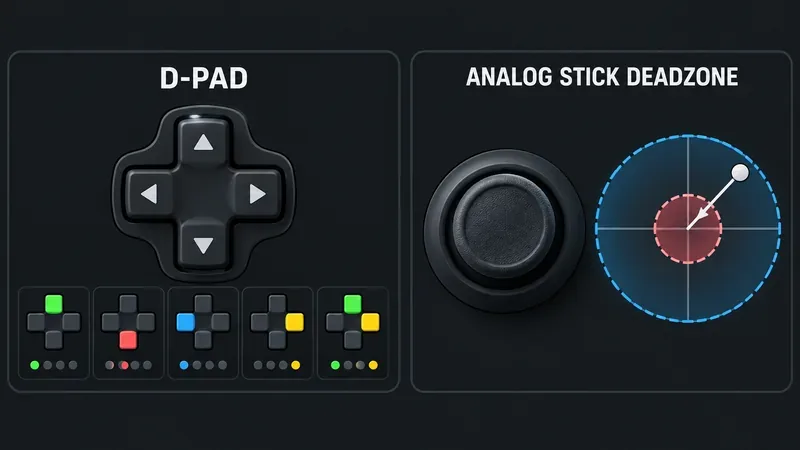
Consider a clearly hypothetical example: Jordan is learning Street Fighter 6 on a standard controller. A crouching block sometimes turns into a jump, and a quarter-circle motion occasionally comes out wrong. Jordan searches for a smaller D-pad deadzone, expecting the character to respond sooner. The useful fix starts by separating two different input systems: digital directions and analog-stick movement.
No adjustable D-pad deadzone is documented in Capcom’s current Street Fighter 6 control materials. Capcom’s manual describes battle control settings and button mapping. A deadzone, by contrast, is a threshold for an analog axis: small stick movement inside the threshold is ignored until the stick moves farther. PlayStation describes the DualSense Edge deadzone adjustment specifically as a setting for its sticks.
A conventional D-pad has directional switches. Pressing down sends a down input; pressing down and right together can send a diagonal. There is no gradual movement distance for the game to filter. So there is no universal “best D-pad deadzone percentage,” and setting a left-stick deadzone to zero will not make D-pad presses register sooner.
For Jordan, the practical starting point is the controller’s default button behavior. If Jordan intentionally uses the left analog stick as well, its deadzone is a separate preference: keep it at the controller’s default unless testing shows unwanted stick movement, then adjust only that stick setting in small steps. A stick setting cannot repair a worn D-pad contact or a press technique that catches two directions.
First, make sure the game is reading the controller and battle layout Jordan expects. Capcom’s manual identifies Player 1 and Player 2 battle control settings under Options and Controls; exact navigation labels can vary with platform and the area of the game. Check the selected control type—Classic, Modern, or Dynamic—and review the button assignment screen if a face button or direction seems mapped unexpectedly. Capcom notes that Dynamic controls are limited to certain offline Fighting Ground modes, while Classic and Modern are available more broadly.
Do not change every assignment at once. Jordan can take a quick look at the displayed mapping, restore the default layout if it has been altered accidentally, and then return to Training. A custom button mapping affects which action a button performs; it does not create an analog-style directional deadzone.
Use Training as a repeatable place to inspect the problem before changing hardware settings. Capcom describes Training as a mode where players can customize a practice routine. Have Jordan test neutral, left, right, down, and up separately, then try each diagonal by pressing its two neighboring directions together. Repeat while facing both directions: left and right swap their meaning as the fighters change sides, but the physical D-pad directions do not.
Keep the first test simple. Walk forward, walk backward, crouch, stand, jump, and block. Then practice a familiar special-move motion slowly before adding speed. If an error happens only during fast motions, Jordan should first slow down and make each part of the sequence deliberate. If it happens even with a gentle single press, that points more toward a mapping, connection, or controller issue than a deadzone value.
Look for a pattern instead of relying on one missed move. If only diagonals are unreliable, the D-pad may be rolling between buttons, the press may not hold both directions together, or the controller’s design may make diagonal contact difficult. If one cardinal direction also fails during a slow isolated press, test the controller in another game or the platform’s controller input screen. That comparison helps show whether the issue follows the controller or appears only in Street Fighter 6.
For Jordan, accidental jumps during crouching block deserve a specific check: does the character jump when Jordan presses down alone, or only when the thumb brushes up while rolling across the D-pad? The first result suggests checking the displayed input mapping and controller function. The second suggests changing thumb placement and using a more deliberate down press. Neither is fixed by reducing an analog-stick deadzone.
On PC, also check whether Steam Input, a controller remapper, or another configuration layer is converting or duplicating inputs. Change one layer at a time and retest. On console, verify the controller is updated and connected normally, then try the platform’s recommended controller troubleshooting if button presses remain inconsistent. Avoid opening the controller unless you are comfortable with repair and understand that doing so may affect warranty coverage.
Separate stick settings from button settings. Sony’s DualSense Edge instructions place stick sensitivity and deadzone under “Stick Sensitivity/Deadzone.” The documented adjustment changes how far the stick must tilt before the game recognizes stick input. That setting is useful when playing on an analog stick, or when a stick drifts while untouched; it is not a D-pad sensitivity control.
Pro controllers may offer remapping, profiles, or different D-pad designs. These features can change which physical button sends an input, or how the D-pad feels under the thumb. They do not turn a digital directional button into an analog axis with a percentage threshold. If a profile changes D-pad behavior through remapping, test the profile and the in-game mapping together, because conflicting assignments can make inputs confusing.
This sequence does not promise a specific win rate or perfect execution; it helps Jordan locate the source of an input problem without changing unrelated settings. A reliable result is simple to observe: single directions register consistently, intended diagonals appear when both directions are pressed together, and unintended jumps or crouches become less frequent during the same practice routine.
The best D-pad deadzone setting for Street Fighter 6 is “not applicable”—there is no D-pad percentage to dial in. Use the D-pad’s default digital behavior, check battle controls and mappings, and diagnose missed or extra directions with slow repeatable tests. Tune a controller’s analog-stick deadzone only if you actually use the stick or it registers movement while untouched.
Enable PUBG’s network statistics HUD to monitor ping and packet loss in a match. See where to find it, what the numbers mean, and what they cannot diagnose.
Learn how to import VALORANT crosshair codes, compare presets with manual settings and spectator copy, and fix common import issues.
Choose Dota 2 minimap size, hero icons, team colors, and background settings by readability, fewer misclicks, and clear results on your own display.
Fix Fortnite texture pop-in on PC with official steps for GPU drivers, file verification, DirectX 12, high-resolution textures, VRAM, SSDs, and stutter.
Learn what Heroes of the Storm minimap size and position options are verified, improve readability, and choose camera-click controls that suit you.
Set Super Smash Bros. Ultimate Quickplay to prefer hazards-off stages. Follow the Preferred Rules menu steps and learn why matchmaking may not always honor them.
Enable Server Latency and Packet Loss in Warzone to monitor connection quality, read the overlay, and use recurring spikes to guide troubleshooting.
Learn how to carry from mid lane in League of Legends by setting up waves, choosing safe roam windows, reading side lanes, and converting pressure into objectives.
Fix Minecraft Evoker spell problems with a safe vanilla test, version checks, log review, and a step-by-step way to isolate mod or datapack conflicts.
Fix PUBG stuck on Initializing on Steam with a focused checklist for PC service notices, launch options, game files, downloads, and connection issues.








