Home
» 🎮 Esports
»
Best Controller Aim Response Curve for Warzone: Dynamic, Standard, or Linear?
Best Controller Aim Response Curve for Warzone: Dynamic, Standard, or Linear?
For most controller players in Warzone, Dynamic is a strong starting point if you want controlled small corrections with a more responsive feel as you push the stick farther. Standard is the safer choice if you prefer a familiar, less specialized curve; Linear is best for players who specifically want stick movement to translate more directly to aim movement. None is universally best, and the setting does not replace aim-assist, sensitivity, or deadzone tuning.
Aim Response Curve Type changes how the game maps right-stick movement to in-game aim rate. That affects how your reticle accelerates as you move the stick from its center toward the edge. The ideal choice depends on how you track targets, how much pressure you use for small adjustments, and whether your muscle memory is already built around a particular curve.
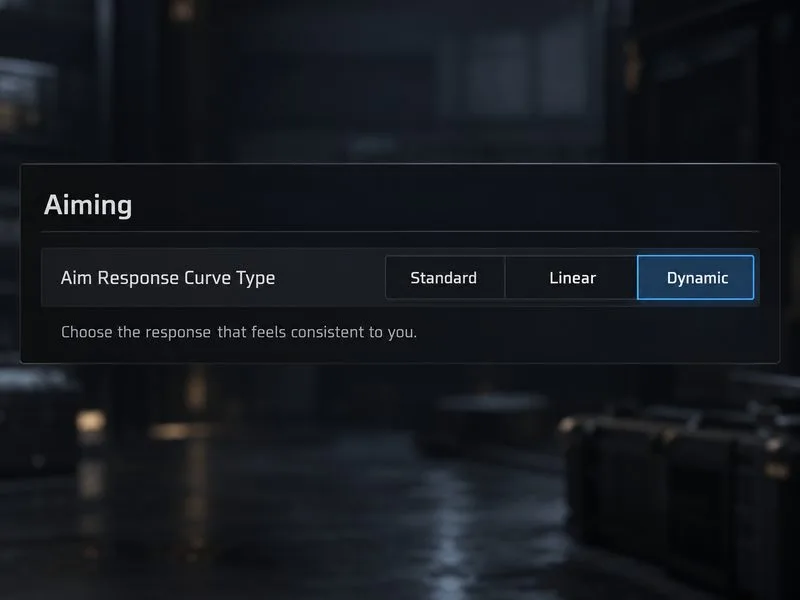
A conceptual Warzone-style aiming menu showing the three response curve choices, with Dynamic selected as a starting point.
Which aim response curve should you choose?
Curve
What it feels like
Good starting point for
Dynamic
A reverse S-curve designed for fine aim-rate control; its feel changes across the stick’s range.
Players who want controlled micro-adjustments and already like the familiar Call of Duty controller feel.
Standard
A conventional curve between stick movement and aim rate.
Newer controller players or anyone who wants to start from the game’s familiar baseline before tuning.
Linear
A more direct mapping between stick movement and aim rate.
Players who want a predictable, direct input feel and are ready to retune sensitivity if needed.
For a general-purpose Warzone setup, try Dynamic first, but treat that as a practical recommendation rather than an official competitive ranking. Activision’s controls explainer describes Dynamic as reversing the S-curve mapping for fine aim-rate control, while Linear maps the stick more directly to aim rate. It also says that curve changes directly affect the feel of gunplay and are worth trying. The article is an older guide for Call of Duty: Modern Warfare, so it helps explain the curve labels; it is not a current Warzone balance guide or proof that one option is best for every player. Read Activision’s controller settings explainer for its original descriptions.
Why is Dynamic a useful starting point?
Warzone asks you to make more than one kind of aiming movement. You may need a tiny correction while tracking a distant target, then a faster turn when an opponent crosses your view at close range. Dynamic is a reasonable first test because Activision’s description specifically connects its reversed S-curve with fine aim-rate control. In practical terms, many players find a curved response easier to manage across different stick distances than a direct one-to-one response. That is a general interpretation of the curve, not a promise of improved aim or a measured result.
Keep in mind that a curve does not make the controller physically more accurate. It changes how the game interprets your input. It also does not automatically improve aim assist. Warzone’s aim-assist settings are separate, and the response curve itself should be judged by the consistency of your own tracking and corrections.
When should you use Standard instead?
Choose Standard if Dynamic feels too sensitive near the middle of the stick or if your aim starts to overshoot when you make small corrections. It is also a sensible baseline when you have not changed controller settings before. Start here if you want to learn what your current sensitivity feels like without adding a curve that changes the input response more noticeably.
For example, suppose you can stay on a moving target at mid-range with Standard, but close-range turns feel too slow. Before switching curves, check whether your horizontal look sensitivity is simply too low. A curve can change how quickly aim rate builds across stick travel; it does not necessarily increase the maximum turning speed you have selected. Changing both the curve and sensitivity at once makes it harder to tell which adjustment helped.
Who benefits from Linear?
Linear suits players who want a direct, easy-to-understand relationship between stick deflection and aim rate. If you are accustomed to a linear response in another shooter, this may feel more predictable. The tradeoff is that small thumb movements can feel more immediate than you expect if your muscle memory was built around Standard or Dynamic. Give it time, but do not force yourself to keep it if you consistently overcorrect.
Linear can also make imperfect controller inputs more noticeable. If your reticle drifts while your thumb is off the stick, investigate stick drift and the controller’s deadzone before judging the curve. A response curve is not a repair for a worn or noisy analog stick.
How can you compare the three options fairly?
Choose a mode or practice setting where you can repeat similar aiming situations. Use the same controller and weapon setup throughout the comparison.
Keep horizontal and vertical sensitivity, ADS multipliers, aim assist, and deadzones unchanged while testing the curve.
Try Dynamic for several comparable sessions. Notice whether you can track moving targets without repeatedly correcting past them.
Switch to Standard, then Linear, and repeat the same kind of tracking and target switching. Do not change other controls during the comparison.
Keep the curve that produces the most repeatable control. If each feels close, use the one that matches your existing muscle memory and stop changing it for a while.
Judge the result by more than a single good fight. Look for steady tracking, fewer corrections that cross back and forth over the target, and comfortable turns at close range. A different curve may initially feel worse because your hands expect the previous mapping. Try it long enough to make a fair comparison, but switch back if the same control problem persists.
What else should stay consistent?
Do not copy a response curve from a streamer without checking the rest of their setup. Horizontal sensitivity, vertical sensitivity, ADS multipliers, deadzones, controller hardware, and personal muscle memory all affect the feel. A curve used with low sensitivity may feel very different from the same curve used with a high sensitivity.
Also, “Aim Response Curve Slope Scale” may appear in some Call of Duty settings menus. If your Warzone version offers it, leave it at its current or default value while comparing the three curve types. Adjusting a slope scale at the same time changes a second variable and makes it difficult to identify what changed. Menu names and available controls can vary across game versions and platforms.
A practical starting point
Start with Dynamic if you want a flexible all-around response and already have some Call of Duty controller experience. Use Standard if you prefer a familiar baseline or Dynamic makes small adjustments feel twitchy. Try Linear when you want a direct stick-to-aim relationship and are willing to rebuild your muscle memory. The best controller aim response curve for Warzone is the one that helps you track and correct consistently with your sensitivity and deadzone settings; no curve guarantees better accuracy on its own.