Home
» 🎮 Esports
»
Best Control Layout Settings for Two-Finger Tap Aim in Brawl Stars
Best Control Layout Settings for Two-Finger Tap Aim in Brawl Stars
A two-finger setup in Brawl Stars gives each thumb a clear job: the left thumb steers your Brawler, while the right thumb fires, aims, and reaches your Super when needed. The goal is not to copy a pro player’s screen. It is to place the controls where your thumbs can reach them without covering the arena or forcing your hand to shift during a fight.
In this guide, “tap aim” means using the right-side attack control to make quick shots, then holding and dragging it when you need to choose a direction. A tap is convenient when an enemy is close or moving predictably; dragging gives you more control over a deliberate shot. The best layout keeps both actions comfortable.
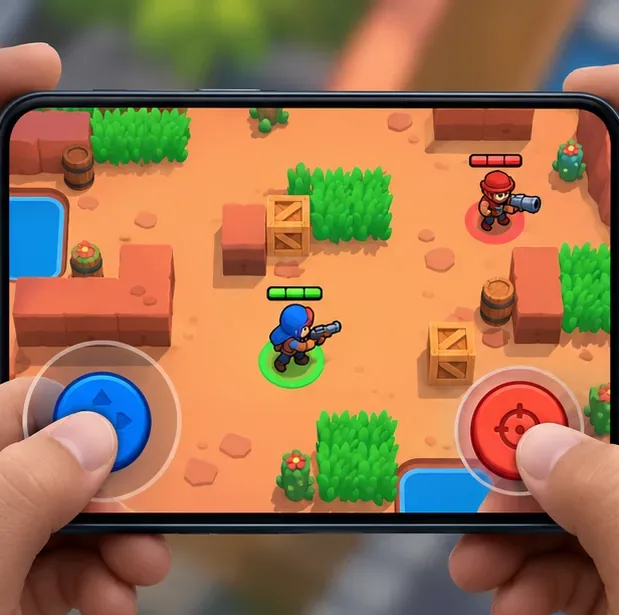
Step 1: Keep movement on the lower left and place the attack control within an easy right-thumb reach.
What should a two-finger layout do?
Two-finger play uses both thumbs at the same time rather than asking one finger to move between controls. Your left thumb should be able to change direction while your right thumb attacks. This matters because strafing—moving sideways while facing or firing toward an opponent—helps you dodge incoming shots without giving up pressure.
Brawl Stars has customizable controls. Supercell announced customizable control settings in the Settings screen and Training Cave. The exact menu wording or screen arrangement can change with updates and device layouts, so use the in-game control editor rather than relying on a screenshot from an older version. Start from Supercell’s customizable-controls release note. Some Gadgets can also use an aimable joystick, while tapping remains available for those abilities; see Supercell’s official feature explanation. This is a useful reminder that tap and drag behavior can depend on the ability.
Before you move any buttons
Hold your phone or tablet the way you normally play. A layout that looks balanced on a table may feel awkward in your hands. Check whether your thumbs can reach the lower corners without stretching, whether a case blocks the edge, and whether your fingers obscure important parts of the arena when you press the controls.
Use landscape orientation and keep a relaxed two-handed grip.
Open the control editor from Settings or the Training Cave. Menu labels can vary by version.
Make one adjustment at a time so you can tell whether it helped.
Keep a note or screenshot of your original layout in case you want to restore it.
How to build a comfortable layout
1. Put movement in the lower-left thumb zone
Place the movement joystick near the lower-left corner, but leave a small margin from the edge so your thumb does not slip off the active area. It should sit where the thumb naturally rests while your hand stays relaxed. You need enough room to push in all directions, especially diagonally, because diagonal movement is useful for dodging while advancing or retreating.
Avoid moving the joystick too high toward the center. That can make your left thumb cover the Brawler or nearby opponents. If your thumb repeatedly lifts during a match, move the control slightly inward or upward and test again.
2. Give the attack control the main right-thumb position
Place the attack control in the lower-right area where your right thumb can reach it without crossing over the middle of the screen. If the editor lets you reposition or resize controls, make the attack control large enough to find by touch, but not so large that it hides enemies, projectiles, or the aiming guide. The right thumb should be able to tap it for a quick attack and hold-drag it toward a target for a manually aimed shot.
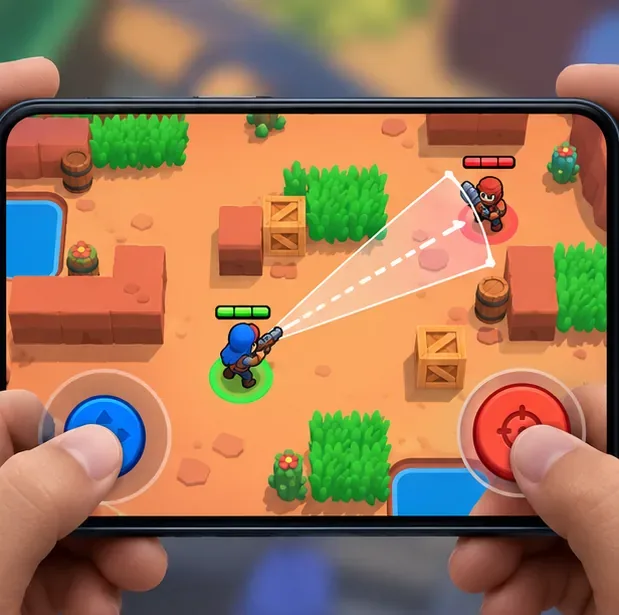
Step 2: Drag the attack control toward a target when you need a deliberate shot instead of a quick tap.
For tap-to-fire, remember that an attack may use automatic target selection or aim toward the nearest opponent, depending on the game’s current behavior and the situation. That makes a tap fast, but it may choose a target you did not intend or fire toward a poor angle. Dragging is the more deliberate option when enemies are grouped, moving across your line of fire, or positioned near a wall.
3. Keep Super and other buttons reachable but distinct
Place the Super button near the attack control, but far enough away that a hurried attack does not activate it by mistake. If your game shows Gadget or other ability buttons, give each one a separate touch area. The exact number and behavior of buttons depends on your Brawler and current game version. Do not crowd every control together simply to keep them near the edge.
For a two-finger player, the right thumb may need to switch between attacking and pressing an ability. Leave enough space to make that movement intentional. If you regularly hit Super accidentally, separate the two controls or move Super slightly farther from your normal attack landing point. If reaching it causes your thumb to leave the screen, bring it closer without overlapping the attack button.
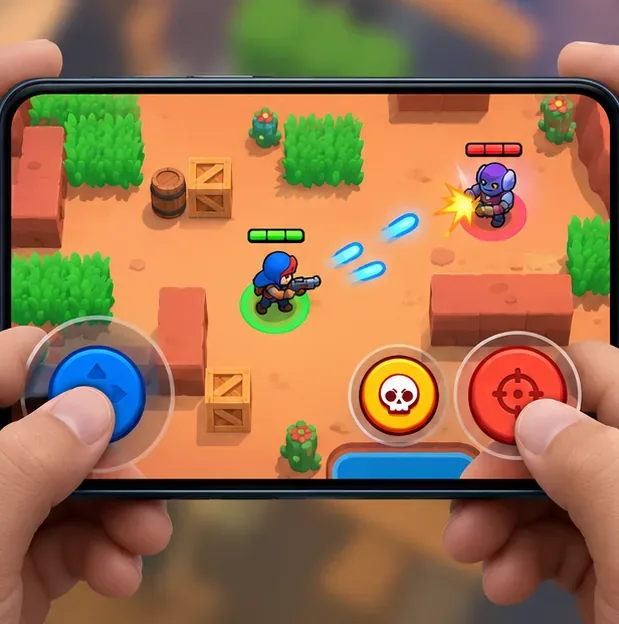
Step 3: Keep attack and Super close enough to reach, with visible space between their touch areas.
4. Check screen margins and thumb reach
Keep the active portion of every button clear of rounded screen corners, notches, and any area your device reserves for system gestures. Leave the center of the arena open so aiming lines and enemy movement remain visible. If you play on a larger tablet, do not spread controls so far apart that either thumb has to stretch.
There is no universal percentage, button size, or exact coordinate that suits every device and hand. Use comfort and accuracy as the tests. If you can press a button while keeping your grip relaxed and still see the fight, the placement is a good starting point.
How to test it in the Training Cave
Use the Training Cave before judging a layout in a competitive match. Supercell’s controls update specifically notes access to customizable controls from the Training Cave, making it a practical place to adjust and practice. Begin with simple movement and attacks, then add a deliberate aim drill.
Move in short circles around a stationary target without taking your thumb off the joystick.
Tap attack several times to learn how quick shots behave.
Hold and drag the attack control toward the target, release, and observe whether the shot follows the direction you intended.
Repeat while moving sideways, then try one Super press to check that it is separate from attack.
Play a few real matches and adjust only the control that caused a repeatable problem.
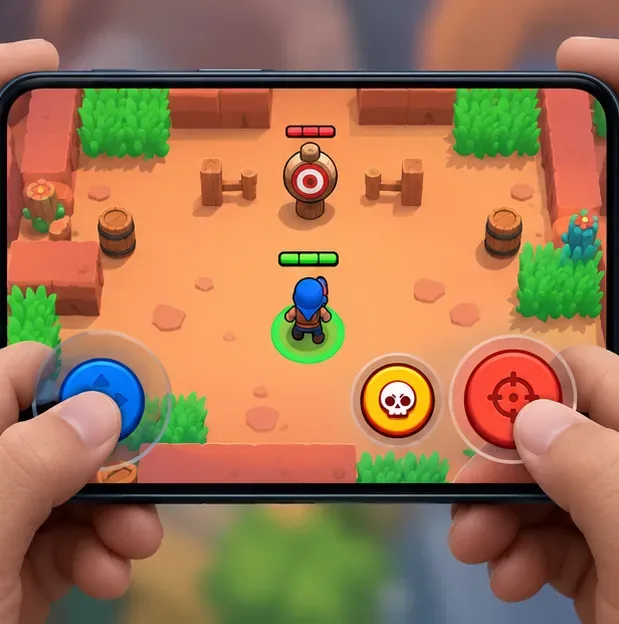
Step 4: Practice moving, tapping, and drag-aiming against a stationary target before changing more controls.
Look for practical signs of success: your movement stays continuous, the attack control responds when you expect, drag-aimed shots travel in the intended direction, and your thumb does not block the target. If your aim feels inconsistent, first check whether you released too early or whether a quick tap selected a different target than expected. Avoid changing several buttons at once; that makes it harder to identify the cause.
Common mistakes to avoid
Copying another player’s exact layout: phone size, hand size, grip, and Brawler choices all affect reach.
Making every button oversized: larger controls can be easier to hit, but they also cover more of the arena and can cause accidental presses.
Using taps for every shot: quick taps are convenient, but manual drag aiming gives you more say over direction when precision matters.
Moving controls during a losing streak: change settings after you have identified a specific issue, then test the adjustment calmly.
Assuming every ability works the same way: some abilities are tapped, while some can be aimed. Check the behavior of the Brawler you are using.
A simple starting layout
Control
Starting position
Check
Movement
Lower left, within natural thumb reach
Can you move diagonally without lifting?
Attack
Lower right, primary right-thumb target
Can you tap and hold-drag comfortably?
Super and abilities
Near attack, with clear separation
Can you activate them without mis-taps?
Treat this as a starting point, not a competitive preset. A good two-finger tap-aim layout lets your left thumb keep moving while the right thumb makes quick attacks or deliberate aimed shots. Confirm the controls in your current client, test them in the Training Cave, and keep only the changes that improve reach, visibility, and repeatable accuracy.