How to Check Real-Time Server Latency in the PUBG HUD

Enable PUBG’s network statistics HUD to monitor ping and packet loss in a match. See where to find it, what the numbers mean, and what they cannot diagnose.
Best starting point: In the original SMITE, turn Restrict Camera Pitch off if you want to look farther upward and keep an airborne enemy in view during a vertical ultimate. There is no verified “best pitch number” to dial in; the relevant control is a restriction toggle. The trade-off is that a freer camera can feel less steady when you return to ground-targeted abilities, so test it before using it in a competitive match.
This guide refers to the original SMITE, sometimes called SMITE 1. Hi-Rez now presents SMITE 2 as a separate sequel, and its public pages do not confirm that the same setting name, menu path, or behavior carries over. The steps below are a practical starting point for the original game, not a guarantee about every platform or current client build.
Camera pitch is the angle at which the view points up or down. In SMITE, a restricted pitch limits how far the view can tilt vertically. Turning off Restrict Camera Pitch gives you more room to look upward, which can help when an enemy god leaves the ground during an ultimate or another airborne ability.
Pitch is different from camera sensitivity, vertical inversion, and camera distance. Sensitivity changes how quickly your input moves the view. Inversion changes which direction the camera moves when you push or pull a control. Distance changes how close the view sits to your god. None of those controls, by itself, removes a vertical limit.
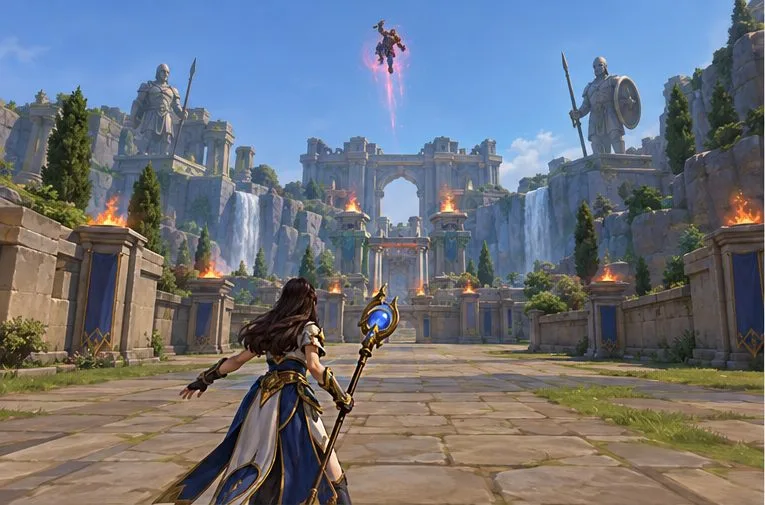
First confirm which game you are playing. The official Steam listing identifies the original SMITE as a third-person action MOBA, while Hi-Rez’s current main site is for SMITE 2. Controls and menus can differ between those clients. If you play SMITE 2, check its in-game controls rather than assuming the original game’s option is identical.
For the original SMITE, note the setting’s current state before changing it. On builds that show the longstanding option, open Settings, go to Controls, and find Restrict Camera Pitch. The exact label or location may vary by platform or client version. Hi-Rez’s public pages do not provide a current control-by-control manual for this option, so use the wording visible in your own game as the source of truth. If you cannot find it, do not edit configuration files based on an old path.
Make the first test somewhere low stakes, such as a practice environment if your client offers one, or a casual match. Keep your normal sensitivity and keybinds unchanged for this first comparison. That way, if the camera suddenly feels different, you can tell whether the pitch restriction was the cause.
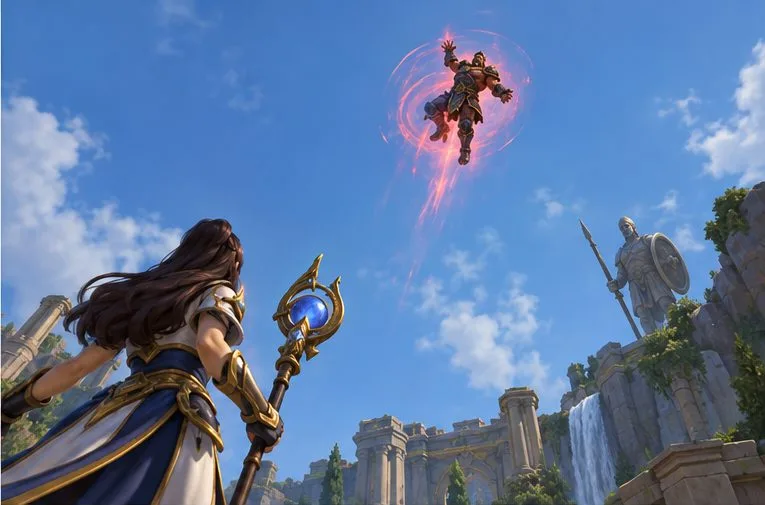
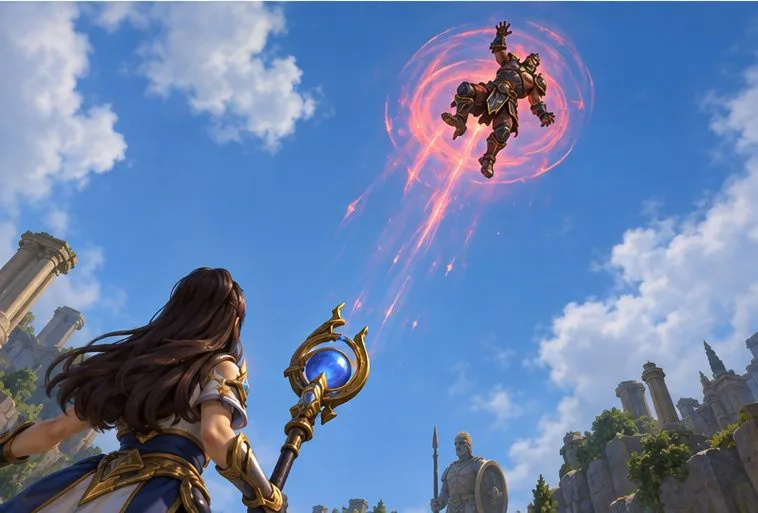
Do not judge the setting by whether the camera can point straight up. The useful result is more specific: when an enemy launches, can you see the god, track where it is moving, and return your view to the battlefield without losing control of your aim? If the target stays visible for longer and the camera still feels predictable after it lands, the unrestricted option may suit you.
Compare the same kinds of moments over several encounters rather than changing multiple options after one missed ability. Notice three signs: whether the airborne model leaves the top edge less often, whether your upward input overshoots, and whether your first ground-targeted cast after tracking feels harder to place. A setting that improves visibility but makes you miss routine ground skills may not be the best choice for your play style.
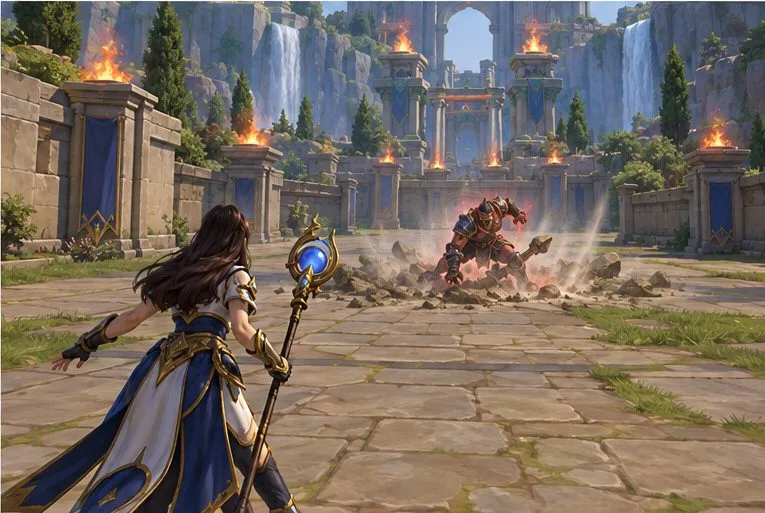
Switch the restriction back on if your camera frequently overshoots, if you lose awareness of nearby ground targets, or if the visibility benefit is too rare to justify the adjustment. You can also keep unrestricted pitch and practice a deliberate “look up, track, lower” rhythm. The setting changes the camera’s range of movement; it does not reveal hidden information, extend ability range, or guarantee that you will dodge an ultimate.
The publisher’s public pages verify that the original SMITE and SMITE 2 are distinct game experiences, and the original SMITE listing describes its third-person viewpoint. I could not find a current official public page that documents the exact Restrict Camera Pitch label, menu path, or platform-by-platform behavior. That is why the path above is qualified: check your own client, and treat the off setting as a controlled experiment rather than a universal competitive recommendation. This information was checked on October 7, 2026.
Enable PUBG’s network statistics HUD to monitor ping and packet loss in a match. See where to find it, what the numbers mean, and what they cannot diagnose.
Learn how to import VALORANT crosshair codes, compare presets with manual settings and spectator copy, and fix common import issues.
Choose Dota 2 minimap size, hero icons, team colors, and background settings by readability, fewer misclicks, and clear results on your own display.
Fix Fortnite texture pop-in on PC with official steps for GPU drivers, file verification, DirectX 12, high-resolution textures, VRAM, SSDs, and stutter.
Learn what Heroes of the Storm minimap size and position options are verified, improve readability, and choose camera-click controls that suit you.
Set Super Smash Bros. Ultimate Quickplay to prefer hazards-off stages. Follow the Preferred Rules menu steps and learn why matchmaking may not always honor them.
Enable Server Latency and Packet Loss in Warzone to monitor connection quality, read the overlay, and use recurring spikes to guide troubleshooting.
Learn how to carry from mid lane in League of Legends by setting up waves, choosing safe roam windows, reading side lanes, and converting pressure into objectives.
Fix Minecraft Evoker spell problems with a safe vanilla test, version checks, log review, and a step-by-step way to isolate mod or datapack conflicts.
Fix PUBG stuck on Initializing on Steam with a focused checklist for PC service notices, launch options, game files, downloads, and connection issues.








