Home
» 🎮 Esports
»
Best Button Mapping for Heat Activation and Rage Art in Tekken 8
Best Button Mapping for Heat Activation and Rage Art in Tekken 8
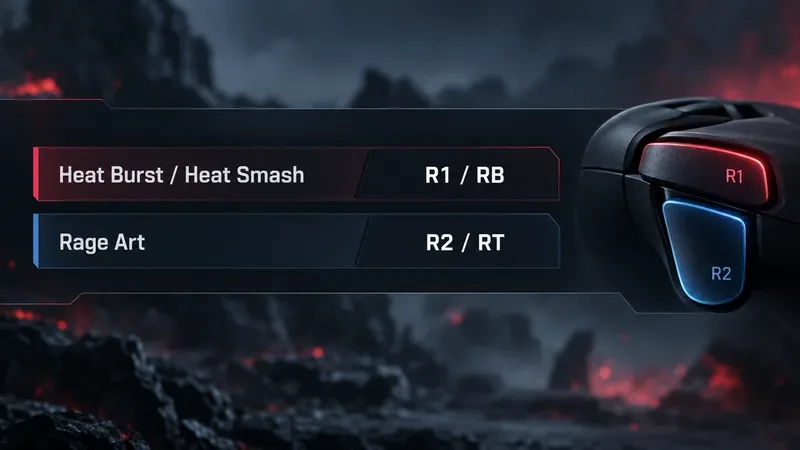
For a standard gamepad, keep Heat Burst/Heat Smash on R1 (RB on Xbox) and Rage Art on R2 (RT). That gives each high-impact action its own shoulder input, keeps the four face buttons available for Tekken’s left punch, right punch, left kick, and right kick, and is the simplest layout to learn before you customize further.
If Rage Art comes out by accident, move it to a less frequently pressed button, such as L2/LT or a back paddle your controller supports. Keep Heat and Rage Art on separate buttons. There is no universally best layout: hand size, controller shape, and your existing shortcuts matter, so use this as a starting point and test it before ranked play.
A straightforward gamepad starting point: Heat Burst and Heat Smash share R1/RB, while Rage Art uses the separate R2/RT trigger.
What these buttons actually do
Tekken 8 has two systems behind these shortcuts. Heat is a temporary powered-up state. Heat Burst is a direct way to activate it, while a Heat Engager is a character-specific move that starts Heat when it connects. These are different actions: a Heat Engager is not a button shortcut you need to bind across the roster.
Heat Smash is an attack you can use while Heat is active. Bandai Namco’s official controls guide lists Heat Burst when Heat is available and Heat Smash during Heat on the same control position. So if your button layout assigns the Heat shortcut to R1/RB, that position handles the activation and the in-Heat action according to the current state.
Rage activates automatically when your health falls below a threshold. Rage Art is a powerful attack available during Rage. Because it can be used only in that state, placing it on a separate, deliberate input helps avoid spending it by mistake while you are trying to start Heat.
Recommended starting layouts
Controller
Heat Burst / Heat Smash
Rage Art
Why it works
PlayStation-style pad
R1
R2
Matches the official guide’s familiar shoulder-button defaults and separates the two actions.
Xbox-style pad
RB
RT
Uses the corresponding bumper and trigger positions.
Keyboard
One easy-to-reach unused key
A different easy-to-reach unused key
Two separate keys reduce confusion and let you keep your movement and four attack inputs intact.
Arcade stick or leverless controller
A nearby spare button
A second distinct spare button
Places each shortcut within reach without replacing the four core attack buttons.
The PlayStation and Xbox rows are the recommended starting point, not a rule. Official Bandai Namco materials show the standard shortcut positions, but personal comfort should decide whether you keep them. If your controller has rear paddles, they can be useful for either action as long as the game or controller maps each paddle to one ordinary button input.
Why keep Heat and Rage Art separate?
Separate inputs make it easier to build reliable muscle memory. For example, if you are under pressure and want to activate Heat, you can press the Heat button without also triggering Rage Art when your health is low. If you want to attempt Rage Art instead, its different physical location makes that choice intentional.
Keeping both shortcuts away from the four face buttons also protects the core attacks used for movement strings, combos, and character-specific commands. This matters especially if you use a character that relies on combined attack inputs. Replacing one of the four attacks to make room for Heat or Rage can create new execution problems that outweigh the convenience.
For a keyboard player, “easy to reach” depends on the movement scheme and keyboard layout. Pick two unused keys near your normal hand position, but do not choose neighboring keys if you often brush both during fast inputs. The goal is a dependable press, not the shortest possible distance between keys.
How to assign and test the mapping
Open Options and enter the game’s Controller Setup screen. Choose the controller type or custom layout you actually use.
Find the shortcut for Heat Burst/Heat Smash and assign it to R1/RB or your chosen Heat key.
Assign Rage Art to a different button or key. Avoid mapping both actions to the same input.
Confirm or apply the layout, then enter Practice Mode before using it in a match.
Test Heat activation while it is available, then test Heat Smash after Heat begins. Later, when Rage is active, check that the separate Rage Art input works as expected.
Menu wording and button prompts can differ between platforms and controller presets. If your screen uses a different label, look for the control assignment area rather than relying on a copied screenshot from another platform. You can also check the in-game command display for the current action and its assigned input.
When to change the recommendation
Rage Art triggers when you wanted Heat
Move Rage Art to another shoulder control, a less-used button, or a supported back paddle. Then repeat the Practice Mode check. Do not solve accidental Rage Arts by moving Heat onto a core attack button unless you have verified that the change does not interfere with your character’s normal commands.
You use an arcade stick or leverless controller
Button placement is more personal on these devices. Keep the four attack buttons in positions you can press accurately, then add Heat and Rage Art to spare buttons that are easy to distinguish by feel. If your layout has only the four main buttons, use the game’s supported shortcut options or a controller with additional inputs rather than sacrificing an attack you depend on.
You use Special Style
Special Style assigns character actions to simplified controls, and those actions can change according to the character’s state. That is separate from customizing your normal shortcut layout. If you switch between Special Style and Arcade Style, practice the transition and verify which control is currently active before relying on a remembered button.
Quick checklist before a match
Heat Burst/Heat Smash has one clear, reachable input.
Rage Art uses a different input, preferably one you will not hit accidentally.
Left punch, right punch, left kick, and right kick remain easy to use.
You tested Heat activation, Heat Smash, and Rage Art in Practice Mode.
The control prompts on screen match the controller you are holding.
Bandai Namco’s official TEKKEN 8 basic operations page identifies the Heat and Rage actions by state. Its battle systems guide explains when Heat Burst, Heat Smash, and Rage Art are available. For the latest balance context, see the official Version 3.00.02 patch notes; balance changes can affect move behavior, while the mapping recommendation here is about keeping the shortcuts distinct and accessible.
In short, start with Heat on R1/RB and Rage Art on R2/RT. Change Rage Art first if the trigger is too easy to hit, then test the revised layout in Practice Mode. A mapping is working when you can choose Heat or Rage deliberately without losing access to your four basic attacks.