How to Check Real-Time Server Latency in the PUBG HUD

Enable PUBG’s network statistics HUD to monitor ping and packet loss in a match. See where to find it, what the numbers mean, and what they cannot diagnose.
You land in a busy area, grab a weapon, run across a pile of loot, and suddenly your backpack is filling with items you do not want while the ammo or healing item you actually need is still on the ground. That is the real problem Auto Pickup is supposed to solve in Free Fire: reduce the time you spend tapping loot so you can keep moving and watching for enemies.
The fastest setup is not simply “turn everything on.” A better approach is to enable automatic pickup for the item groups you almost always need, then use the Priority options for important healing items so the game favors useful supplies instead of letting less important loot consume your attention. Garena has supported customizable Auto Pickup for years, including adjustable pickup priority and a dedicated Auto Pickup section under the In-Match settings area. The exact wording or order can change between updates, so treat the settings below as a practical baseline rather than a fixed competitive rule.
Open Settings, go to the In-Match area, and find Auto Pickup. Garena reorganized the settings interface so In-Match contains sub-sections including Controls, Information, Sensitivity, Auto Pickup, and Vibration. If your menu looks slightly different, look for Auto Pickup under the in-match or gameplay settings rather than assuming the feature was removed.
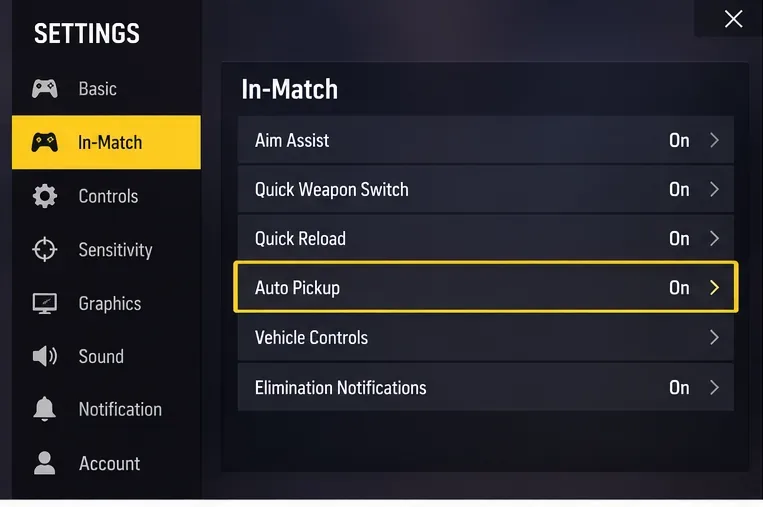
Caption: The Auto Pickup controls are found in the in-match settings area; menu placement can vary slightly by game version.
Garena originally added an on/off control for automatic pickup and later expanded it so players could choose which kinds of items should be collected automatically. That is why turning the feature on is only the first step. If you still feel slow after enabling it, the next improvement is deciding what Auto Pickup is allowed to collect.
Official references: Garena patch notes introducing Auto Pickup and Garena patch notes describing the In-Match settings categories.
For most Battle Royale players, the best default is to automate the categories that save the most taps while keeping some control over inventory clutter. The current game can expose more detailed item controls than older versions, so use the table as a decision rule instead of expecting every label to match word for word.
| Item group | Recommended setting | Why |
|---|---|---|
| Weapons | On early game; review manually later | A fast first weapon matters immediately after landing, but late-game weapon swaps are often better done deliberately. |
| Ammo | On | Automatic ammo pickup saves repeated taps and keeps you moving. |
| Armor and useful attachments | On | Higher-value armor and compatible attachments can improve your loadout without extra inventory management. |
| Healing items | On | Healing supplies are high-value pickups and should not be missed while moving through loot. |
| Throwables and utility | On if you use them often; reduce manually if your backpack fills too fast | Utility is important, but it is also one of the first categories to review when your bag becomes cluttered. |
| Event or temporary items | Situation-dependent | Event items can be useful in specific modes, but their value changes by event and patch. |
Garena has repeatedly improved Auto Pickup logic. Past official updates added automatic pickup of higher-durability armor, automatic equipping of attachments already carried, options for event items, and adjustable pickup priority. Those changes support a simple principle: automate routine upgrades, but keep manual control for choices that depend on your current weapon combination or strategy.
Official references: Garena patch notes on Auto Pickup logic improvements and Garena patch notes on adjustable pickup priority.
If your version shows a Priority section, use it. Garena specifically added Med Kits, Super Meds, and Inhalers to the Priority tab in an earlier update. That makes healing a good place to start because these items are broadly useful and easy to evaluate during a match.
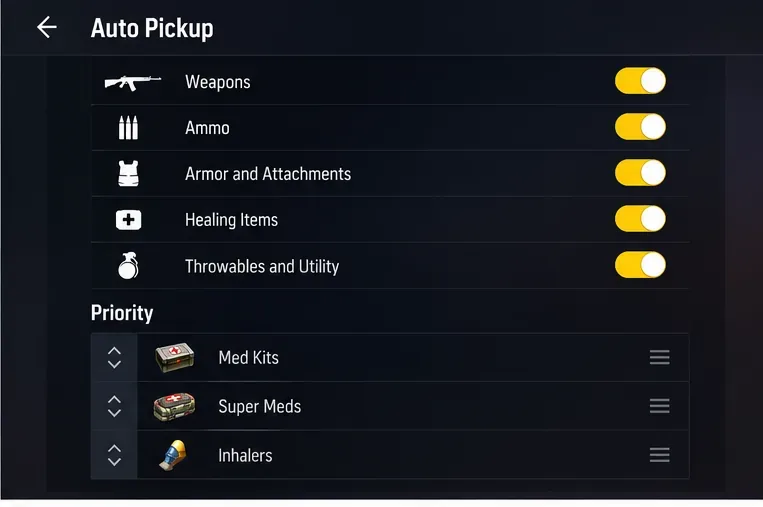
Caption: A practical priority setup places frequently needed healing items high on the Auto Pickup list.
A sensible order for general Battle Royale play is Med Kits first, followed by whichever other healing items you actually use. Do not copy a priority list blindly. If you rarely use a particular item, pushing it higher can make looting feel worse, not better.
The goal is simple: when you sprint through a loot pile, the game should pick up the supplies you would have tapped manually anyway. If Auto Pickup keeps choosing something you regularly discard, lower its priority or disable automatic pickup for that type where the menu allows it.
Official reference: Garena patch notes adding Med Kits, Super Meds, and Inhalers to Auto Pickup Priority.
Fast pickup is only useful if your inventory remains usable. The common mistake is enabling every category, running through several loot piles, and then stopping in the open to drop excess ammo or utility items. That trades a few saved taps for a much riskier inventory cleanup later.
Watch what appears in your Nearby list and what actually enters your backpack during the first two minutes of a match. If you are repeatedly picking up ammo for a weapon class you do not use, or carrying more utility than you can realistically deploy, change the relevant Auto Pickup category before the next match.
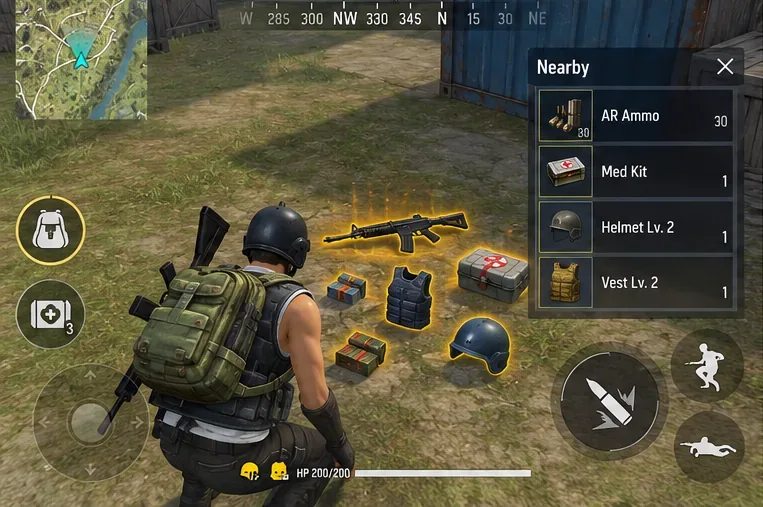
Caption: Use a short loot pass to see whether Auto Pickup is collecting the items you need without forcing you to stop and sort.
Garena has also changed backpack and looting behavior over time, including how items are stacked and how pickup behaves when remaining backpack capacity is limited. That is another reason not to treat a single exact number of ammo stacks or healing items as universally best. Capacity, weapon choice, mode, and temporary patch mechanics can all change the right balance.
Official reference: Garena patch notes on backpack management and looting optimization.
Auto Pickup can reduce repetitive input, but it cannot know your full plan. A weapon on the ground may be stronger in general but wrong for the range you expect to fight at. A pile of ammo may be useful only if you intend to keep that weapon. A throwable may be valuable in the final zone but unnecessary when your backpack is already near capacity.
That is why a fast looting routine should have two layers:
This hybrid approach is usually faster than either extreme. Fully manual looting costs too many taps during the early scramble, while fully automatic looting can create cleanup work later.
After looting two or three rooms or one defeated enemy’s loot area, open the backpack for a quick review. You are not looking for a perfect inventory. You are looking for obvious waste.
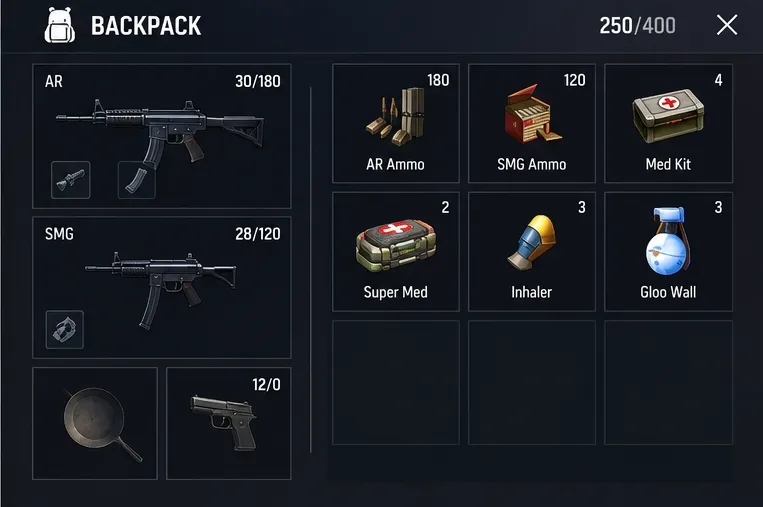
Caption: A quick backpack check reveals whether your Auto Pickup rules are building a useful loadout or collecting too much low-priority gear.
Ask three questions. First, did you get enough ammo for the weapons you are actually carrying? Second, did Auto Pickup collect healing items without you stopping? Third, is a large share of the backpack occupied by items you would immediately drop? If the first two answers are yes and the third is no, the setup is doing its job.
Change your setup when your play style changes, not just because another player recommends different values. Aggressive players who loot quickly after eliminations may want broader automatic pickup because they spend less time standing over boxes. Players who favor a very specific weapon pairing may prefer tighter item selection. New events can also introduce temporary items that are worth enabling only for that mode or patch.
As of the OB55 patch released in September 2026, Garena continues to adjust Battle Royale loot, devices, airdrops, and ground items. That patch added Coin Jars to ground loot and changed several Battle Royale systems, which is a reminder that the most efficient pickup choices can shift as the item pool changes. The patch notes do not announce a new universal “best” Auto Pickup preset, so any recommendation that claims one fixed setup is optimal for every player goes beyond what Garena has officially documented.
Official reference: Garena Free Fire OB55 patch notes.
The best Auto Pickup settings are the ones that reduce interruptions without filling your backpack with things you do not use. Test your setup in an ordinary Battle Royale match and pay attention to the first few minutes after landing.
If one of those checks fails, change only one category at a time and test again. That makes it much easier to identify what is slowing your looting down. Auto Pickup is most effective when it handles predictable decisions and leaves the important tactical choices to you.
Enable PUBG’s network statistics HUD to monitor ping and packet loss in a match. See where to find it, what the numbers mean, and what they cannot diagnose.
Learn how to import VALORANT crosshair codes, compare presets with manual settings and spectator copy, and fix common import issues.
Choose Dota 2 minimap size, hero icons, team colors, and background settings by readability, fewer misclicks, and clear results on your own display.
Fix Fortnite texture pop-in on PC with official steps for GPU drivers, file verification, DirectX 12, high-resolution textures, VRAM, SSDs, and stutter.
Learn what Heroes of the Storm minimap size and position options are verified, improve readability, and choose camera-click controls that suit you.
Set Super Smash Bros. Ultimate Quickplay to prefer hazards-off stages. Follow the Preferred Rules menu steps and learn why matchmaking may not always honor them.
Enable Server Latency and Packet Loss in Warzone to monitor connection quality, read the overlay, and use recurring spikes to guide troubleshooting.
Learn how to carry from mid lane in League of Legends by setting up waves, choosing safe roam windows, reading side lanes, and converting pressure into objectives.
Fix Minecraft Evoker spell problems with a safe vanilla test, version checks, log review, and a step-by-step way to isolate mod or datapack conflicts.
Fix PUBG stuck on Initializing on Steam with a focused checklist for PC service notices, launch options, game files, downloads, and connection issues.








