How to Check Real-Time Server Latency in the PUBG HUD

Enable PUBG’s network statistics HUD to monitor ping and packet loss in a match. See where to find it, what the numbers mean, and what they cannot diagnose.
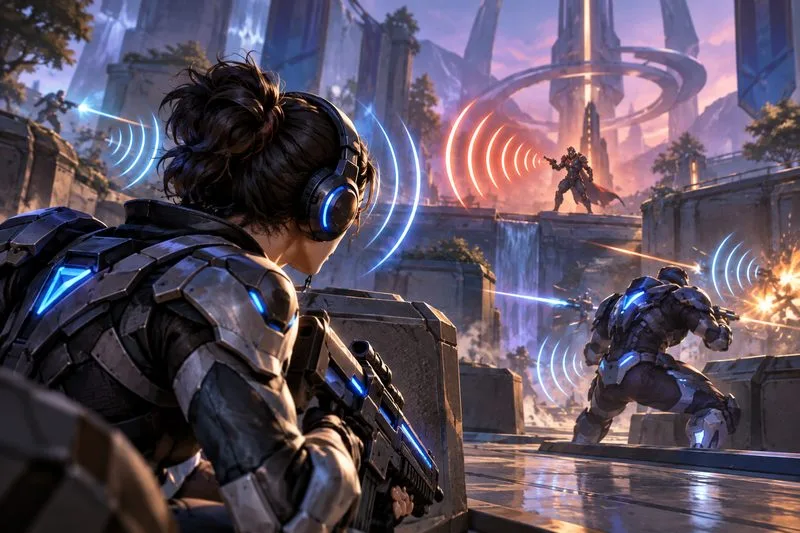
If enemy ultimate callouts disappear beneath explosions, music, and team chatter, raise the sounds that carry useful information and reduce competing layers first. There is no verified one-size-fits-all percentage preset for Marvel Rivals, and the game does not expose a confirmed enemy-voice-only slider. Start with a clear headphone mix, keep both sound effects and voice lines audible, then tune the balance in a repeatable practice check.
| Audio area | Starting approach | What to listen for |
|---|---|---|
| Master volume | Set a comfortable level with headroom; avoid turning the whole mix up to solve masking. | Callouts are clear without harsh peaks or distortion. |
| Music | Reduce it substantially or mute it if your client offers a separate control. | Combat cues stand out during an objective fight. |
| Sound effects | Keep effects prominent, then use Audio > Combat Mix to inspect the available combat balance options. | Ability activations, impacts, and movement remain audible without drowning out voices. |
| Voice-over / dialogue | Keep it clearly audible. Lower other layers before lowering character dialogue. | You can recognize an enemy callout when several effects overlap. |
| Voice chat and UI | Set chat so teammates remain understandable; reduce menu/UI sounds if they compete during play. | Team communication does not cover in-match cues. |
| Spatial output | Use headphones and test one spatial-audio mode at a time if your platform supports it. | Left/right and front/back cues feel stable, without a hollow or echoing sound. |
These are priorities, not official slider values. Volume labels and controls can differ by platform or update. The PlayStation listing confirms individual volume controls and 3D audio support for the console version; official Marvel patch notes specifically refer to Audio > Combat Mix. They do not publish a universal set of percentages for competitive play.
A voice cue is only useful if you can hear it above the mix and recognize it quickly. Marvel Rivals battles layer hero dialogue, ability effects, weapon impacts, music, objective sounds, and teammate voice chat. Turning up every control equally makes the whole match louder but does not necessarily make a warning easier to identify. A loud master setting can also make sudden effects fatiguing.
Some important information arrives through spoken lines, while other threats are indicated by an ability sound or movement cue. Treat voice-over and sound effects as separate priorities when the in-game controls allow it. If your client does not show a particular category, do not assume a hidden enemy-only control exists; use the controls it actually displays.
Use stereo headphones as your baseline and make sure the game is routed to the headset you are wearing. On a console, test the platform's supported 3D-audio option if you want stronger spatial presentation; PlayStation lists 3D audio and individual volume controls for Marvel Rivals. On PC, available spatial processing depends on the operating system, headset, and audio software. Avoid enabling several surround or spatial effects at once. Compare one mode at a time, because extra processing can make direction less natural on some setups.
Do not use a mono mix as the first choice when you are trying to locate a cue by direction. Mono can help when stereo balance is the problem, but it removes left-right separation. If one earbud or headset channel is quieter, fix the device balance or connection before changing game levels.
Keep teammate communication intelligible, but balance it against game audio rather than letting chat dominate. If your headset has a game/chat wheel or separate mix control, make small changes and ask a teammate to speak at normal volume while a practice session is running. A headset microphone that is too loud or open can also create distraction; use the platform's input controls to limit monitoring or sidetone if those controls are available.
Marvel describes a consequence-free practice environment on its PlayStation product listing. Use it to check general balance, but remember that a quiet practice area cannot reproduce the full sound density of a live match. Confirm the final mix in a normal match before deciding it is finished.
PlayStation also lists full subtitles for spoken dialogue in Marvel Rivals. Subtitles can provide a useful backup for dialogue, but they do not replace listening for timing or locating sound in space.
Clearer audio can make enemy voice cues easier to catch, but no mix can guarantee that every line will stand out in every fight. Sound design, overlapping effects, the selected costume, platform processing, and personal hearing all affect the result. Keep a comfortable volume and judge success by whether you can recognize the warning sooner while still hearing teammates and nearby combat.
Enable PUBG’s network statistics HUD to monitor ping and packet loss in a match. See where to find it, what the numbers mean, and what they cannot diagnose.
Learn how to import VALORANT crosshair codes, compare presets with manual settings and spectator copy, and fix common import issues.
Choose Dota 2 minimap size, hero icons, team colors, and background settings by readability, fewer misclicks, and clear results on your own display.
Fix Fortnite texture pop-in on PC with official steps for GPU drivers, file verification, DirectX 12, high-resolution textures, VRAM, SSDs, and stutter.
Learn what Heroes of the Storm minimap size and position options are verified, improve readability, and choose camera-click controls that suit you.
Set Super Smash Bros. Ultimate Quickplay to prefer hazards-off stages. Follow the Preferred Rules menu steps and learn why matchmaking may not always honor them.
Enable Server Latency and Packet Loss in Warzone to monitor connection quality, read the overlay, and use recurring spikes to guide troubleshooting.
Learn how to carry from mid lane in League of Legends by setting up waves, choosing safe roam windows, reading side lanes, and converting pressure into objectives.
Fix Minecraft Evoker spell problems with a safe vanilla test, version checks, log review, and a step-by-step way to isolate mod or datapack conflicts.
Fix PUBG stuck on Initializing on Steam with a focused checklist for PC service notices, launch options, game files, downloads, and connection issues.








