How to Check Real-Time Server Latency in the PUBG HUD

Enable PUBG’s network statistics HUD to monitor ping and packet loss in a match. See where to find it, what the numbers mean, and what they cannot diagnose.
For most headphone players who want a simple, reliable starting point, use Speaker Configuration: Stereo, turn HRTF on in VALORANT, and turn off any other virtual surround or spatial-audio processing. That avoids processing the same positional cues twice and follows Riot's own guidance for the built-in HRTF path.
There is one important alternative: if you prefer Windows Sonic, Dolby Atmos for Headphones, DTS Headphone:X, or another supported spatial-audio solution, set VALORANT's Speaker Configuration to Auto-Detect and let that spatial system do the virtualization instead. Do not stack it on top of VALORANT HRTF.
The best default preset for ordinary stereo headphones is:
Riot introduced HRTF specifically to help headphone users distinguish where sounds such as footsteps come from. Riot also warned against combining the in-game HRTF with other surround virtualization because double processing can make positional information less trustworthy. See Riot's original VALORANT Patch 2.06 HRTF notes.
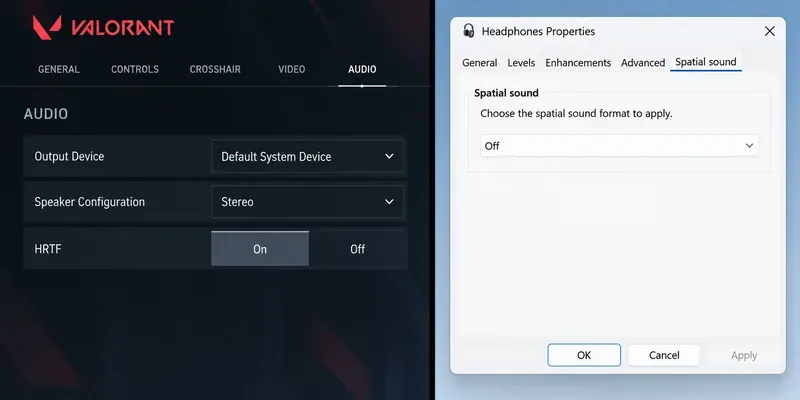
Directional audio in headphones is not the same thing as simply sending a sound louder to the left or right ear. HRTF processing adds timing and frequency differences intended to mimic how sound reaches a listener's ears from different directions. Those cues can help the brain separate front from back and better judge direction around the player.
Riot's implementation was built for headphones, and the company explicitly recommends practicing with it because the result can initially sound unfamiliar. The reason is personal anatomy: an HRTF model depends on measurements related to the head and ears, while one profile cannot perfectly match every listener. That means a setting that feels immediately precise for one player can sound less natural to another.
The practical consequence is important: HRTF on is a strong starting recommendation, not a guarantee that it will be best for every person. Riot itself notes that spatial-audio preference can depend on how well a particular HRTF model matches the listener. That is why testing front-versus-back recognition matters more than copying a streamer's setup.
Yes, if you already prefer a supported third-party spatial solution. Starting with Patch 8.0, Riot officially added support for third-party headphone spatialization. In that configuration, VALORANT should use Speaker Configuration: Auto-Detect, while spatial audio is enabled in Windows.
Riot's Patch 8.0 audio documentation explains the two distinct paths. If you want VALORANT's HRTF, use the in-game processing path. If you want Windows Sonic or another external spatial solution, use Auto-Detect so the external system receives the channel information it needs. Microsoft documents how to select Windows Sonic under Spatial sound in Windows sound settings.
This gives you two valid presets rather than one universal winner:
| Use case | VALORANT Speaker Configuration | HRTF | System/headset spatial processing |
|---|---|---|---|
| Simple headphone setup | Stereo | On | Off |
| Windows Sonic / Dolby / DTS / supported spatial software | Auto-Detect | Do not stack with it | On |
| Regular speakers | Normal speaker setup | Off | Off for headphone virtualization |
| Mono accessibility output | Mono | Not useful for binaural localization | Spatial localization is bypassed |
Because both systems are trying to transform spatial information for two-channel headphone playback. If VALORANT applies HRTF and your headset software then applies another virtual 7.1 or spatial filter, the second stage is no longer working from the original positional mix. The result can alter the cues you use to distinguish direction.
Riot described this as double processing in the Patch 7.07 notes. After broader spatial-audio support arrived, Riot kept the choice explicit: use Stereo for the built-in HRTF route, or Auto-Detect for the external spatial-audio route.
This is also why a headset labeled “7.1” is not automatically better for VALORANT. USB virtual-7.1 headsets can work, but Riot says their software and drivers need to be configured correctly. If a USB headset is being detected as a multichannel device without the software that mixes those channels correctly, some sounds may be missing or behave strangely.
Judge the preset by localization, not by how dramatic or spacious it sounds. A good competitive setup should make common directional decisions easier and more repeatable.
Use a Custom Game or the Range and listen for these signs:
Riot specifically recommended ear training in a lower-pressure environment when HRTF launched. Give each configuration more than one quick round. An unfamiliar HRTF can initially sound odd even when its directional cues become easier to interpret after some practice.
Try another spatial option if you consistently confuse front and back after giving HRTF a fair test, or if the sound feels physically uncomfortable. Riot notes that HRTF and spatial processing can occasionally cause dizziness or nausea for some users; if that happens, turn the processing off or try a different option.
You should also reconsider the setup if you have enabled Auto-Detect but do not actually have working spatial-audio processing. Riot documented cases where USB headphones appeared to Windows as 5.1 or 7.1 devices but depended on manufacturer drivers to downmix properly. In that situation, some center or surround-channel sounds could disappear. Riot's later Patch 8.07 notes reiterate that, with headphones and Auto-Detect selected, the configuration should appear as 2.0 if Spatial Audio is not enabled; otherwise, switching back to Stereo or enabling the intended Windows spatial solution can fix the mismatch.
Not necessarily. Directional processing and headphone quality solve different problems. A better headset can improve clarity, distortion, comfort, and frequency response, but it does not change Riot's core routing logic. A normal stereo headset can use VALORANT HRTF. A supported multichannel or virtual-surround headset can use the Auto-Detect path if its drivers and spatial software are configured correctly.
For competitive positioning, consistency matters more than the number printed on the headset box. A clean stereo signal with one well-understood spatializer is usually easier to troubleshoot than multiple overlapping enhancements.
No. Riot says HRTF and headphone spatial audio are designed for headphones. If you are playing through speakers, leave headphone HRTF/spatialization off.
Mono remains available as an accessibility option, but mono combines the channels and therefore cannot provide the same binaural directional information. Riot explains that HRTF and spatialization depend partly on timing and spectral differences between the left and right channels. If mono is necessary for your hearing or setup, use it; just do not expect the same directional behavior as stereo headphones.
If you want one setting to try first, choose Stereo + HRTF On + all other spatial processing Off. It is straightforward, uses VALORANT's own headphone localization system, and avoids the most common configuration mistake: stacking two virtual-surround processors.
If front-back localization still feels unreliable after practice, compare that setup with Auto-Detect + one supported Windows spatial-audio solution. Keep only one spatialization path active at a time, then stick with the one that produces fewer directional mistakes for you.
That is the meaningful definition of the “best” audio preset in VALORANT: not the most cinematic sound, but the configuration that lets you identify direction consistently without conflicting processing.
Enable PUBG’s network statistics HUD to monitor ping and packet loss in a match. See where to find it, what the numbers mean, and what they cannot diagnose.
Learn how to import VALORANT crosshair codes, compare presets with manual settings and spectator copy, and fix common import issues.
Choose Dota 2 minimap size, hero icons, team colors, and background settings by readability, fewer misclicks, and clear results on your own display.
Fix Fortnite texture pop-in on PC with official steps for GPU drivers, file verification, DirectX 12, high-resolution textures, VRAM, SSDs, and stutter.
Learn what Heroes of the Storm minimap size and position options are verified, improve readability, and choose camera-click controls that suit you.
Set Super Smash Bros. Ultimate Quickplay to prefer hazards-off stages. Follow the Preferred Rules menu steps and learn why matchmaking may not always honor them.
Enable Server Latency and Packet Loss in Warzone to monitor connection quality, read the overlay, and use recurring spikes to guide troubleshooting.
Learn how to carry from mid lane in League of Legends by setting up waves, choosing safe roam windows, reading side lanes, and converting pressure into objectives.
Fix Minecraft Evoker spell problems with a safe vanilla test, version checks, log review, and a step-by-step way to isolate mod or datapack conflicts.
Fix PUBG stuck on Initializing on Steam with a focused checklist for PC service notices, launch options, game files, downloads, and connection issues.








