How to Check Real-Time Server Latency in the PUBG HUD

Enable PUBG’s network statistics HUD to monitor ping and packet loss in a match. See where to find it, what the numbers mean, and what they cannot diagnose.
There is no single “footstep filter” that makes every enemy easy to hear in Call of Duty: Warzone. The best starting point is a clean headset signal, one spatial-audio method at a time, and a restrained equalizer (EQ) adjustment only if your headset needs it. This guide walks through that setup for a first-time tuner and explains which parts are documented by Activision and which are practical suggestions to test.
As of October 7, 2026, Activision’s September 30 Warzone Season 06 notes do not describe a new audio filter or a universal footstep EQ preset. Activision introduced Enhanced Headphone Mode with an HRTF Universal Profile in Warzone Season 01, and later audio notes describe game-specific footstep and environmental sound tuning. The game’s current menus and feature availability can change, so treat the instructions below as a method, not a promise that every platform shows identical labels.
Players often use “audio filter” to mean several different things. They are related, but they do different jobs:
Activision also describes Warzone’s sound as affected by position, surfaces, occlusion (sound being blocked or muffled by an object), and reverberation (sound reflections in a space). A headset setting cannot undo those game-world effects or guarantee that every footstep is audible. Start by checking the current official Warzone Season 06 patch notes if you are comparing advice written for an older release.
Use wired or wireless headphones that you already know work, and confirm the game’s sound is routed to them. On PC, check the operating system’s selected output device and any headset companion app. On console, check the console’s output device or headset setting. Keep the headset’s own surround or “3D” mode easy to switch off during the comparison. You do not need premium headphones; a stable stereo headset is enough to begin.
Write down or photograph your current game audio options before changing them. This makes it easy to undo an adjustment if voices become hard to hear or the sound turns harsh. Do not raise the master volume to an uncomfortable level to compensate for a poor mix.
Open Warzone’s Settings and find the current Audio section. Confirm that game audio is going to the headset rather than a monitor, television, controller speaker, or a second output device. On PC, close other apps that might be changing the same headset’s EQ or spatial mode while you establish a baseline. If the output device is wrong, an EQ adjustment will not fix the underlying routing problem.
If Enhanced Headphone Mode appears in your current Warzone audio menu, test it with headphones. Activision’s Season 01 notes say the mode added a free Universal HRTF profile to Warzone. HRTF can help convey direction through headphones, but comfort and preference vary. Play a short, repeatable sound sample with the option on, then off, at the same comfortable volume. Keep the setting that makes left/right direction easier to identify without making the sound unnatural.
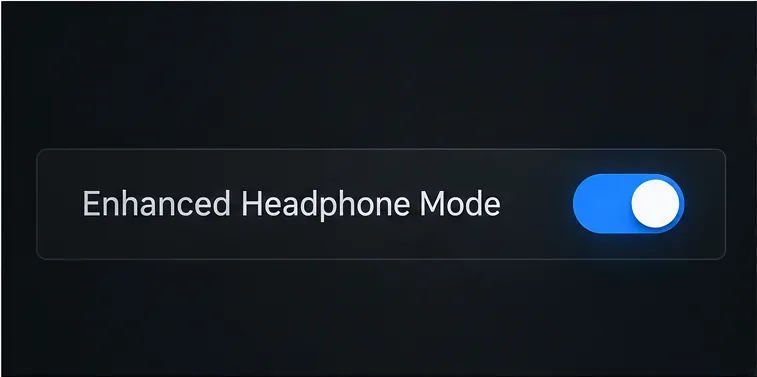
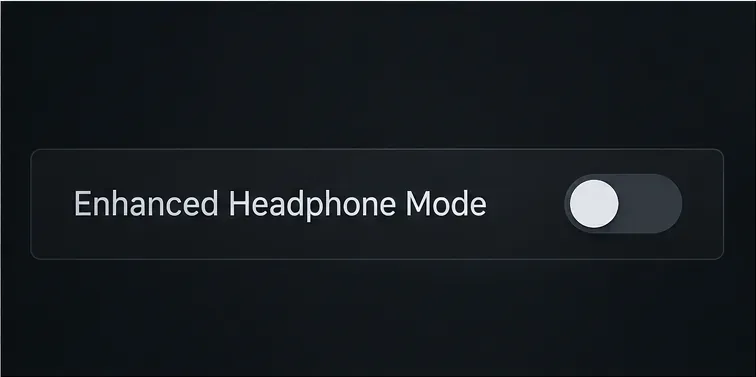
If the option is missing, do not assume your installation is broken. The interface can differ by title build or platform, and the official material cited here documents its introduction rather than guaranteeing that every later menu presents it in the same place. Use the headphone or stereo output available in your current settings and continue with the other steps.
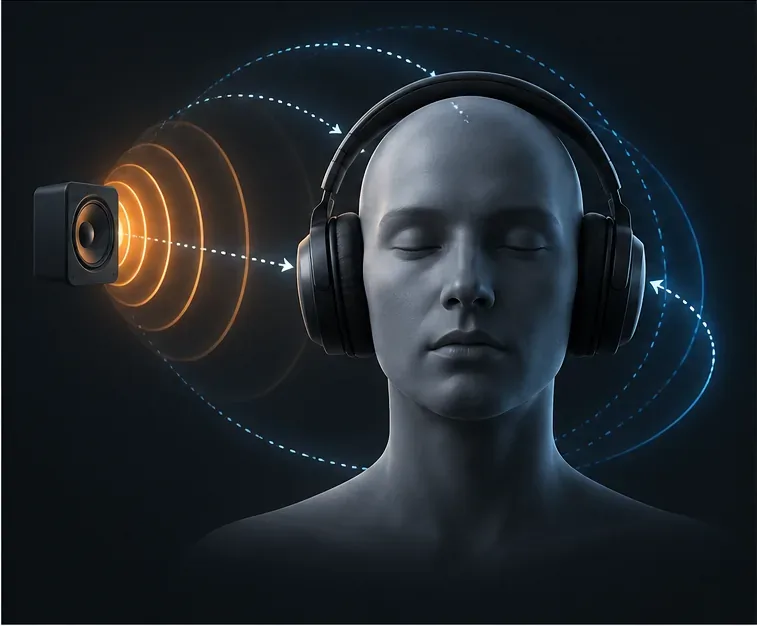
Spatial audio means processing intended to place sounds around the listener. A headset app, console, operating system, and game may each offer their own version. For a fair test, use the game’s Enhanced Headphone Mode by itself first, with optional headset or system virtual-surround processing turned off. Then compare the external mode by itself if you prefer. This is a troubleshooting recommendation based on isolating processing layers; Activision does not publish a universal rule that one combination works best on every headset.
If enabling two modes makes the sound hollow, phasey, or difficult to place, switch one off and compare again. Those effects are clues that the combined processing may not suit your setup, not proof that either feature is defective.
Start with your headset’s EQ flat or at its default. If explosions and engine rumble dominate, try a small reduction in bass. Leave the midrange close to neutral. If footsteps still sound dull, add only a slight lift in the upper mids or treble, if your EQ exposes those controls. Stop as soon as footsteps are clearer; excessive treble can make gunfire, voice chat, and other sharp sounds tiring or unpleasant.
This is a general listening starting point, not an Activision preset. Headphones differ, and footsteps do not occupy one magic frequency band. Avoid copying exact slider numbers from someone using a different headset. Change one band at a time and return it to flat if the change makes direction or voice clarity worse.

Keep the master level comfortable and make sure voice chat does not mask game effects. If your current menu exposes separate music, dialogue, voice chat, or effects controls, lower only the sounds that compete with footsteps. Start with modest changes and preserve enough voice volume to communicate with teammates. Warzone menu labels and available sliders can change, so use the controls actually shown in your version rather than searching for a fixed list of names.
Do a short comparison before settling on a profile. Use a repeatable audio source or a low-pressure match situation: stand still, listen to movement from the left and right, and check whether you can tell direction and whether the sound is comfortable. Avoid judging a setting from one chaotic fight, because gunfire, explosions, voice chat, distance, walls, elevation, and surface material all affect what reaches you.
Change one item per comparison and keep a brief note of what changed. If you cannot reliably tell the difference, use the more comfortable setting. There is no need to keep adding processing just because a preset is marketed for competitive play.
Activision’s Season 01 Warzone notes document the introduction of Enhanced Headphone Mode with a free Universal HRTF profile. The official audio overview explains HRTF and spatial sound concepts. In the Season 03 audio notes, Activision described Warzone-specific footstep tuning and changes to occlusion and reverberation. These sources support trying the documented spatial option and recognizing that footsteps respond to the game environment. They do not name a universally best EQ curve or guarantee that a particular filter will make every footstep audible.
For most beginners, the practical starting point is simple: route sound to your headset, compare the game’s Enhanced Headphone Mode if present, avoid stacking spatial effects at first, keep EQ close to flat, and make only small tonal changes after listening. That gives you a setup you can understand and adjust without mistaking a personal preference for a universal Warzone setting.
Enable PUBG’s network statistics HUD to monitor ping and packet loss in a match. See where to find it, what the numbers mean, and what they cannot diagnose.
Learn how to import VALORANT crosshair codes, compare presets with manual settings and spectator copy, and fix common import issues.
Choose Dota 2 minimap size, hero icons, team colors, and background settings by readability, fewer misclicks, and clear results on your own display.
Fix Fortnite texture pop-in on PC with official steps for GPU drivers, file verification, DirectX 12, high-resolution textures, VRAM, SSDs, and stutter.
Learn what Heroes of the Storm minimap size and position options are verified, improve readability, and choose camera-click controls that suit you.
Set Super Smash Bros. Ultimate Quickplay to prefer hazards-off stages. Follow the Preferred Rules menu steps and learn why matchmaking may not always honor them.
Enable Server Latency and Packet Loss in Warzone to monitor connection quality, read the overlay, and use recurring spikes to guide troubleshooting.
Learn how to carry from mid lane in League of Legends by setting up waves, choosing safe roam windows, reading side lanes, and converting pressure into objectives.
Fix Minecraft Evoker spell problems with a safe vanilla test, version checks, log review, and a step-by-step way to isolate mod or datapack conflicts.
Fix PUBG stuck on Initializing on Steam with a focused checklist for PC service notices, launch options, game files, downloads, and connection issues.








